



Why build Brevo forms in ConvertFlow
Brevo's built-in forms handle a straightforward opt-in: collect an email, add it to a list. That works until you want the form to qualify someone before it asks for contact details, or route different answers into different lists.
ConvertFlow forms sync into the same Brevo contact record, but add multi-step funnels, conditional paths, contact attributes written on every answer, Shopify product recommendations with add-to-cart, and A/B testing with revenue attribution.
The contacts still live in Brevo. ConvertFlow is the capture layer in front of it.
1. Connect Brevo to ConvertFlow
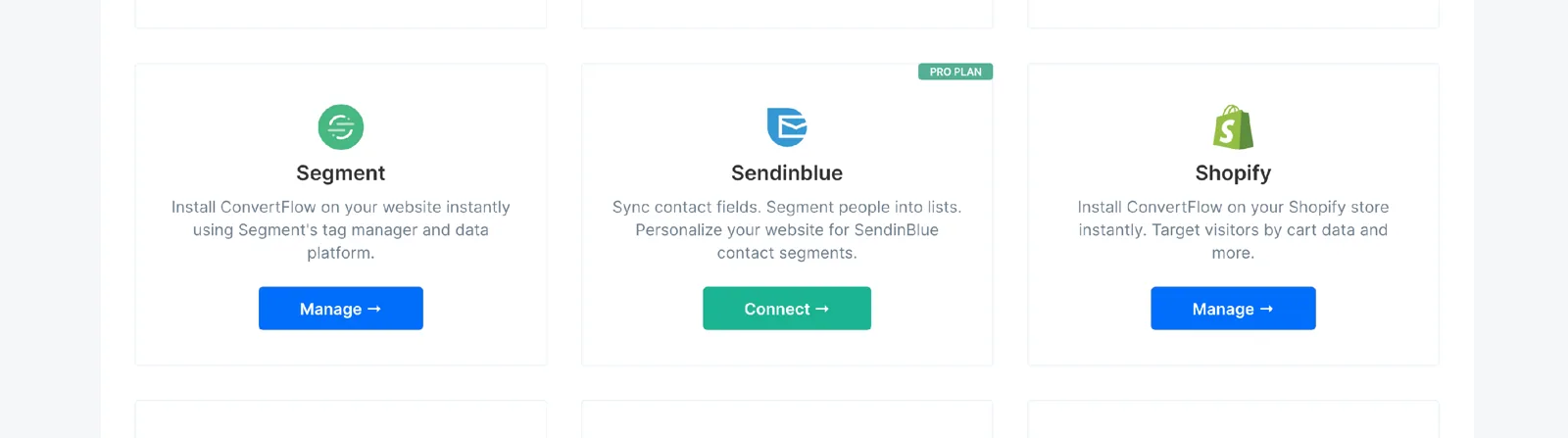
Head to your ConvertFlow website's Integrations area and click to connect with Brevo.
In Brevo, go to Account Name → SMTP & API → API Keys to find your Brevo API v3 key.
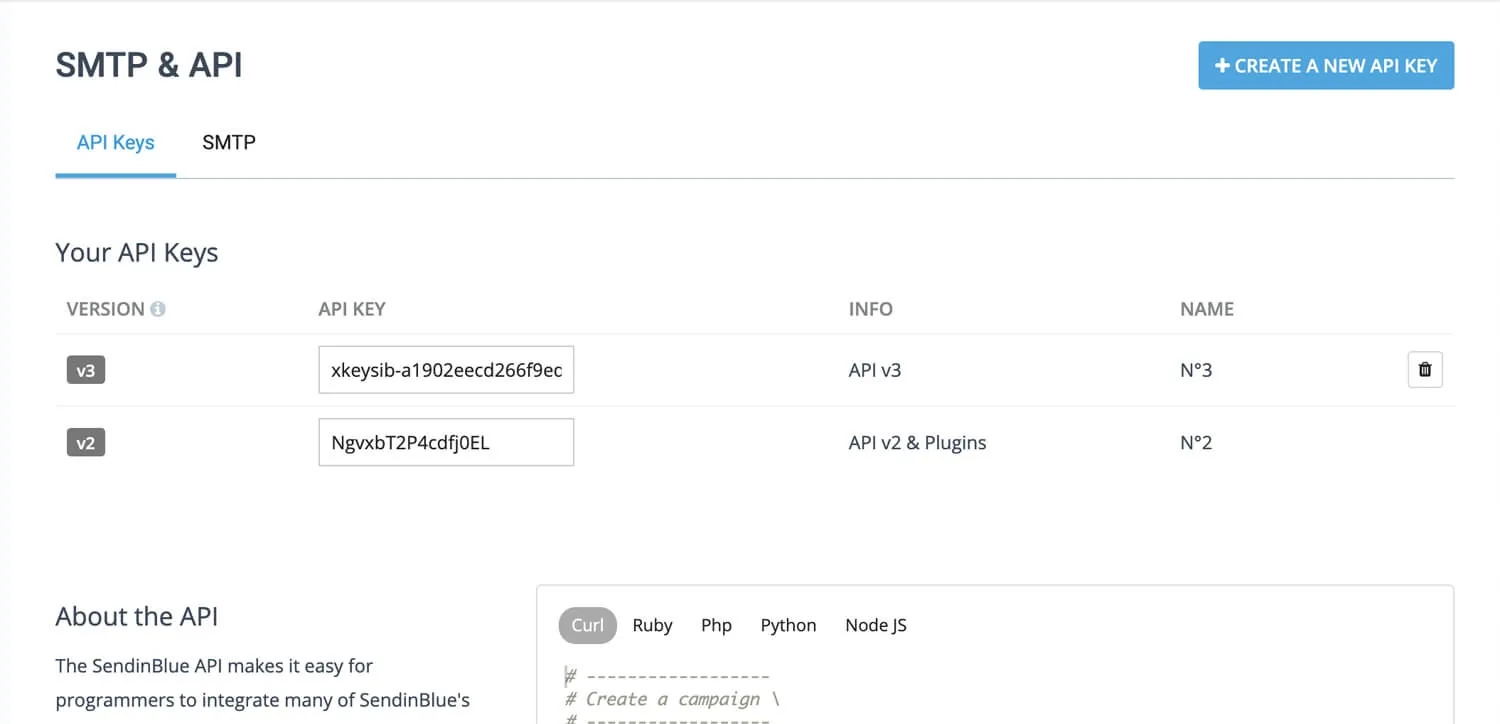
It has to be the v3 key. Brevo keeps older SMTP credentials on the same screen, and picking the wrong one is the most common reason a connection fails at this step.
Copy and paste it into ConvertFlow's integration field.
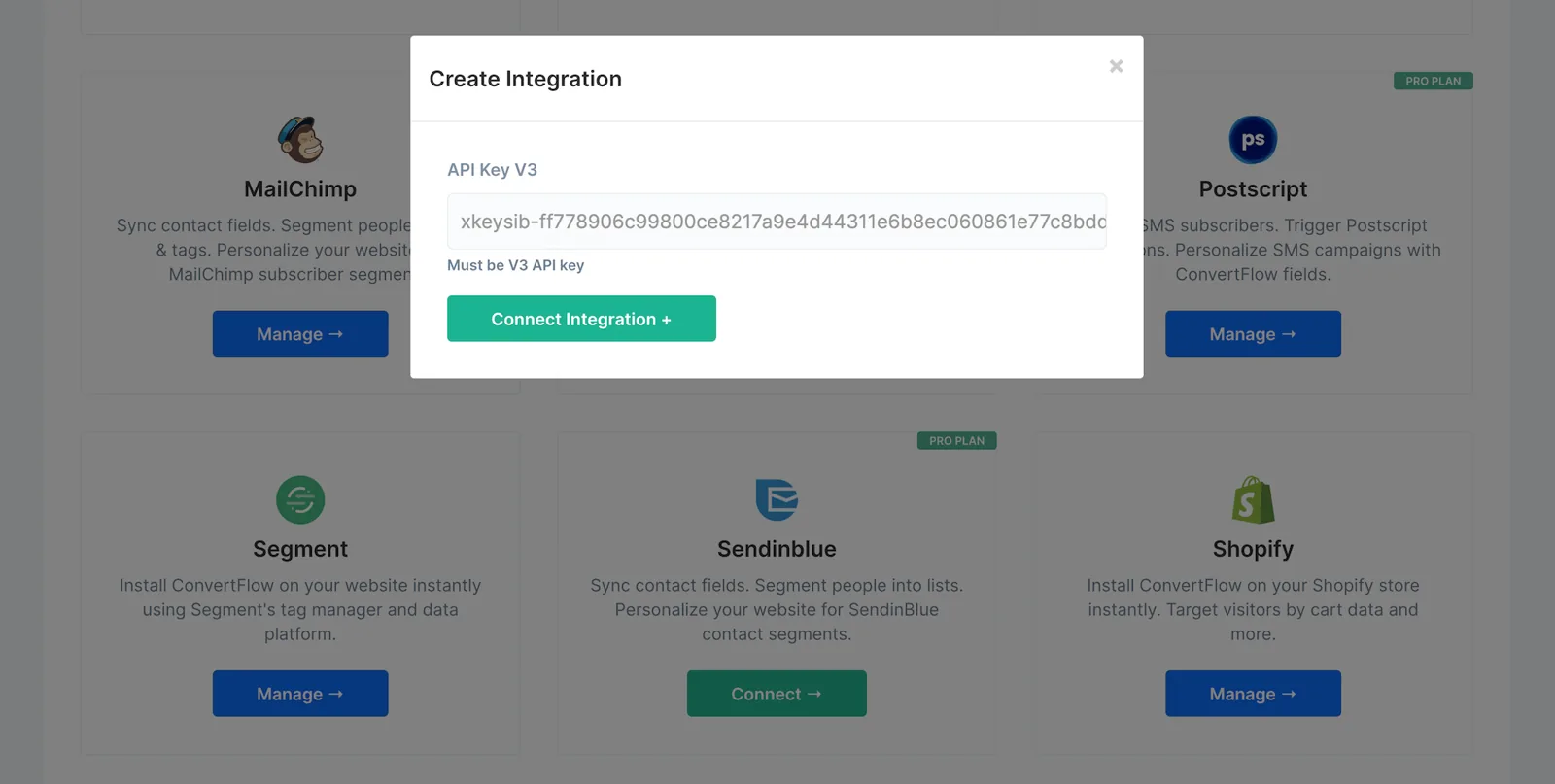
Brevo and ConvertFlow are now connected. ConvertFlow starts pulling in your lists, so you can trigger automations and segment contacts as visitors submit your forms, landing pages and quizzes.
2. Add a form to your campaign
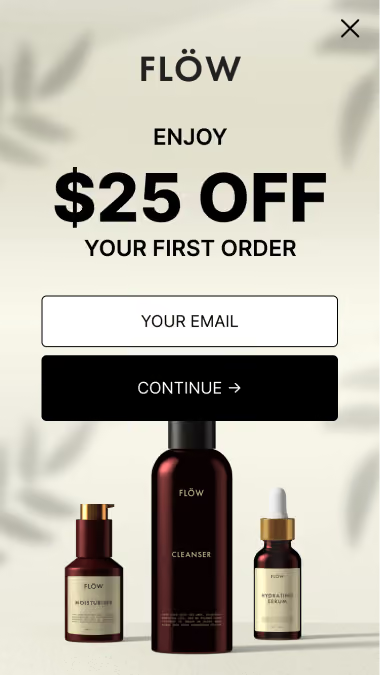
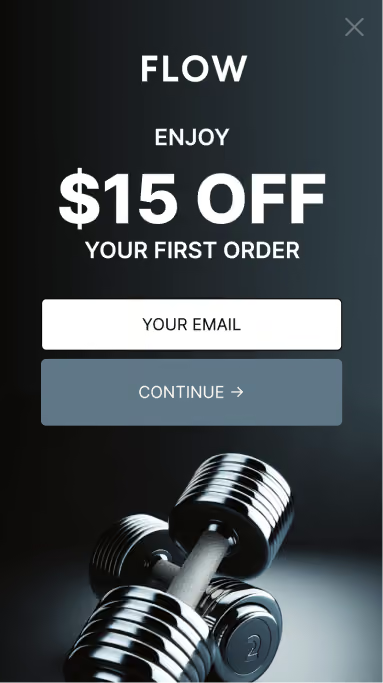
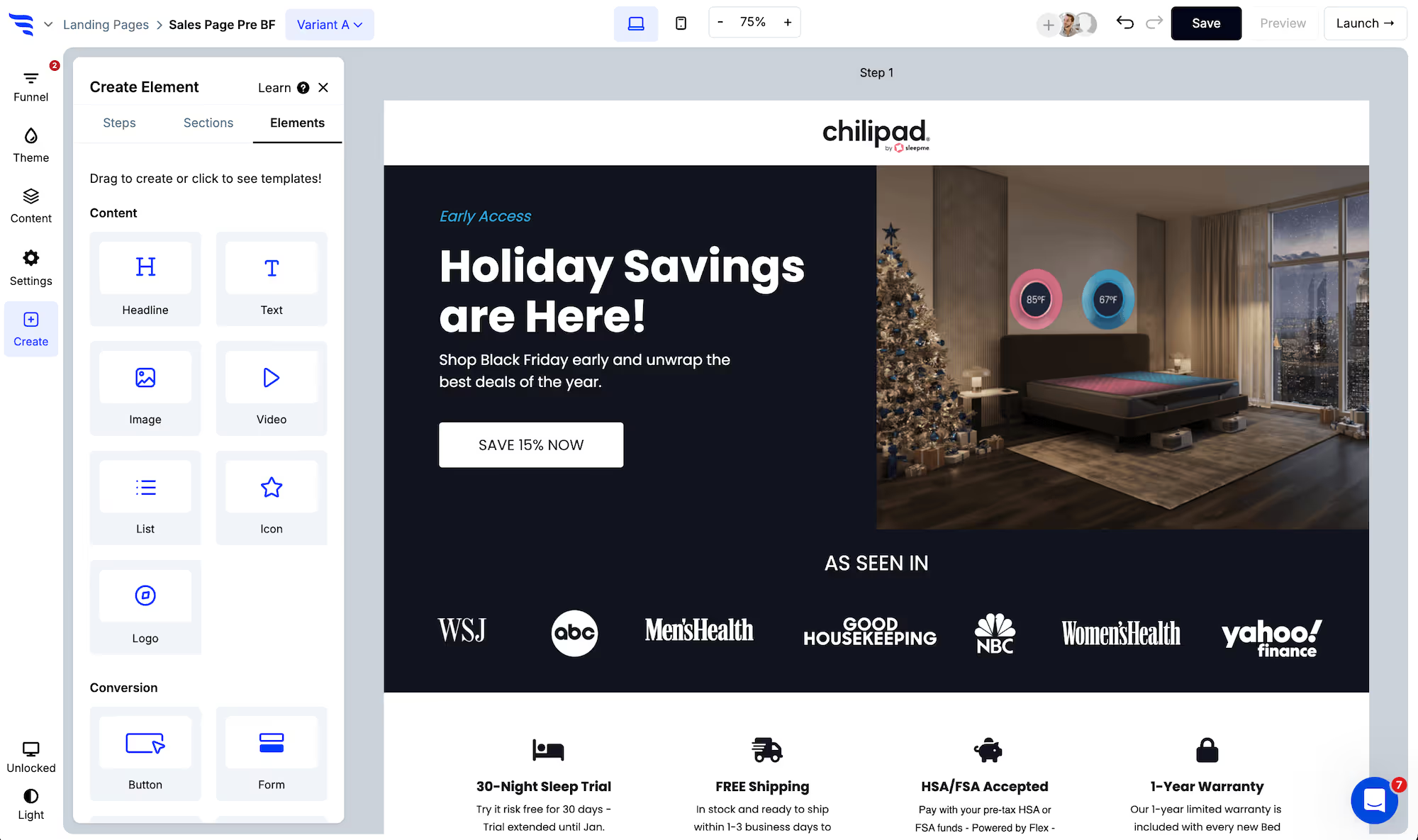
Add your Brevo form to a ConvertFlow landing page, popup or embed. Click to add an element and choose the "form" element type — start from a form template or build from scratch.
.avif)
3. Toggle the contact fields you want
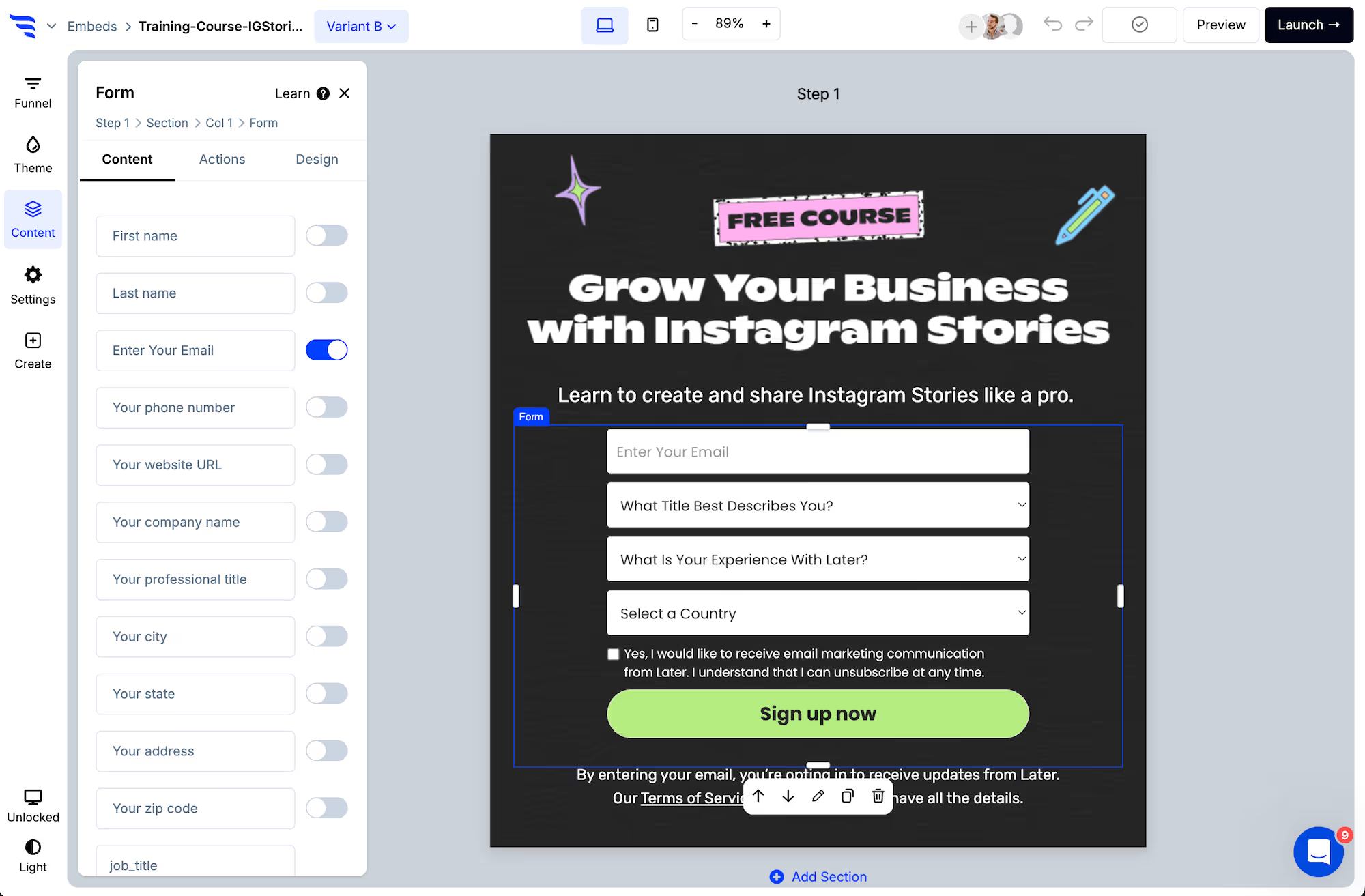
Select the form element and switch on the contact fields to request. Email address and first name map to Brevo automatically.
.png)
Each field can be edited from the builder panel — placeholder text, label, required state and more.
.avif)
4. Verify emails and phone numbers
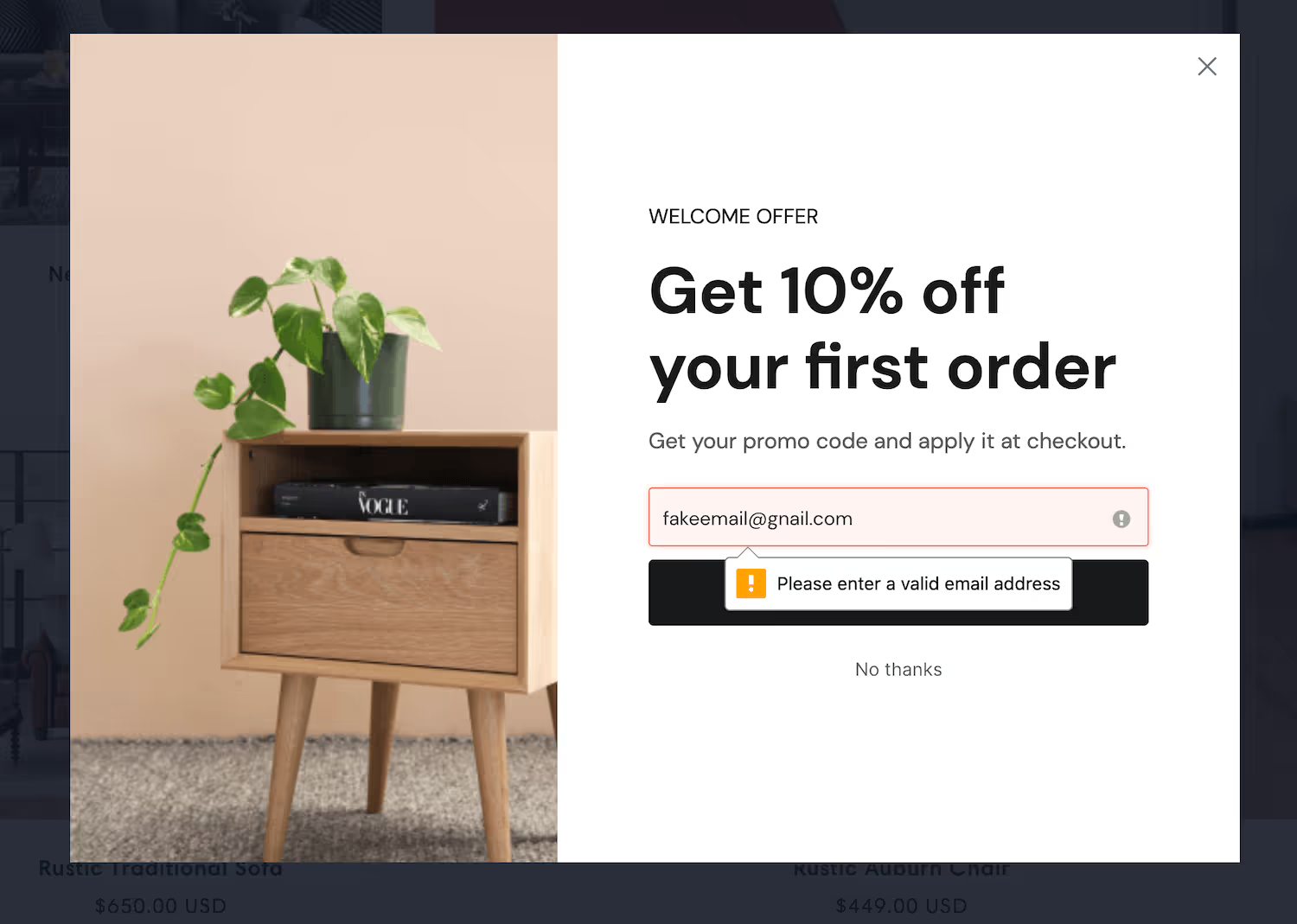
ConvertFlow can check that an entered address exists with its provider before the contact reaches Brevo, which protects your sender reputation and keeps invalid addresses out of your contact count. Phone verification formats numbers to the international E.164 standard.
5. Add consent checkboxes
Scroll below the preset contact fields to find compliance checkboxes:
- Privacy consent: link to your privacy policy and terms of service alongside a required checkbox.
- Marketing consent: if your form gates content but also opts the contact into ongoing marketing, collect consent for it.
- SMS consent: require consent to SMS marketing with the required disclosures.
Brevo is a French company operating under GDPR, and many of its users are in the EU — so collecting and storing explicit consent alongside the contact is worth doing properly rather than as an afterthought.
6. Add custom fields and map them to Brevo
By clicking to add a field at the end of the fields list, you can add as many custom fields as you'd like.
.avif)
When naming the field, select from "Brevo fields" — a dropdown of the contact attributes that already exist in your account. ConvertFlow sends the value collected by this form into that attribute.
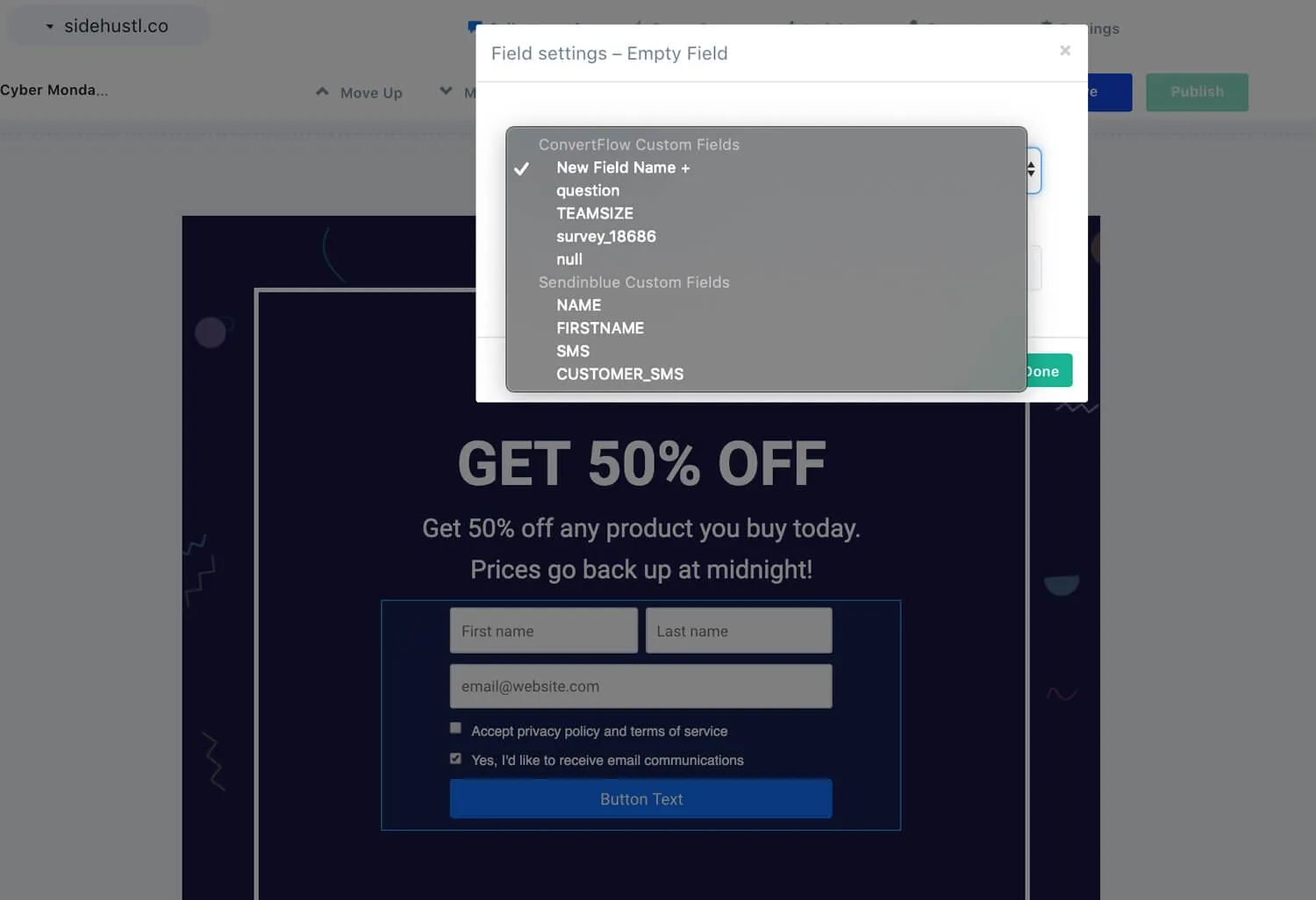
The attribute needs to exist in Brevo first. If you're building a form around a new one, create it there before you start and it'll be waiting in the dropdown.
Choose the field type — text, dropdown, radio selection, paragraph or hidden. Dropdown and radio options can carry score values for funnel logic.
7. Map survey and quiz answers to Brevo
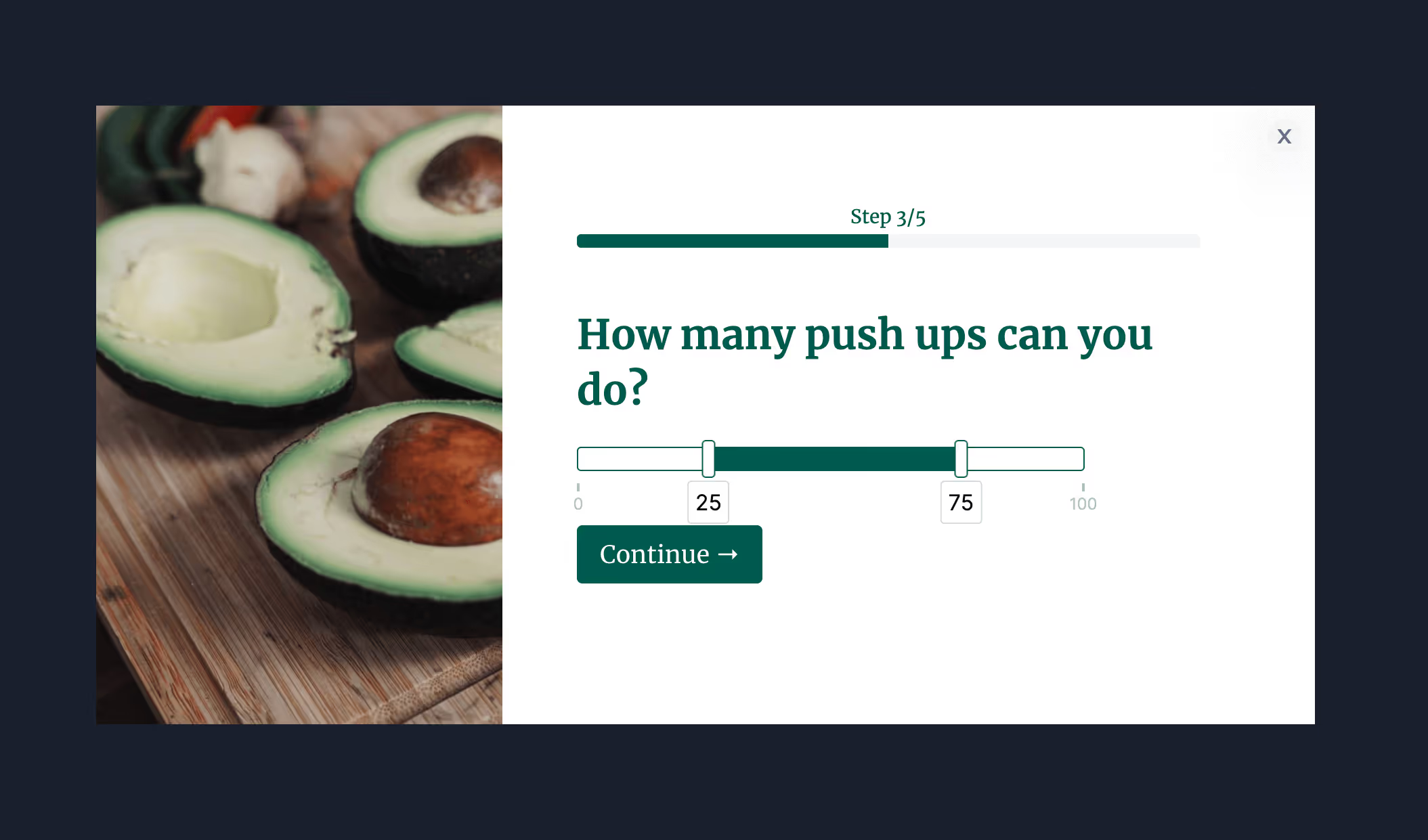
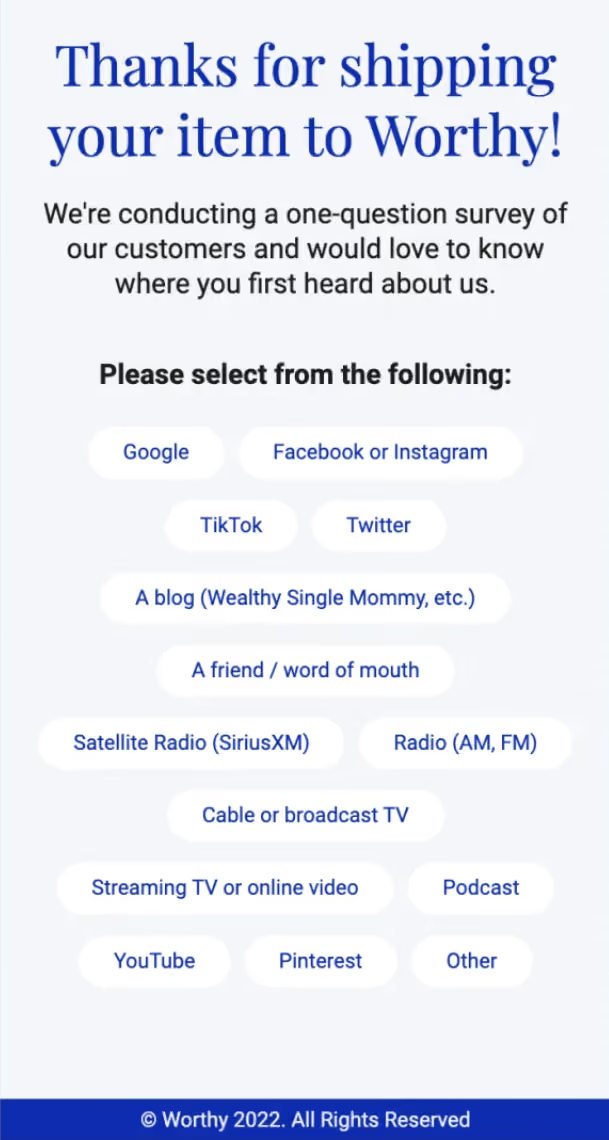
Survey and quiz elements have a "Map to custom field" dropdown, where you select from your Brevo contact attributes. Each answer is written to the contact record — which is what makes answer-based segmentation possible.
8. Map ConvertFlow's preset fields to Brevo
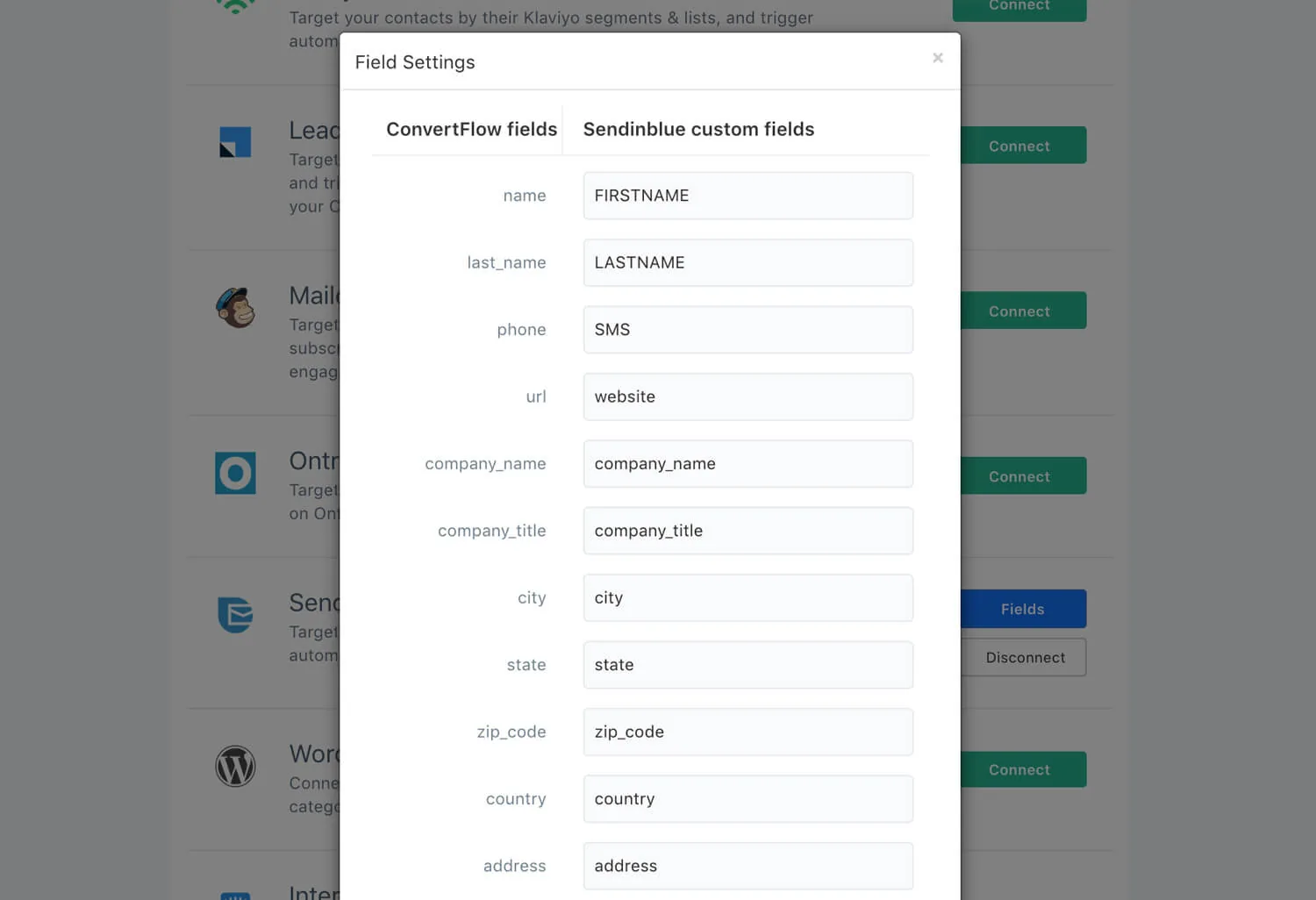
With Brevo connected, your Integrations page shows a Fields button. Use it to map ConvertFlow's preset contact fields to Brevo attributes by entering the attribute's data name. Email address and first name are already mapped.
9. Style the form to match your brand
In the Design tab, set spacing, field layout, width, fonts, button colour and roundness, field colour and shadows — so the form looks native to your site rather than an embedded Brevo form.
.avif)
10. Configure what happens on submit
In the Actions tab, choose what follows submission — redirect to a URL, jump to another funnel step, display a thank-you message, or open a popup.
.avif)
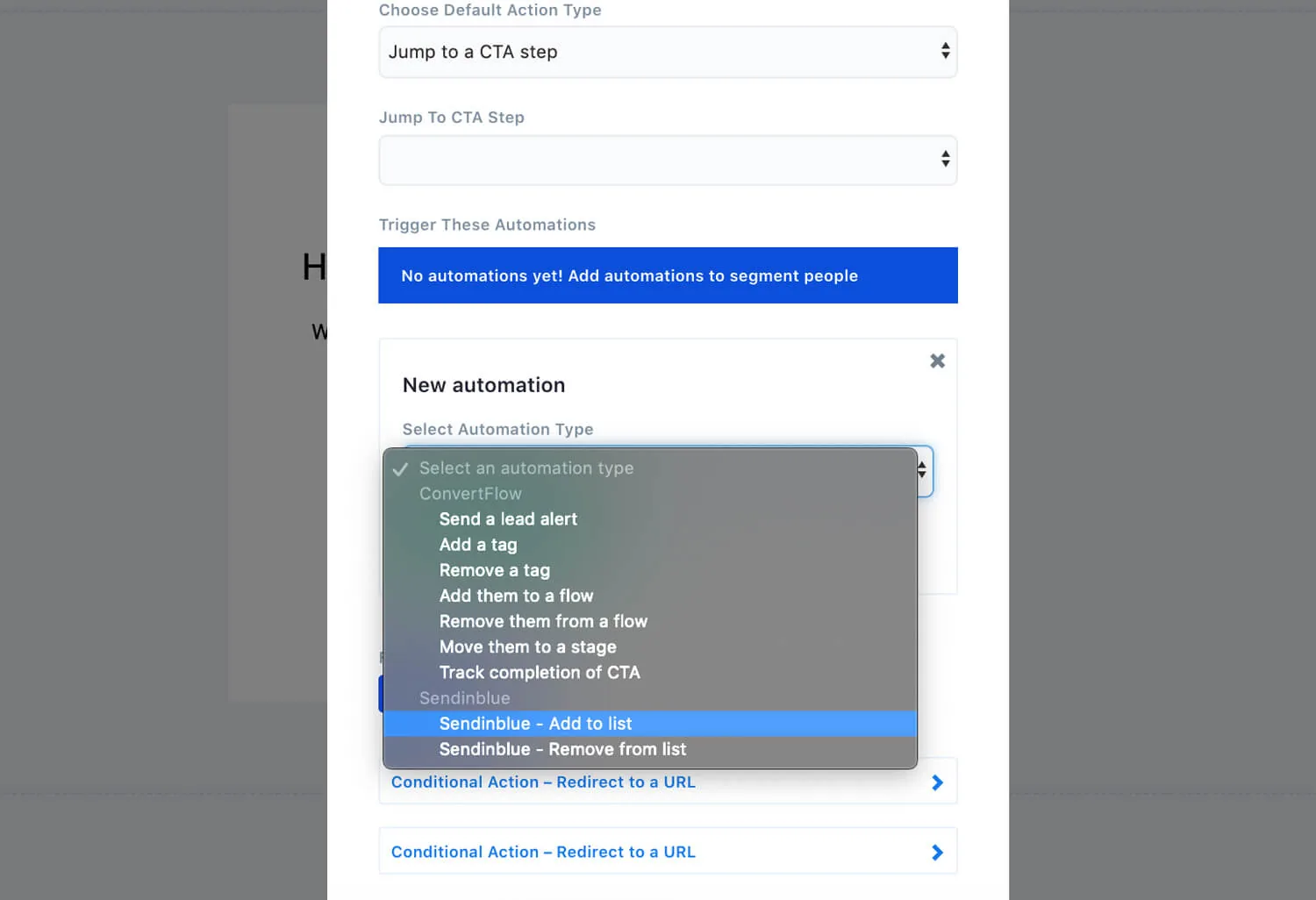
Alongside the default action, add automations that fire on submit — including which Brevo list the contact is added to, so segmentation happens at the moment of capture rather than in a later sync.
Conditional actions let you route by field value, so a high-intent answer joins a different list than a browser.
.avif)
11. Report on submissions
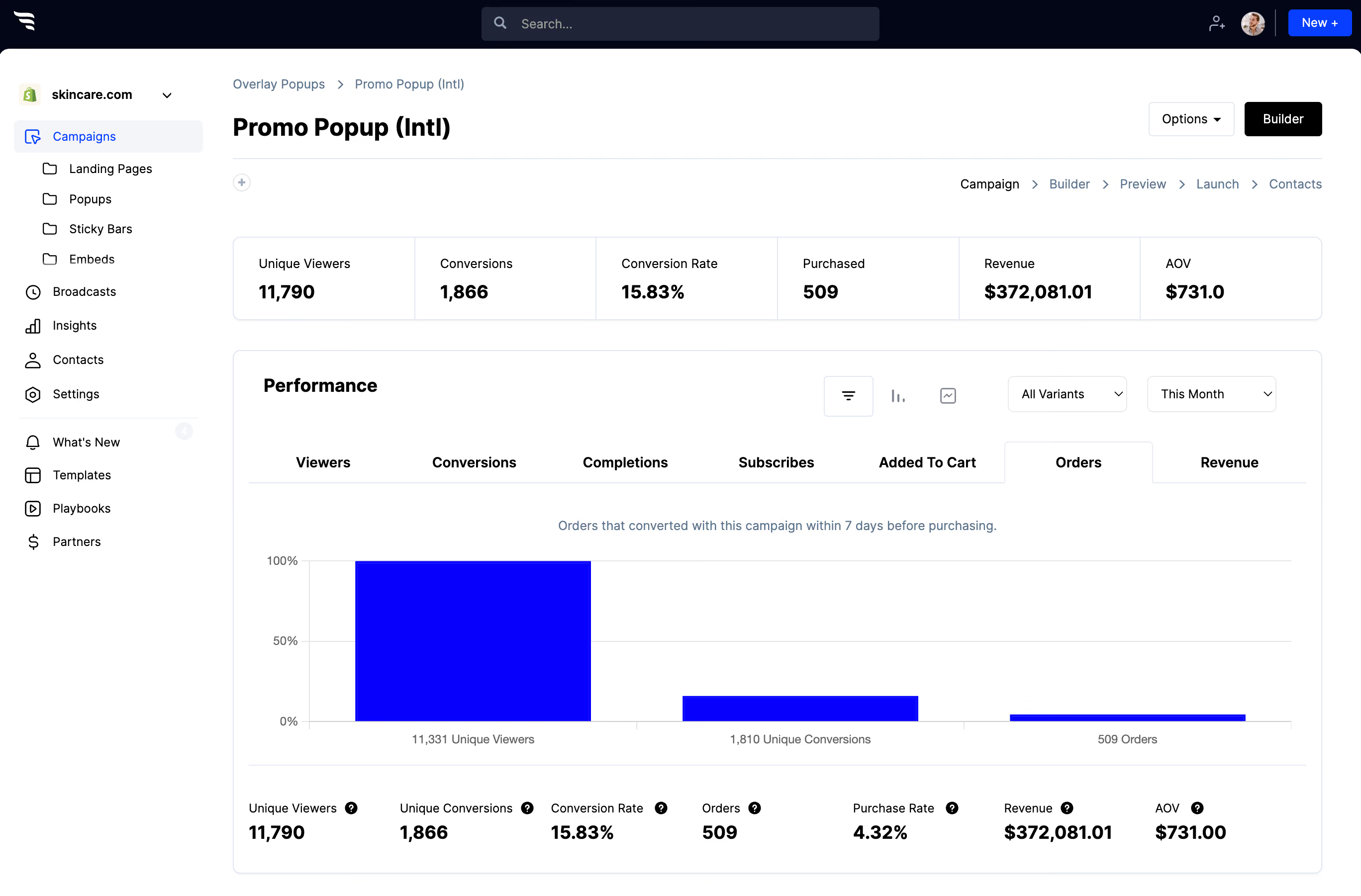
The funnel breakdown report shows how many people saw, converted and completed the form, where they dropped off, and which answers they selected — with orders, revenue and AOV attributed to each answer.
.avif)
12. Segment and personalize for Brevo contacts
Once answers are landing on Brevo contact records, build segments from those attribute values and target your campaigns and automations against them.
ConvertFlow can also read your Brevo contact segments and personalize your website for them — showing an existing contact something other than the same signup form.
13. Publish
- On Shopify: publish to a Shopify page in one click.
- On WordPress: add ConvertFlow's snippet once, then target the form to specific posts, pages or categories.
- Anywhere else: Webflow, Squarespace, Wix or any CMS take the same single embed snippet.



%20(1).avif)





.svg)
