



Why build Cordial forms in ConvertFlow
Cordial is built for enterprise brands running cross-channel campaigns — email, SMS and push against a unified contact record. Its strength is what happens after the contact exists.
Getting the contact in the first place, with the right data attached, usually means a developer and a ticket. ConvertFlow forms hit the same Cordial contact API from a visual builder: create and update contacts, write custom fields, set subscription status, track events and trigger automations — with multi-step logic and A/B testing on top.
1. Connect Cordial to ConvertFlow
Head to your ConvertFlow website's Integrations area and click to connect with Cordial.
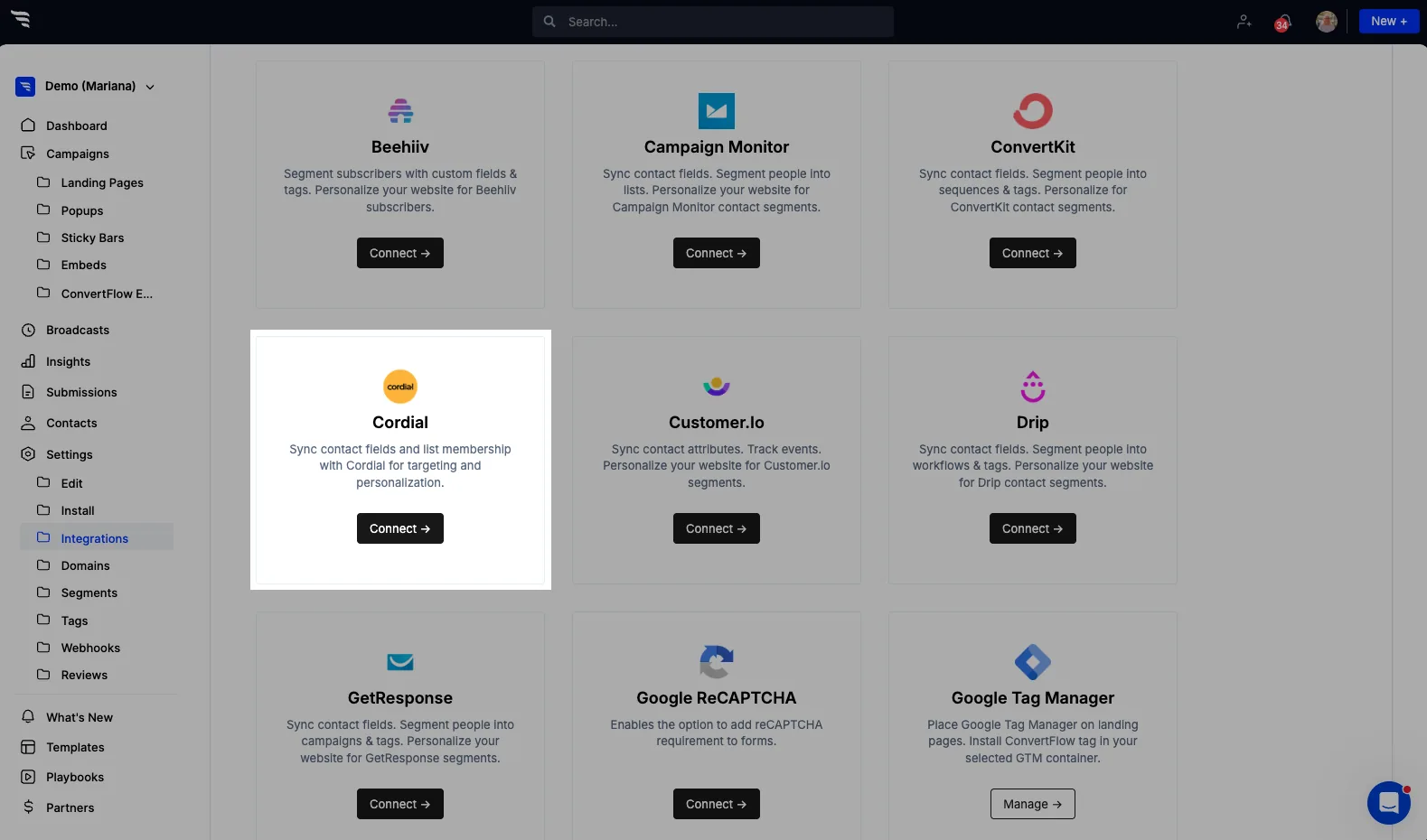
Add your Cordial account's API key and API Base URL.

The base URL is the part worth pausing on. Cordial is an enterprise platform and accounts sit on different instances, so the API key alone doesn't tell ConvertFlow where to send requests. A valid key pointed at the wrong base URL fails in a way the error message won't explain — so if the connection doesn't take, check that field before you regenerate anything.
Once connected, ConvertFlow starts pulling in your lists and segments, so you can trigger automations and segment contacts as visitors submit your forms, landing pages and quizzes.
2. Install Cordial's tracking script alongside ConvertFlow
This step is easy to skip and worth doing properly.
For Cordial's site tracking and JavaScript events to work with ConvertFlow's forms, Cordial's tracking script needs to be on the same pages as ConvertFlow.
With it installed, ConvertFlow automatically uses Cordial's tracking API to identify contacts who submit their email through a ConvertFlow form. That means a visitor who fills in your form is stitched to their browsing session in Cordial — you keep the site tracking behaviour you'd have got from Cordial's own forms, while building the form in ConvertFlow.
Without the script, contacts still sync. They just arrive without that session context, which is a real loss on a platform whose value is the unified contact record.
3. Add a form to your campaign
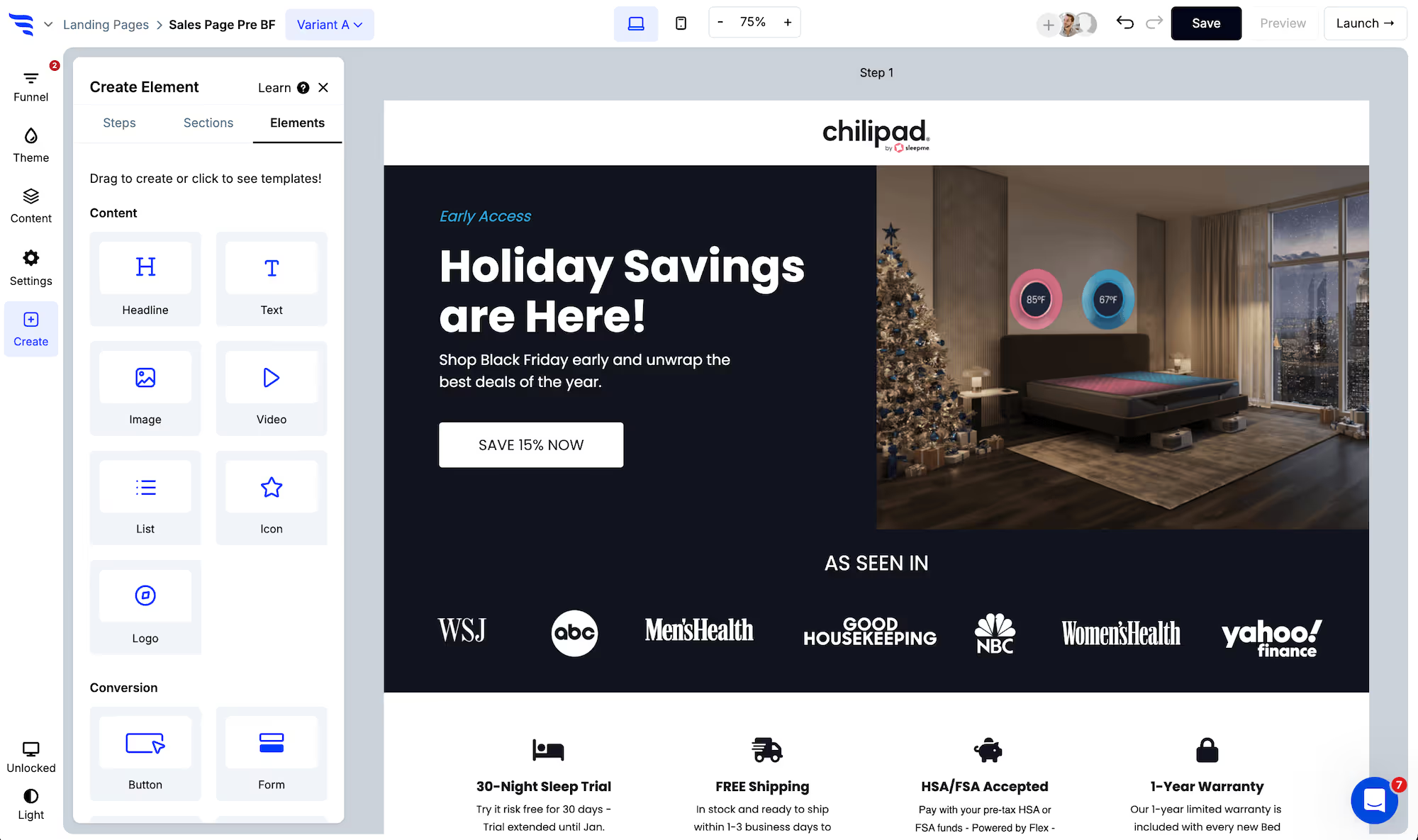
Add your Cordial form to a ConvertFlow landing page, popup or embed. Click to add an element and choose the "form" element type — start from a form template or build from scratch.
.avif)
4. Toggle the contact fields you want
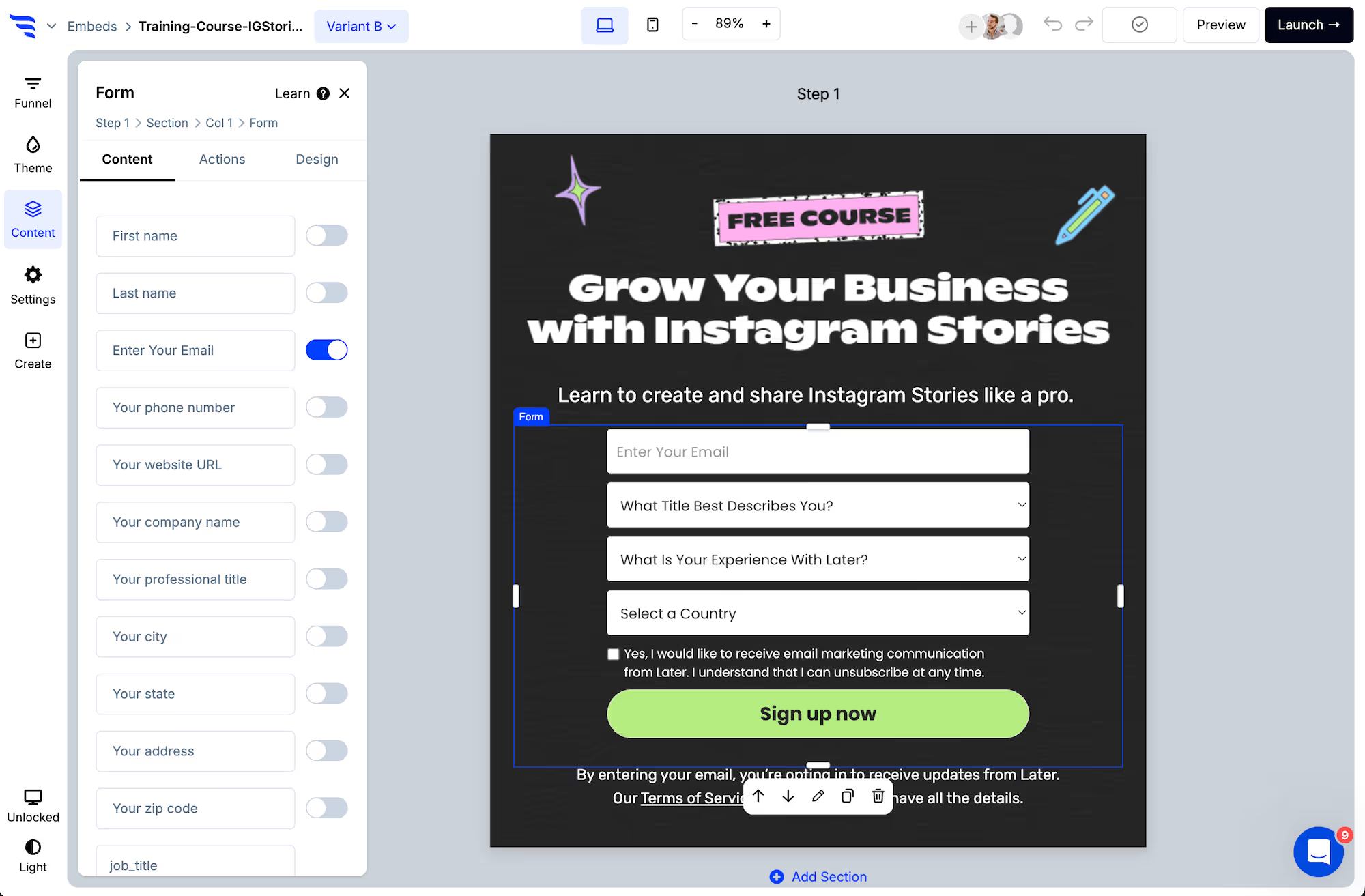
Select the form element and switch on the contact fields to request.
.png)
Each field can be edited from the builder panel — placeholder text, label, required state and more.
.avif)
5. Verify emails and phone numbers
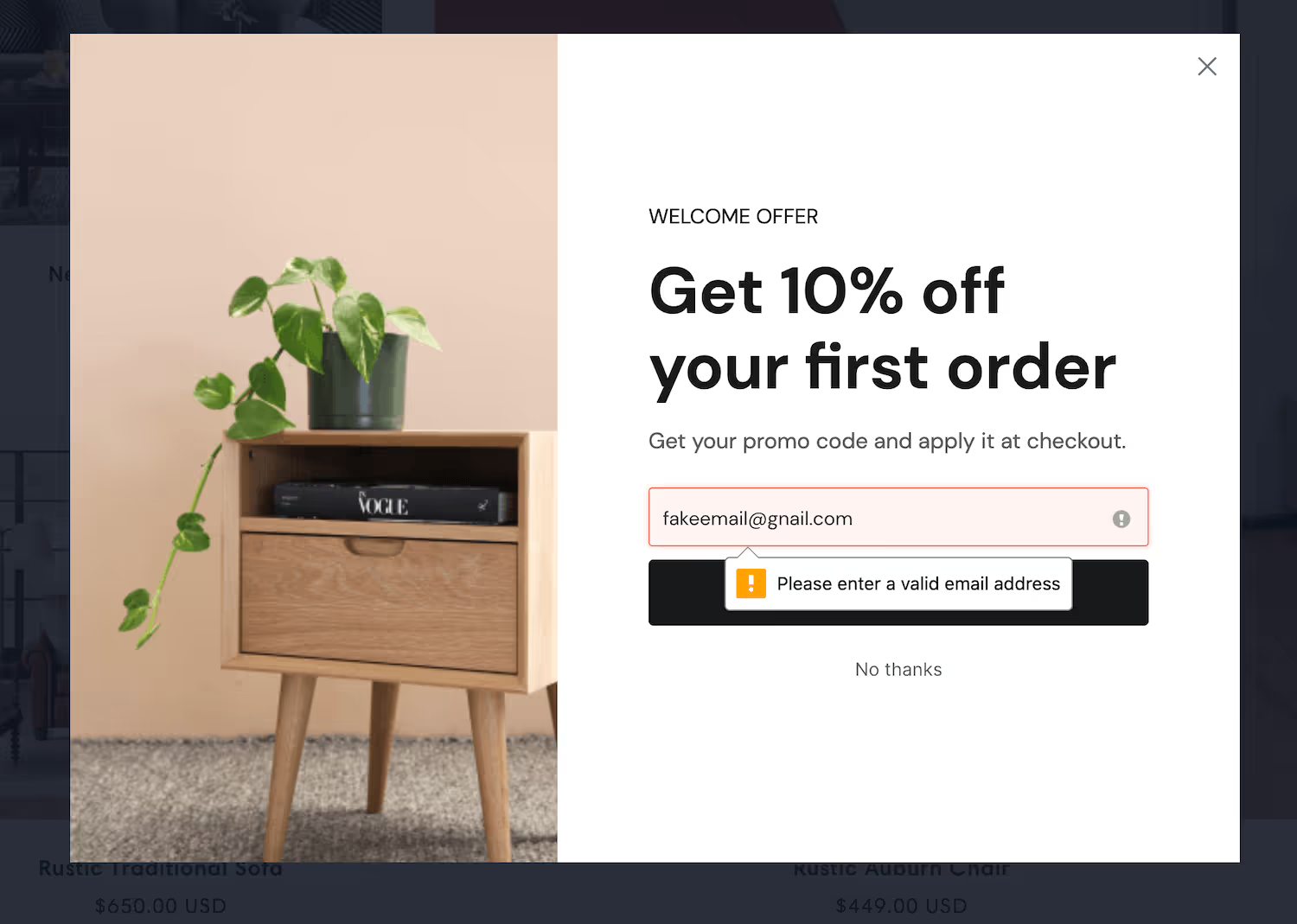
ConvertFlow can check that an entered address exists with its provider before the contact reaches Cordial. On a cross-channel platform this matters twice over — a bad address damages deliverability, and a badly formatted phone number produces a contact who can't be reached on SMS or push either.
Phone verification formats numbers to the international E.164 standard.
6. Add consent checkboxes
Scroll below the preset contact fields to find compliance checkboxes:
- Privacy consent: link to your privacy policy and terms of service alongside a required checkbox.
- Marketing consent: if your form gates content but also opts the contact into ongoing marketing, collect consent for it.
- SMS consent: require consent to SMS marketing with the required disclosures — relevant here, since Cordial sends SMS as well as email.
Whichever you use, pair it with the right automation in step 9. Consent collected on the form and subscription status set in Cordial should agree with each other.
7. Add custom fields
By clicking to add a field at the end of the fields list, you can add as many custom fields as you'd like, mapping each to a Cordial custom field.
.avif)
Choose the field type — text, dropdown, radio selection, paragraph or hidden. Dropdown and radio options can carry score values for funnel logic.
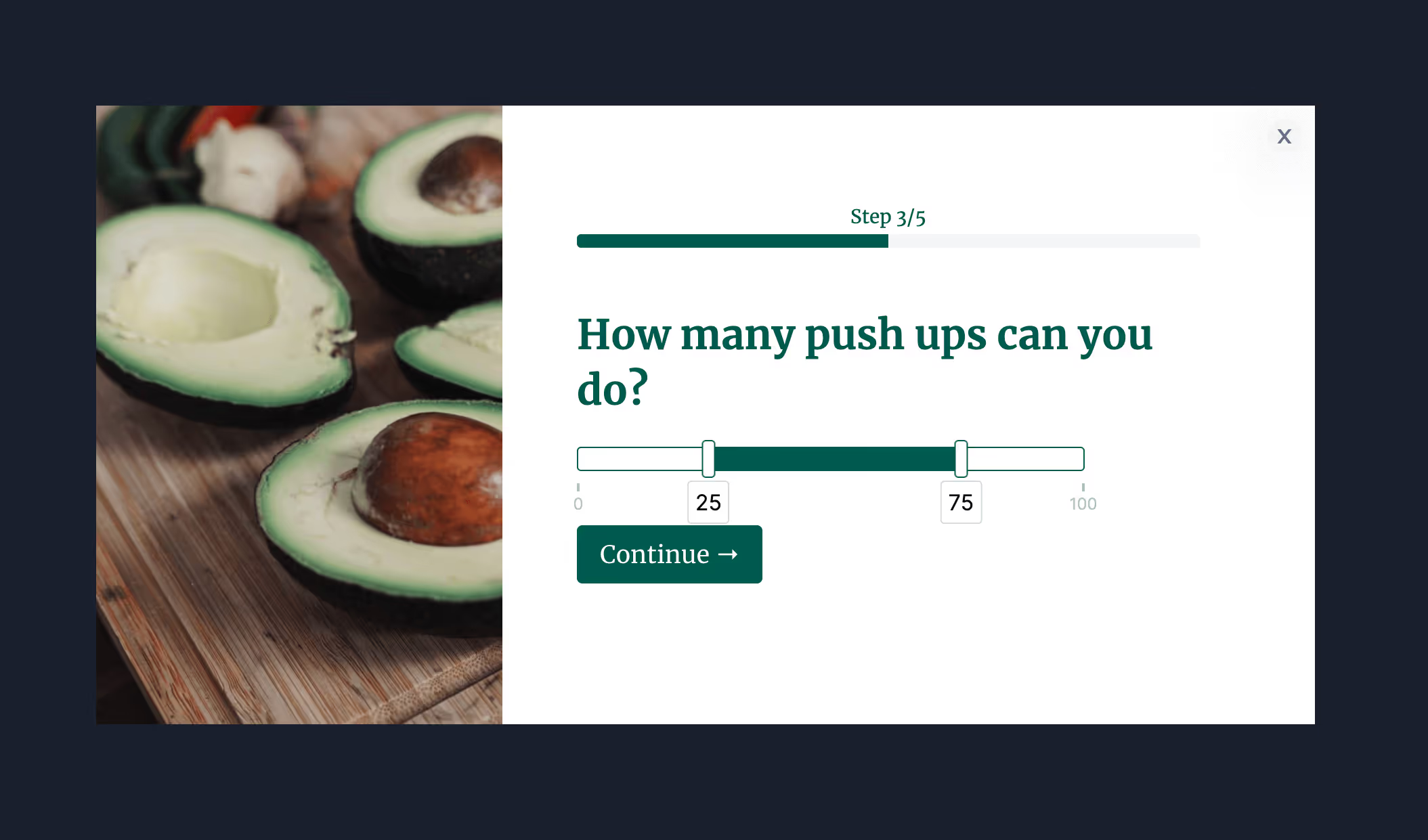
Survey and quiz answers, dropdowns, radios, paragraphs and hidden fields can all map to Cordial custom fields.
8. Style the form
In the Design tab, set spacing, field layout, width, fonts, button colour and roundness, field colour and shadows — so the form matches your brand rather than looking bolted on.
.avif)
9. Add Cordial automations on submit
Select the element and click the "Actions" tab in the builder panel.
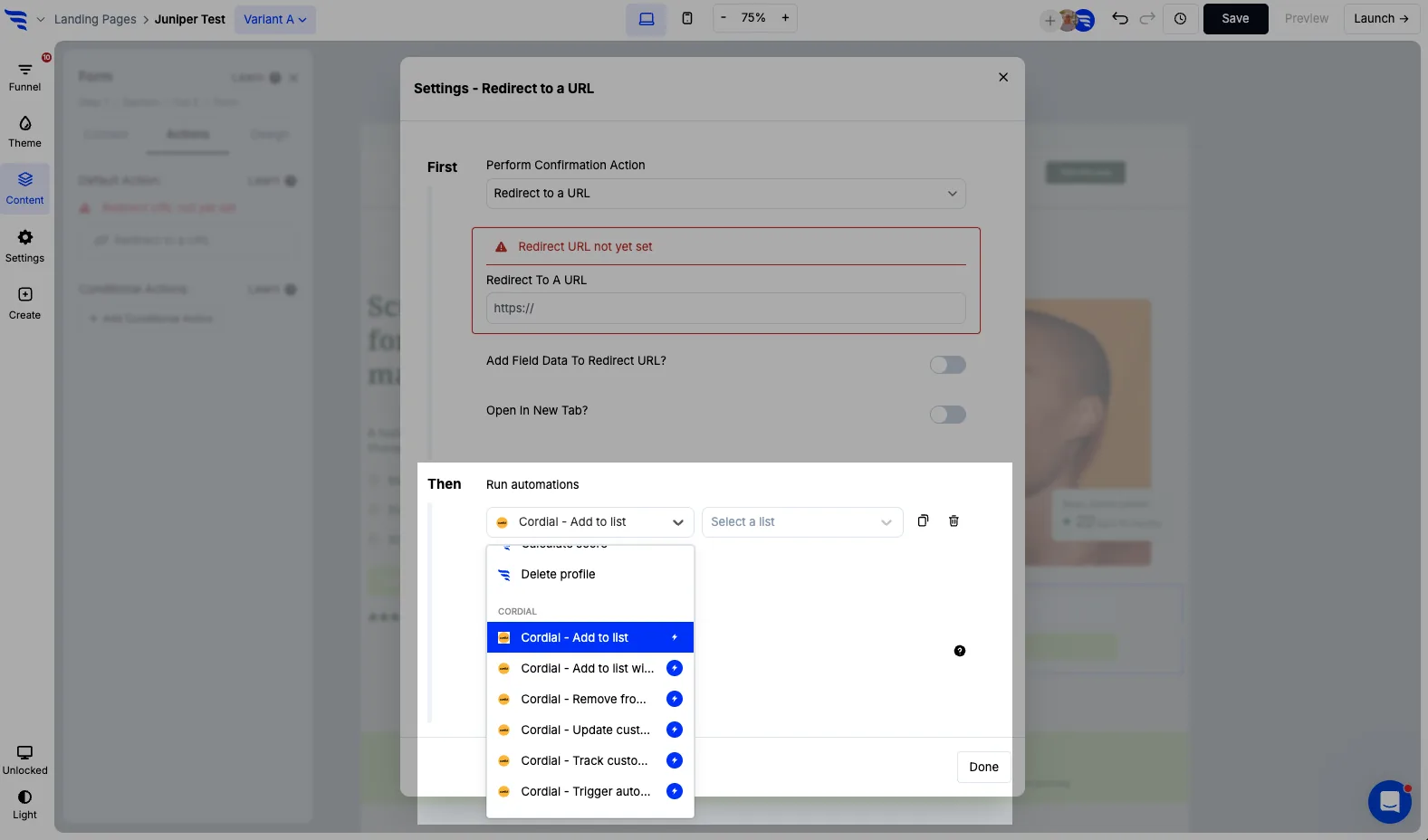
Click "Add automation" below your form's existing automations.

Six Cordial automation types are available:
- Add to list
- Add to list with subscribed
- Remove from list
- Update custom field
- Track custom event
- Trigger automation
Selecting one asks for whatever it needs — choosing "Add to list" asks you to pick the list. Then click "Save".
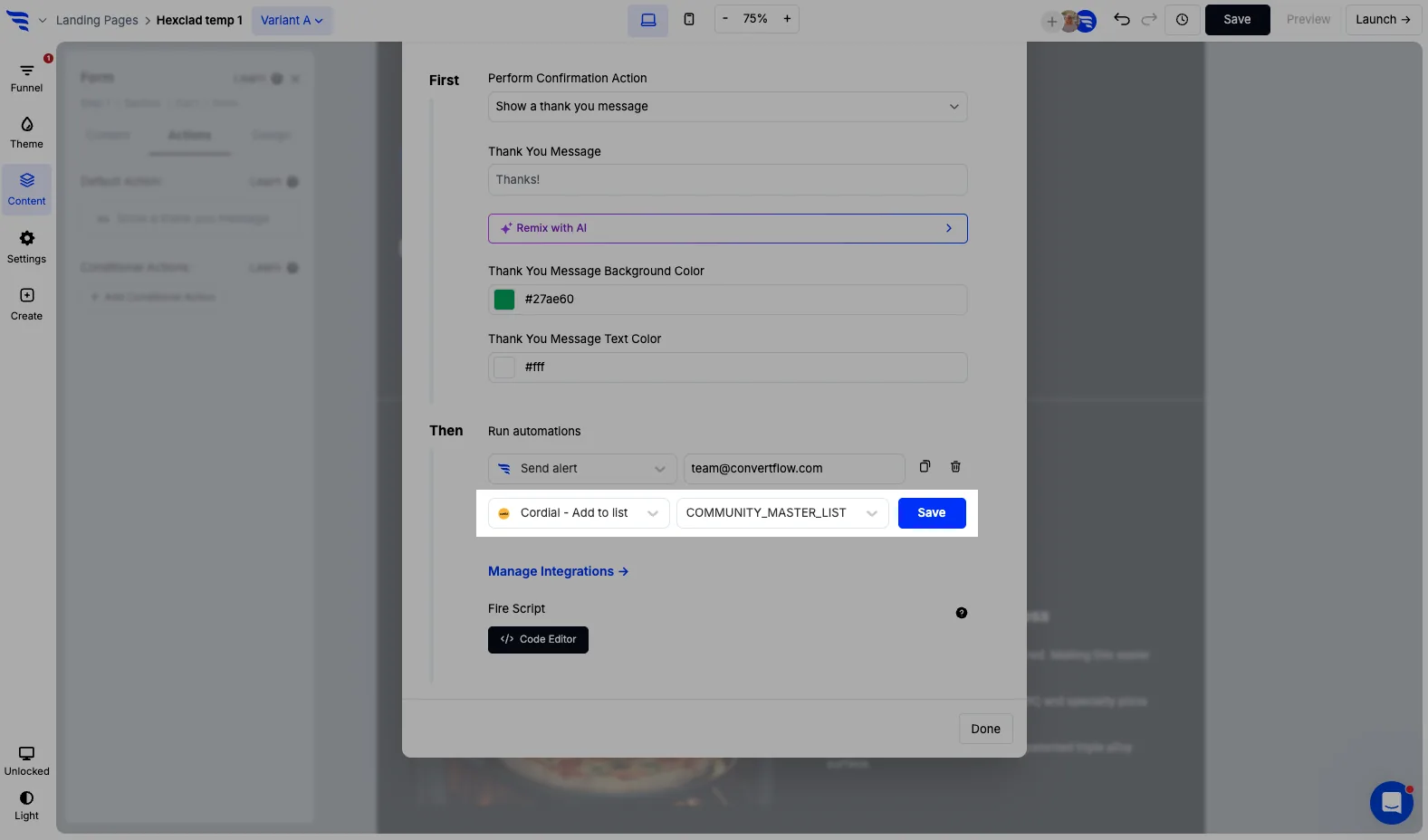
Add to list, with or without subscribed
These being separate automations is the detail worth understanding, because it maps onto a real distinction.
Add to list puts someone on a list. Add to list with subscribed puts them on the list and marks them subscribed.
Use the second where your form has collected explicit marketing consent. Use the first where it hasn't — a gated download, say, where the person wanted the asset and didn't ask for your newsletter. Both create the contact and both let you segment, but only one asserts they agreed to be marketed to.
Getting this wrong in the permissive direction is how brands end up sending to people who never opted in.
Trigger automation and track custom event
Both let a form submission start something in Cordial rather than only describing the contact. Tracking a custom event is usually the more flexible of the two, since Cordial-side logic can decide what happens next.
These automations can be triggered by form submissions, survey selections, button clicks, conditional funnel outcomes and page visits.
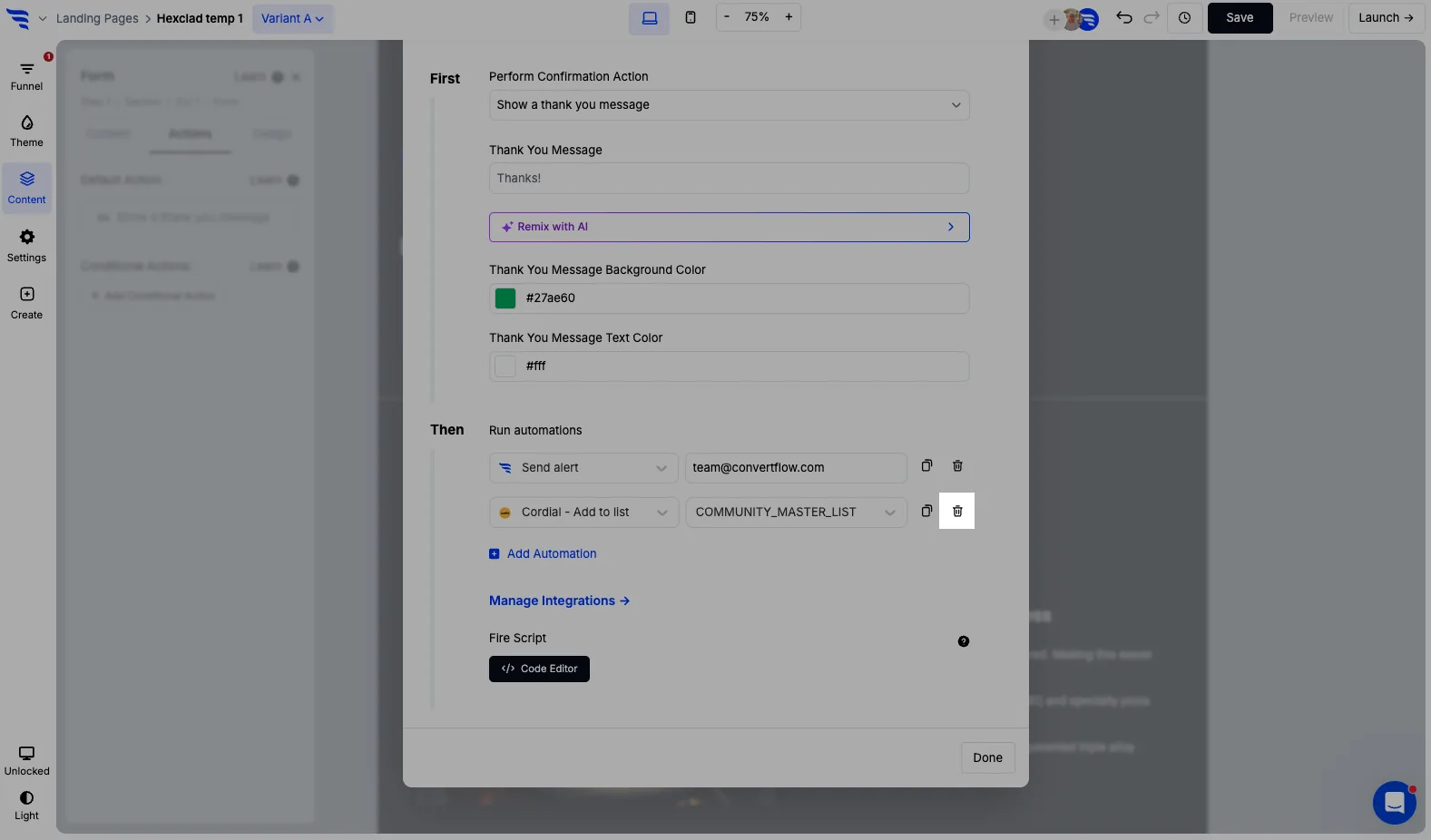
Your saved automations are listed together, and can be removed with the trash icon.
Conditional actions let you route by field value, so a high-intent answer joins a different list than a browser.
.avif)
10. Report on submissions
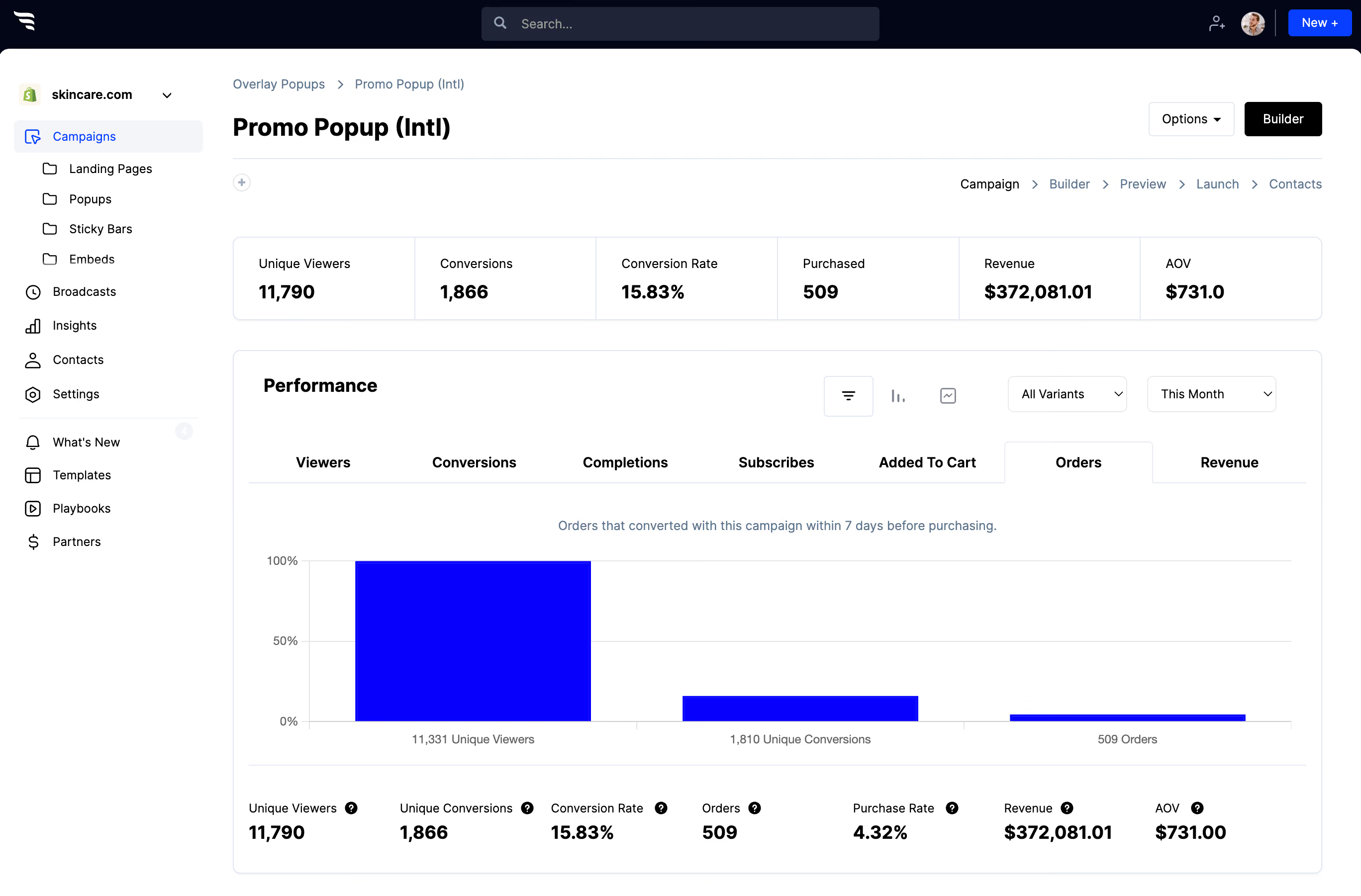
The funnel breakdown report shows how many people saw, converted and completed the form, where they dropped off, and which answers they selected — with orders, revenue and AOV attributed to each answer.
.avif)
11. Segment and personalize for Cordial contacts
Once fields and events are landing on Cordial contact records, build segments from them and target your cross-channel campaigns accordingly.
ConvertFlow can also read your Cordial segments and personalize your website for them — so a returning contact sees something other than the same capture form.
12. Publish
- On Shopify: publish to a Shopify page in one click.
- On WordPress: add ConvertFlow's snippet once, then target the form to specific posts, pages or categories.
- Anywhere else: Webflow, Squarespace, Wix or any CMS take the same single embed snippet — alongside Cordial's tracking script.



%20(1).avif)




.svg)
