



Why build Attentive forms in ConvertFlow
Attentive is an enterprise SMS platform, and its own sign-up units are well-built. ConvertFlow earns its place when you want the capture to do more than collect a number — qualify first, run several steps, route different answers to different journeys, and A/B test with revenue attribution.
The subscriber lands in Attentive either way. The difference is what's attached to them when they arrive.
1. Start the sign-up unit request now
Read this before anything else, because it's the step with a waiting period attached.
Attentive requires you to contact their service team to have an API sign-up unit registered for ConvertFlow. Once they've set it up, they give you a sign-up ID, and that ID is what your ConvertFlow automation needs.
You can connect the integration and build the whole form while you wait — but the subscribe automation can't be finished without the ID, so send the request before you start building rather than discovering the dependency at the end.
2. Connect Attentive to ConvertFlow
Head to your ConvertFlow website's Integrations page.
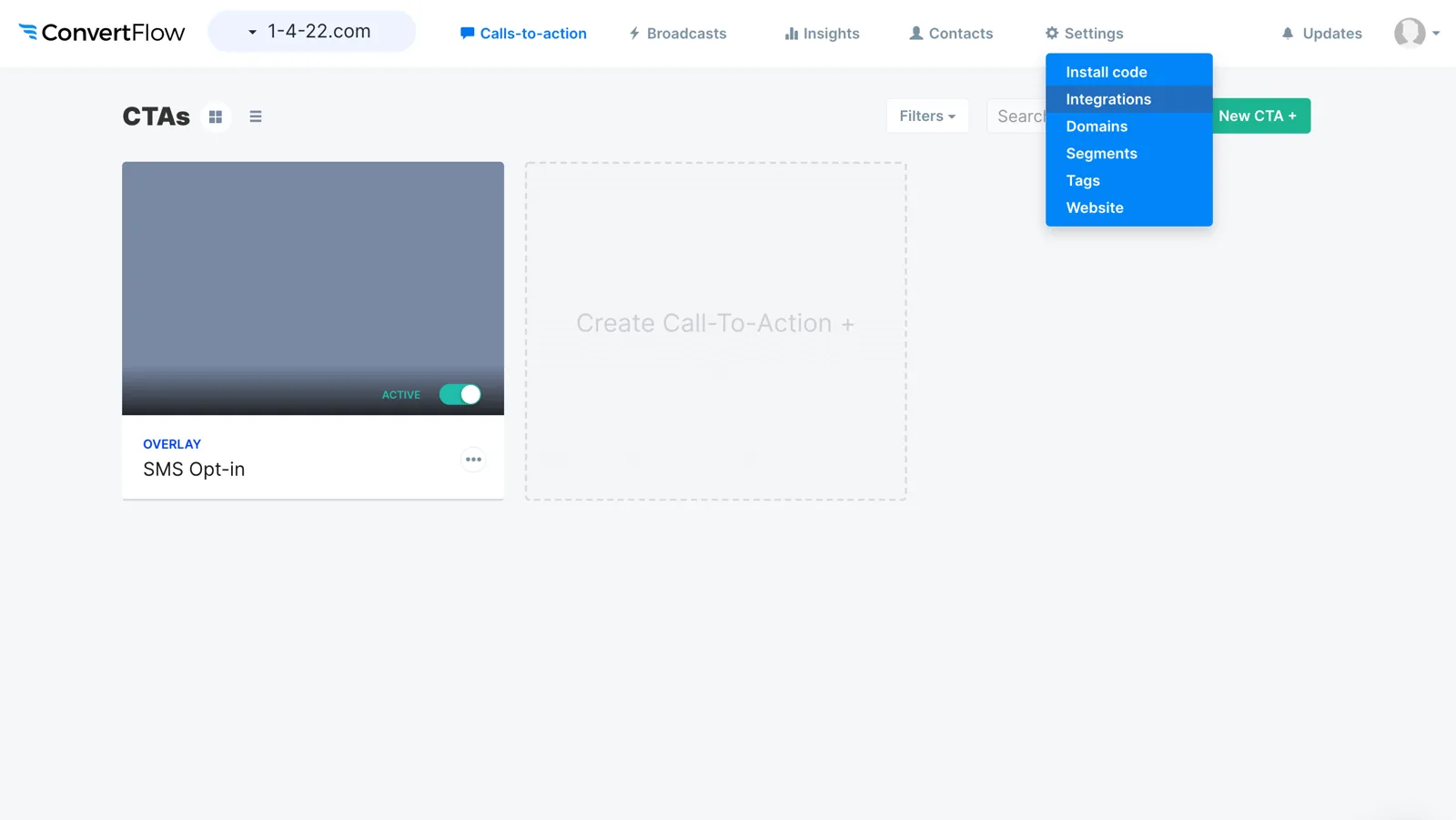
Click to connect with Attentive.
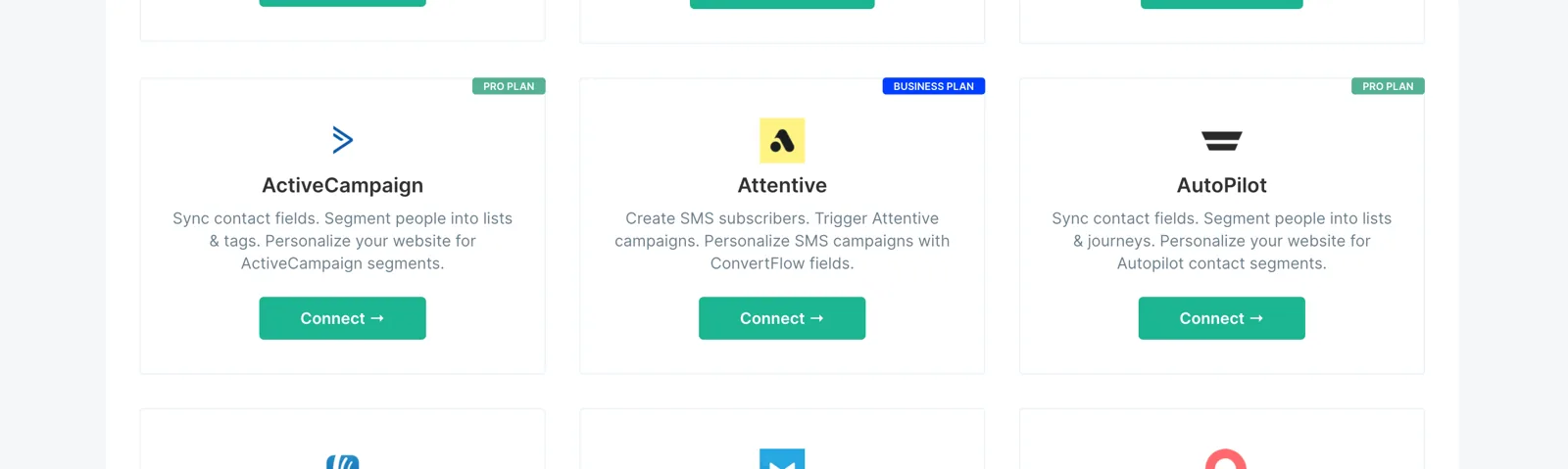
Then grant ConvertFlow access to your Attentive account. There's no API key to generate or paste.
3. Add a form to your campaign
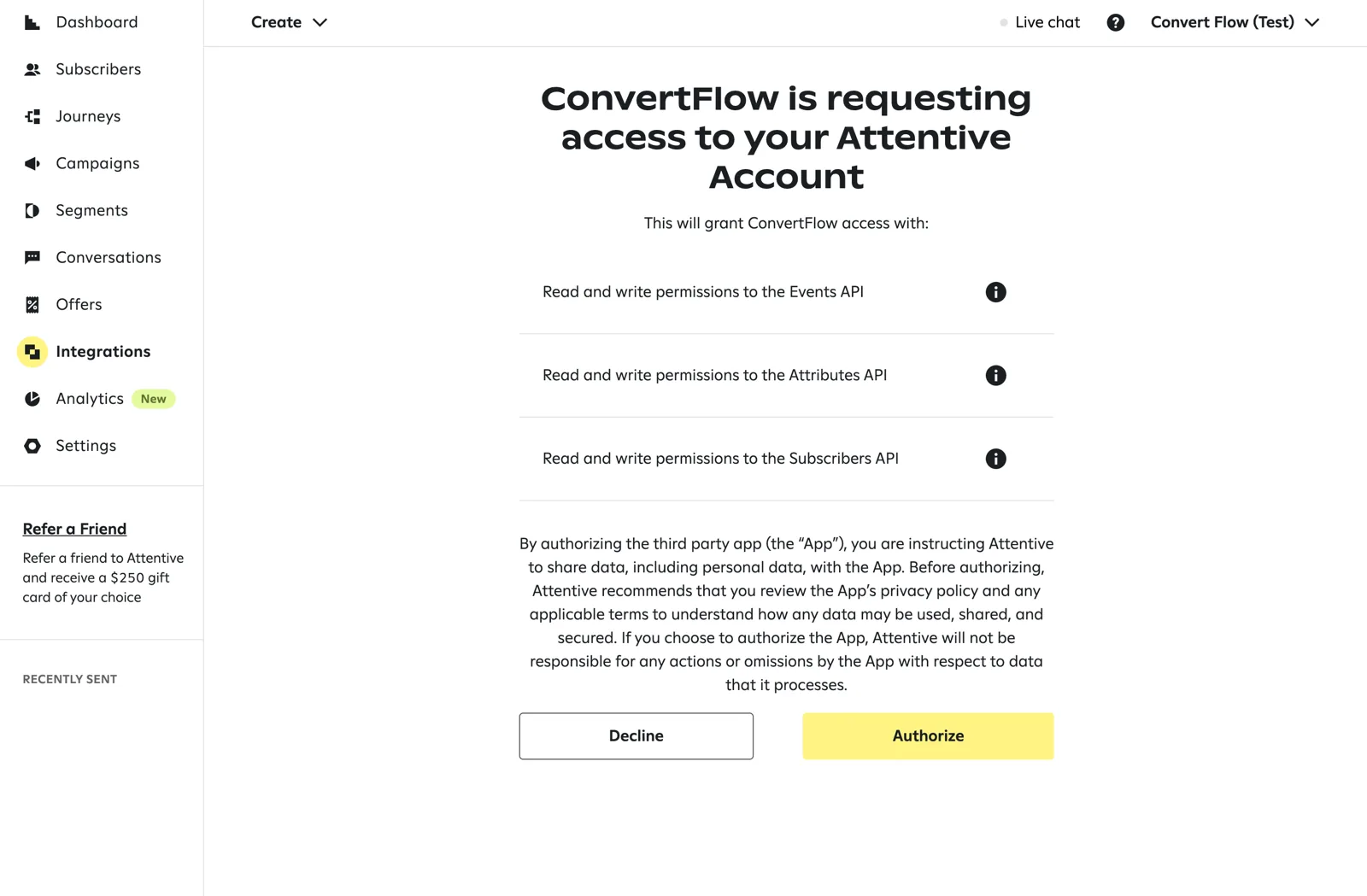
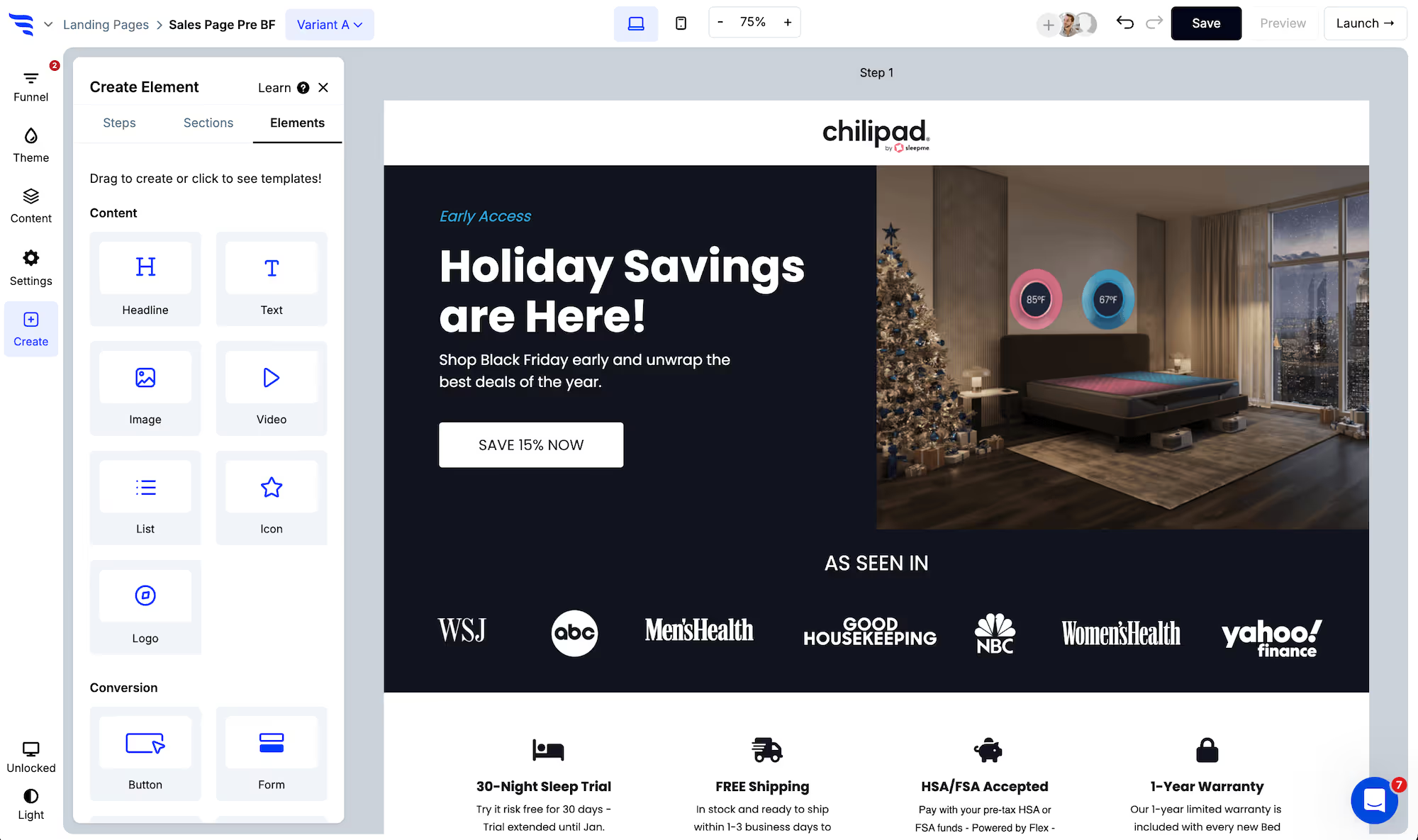
Add your Attentive form to a ConvertFlow landing page, popup or embed. Click to add an element and choose the "form" element type — start from a form template or build from scratch.
.avif)
4. Toggle the contact fields you want
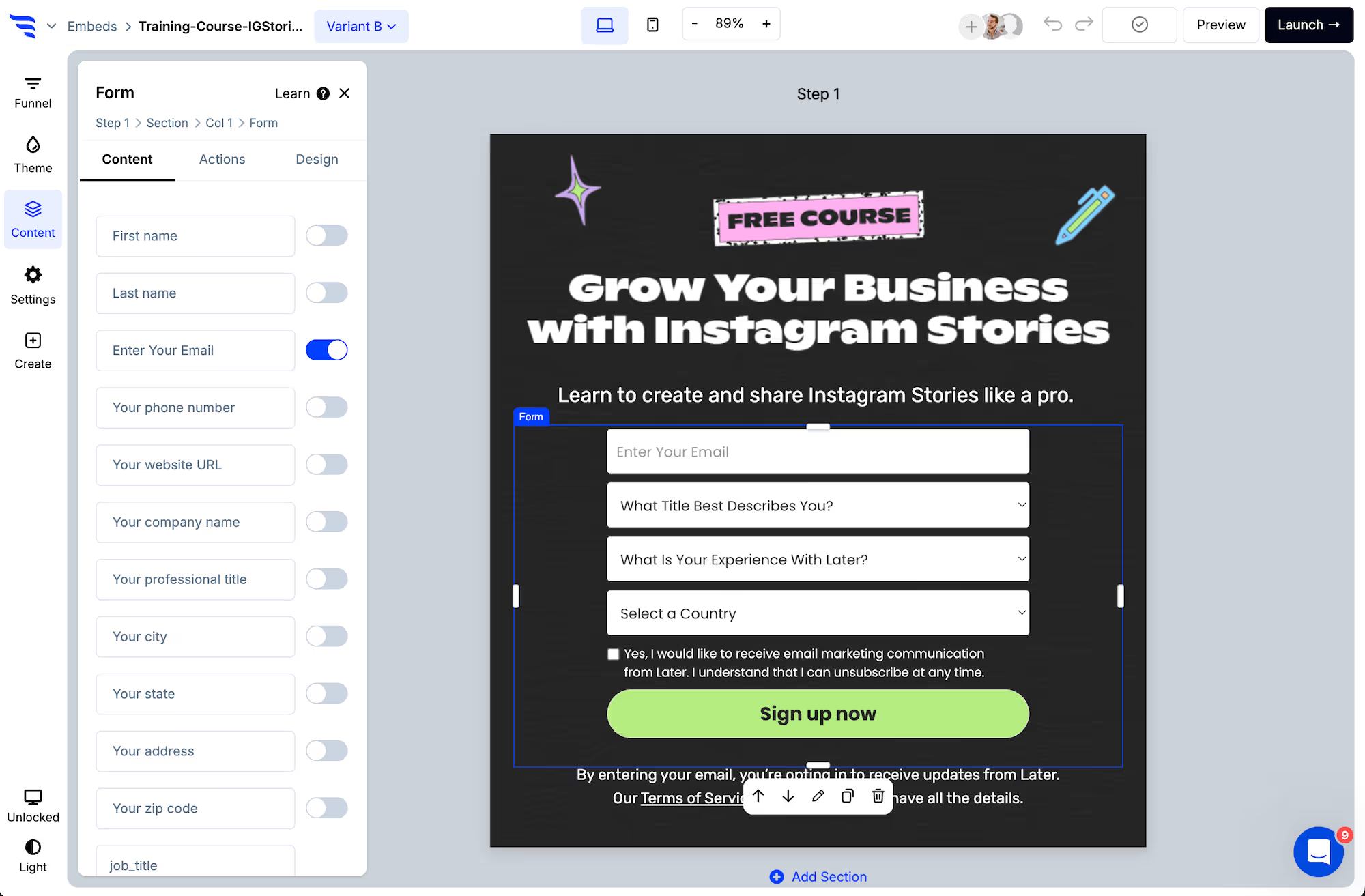
Select the form element and switch on the fields to request. Phone is the one that matters for SMS.
.png)
Each field can be edited from the builder panel — placeholder text, label, required state and more.
.avif)
5. Collect SMS consent
Below the preset contact fields you'll find a dedicated SMS consent checkbox alongside privacy and marketing consent options. Use it with the disclosures your programme requires.
SMS opt-in has to be explicit — a generic "I agree to the privacy policy" box isn't the same thing, and neither is small print under the button. Requirements differ by region and change over time, so confirm your wording with Attentive or your own counsel rather than copying someone else's popup.
6. Verify the phone number
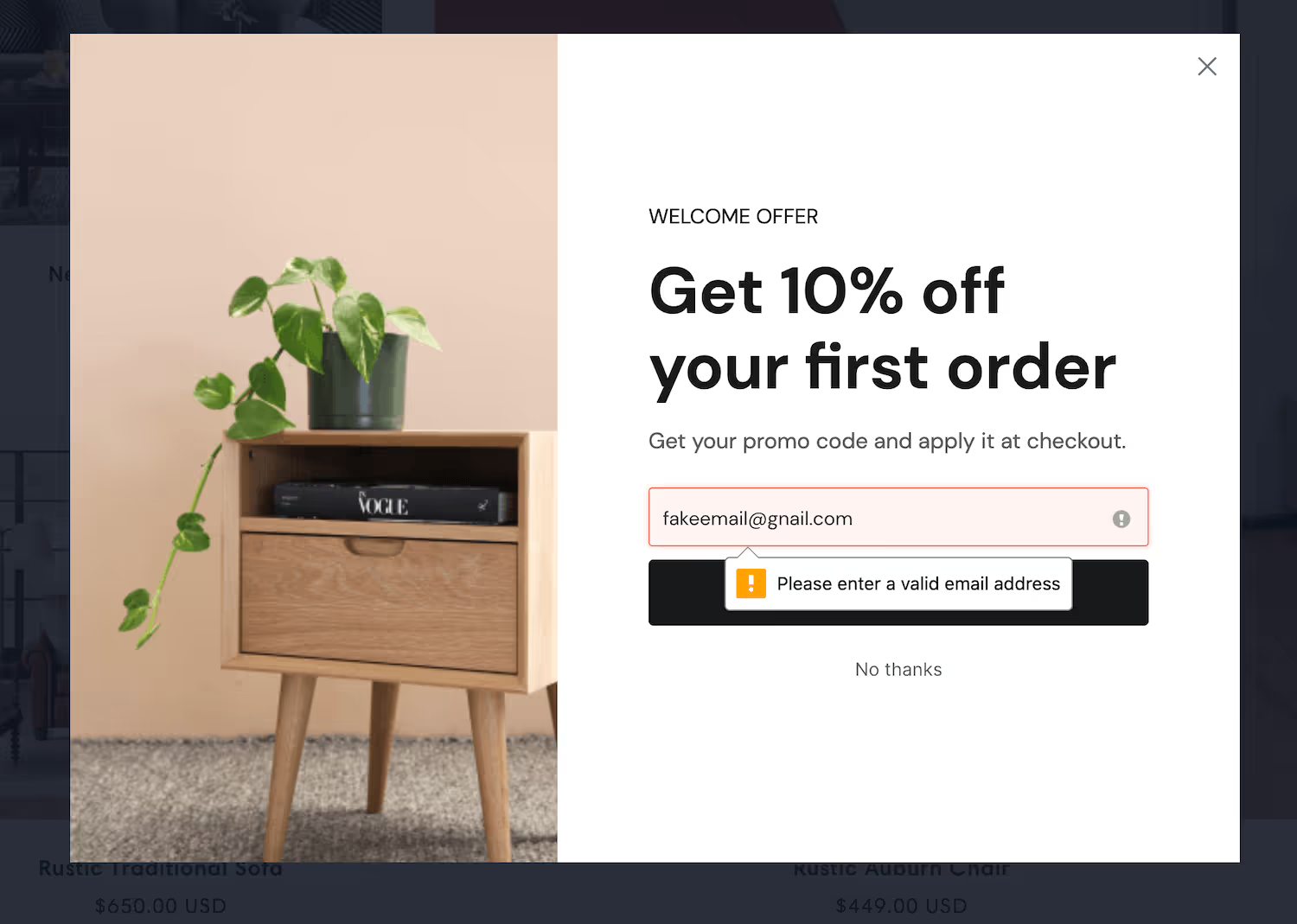
ConvertFlow formats numbers to the international E.164 standard. A number typed with brackets, spaces or a leading zero can otherwise produce a subscriber who silently never receives anything — and on SMS every send costs money, so invalid numbers cost twice.
7. Map fields to Attentive custom attributes
By clicking to add a field at the end of the fields list, you can add as many custom fields as you'd like.
.avif)
Survey responses, quiz selections, dropdowns, radios, paragraphs and hidden fields can all map to Attentive custom attributes.
This is where a ConvertFlow form gets ahead of a plain sign-up unit. Attentive segments and personalizes on those attributes, so a subscriber who arrives already described — what they shop for, what size, what they were browsing — can be messaged properly from the first send rather than after weeks of behavioural data.
8. Style the form
In the Design tab, set spacing, field layout, width, fonts, button colour and roundness, field colour and shadows.
.avif)
9. Add Attentive automations on submit
Select the element, click "Confirmation Actions" in the builder panel, then "Add automation".
Two Attentive automation types are available:
- Subscribe to sign-up unit — creates the SMS subscriber
- Create event — fires an event you can trigger Attentive journeys from
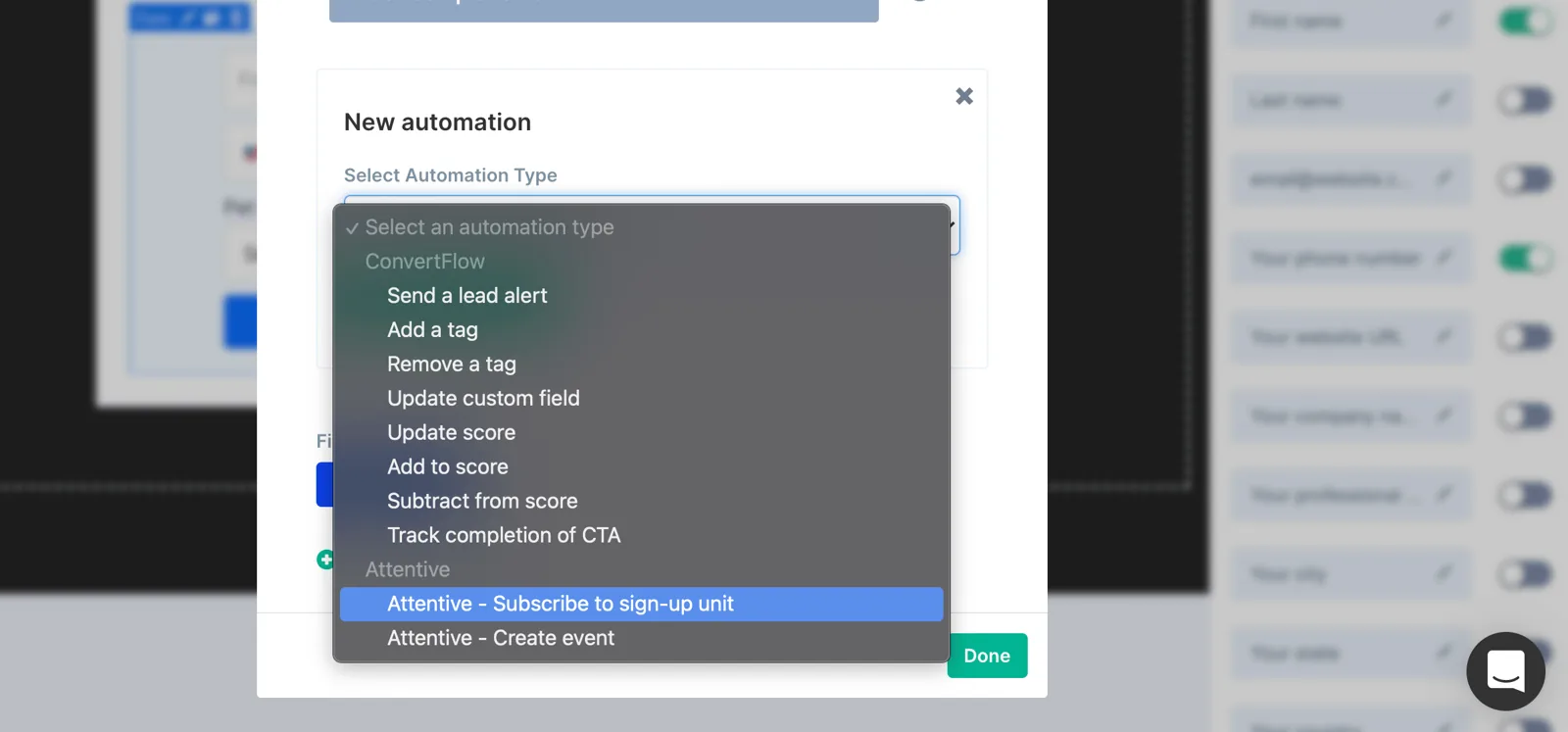
Choosing "Subscribe to sign-up unit" asks for your Attentive sign-up ID — the one their service team gave you in step 1.
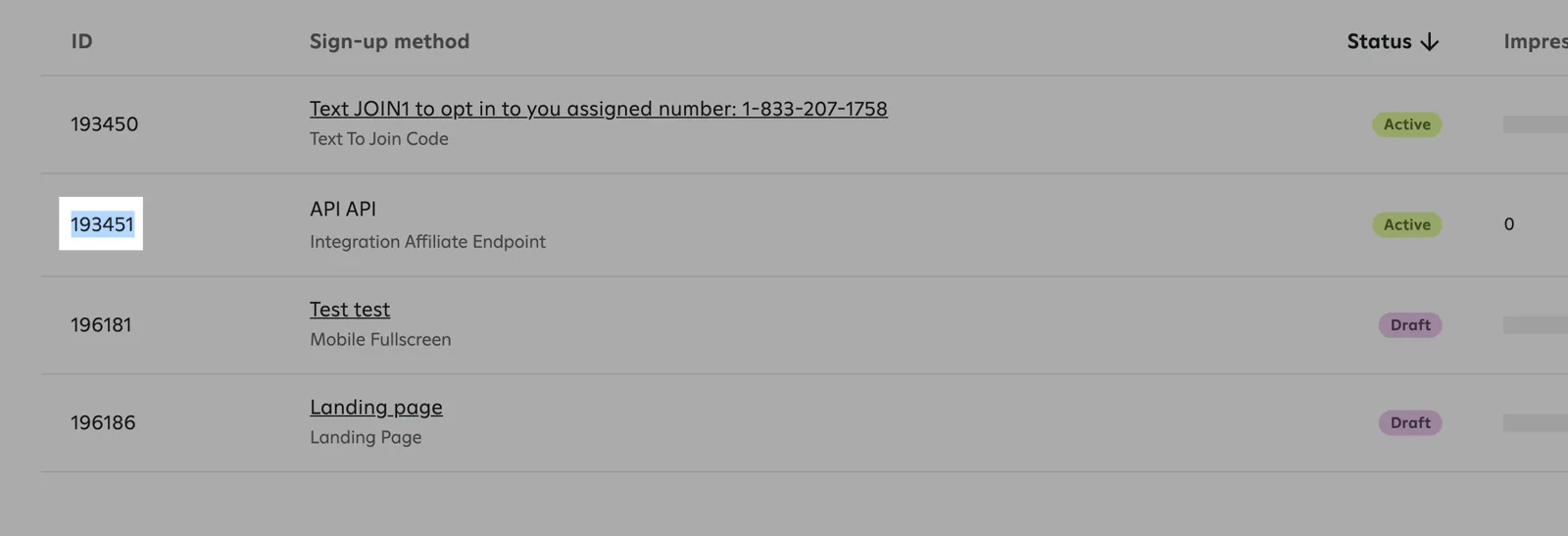
Then click "Create Automation". Your automation is saved and listed with the form's others.
Why only two automations
Most integrations here offer list adds, removals and tag management. Attentive doesn't work that way — subscription state and segmentation live in Attentive, and ConvertFlow's job is to feed it: create the subscriber, attach attributes, and fire events that Attentive journeys listen for.
Create event is worth using deliberately. Because it works independently of subscribing, a form can start a journey for someone already on your list — so a survey or a quiz can trigger a sequence without trying to re-subscribe anybody.
These automations can be triggered by form submissions, survey selections, button clicks and conditional funnel outcomes.
.avif)
10. Report on submissions
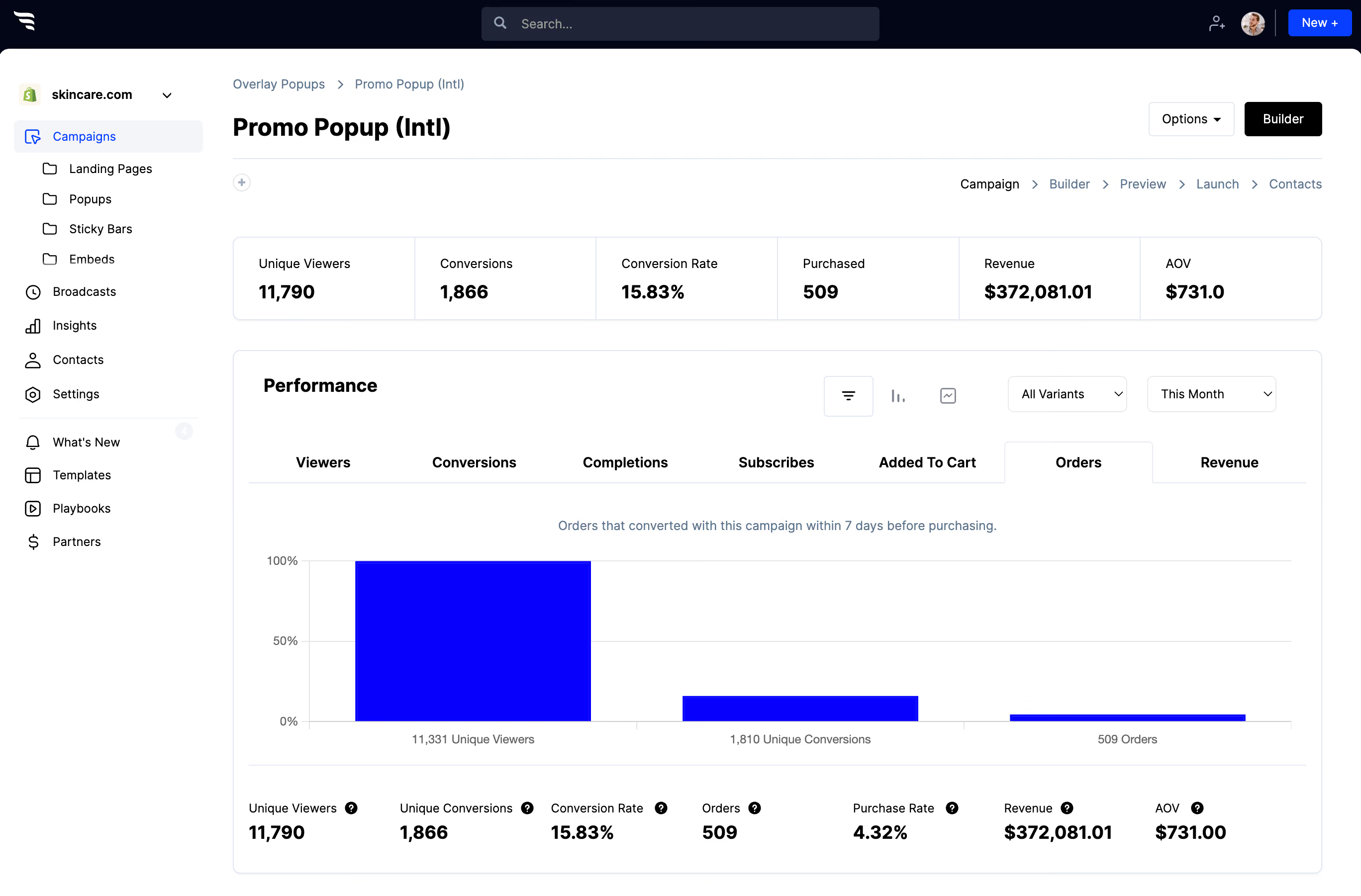
The funnel breakdown report shows how many people saw, converted and completed the form, where they dropped off, and which answers they selected — with orders, revenue and AOV attributed to each answer.
.avif)
Phone capture converts lower than email capture almost everywhere, so read the drop-off closely. Asking for the number on a second step, after the offer has landed, usually beats asking up front.
11. Publish
- On Shopify: publish to a Shopify page in one click.
- On WordPress: add ConvertFlow's snippet once, then target the form to specific posts, pages or categories.
- Anywhere else: Webflow, Squarespace, Wix or any CMS take the same single embed snippet.



%20(1).avif)





.svg)
