




Why run Segment surveys in ConvertFlow
Most survey tools give you a report. The answers sit in a dashboard, someone reads them once, and nothing downstream changes.
A survey wired into Segment behaves differently. Each answer becomes a trait on the profile and travels to every destination on the source — so the response is in your CRM, your email platform and your warehouse, not in a separate tool nobody opens.
And because you can target the survey on Segment traits, you can ask a specific cohort a specific question rather than asking everyone the same thing.
Connect ConvertFlow as a Segment destination
Add ConvertFlow as a destination on a Segment source of your choice.
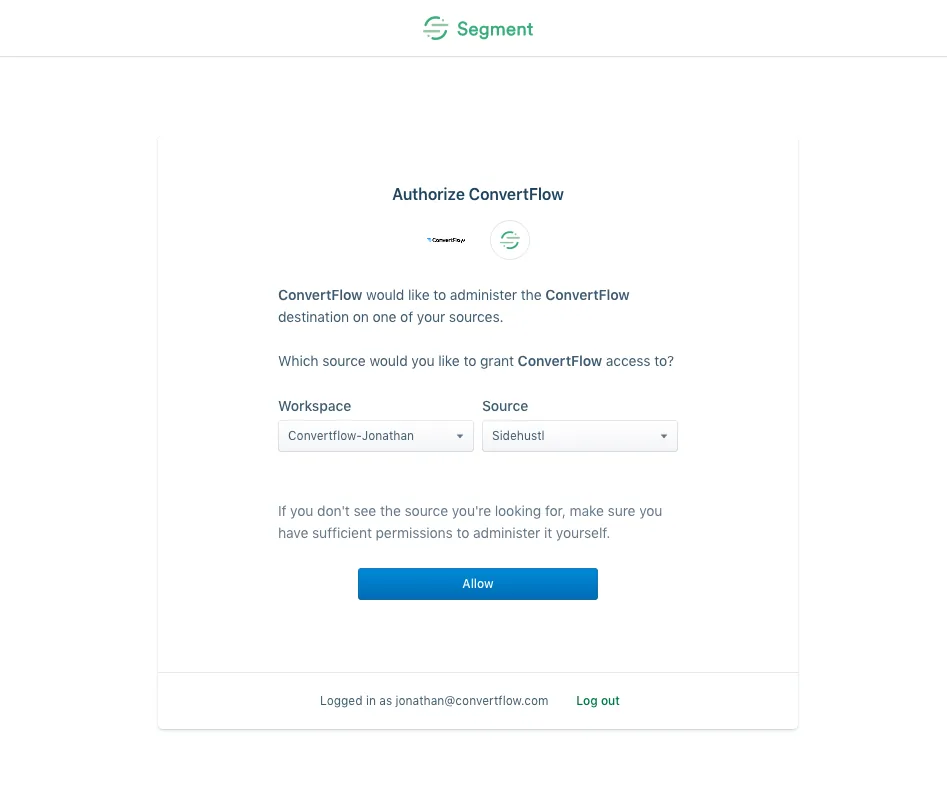
Then add your Personas details — an API access token and space ID from Personas > API Access in Segment — and turn on "Send Submission & Conversion Events".
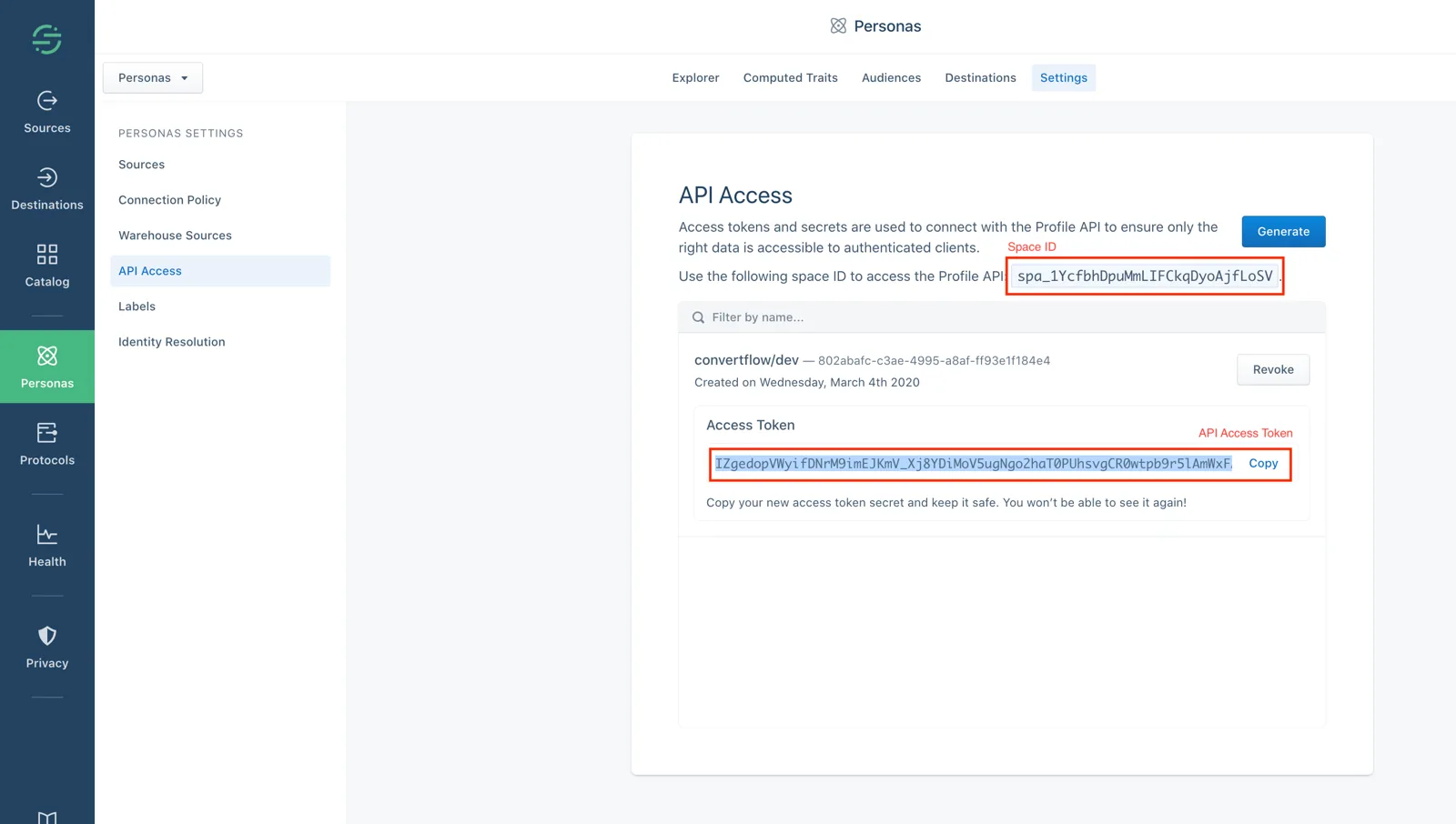
Nothing is sent to Segment until that toggle is on.
How to build the best Segment surveys
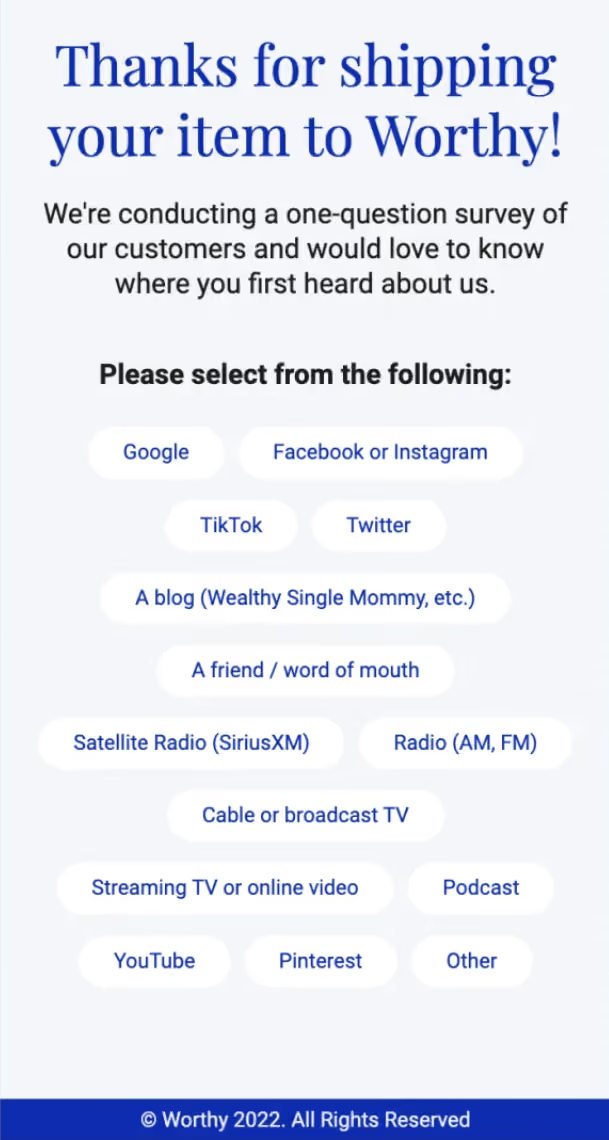
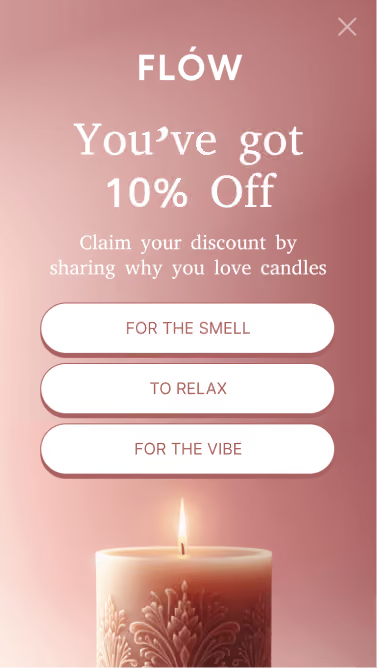
By adding a survey to your ConvertFlow landing page, popup, or embed, you can ask visitors a question and present fixed answers for them to select.
To add one, click to add an element and choose the "survey" element type.
Survey options
Once you've selected a survey element, you'll be able to manage its options in the builder panel.
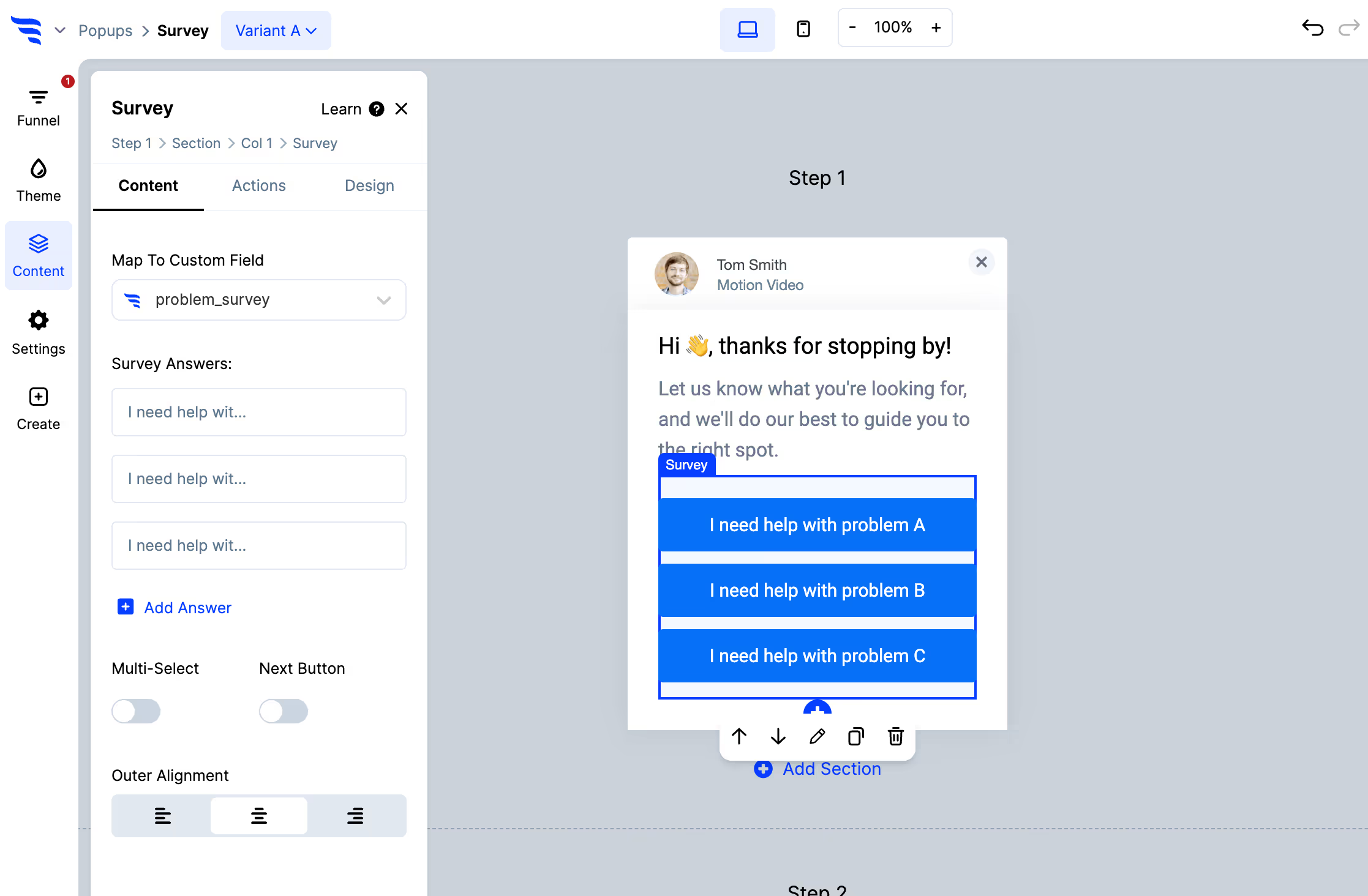
Add options, arrange their position, edit their text, and map the survey to a custom field — which becomes the Segment trait. Toggle "multi-select" if visitors should be able to choose more than one; multiple values are written separated by commas.
Each option can also carry an image, so the survey can present clickable images rather than text.
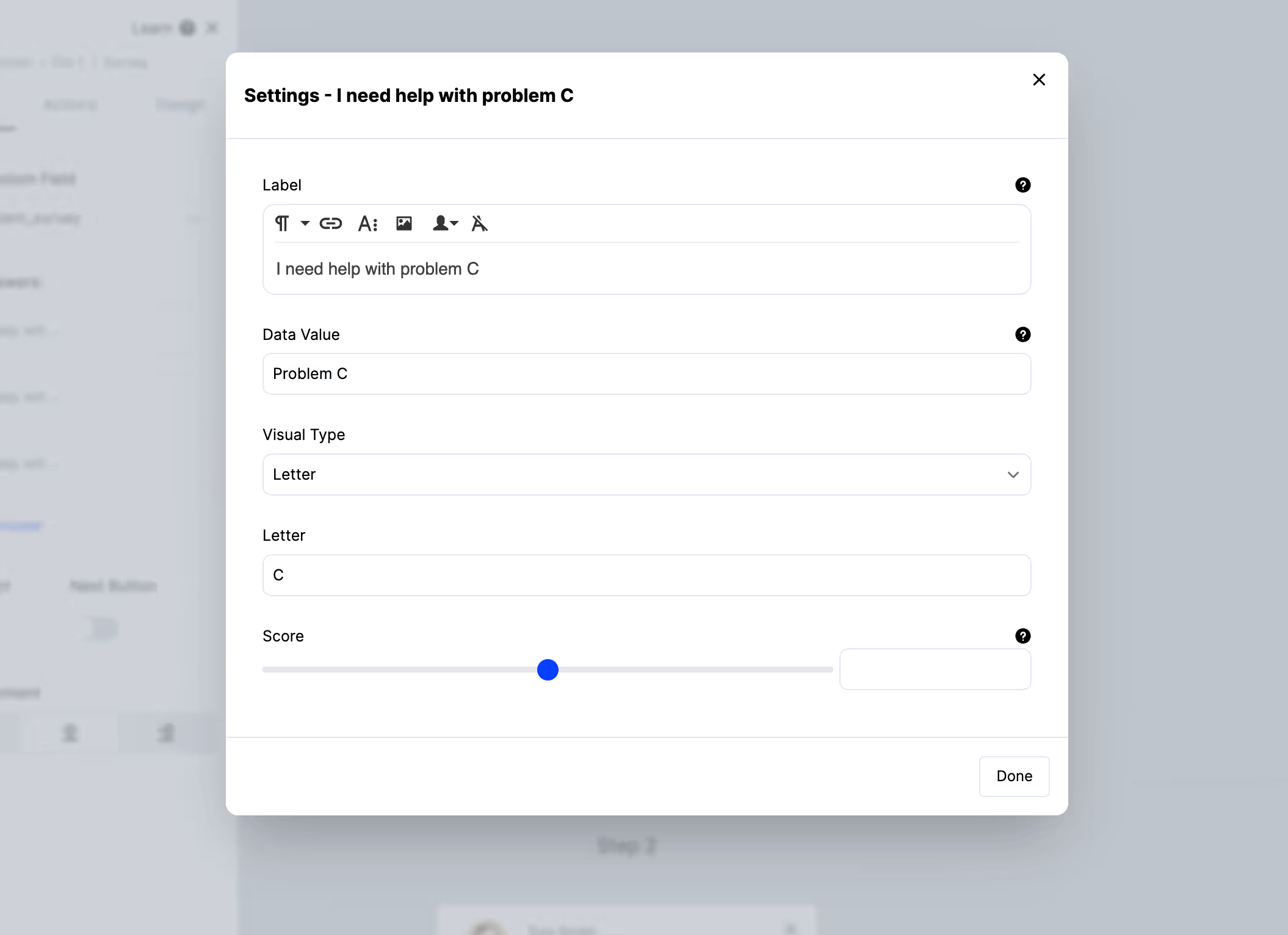
To control additional settings for your survey options, such as:
- Separating the data value from the displayed label
- The image used in the survey option
- The score increase or decrease applied by the option
Click on the survey option to open a settings modal where you can control each of these.
Name the trait carefully
The field name you map to becomes a permanent trait key that propagates to every destination on your source.
Keep answer values short and consistent too — too-expensive rather than It was a bit too expensive for me. These end up as values in your warehouse, and a free-text-looking value is far harder to build an audience from than a controlled one.
Styling your survey
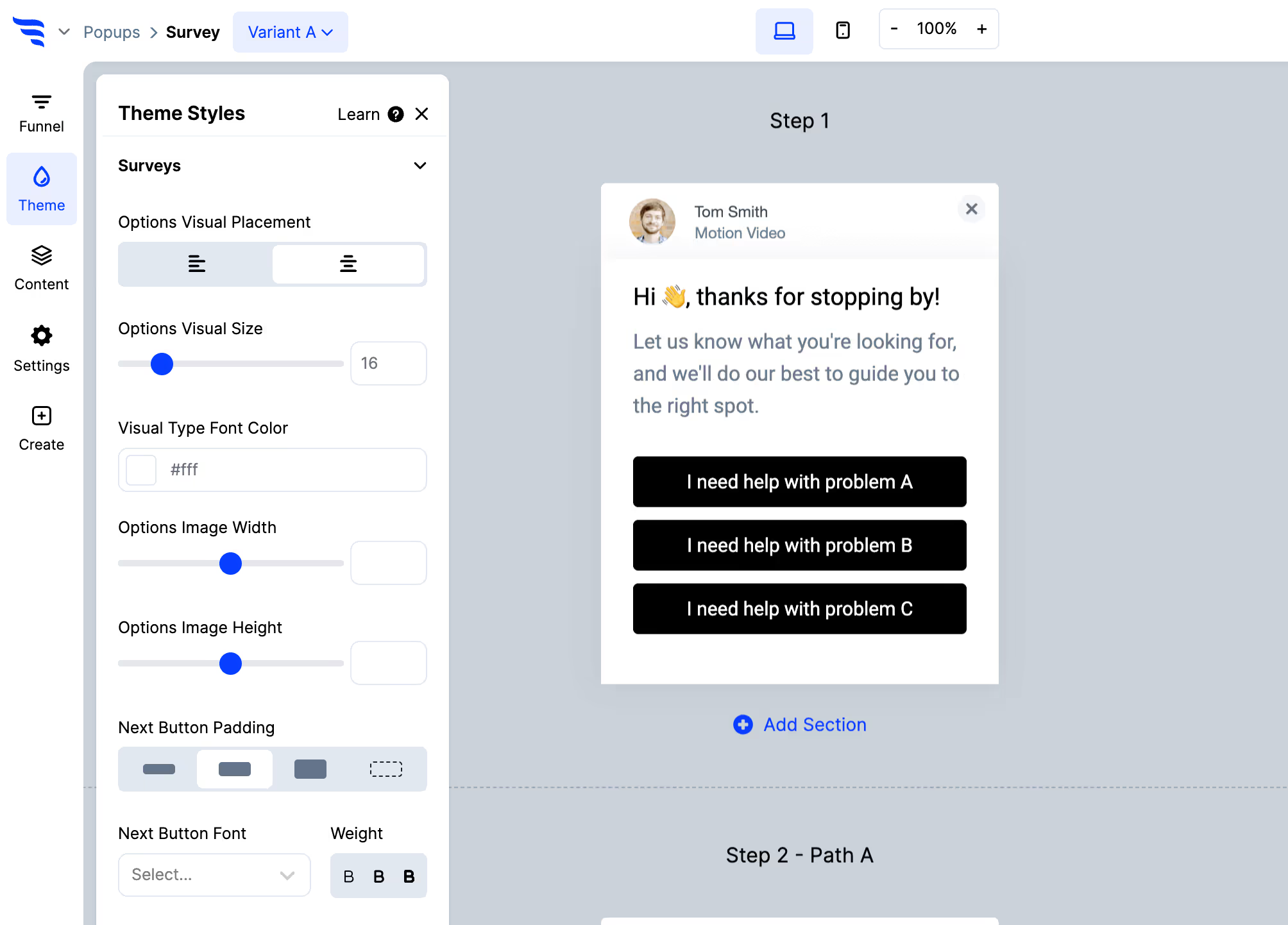
Below the option settings and in the "Themes" tab, you'll find style controls — width, text alignment, fonts, colours, sizing, whether options are stacked or responsive, drop shadows and more.
Survey confirmation actions
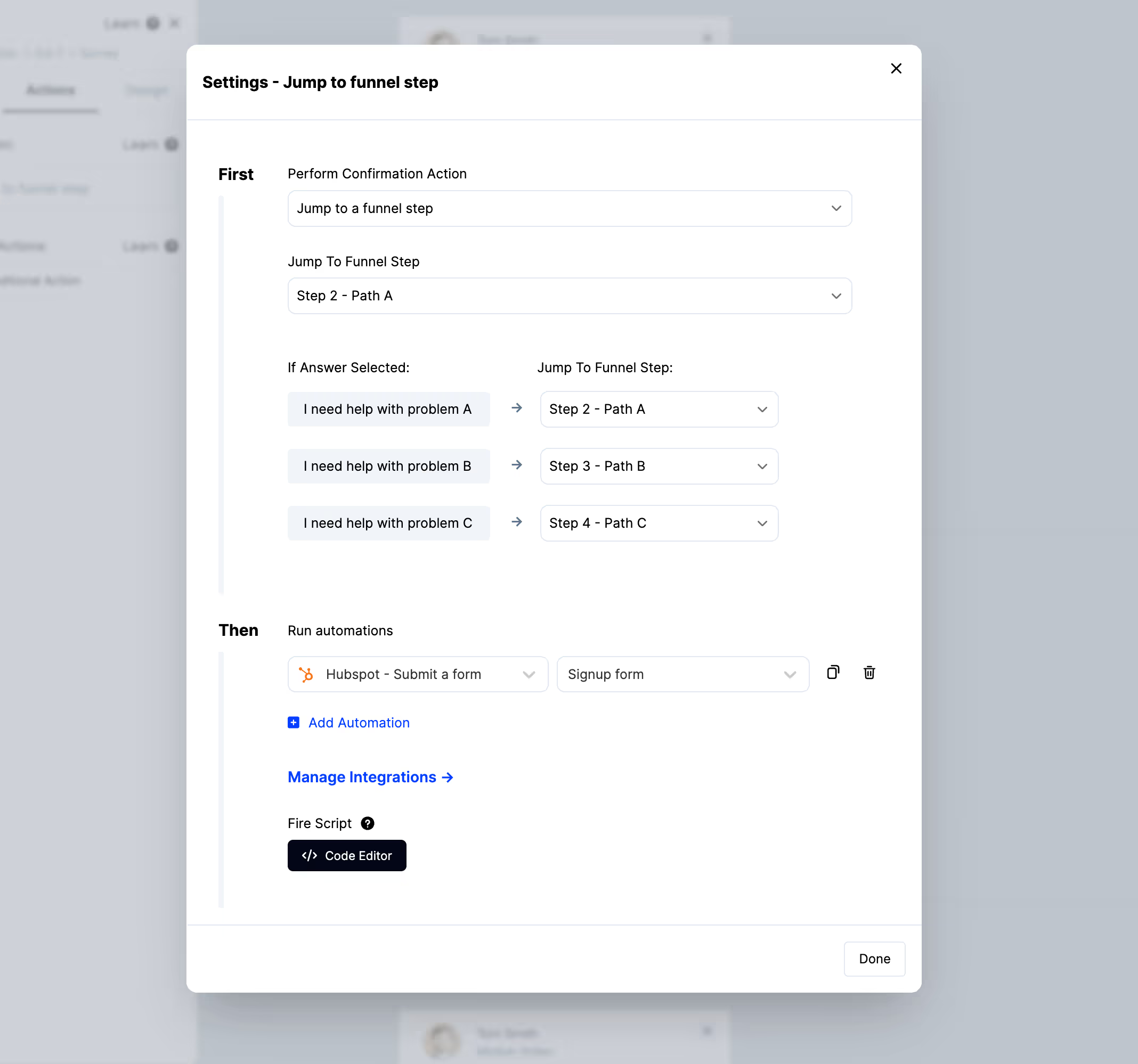
With a survey element selected, click to the "Actions" tab to choose what happens when someone selects an option.
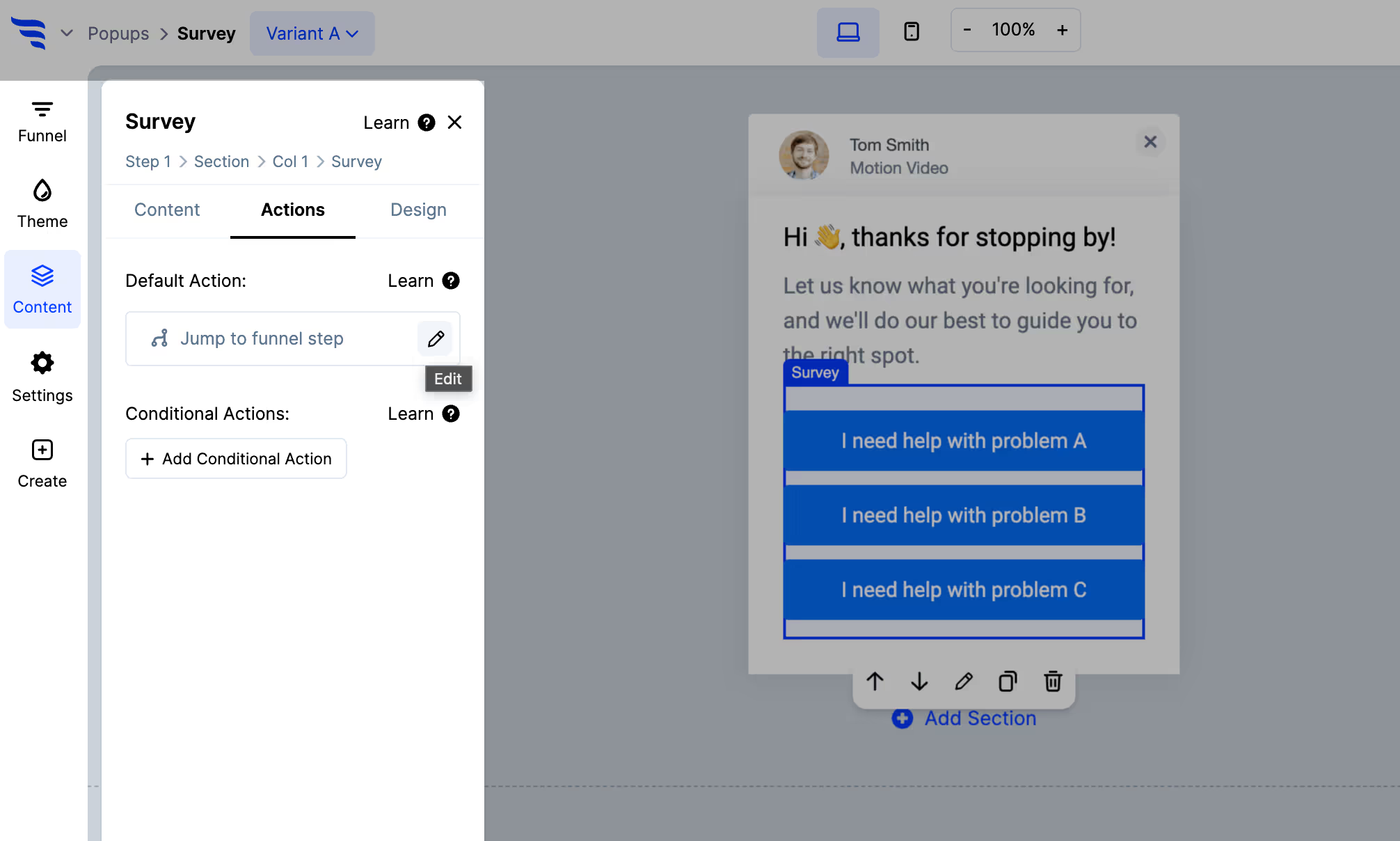
- Redirect visitors to a URL
- Show another step in the campaign, or specific steps based on the selection
- Display a thank you message
- Display another ConvertFlow campaign
What Segment receives
A survey selection fires a track event named "CTA Survey Submitted", alongside an identify call carrying the answer as a trait.
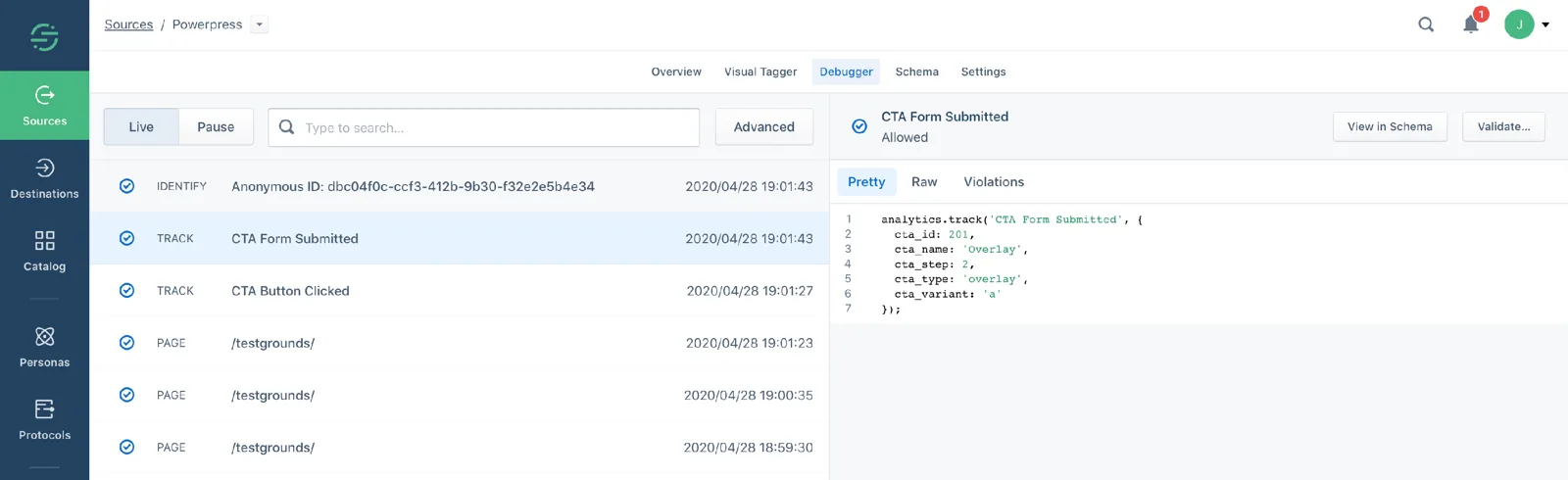
Check the debugger after your first test to confirm the trait key is what you expected.
Target who gets asked
This is what makes surveying against Segment different from surveying all traffic.
Target the survey on Segment traits or Personas audiences, so a question goes to the cohort it's actually about — recent purchasers for a post-purchase question, a churn-risk audience for a retention question.
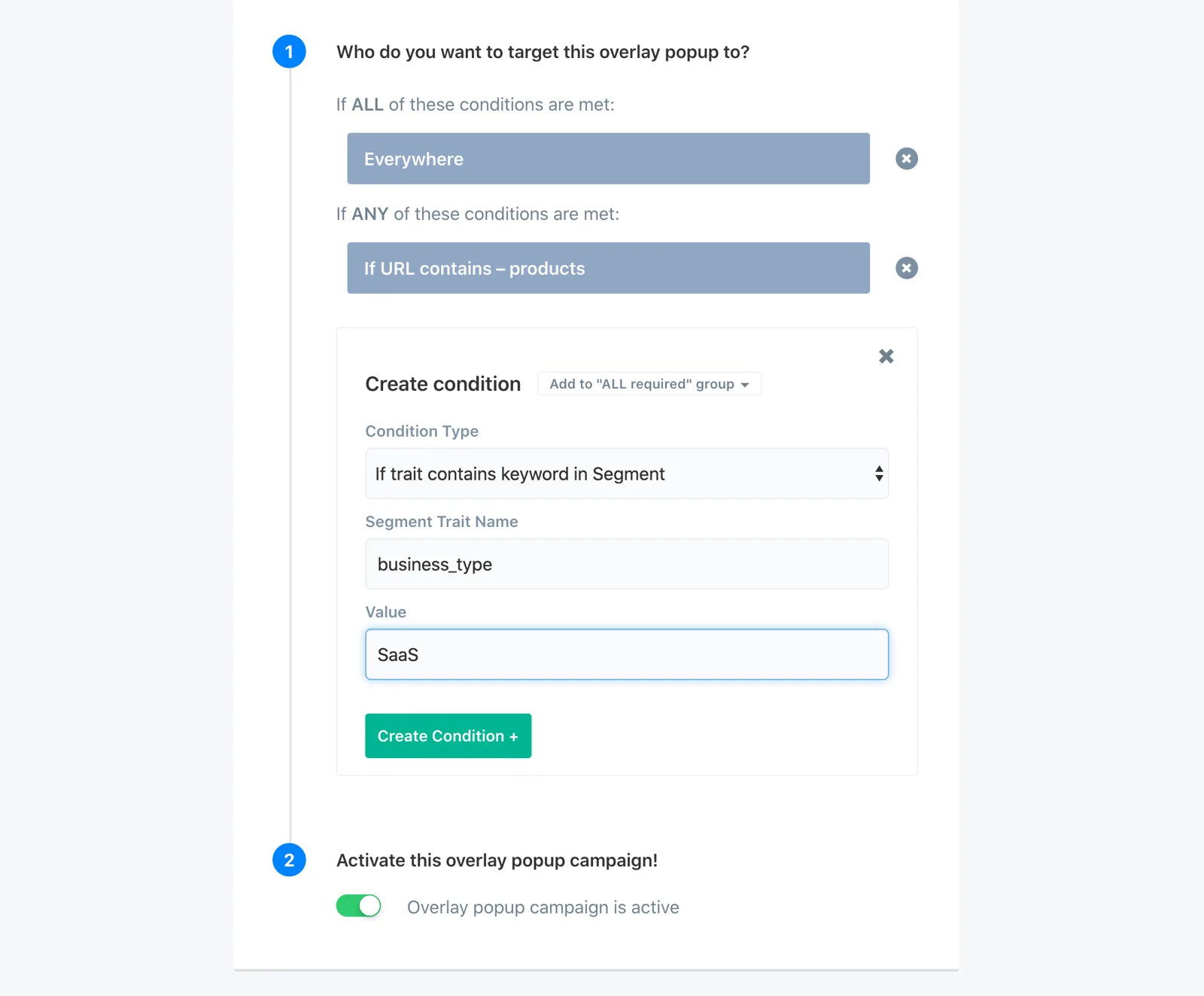
Because the answer lands on a profile that already carries behavioural data, you get something a standalone survey tool can't give you: the stated reason sitting next to the observed behaviour, on the same record.
Finding your traits
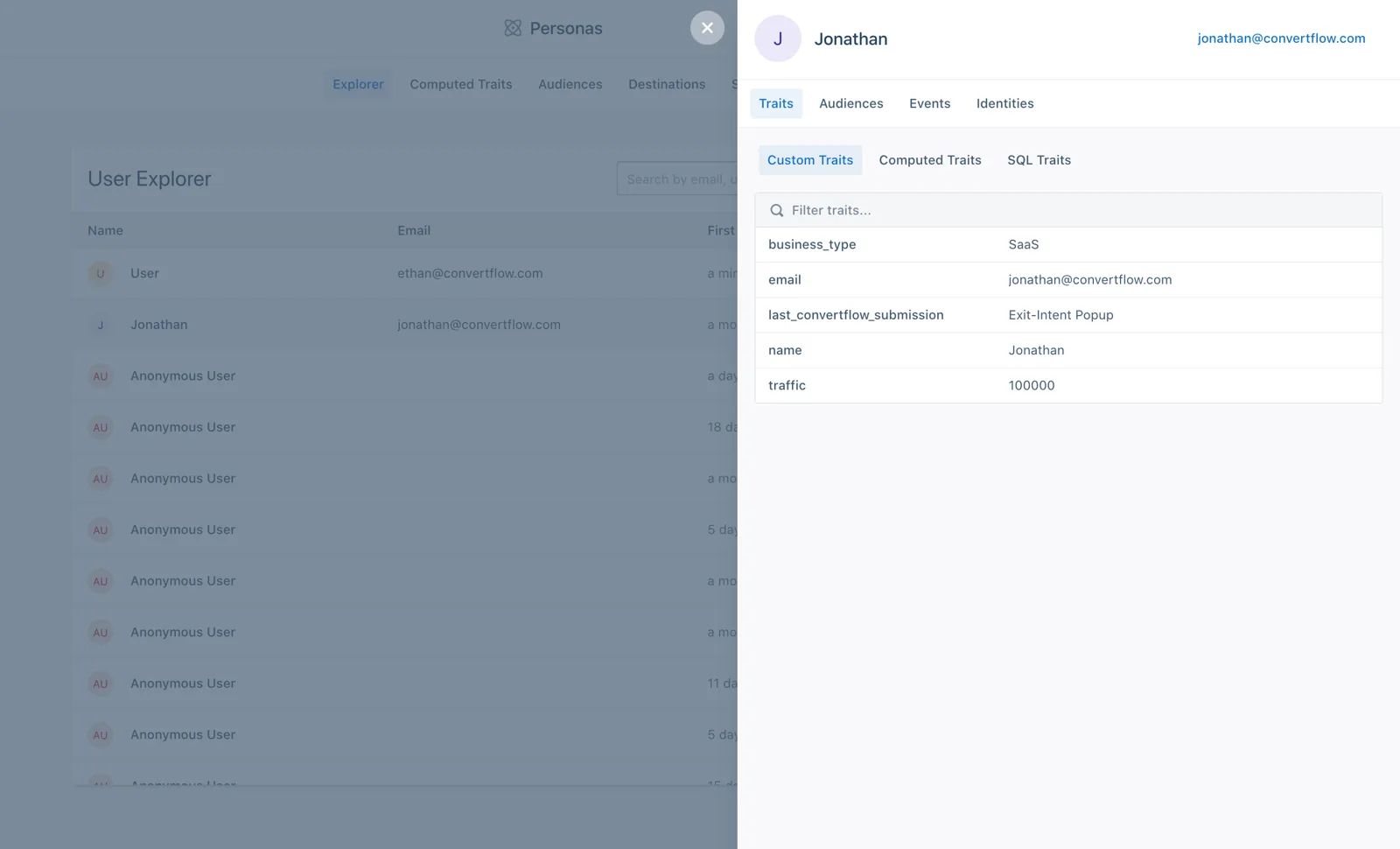
Use the Explorer tab in Segment Personas and click a contact profile to see the traits currently in use in your audiences.
Running scripts & pixels on completion
By adding scripts to your survey's confirmation actions, you can fire conversion pixels and perform other custom javascript. ConvertFlow runs scripts added here only after a survey option has been selected.
Adding conditional logic
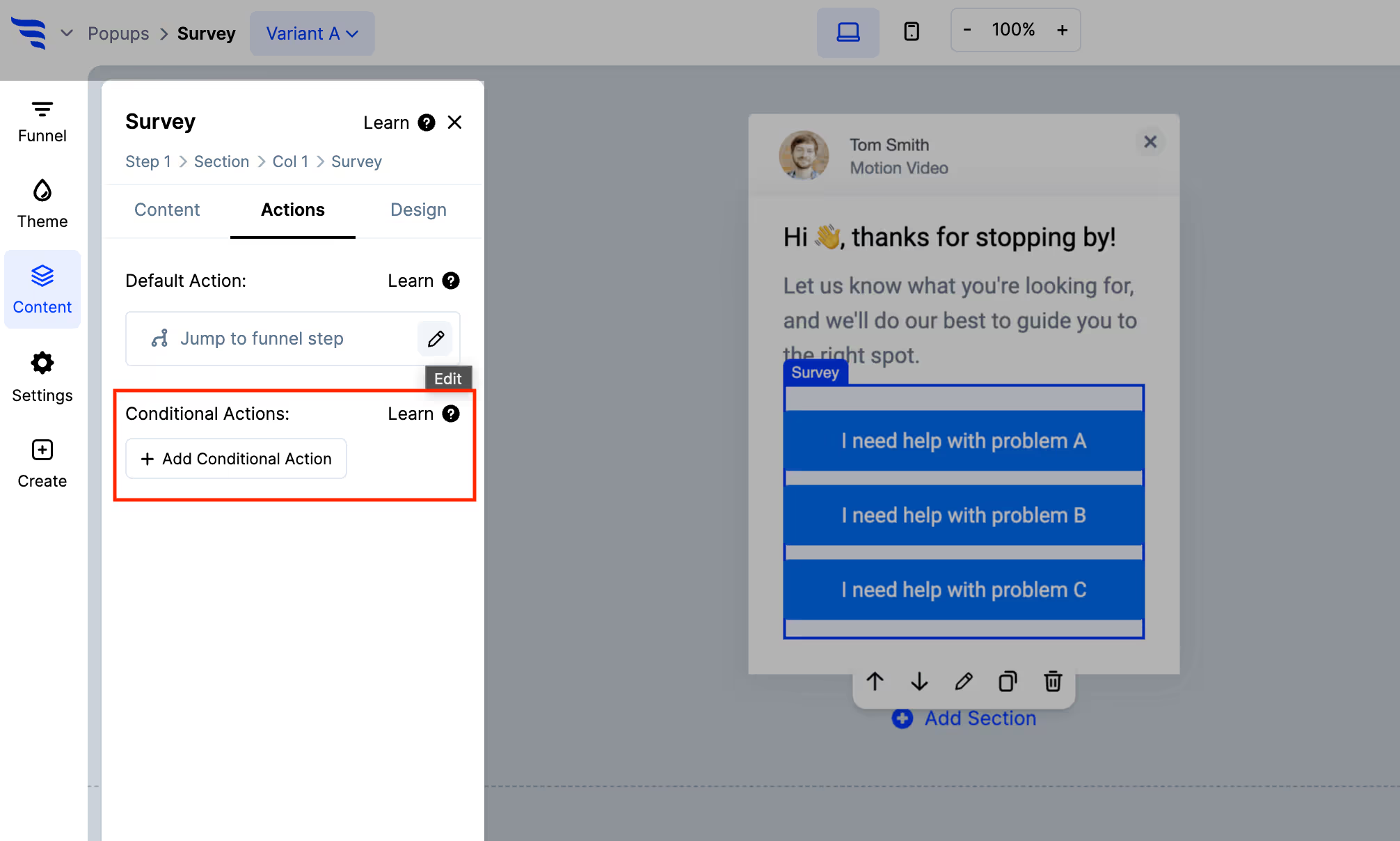
By default the survey performs the confirmation action you've set. Click "+ Add Conditional Action" to act only on visitors meeting your conditions.
If you need your own event names
If you already have an event taxonomy, toggle "Send Submission & Conversion Events" off and use ConvertFlow's javascript API instead — conversion and field data are exposed on submission, so a developer can shape exactly what reaches Segment.



%20(1).avif)




.svg)
