




Why run Keap surveys in ConvertFlow
Keap was called Infusionsoft until 2019. Same product, same integration — you'll still see the Infusionsoft name in places, including the URL of this page.
Most survey tools give you a report. The answers sit in a dashboard, someone reads them once, and nothing downstream changes.
A survey wired into Keap behaves differently. Each answer is written to a contact field or applies a tag — and in Keap the tag is what starts a campaign sequence. Asking a question is only worth it if the answer changes what happens next.
Connect Keap to ConvertFlow
Connect Keap from ConvertFlow's Integrations area and log into your Keap account to authorize it. There's no API key.
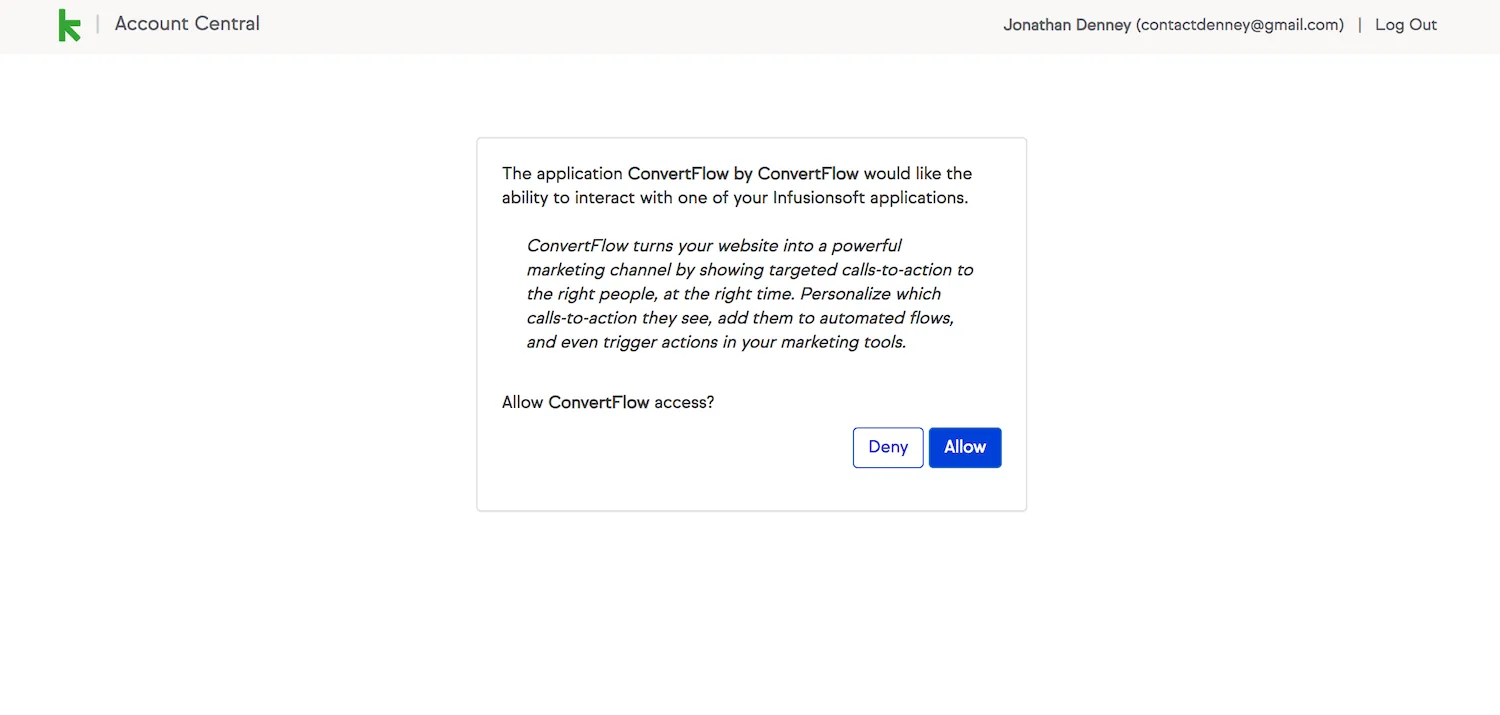
ConvertFlow then pulls in your tags and action sets, so survey takers can be tagged and automated the moment they answer.
Before you build: ConvertFlow maps survey answers into contact fields that already exist in Keap. Decide what you'll ask, then create the matching fields there first.
How to build the best Keap surveys
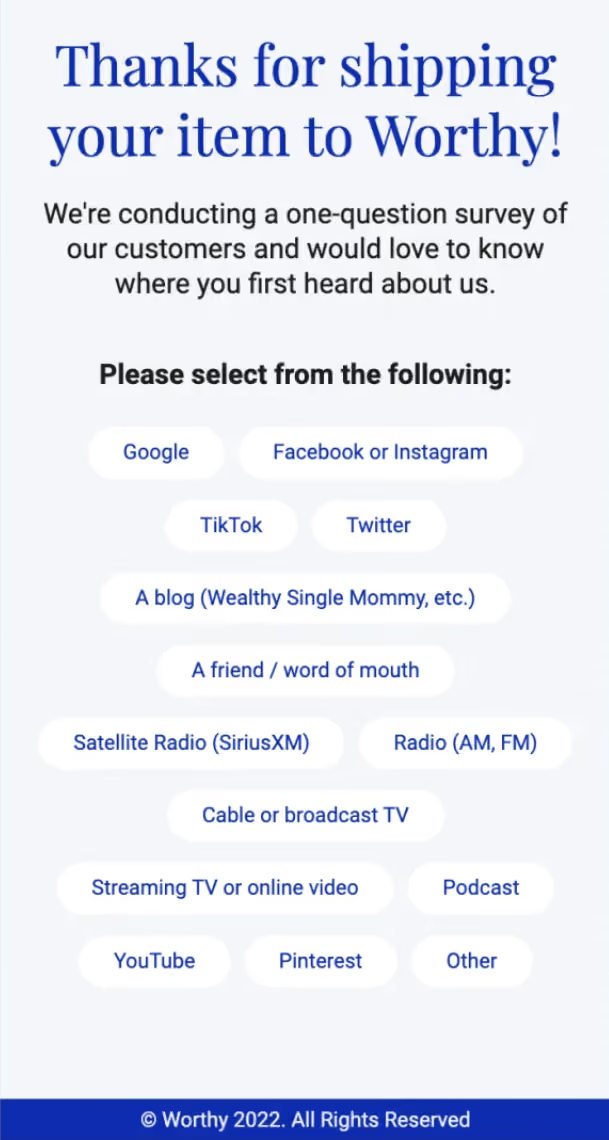
By adding a survey to your ConvertFlow landing page, popup, or embed, you can ask visitors a question and present fixed answers for them to select.
To add one, click to add an element and choose the "survey" element type.
Survey options
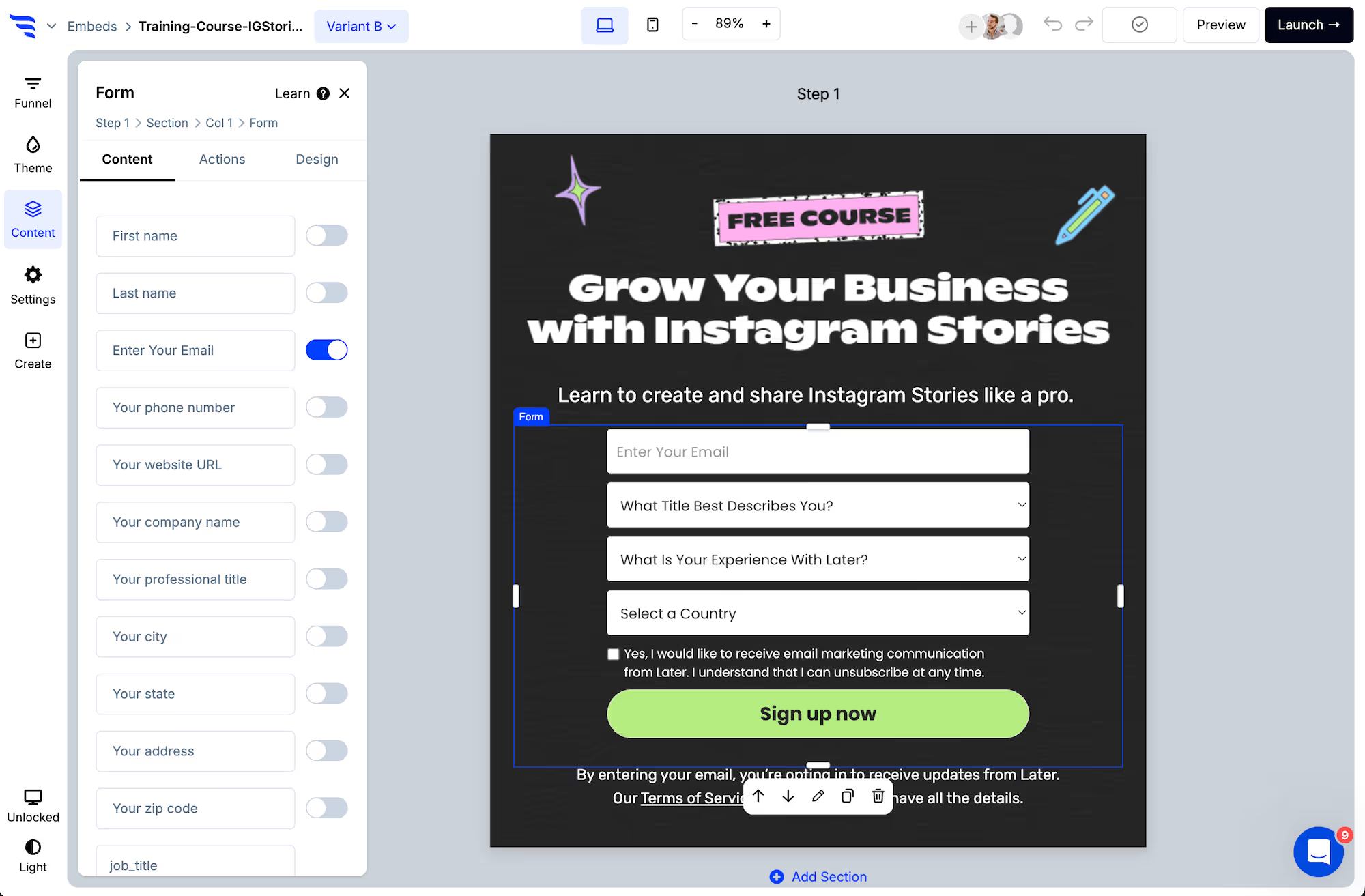
Once you've selected a survey element, you'll be able to manage its options in the builder panel.
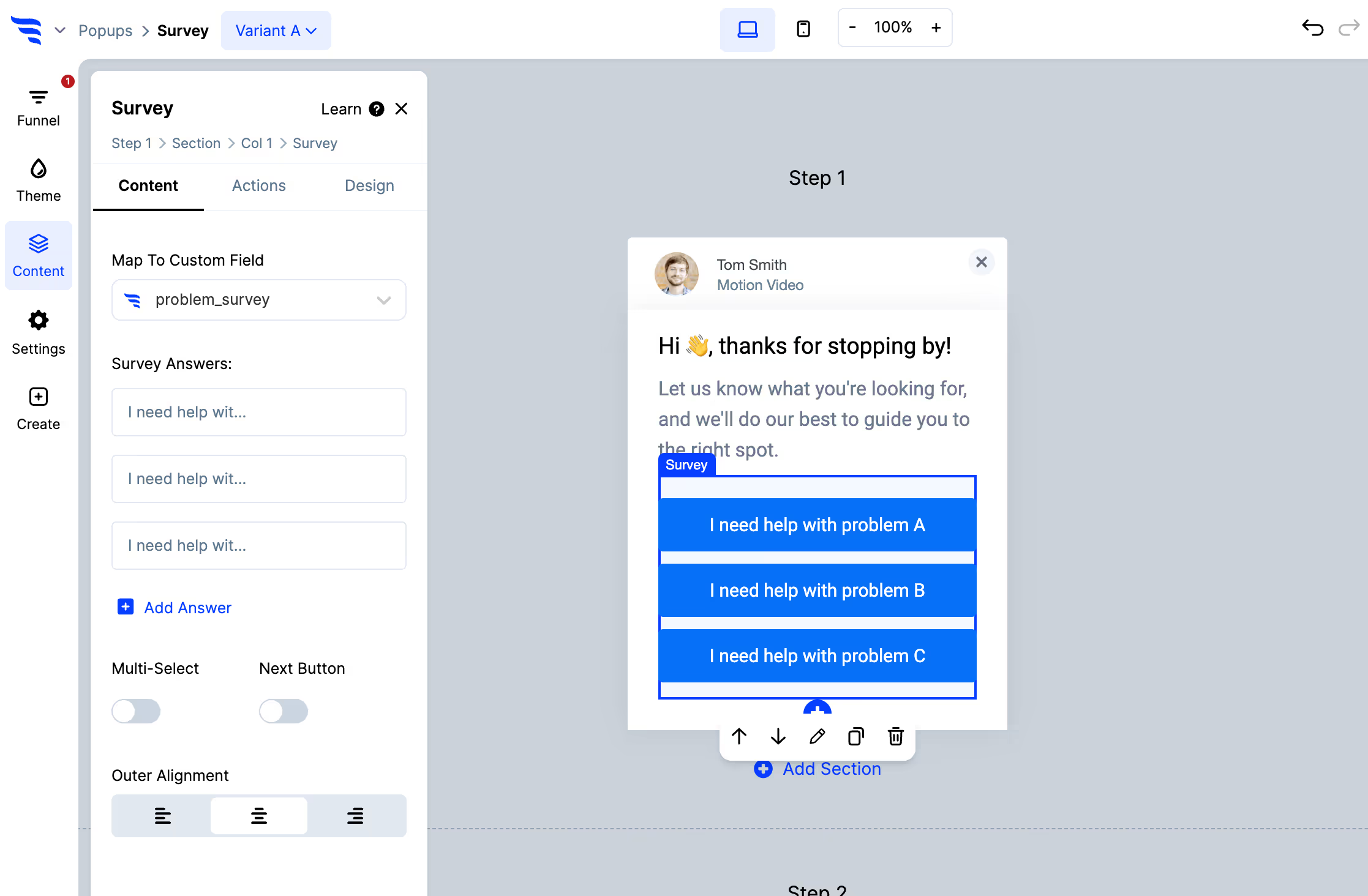
Add options, arrange their position, edit their text, and map the survey to a Keap contact field. Toggle "multi-select" if visitors should be able to choose more than one — multiple values are written separated by commas.
Each option can also carry an image, so the survey can present clickable images rather than text.
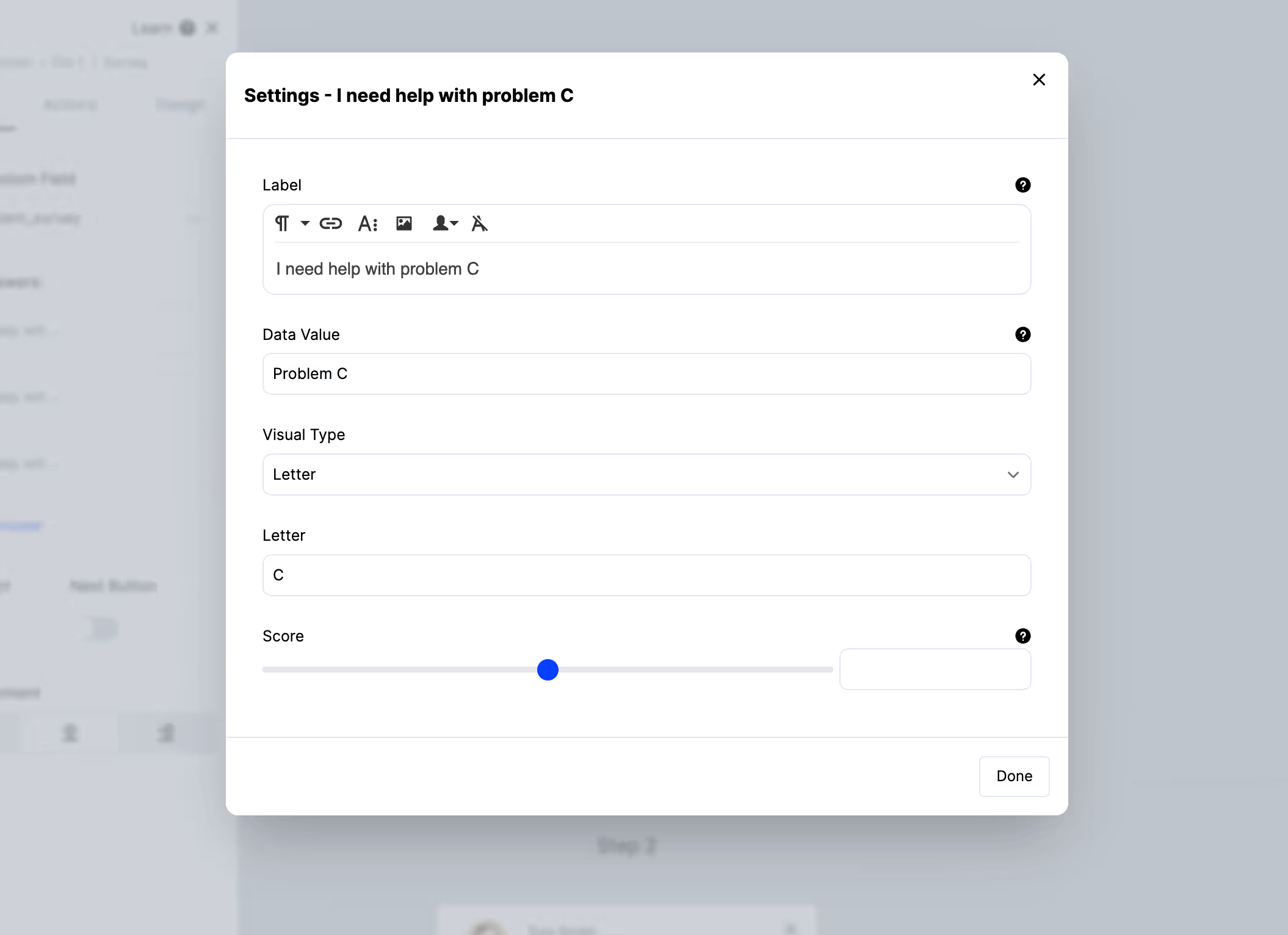
To control additional settings for your survey options, such as:
- Separating the data value from the displayed label
- The image used in the survey option
- The score increase or decrease applied by the option
Click on the survey option to open a settings modal where you can control each of these.
Map survey answers to Keap
Use the "Map to custom field" dropdown on the survey element and select from your Keap contact fields. The field needs to exist in Keap already — there's no create-on-the-fly.
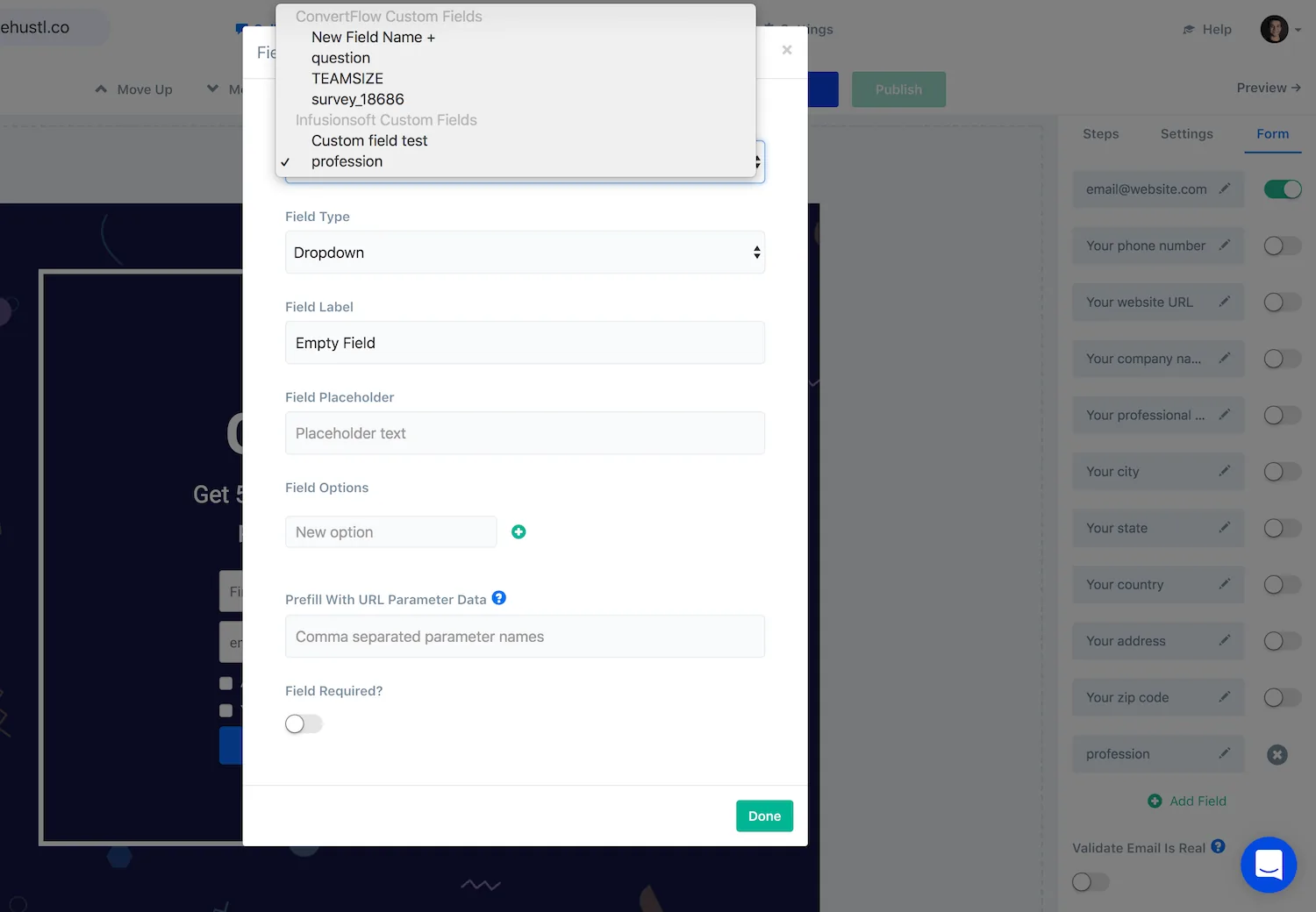
Keep your answer values short and consistent — too-expensive rather than It was a bit too expensive for me — because those are the strings you'll build Keap search conditions against.
Or apply a tag instead
For a survey with a small fixed set of answers, applying a tag per answer is often the better move in Keap. Campaign sequences are triggered by tags, so tagging on answer means the right follow-up starts by itself — no saved search to build, no rule to remember.
Styling your survey
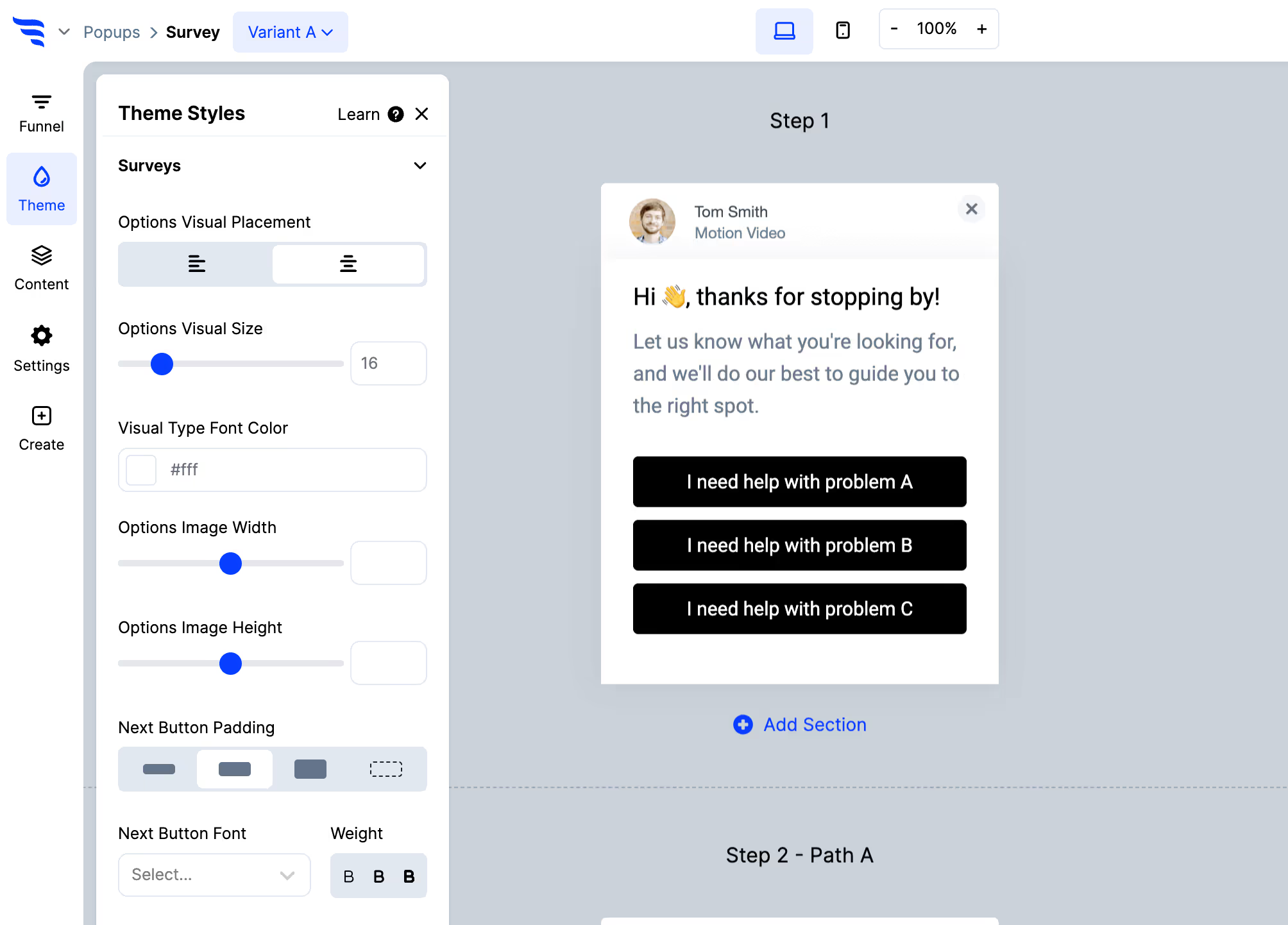
Below the option settings and in the "Themes" tab, you'll find style controls — width, text alignment, fonts, colours, sizing, whether options are stacked or responsive, drop shadows and more.
Survey confirmation actions
With a survey element selected, click to the "Actions" tab to choose what happens when someone selects an option.
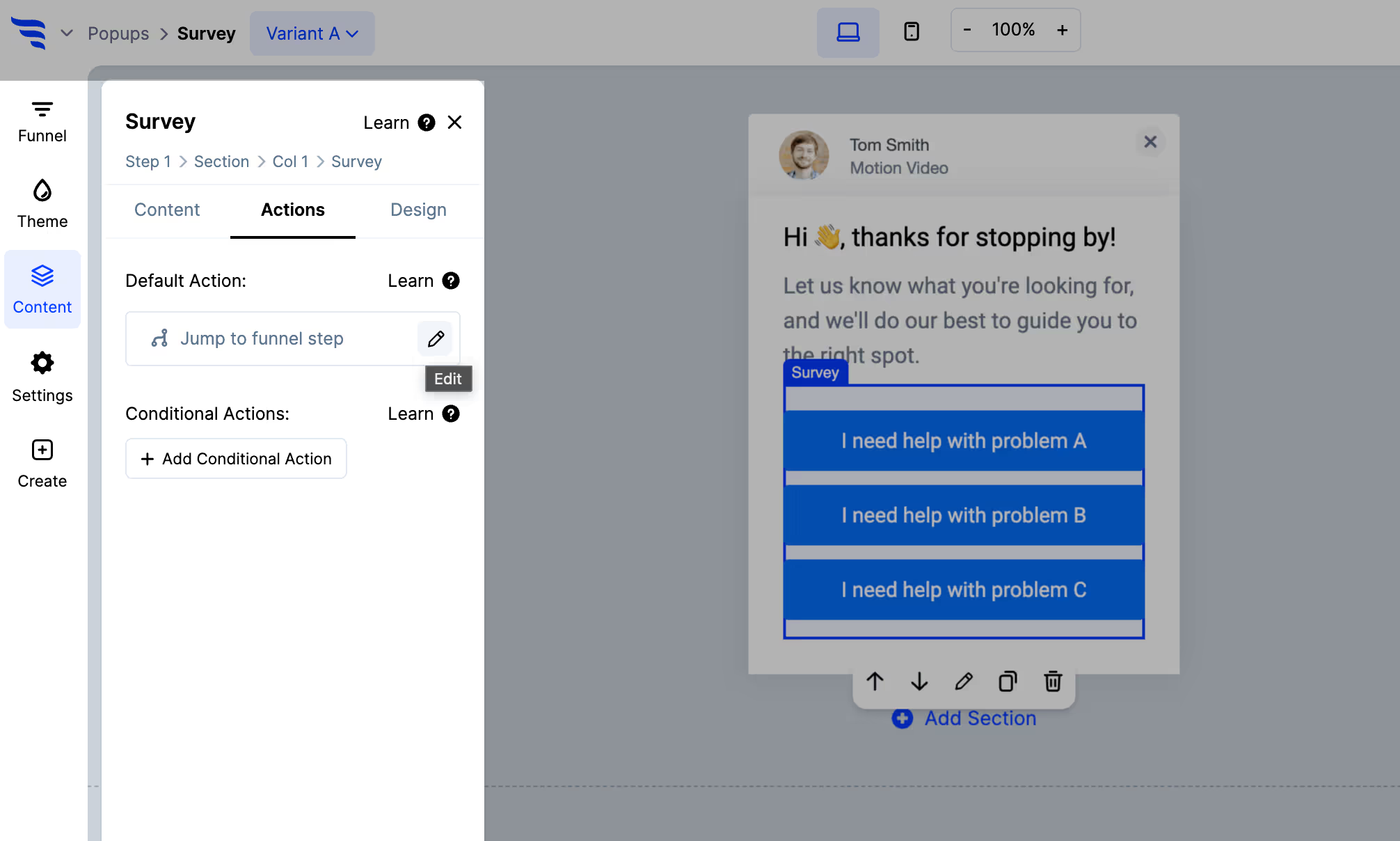
- Redirect visitors to a URL
- Show another step in the campaign, or specific steps based on the selection
- Display a thank you message
- Display another ConvertFlow campaign
- Open an SMS message to a phone number
Adding Keap automations
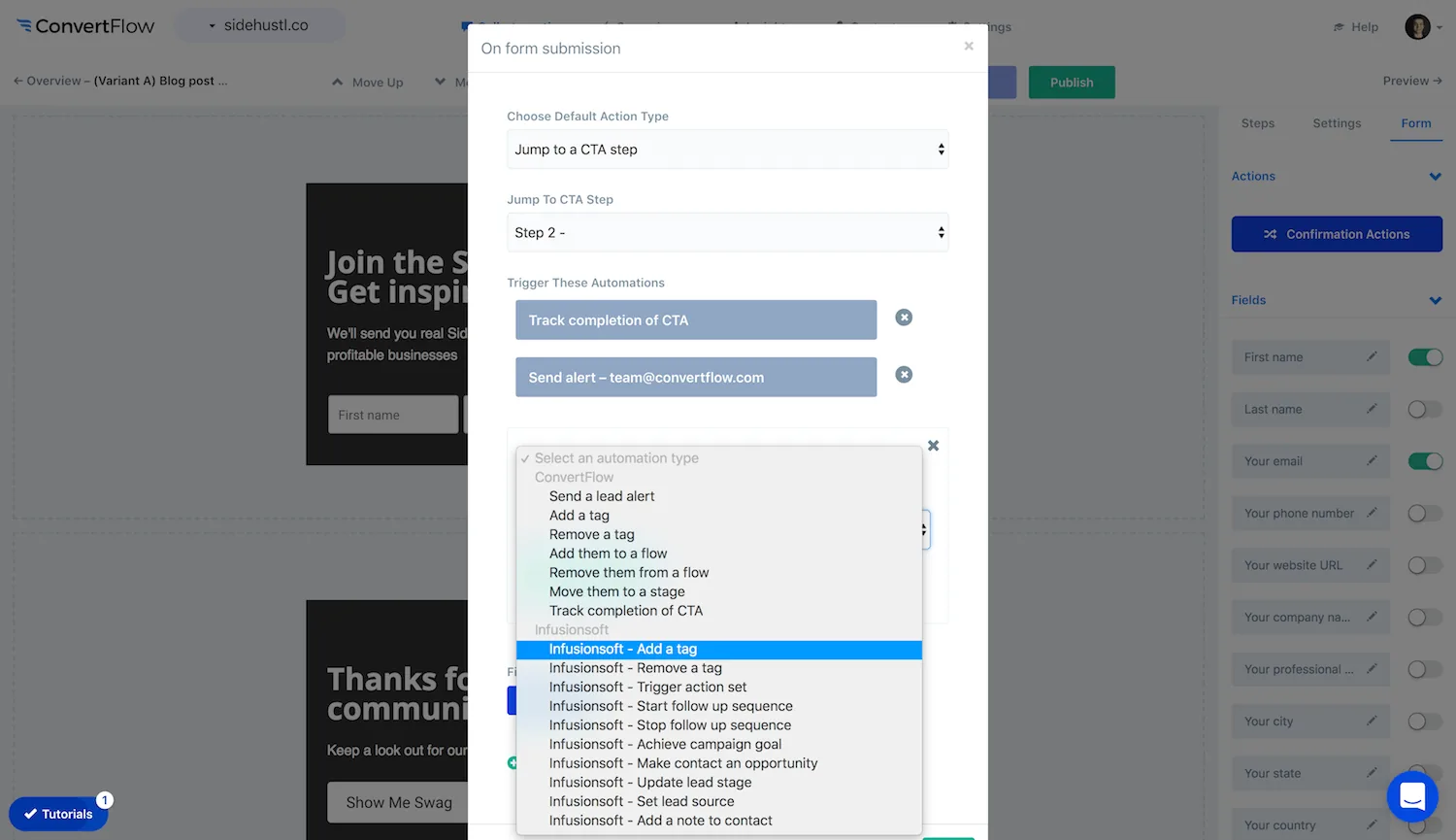
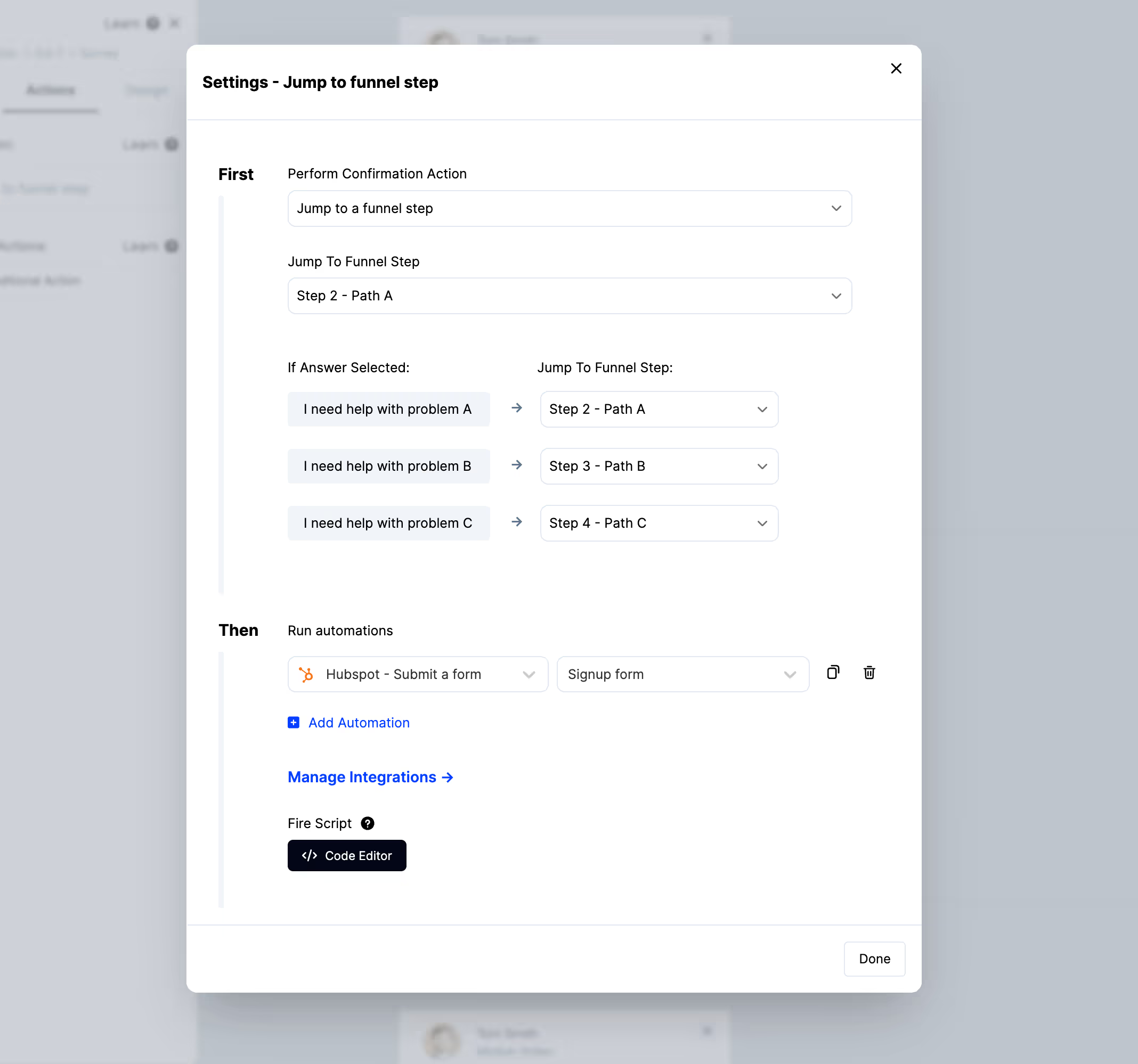
Alongside ConvertFlow actions like lead alerts, add automations that apply a Keap tag or run a Keap action set once they've answered.
The action set is the useful one for a survey that needs a human response — it can apply the tag, create a follow-up task and notify an owner as a single unit, so an answer that needs attention actually gets it.
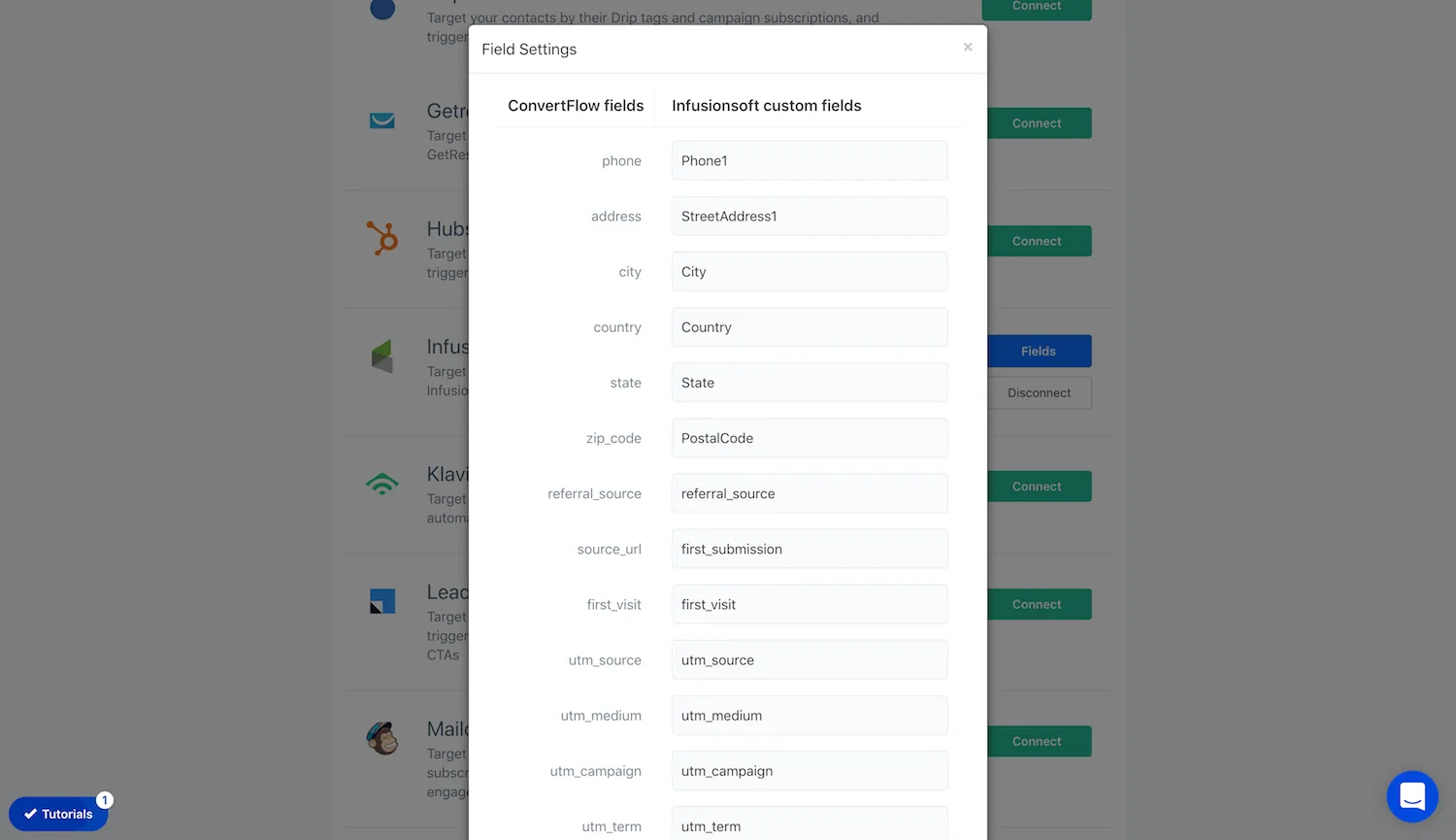
Map preset fields to Keap
Email address and first name are mapped for you. For the rest, use the Fields button on your Integrations page and enter the field's data name.
Running scripts & pixels on completion
By adding scripts to your survey's confirmation actions, you can fire conversion pixels and perform other custom javascript. ConvertFlow runs scripts added here only after a survey option has been selected.
Adding conditional logic
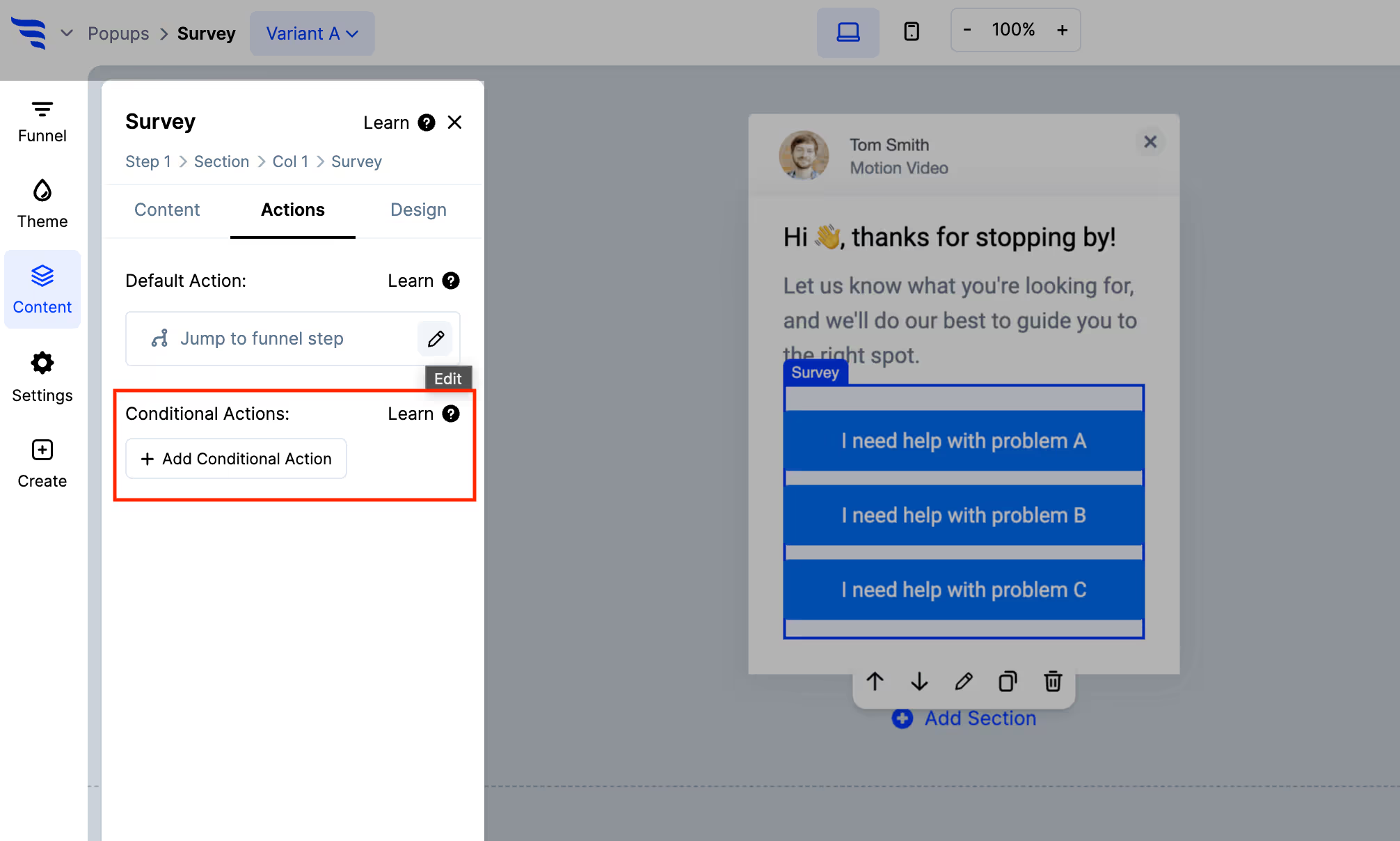
By default the survey performs the confirmation action you've set. Click "+ Add Conditional Action" to act only on visitors meeting your conditions — useful for routing by the sum of their selections, or firing a different Keap action set per answer.
Target who gets asked
With Keap connected, target the survey to specific contact segments — existing customers only for a post-sale question, a particular tag for research — rather than showing it to all traffic and diluting the responses.
Segment and personalize in Keap
Once answers are landing on Keap contact records, build saved searches and segments from those field values and tags, and target your campaigns against them.
You can also personalize your website for Keap contact segments — so what someone told you in the survey changes what they see on their next visit.



%20(1).avif)





.svg)
