ConvertFlow’s Omnisend pop-up builder uses AI to create, personalize, and A/B test Omnisend pop-up for your website. 100+ popup templates. 1-click integrations.
See step-by-step how to build and launch pop-ups in ConvertFlow
Watch the tutorial
See step-by-step how to build a Omnisend popup in ConvertFlow
How to create the best Omnisend pop-ups
With ConvertFlow, you can launch Omnisend pop-ups on your website, to the right visitors, at the right time.
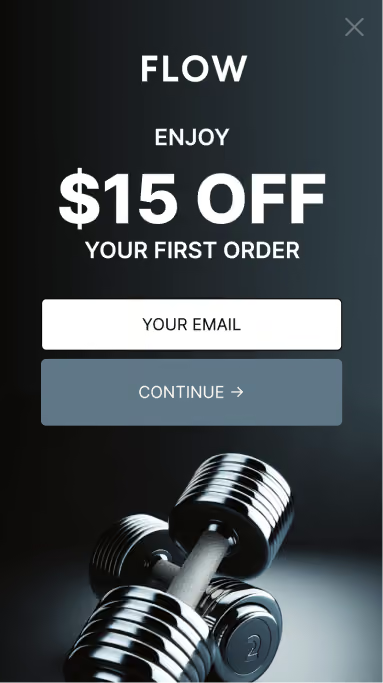
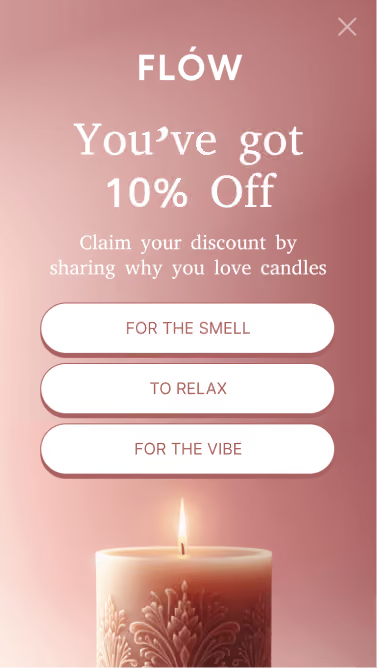
Overlay pop-ups Targeted campaign that displays a large, centered pop-up. Great for commanding visitor attention when you need it.
Hook pop-ups Targeted campaign that displays a smaller, left or right aligned pop-up. More subtle than overlay pop-ups, when you want to be less intrusive.
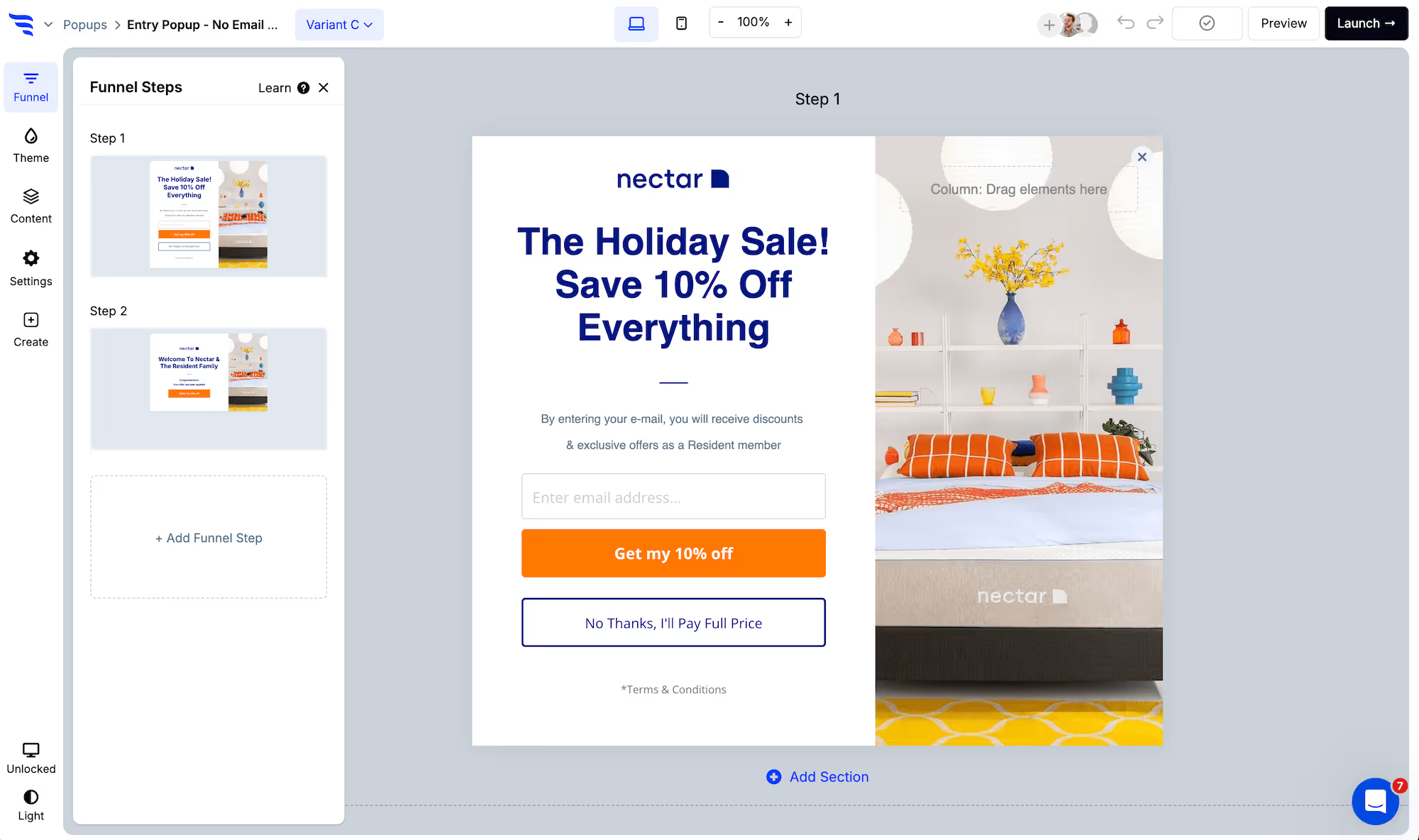
When creating a new Omnisend pop-up in ConvertFlow, choose to see templates for one of the pop-up formats.
You'll then see lots of templates to choose from. Now, choose the template that's closest to your desired campaign. Preview it and then create a campaign using that template, or create from scratch.
Set the Omnisend pop-up trigger
In the "Settings" tab of the builder panel, scroll down to find the pop-up trigger settings.
Here you can choose the trigger type you want to use. Trigger types include:
Exit-intent triggered Omnisend pop-ups
Want your Omnisend pop-up to appear when the visitor moves their mouse to exit the page?
This trigger type will detect their mouse movement to determine when to trigger the Omnisend pop-up.
On mobile devices, exit intent Omnisend pop-ups will trigger when the visitor clicks the back button in their browser.
Scroll point triggered Omnisend pop-ups
This trigger type lets you display your Omnisend pop-up when the visitor has scrolled to a certain percentage of the page.
For example, you may want to trigger the Omnisend pop-up 50% down your home page.
Timed delayed Omnisend pop-ups
You can have your Omnisend pop-up trigger X number of seconds after the page loads using this trigger type.
Click triggered Omnisend pop-ups
Need your Omnisend pop-up to trigger only when a button is clicked?
Using this trigger option, your Omnisend pop-up can preload on the page and then trigger when a button is clicked.
You can use either a ConvertFlow button linked to your Omnisend pop-up or apply the given custom trigger class to any HTML content on your page that you'd like to trigger the campaign upon clicking.
On-site message triggered Omnisend pop-ups
Want to preface a Omnisend pop-up with a small on-site message from a team member?
Using this trigger type, you can have a small pop-up message appear in the corner of the screen, that when clicked will trigger the Omnisend pop-up.
Two-tap floating button Omnisend pop-ups
Display a floating button from the corner of your website, that when clicked triggers the Omnisend pop-up.
Cart triggered Omnisend pop-ups
Trigger your Omnisend pop-up after an item is added to the cart.
This will detect adds to cart from your Shopify store, as well as any products added to cart by ConvertFlow product elements.
Upon closing your Omnisend pop-up
With every trigger type except "upon click only", you can adjust the trigger suppression setting.
If you set trigger suppression to always show the Omnisend pop-up, it will trigger it after the visitor has closed it out.
If you set it to hide for a number of days after closing, it will be suppressed until the given time has passed.
Pro tip: The two-tap floating button can be set to trigger after a Omnisend pop-up is closed, so visitors can access your offer after they already closed it out.
Style the Omnisend pop-up
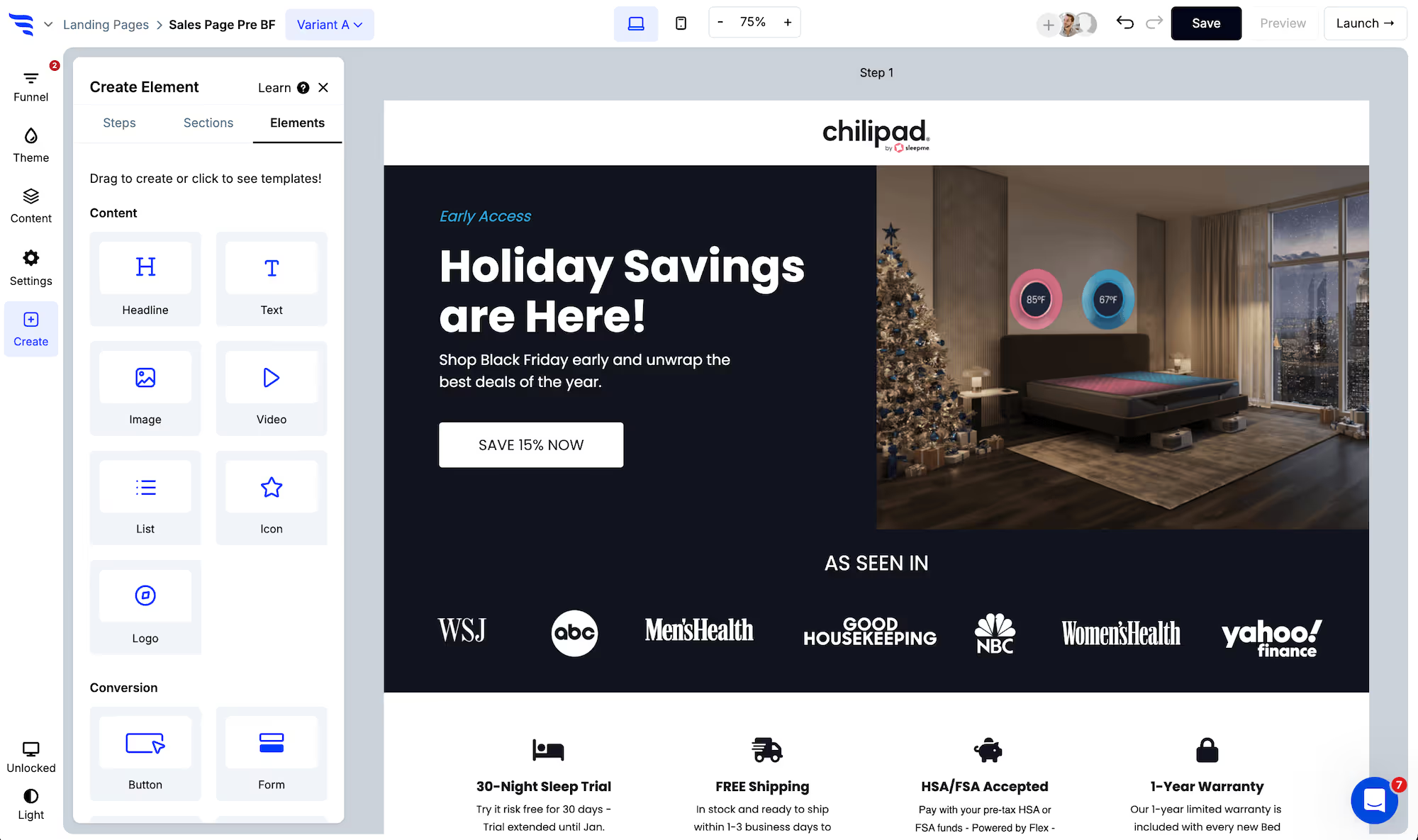
Use the theme settings to customize the theme styles for the pop-up container size, close icon, headlines, buttons, etc.
Edit the Omnisend pop-up content
Click any element, or use the layer manager, to edit content.
For text elements, you'll find a text editor in the builder panel. Or, you can double-click text elements to edit content within the builder canvas.
Then, use the design tab to fine-tune each element's design.
Configure conversion elements in the Omnisend pop-up
Conversion elements are buttons, forms, quizzes, and product elements.
Customize content:
For each conversion element in your Omnisend pop-up, you'll want to customize their content:
Click to the Actions tab to set the default action.
Buttons, forms, quizzes, and surveys can be configured to jump to another funnel step, redirect to a URL, redirect to cart, display another pop-up campaign, etc.
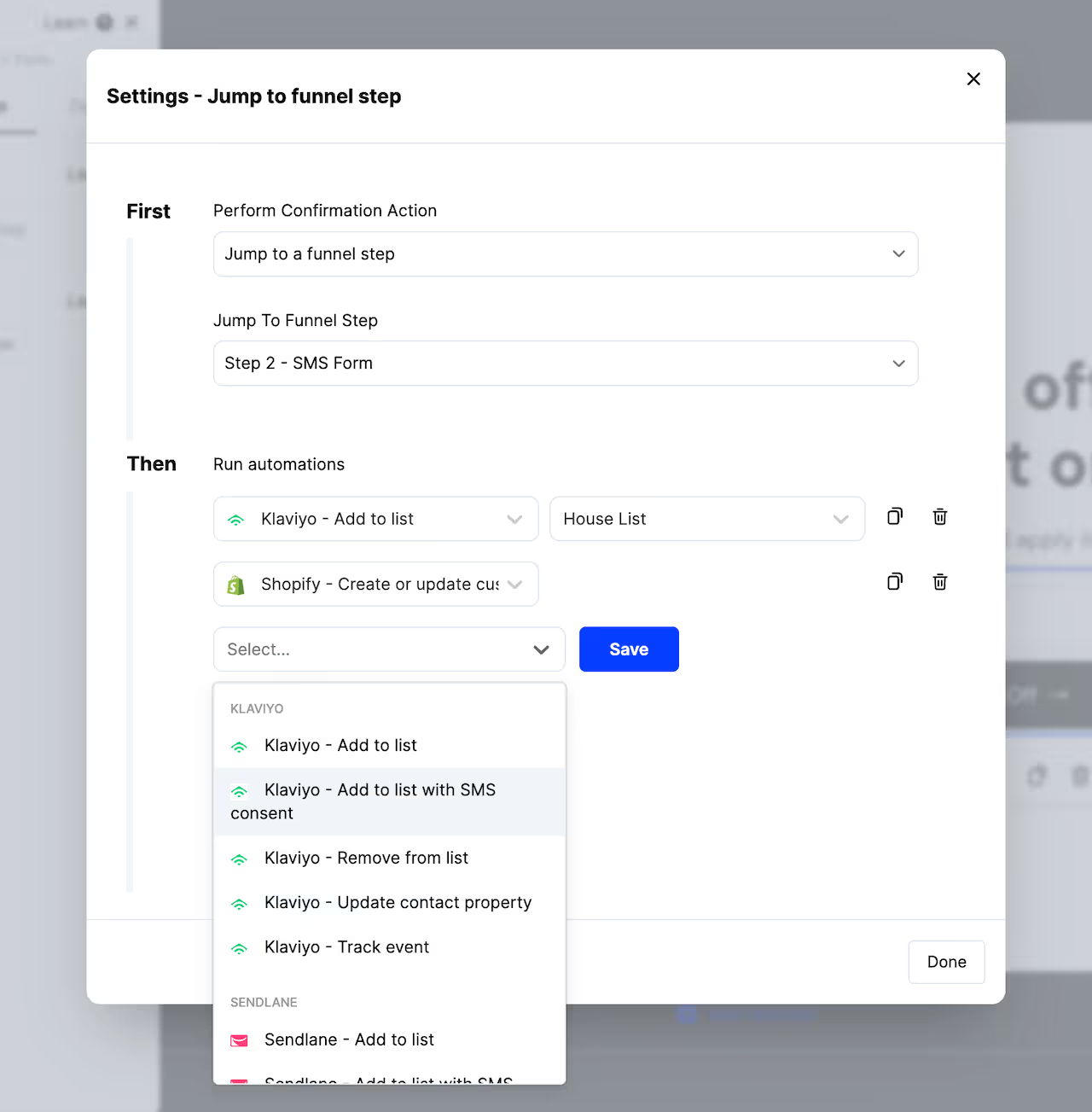
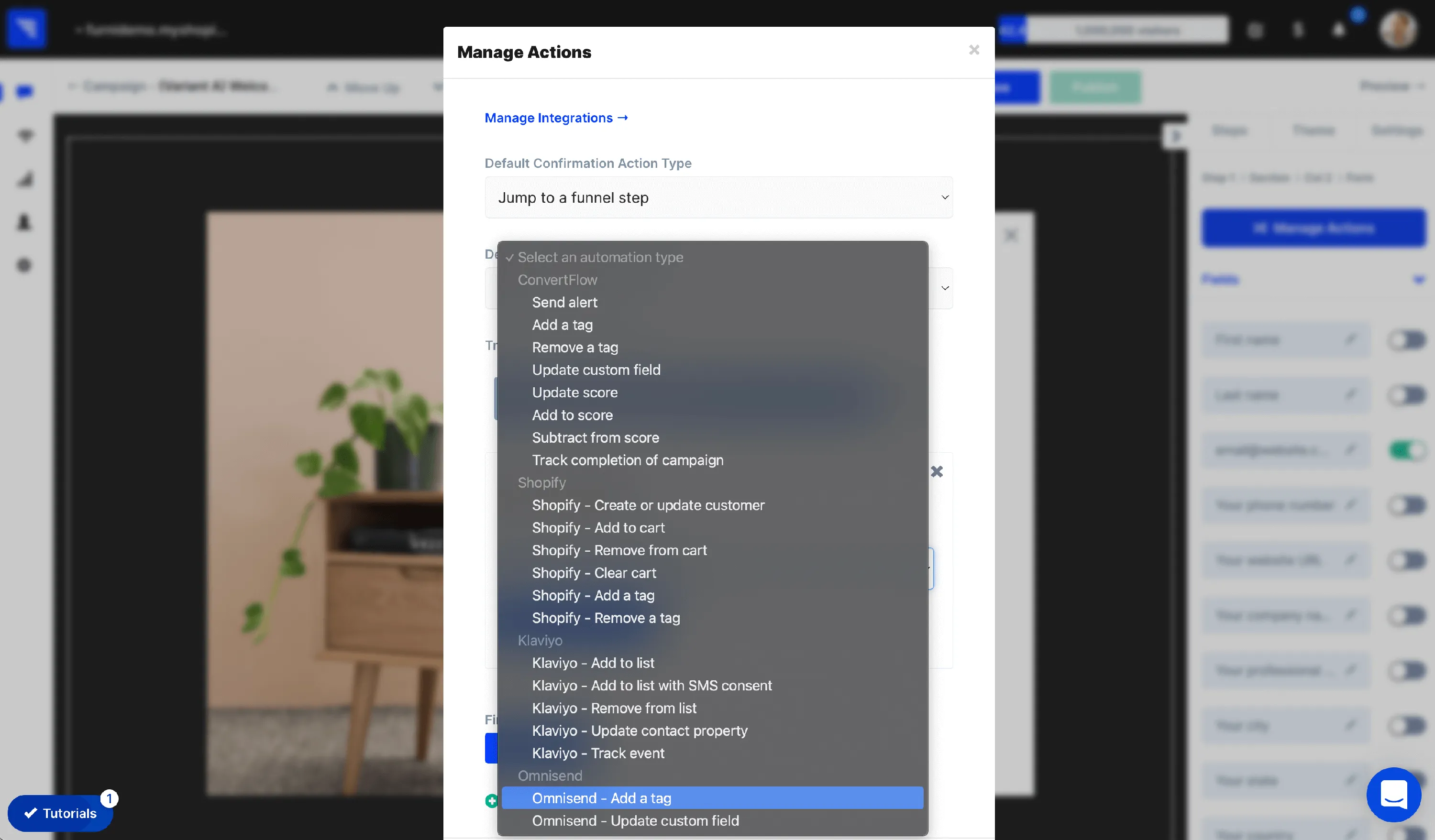
Here you can also add automations to run in the background, such as adding contacts to a list in your email providers.
From the Actions tab, you can also add conditional actions to the conversion elements in your Omnisend pop-up.
Use these to define scenarios using conditions, where a different confirmation action is displayed and additional automations trigger, such as jumping to a different funnel step and applying an additional CRM tag based on a quiz answer combination.
Customize your Omnisend pop-up's product recommendations
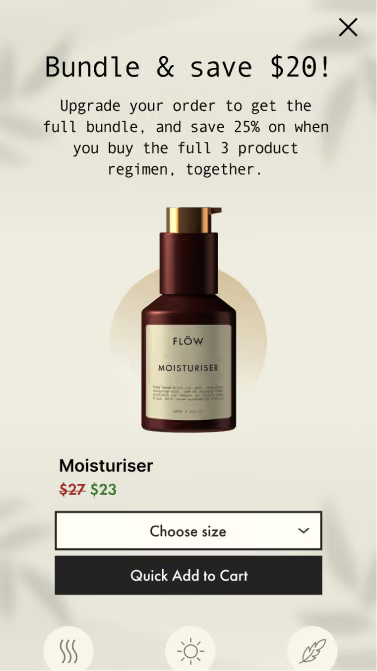
Many of our Omnisend pop-up templates will use product elements to showcase products.
Configure product filters
Select product elements, and you'll be able to configure the products to showcase in the settings to the left.
Choose a products source (example: Shopify), then which products to display in your Omnisend pop-up.
Product feed elements will have settings to configure a products filter, such as products in a certain collection.
Product hero elements have 1 product that shows, so you can select it from the dropdown.
Each type of product element allows for adding conditional product recommendations, which let you use conditions to showcase the right products, based on conditions such as quiz answers, products in the cart, etc.
Set product button actions
From the Actions tab, you can configure the first button text and the click action, to either redirect to the selected product or add to cart, from the Omnisend pop-up.
If adding the product to cart, you can optionally configure the 2nd button text and what happens upon the 2nd button click, such as whether this 2nd click redirects shoppers to their cart, checkout, another funnel step, a URL, etc.
Preview your Omnisend pop-up
Once you're done customizing the template, click to preview your Omnisend pop-up.
You'll then be able to preview and test out your Omnisend pop-up in a safe test environment.
Testing your Omnisend pop-up doesn't count towards campaign stats, and it doesn't trigger automations in your integrations.
Launch your Omnisend pop-up
Next, click "Launch" to control which pages and visitor segments you want to target your Omnisend pop-up to.
To launch your Omnisend pop-up, add any targeting conditions needed to control which visitors should see this pop-up, and then toggle the checkbox to activate the pop-up.
Once you've done this, your Omnisend pop-up will begin displaying on your website!
Why build Omnisend pop-ups in ConvertFlow
Omnisend has native signup forms, so this isn't a gap you're filling — it's a ceiling you're raising.
The difference is what the pop-up can know and do before it asks for an email: targeting on cart value, page, referral source, UTM, geolocation and visit history, a qualifying question ahead of the email field, product recommendations inside the pop-up, and — because Omnisend is connected — suppression for people already on your list. Every subscriber still lands in Omnisend.
Connect Omnisend to ConvertFlow
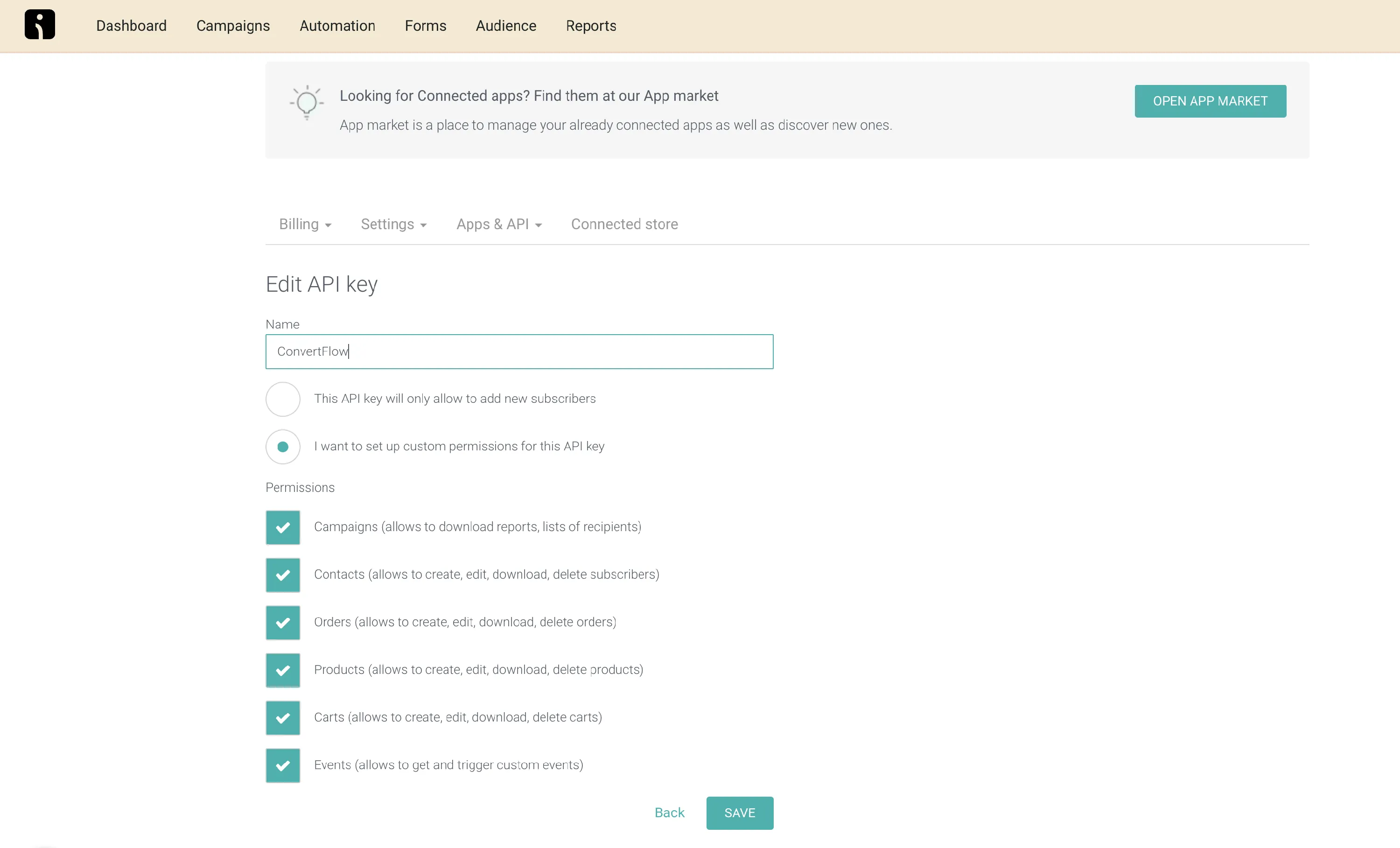
In Omnisend, go to Account → Settings → API Keys and create a private API key for ConvertFlow.
Paste it into ConvertFlow's Integrations area. ConvertFlow then pulls in your Omnisend campaigns, tags and subscriber segments — which is what makes both the syncing and the targeting below possible.
How to create the best Omnisend pop-ups
With ConvertFlow, you can launch Omnisend pop-ups on your website, to the right visitors, at the right time.
Overlay pop-ups display a large, centered pop-up — good for commanding visitor attention when you need it. Hook pop-ups display a smaller, left or right aligned pop-up — more subtle, when you want to be less intrusive.
When creating a new Omnisend pop-up in ConvertFlow, choose to see templates for one of the pop-up formats.
You'll then see lots of templates to choose from. Choose the one closest to your desired campaign, preview it, and create a campaign using that template — or create from scratch.
Set the Omnisend pop-up trigger
In the "Settings" tab of the builder panel, scroll down to find the pop-up trigger settings.
Here you can choose the trigger type you want to use. Trigger types include:
Exit-intent triggered Omnisend pop-ups
Want your Omnisend pop-up to appear when the visitor moves their mouse to exit the page? This trigger type detects mouse movement to determine when to fire. On mobile devices, exit-intent Omnisend pop-ups trigger when the visitor taps the back button in their browser.
Scroll point triggered Omnisend pop-ups
This trigger type lets you display your Omnisend pop-up when the visitor has scrolled to a certain percentage of the page — for example, 50% down your home page.
Timed delay Omnisend pop-ups
Have your Omnisend pop-up trigger a set number of seconds after the page loads.
Click triggered Omnisend pop-ups
Need your Omnisend pop-up to trigger only when a button is clicked? With this option the pop-up preloads on the page and fires on click. Use either a ConvertFlow button linked to your pop-up, or apply the given custom trigger class to any HTML on your page.
On-site message triggered Omnisend pop-ups
Want to preface an Omnisend pop-up with a small on-site message from a team member? This trigger type shows a small message in the corner of the screen that opens the pop-up when clicked.
Two-tap floating button Omnisend pop-ups
Display a floating button in the corner of your website that triggers the Omnisend pop-up when clicked.
Cart triggered Omnisend pop-ups
Trigger your Omnisend pop-up after an item is added to the cart. This detects adds to cart from your Shopify store, as well as any products added by ConvertFlow product elements.
Upon closing your Omnisend pop-up
With every trigger type except "upon click only", you can adjust the trigger suppression setting. Set it to always show and the pop-up will trigger again after the visitor closes it. Set it to hide for a number of days and it stays suppressed until that time has passed.
Pro tip: the two-tap floating button can be set to appear after an Omnisend pop-up is closed, so visitors can still reach your offer after dismissing it.
Style the Omnisend pop-up
Use the theme settings to customize the container size, close icon, headlines, buttons and more, so the pop-up reads as part of your site rather than a third-party overlay.
Edit the Omnisend pop-up content
Click any element, or use the layer manager, to edit content. For text elements you'll find a text editor in the builder panel, or you can double-click text within the builder canvas. Then use the design tab to fine-tune each element.
Configure conversion elements in the Omnisend pop-up
Conversion elements are buttons, forms, quizzes, and product elements.
For each conversion element in your Omnisend pop-up, you'll want to customize their content:
Edit button element text
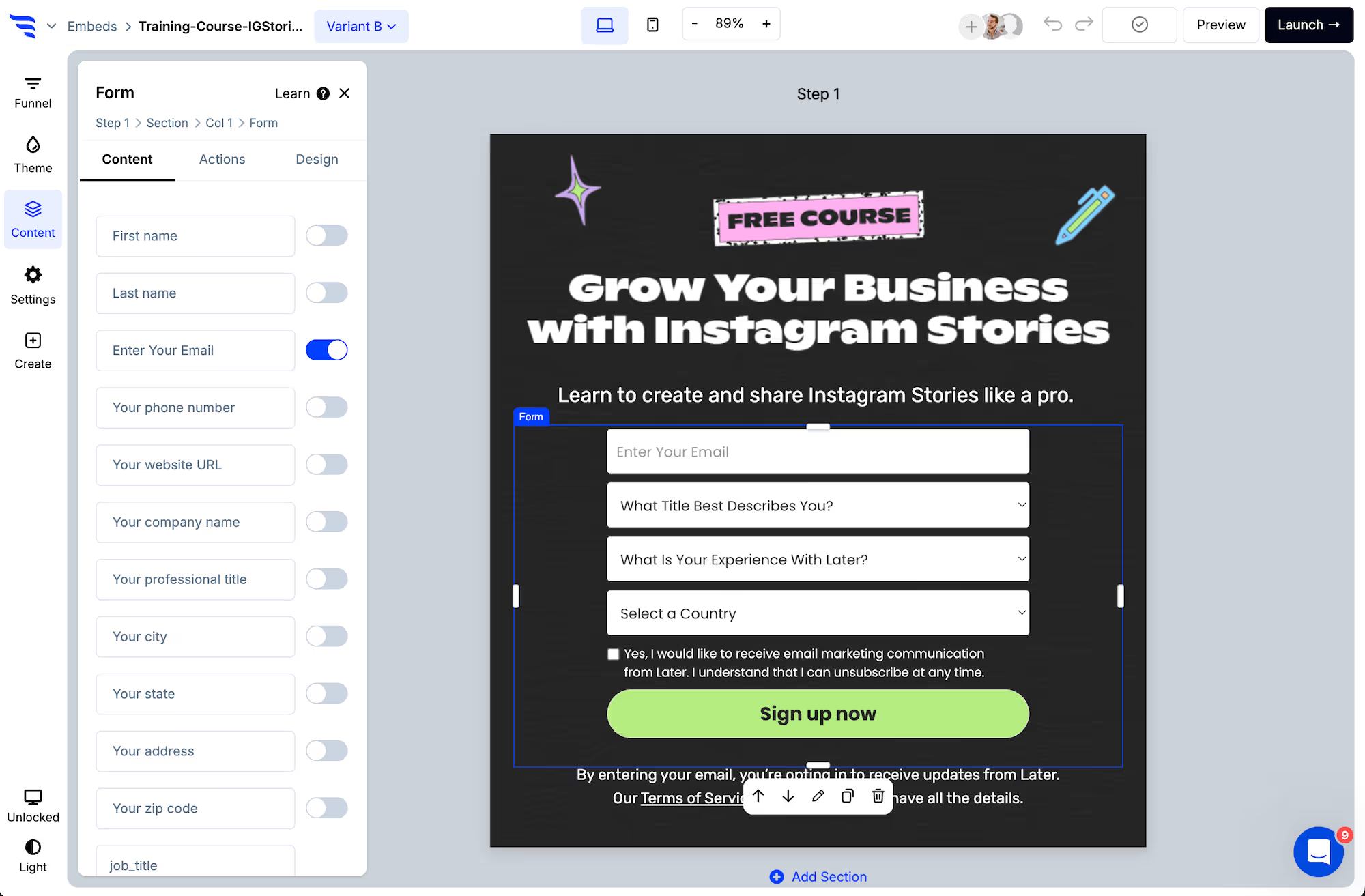
Toggle contact fields and add custom fields to form elements
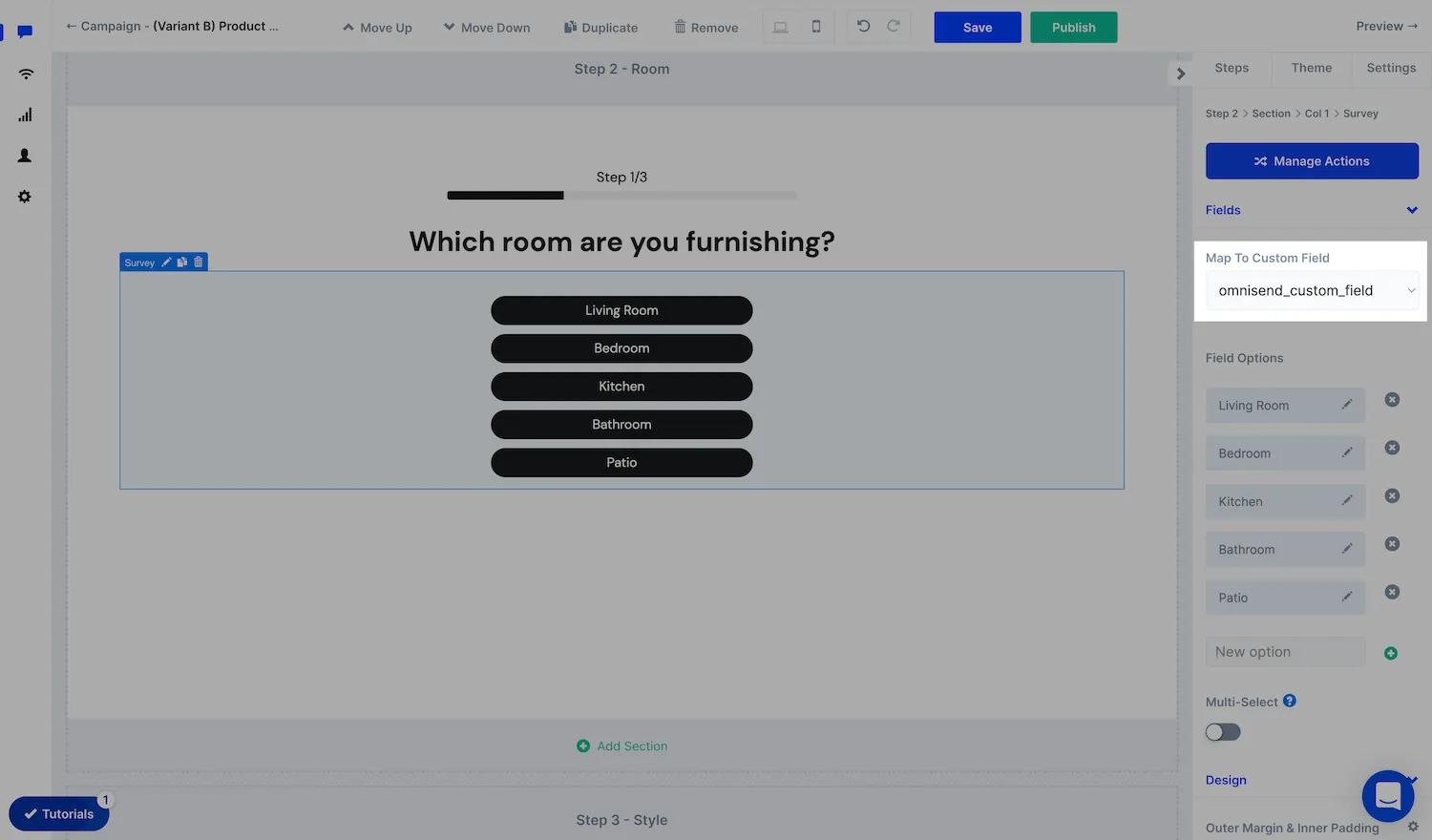
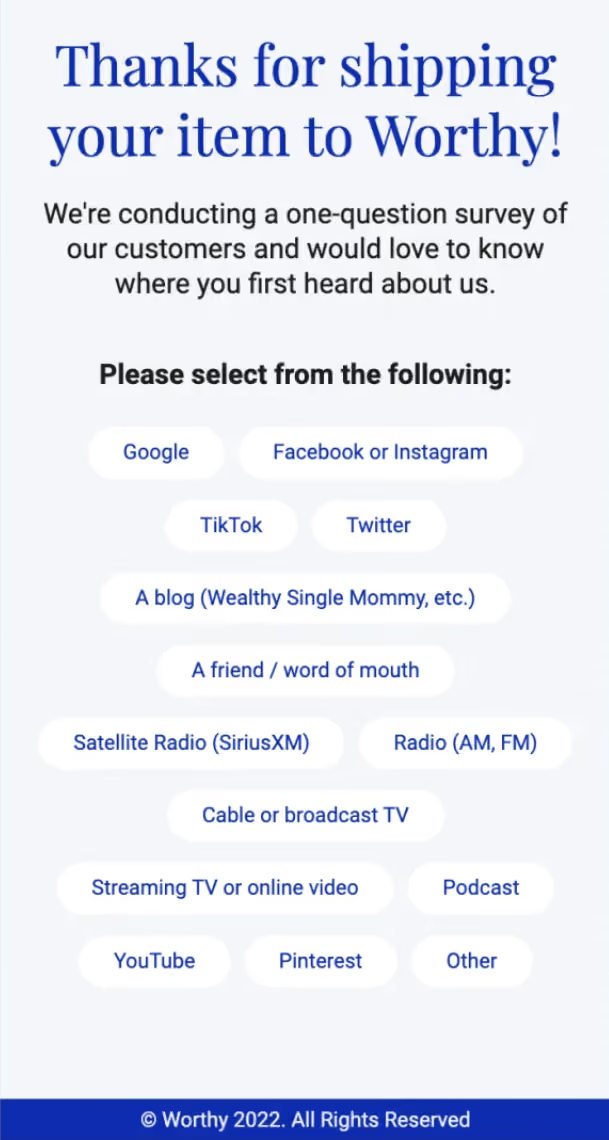
Add options to survey elements
Add questions and answers to quiz elements
Filter product recommendations for product feed elements
Set the product content for product hero elements
Ask a question before you capture the email
A pop-up doesn't have to be a single email field. Add a survey step ahead of the contact fields and you get a segmentable answer alongside the address — skin type, budget, what they're shopping for.
Each question has a "Map to custom field" dropdown. Name a new field with "New field name +" and Omnisend creates the matching custom field on their side the first time a contact is sent, so a two-step pop-up produces a segmented subscriber rather than an anonymous one.
Map the pop-up's fields to Omnisend
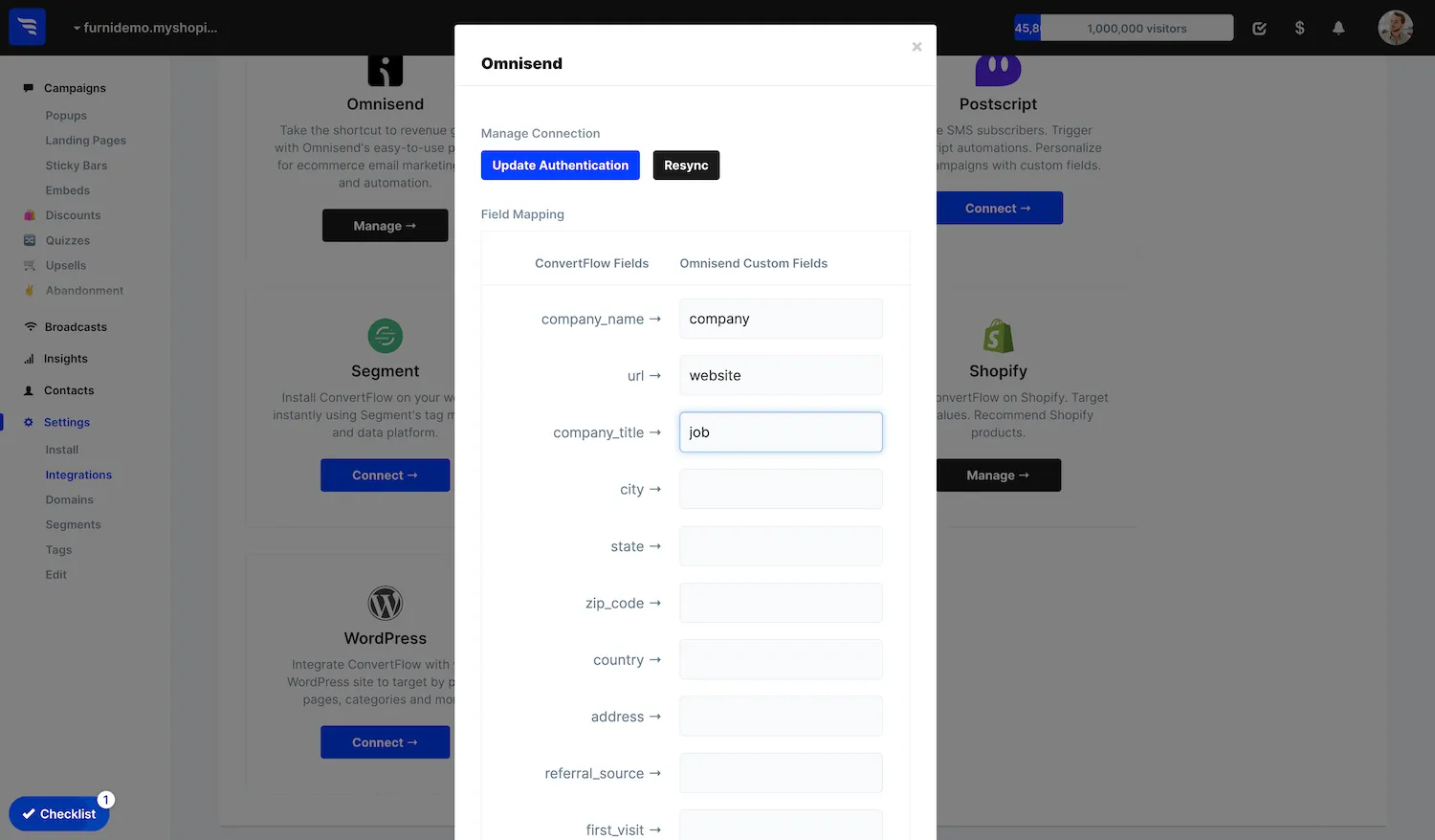
Email address and first name map to Omnisend automatically. For everything else, use the Fields button on your Integrations page to map ConvertFlow's preset contact fields to Omnisend custom fields by data name.
Real-time email and phone verification can also check that an address exists with its provider before the contact reaches Omnisend, which protects your list quality and sender score.
Configure actions
Click to the Actions tab to set the default action. Buttons, forms, quizzes, and surveys can be configured to jump to another funnel step, redirect to a URL, redirect to cart, display another pop-up campaign, etc.
Here you can also add automations to run in the background — including adding the contact to a specific Omnisend list or tag, so segmentation happens at the moment of capture rather than in a later sync.
From the Actions tab, you can also add conditional actions to the conversion elements in your Omnisend pop-up. Use these to define scenarios using conditions, where a different confirmation action is displayed and additional automations trigger — such as jumping to a different funnel step and applying an additional Omnisend tag based on a quiz answer combination.
Customize your Omnisend pop-up's product recommendations
Many of our Omnisend pop-up templates will use product elements to showcase products. Select product elements, and you'll be able to configure the products to showcase in the settings to the left.
Choose a products source (example: Shopify), then which products to display in your Omnisend pop-up. Product feed elements have settings to configure a products filter, such as products in a certain collection. Product hero elements show one product, selected from the dropdown. Each type allows conditional product recommendations, so you can showcase the right products based on quiz answers, products in the cart, and more.
From the Actions tab, you can configure the first button text and the click action — redirect to the selected product, or add to cart from the Omnisend pop-up. If adding to cart, you can optionally configure the second button text and what happens on the second click: cart, checkout, another funnel step, a URL, etc.
Preview your Omnisend pop-up
Once you're done customizing the template, click to preview your Omnisend pop-up. You'll be able to test it in a safe test environment.
Testing your Omnisend pop-up doesn't count towards campaign stats, and it doesn't trigger automations in your integrations — so a test submission won't land in your Omnisend list.
Launch your Omnisend pop-up
Next, click "Launch" to control which pages and visitor segments you want to target your Omnisend pop-up to. Add any targeting conditions needed to control which visitors should see this pop-up, then toggle the checkbox to activate it.
Once you've done this, your Omnisend pop-up will begin displaying on your website.
Hide the pop-up from existing Omnisend subscribers
This is the targeting condition worth setting first. With Omnisend connected, ConvertFlow can read your subscriber segments and exclude anyone already on your list — or show them a different offer instead of a signup form they've already completed.
It's the simplest way to stop asking your best customers for an email address you already have, and it usually improves measured conversion rate too, because the pop-up is only counted against visitors who could actually subscribe.
Measure and split-test
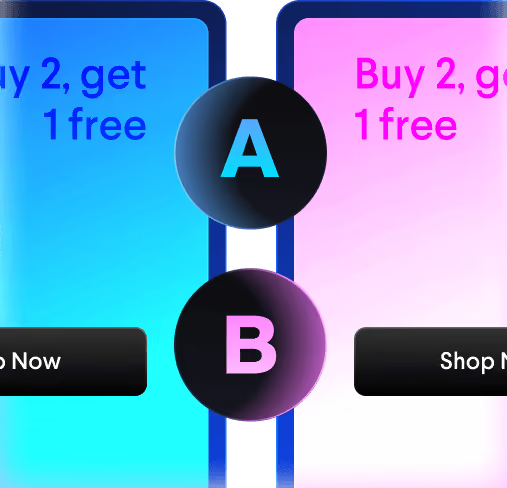
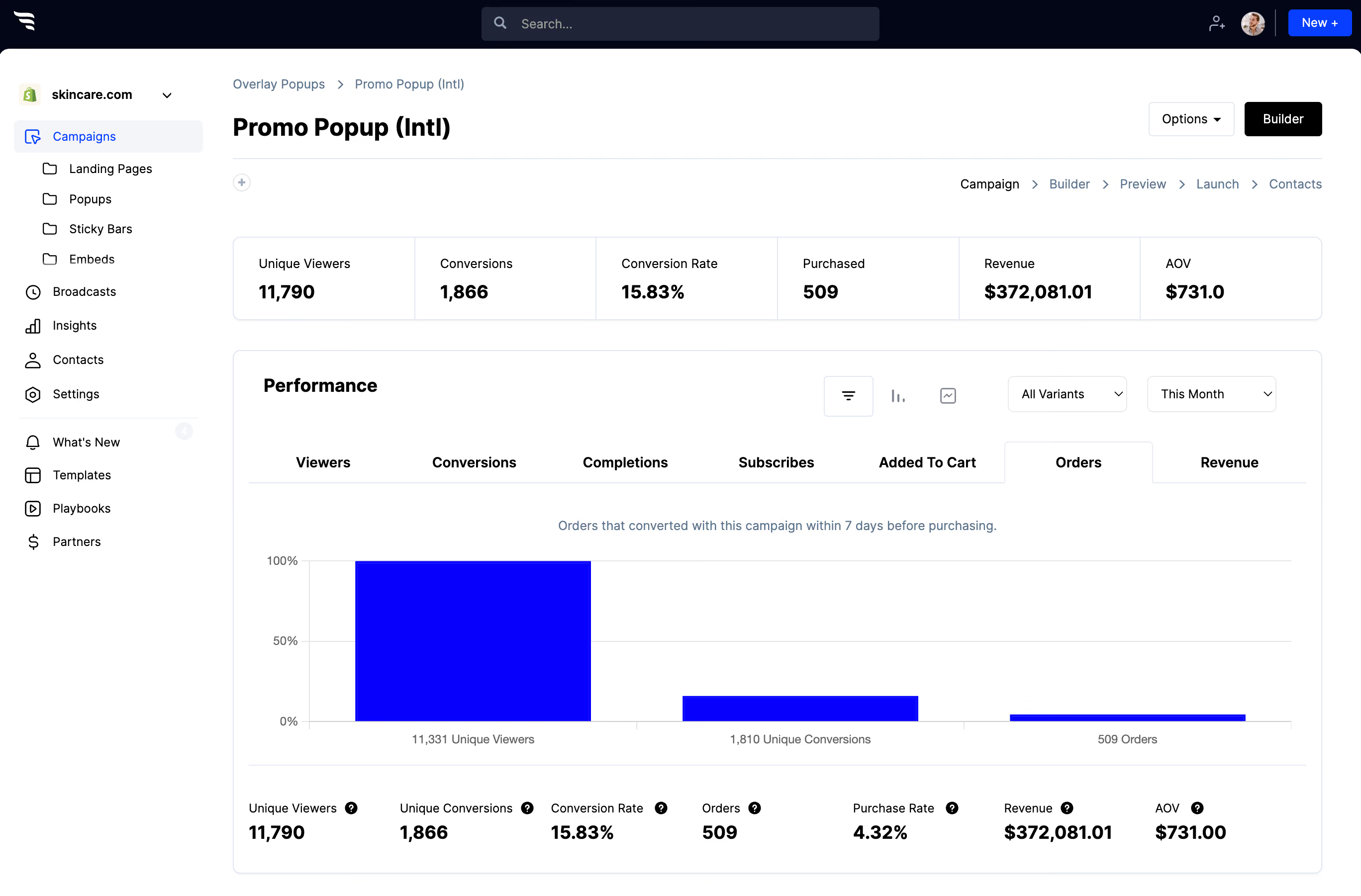
Split traffic between pop-up variants and read the funnel report — views, conversions, and the orders and revenue attributed to each variant, rather than opt-in rate alone.
Frequently asked questions
Have questions? We've got answers to the top questions listed below.
Omnisend already has popups — why use ConvertFlow?
Can I stop showing the popup to people already on my Omnisend list?
How do popup submissions reach Omnisend?
Explore integration guides
Dive deeper into integrating ConvertFlow with Omnisend
ConvertFlow is easy for beginners, powerful for pros
Fast & easy for busy entrepreneurs, while powerful for marketing pros & agencies. ConvertFlow gives you the power to quickly launch funnels for any product, brand or offer
Build with freedom
Add as much content as you want with drag-and-drop elements
Designed for mobile
Effortlessly create the perfect experience for mobile & desktop
Pre-built sections
We've done 99% of the design work for you. Build swiftly by adding pre-built sections
Funnel steps
Guide shoppers from visit to checkout through multiple funnel steps
Sell products
Connect an ecommerce platform like Shopify, display your products, and drive shoppers to purchase from your funnels
Publish in a click
Publish your pages and campaigns to your own domain, or directly to Shopify, Wordpress, or any other CMS
Automate actions
Sync contact fields, map custom fields, track events & trigger actions in your tools
Funnel logic
Personalize product recommendations and next funnel steps using quiz answers & logic
Targeted audiences
Personalize on-site offers for targeted audiences based on visit history, cart activity, custom fields, and contact segments in your CRM
Split-tests
Experiment and run split-tests to find your best performing offers
Remix with AI
Chat with Remix AI to build your next funnel using 400+ funnel templates
Multi-site
Manage funnels for multiple websites or clients. Invite team members and clients to collaborate
Thousands of fast-growing brands and 30,000+ websites use ConvertFlow's funnel builder to launch pop-ups and funnels. See real results below.
Nate Morse
Founder, JourneyConvert
"AI features have cut down our time by about half since we started."
"ConvertFlow has the tools, the support, and the team we need to help RV dealerships connect with more shoppers and move more units. It's become core to how we build for our dealer clients... We're sitting at like 10x average lead increase. ConvertFlow support and constant development of AI features have cut down our time by about half since we started."
Jayce
Barkley's Bag
"With ConvertFlow's quiz funnel, our funnel AOV hit $53.97 vs. $35 on our regular Shopify store — a 56% increase."
"With ConvertFlow's quiz funnel, our funnel AOV hit $53.97 vs. $35 on our regular Shopify store — a 56% increase. The quiz does the work of a salesperson, guiding first-time buyers to the right products for their dog instead of leaving them to guess, and the welcome-offer and exit-intent popups capture visitors we used to lose. Across the last 90 days it's driven 287 orders and over $15K in funnel revenue for us. Setup was fast and it runs on autopilot."
Nik Friedman-Tebockhorst
VP of Solutions, McGaw.io
"Easy for the team to build, test, and iterate"
"ConvertFlow stood out because it was easy for the team to build, test, and iterate on CTAs and landing pages, while offering out-of-the-box integration with their CDP, marketing automation platform, analytics, and Shopify. In our experience you can activate growth much faster with tools that can integrate easily with the rest of your stack, and ConvertFlow checked all of our boxes."
Chachi Flores
Head of Ecommerce, Peacock Alley
"ConvertFlow enabled Peacock Alley to unlock advanced personalization and conversion optimization, driving a +32% increase in AOV"
"What excites me most is that we've barely scratched the surface of this platform's capabilities. ConvertFlow will remain an invaluable partner as we scale our luxury bedding and bath business throughout 2026 and beyond."
Scott McLeod
Co-Founder, Nectar Sleep
"I recommend using a tool like ConvertFlow…"
"We’re constantly trying to find offers that work. Once we find a winner, we roll it out to the maximum... All this makes it simple to test out different theories you might have about your messaging. Meaning you’ll be able to quickly find out which one resonates best, and run with the winner."
Jack L.
Product Manager
"Its quick and easy to create new components for your website. "
"You can learn a lot about the lead funnel of your business by quickly creating simple A/B test and optimisations. One of the main benefits is the ease of integration to your site. The customer support is great and the dev team are extremely fast are finding solutions to technical issues."
Stefan Grech
Head of Infrastructure, Catena
"ConvertFlow has allowed us to better measure our campaigns"
"ConvertFlow has allowed us to better measure our campaigns, so we can better take advantage of optimization opportunities and scale results faster."
bareLUXE Skincare
Shopify Store
"Generating signups and conversions with a positive ROI."
"Really good app. There's a bit of a learning curve, but the tech support is very responsive and available. I'm using it for quizzes and promotions. Has been generating signups and conversions with a positive ROI."
SEA+SOLU
Shopify Store
"The entire platform is exceptional and having tested 5 others before finding ConvertFlow for our quiz - I can say with certainty that this is the best option.
Customer service rep Yvonne was phenomenal at supporting us with an issue on our pop up. Must say that the entire platform is exceptional and having tested 5 others before finding ConvertFlow for our quiz - I can say with certainty that this is the best option.
Undrdog
Shopify Store
"Helps us connect the dots between Shopify, Klaviyo and custom campaigns like quizzes, surveys, etc."
In its core you have the CDP which helps us connect the dots between Shopify, Klaviyo and custom campaigns like quizzes, surveys, etc. On the other hand, you have this front-end builder with some good landing page and popup templates to start from... I believe ConvertFlow will be the next big thing in the development of Shopify ecosystem
Thomas Cuneo
E-commerce Growth Manager
"I love the different popup options"
"I love the different popup options, the visual builder and the integrations."
David Heatley
Founder, Cycling Inform
"Makes segmentation easy"
"I've been wanting to get my segmentation survey up and running for years and now it’s so easy with ConvertFlow!"
Frank N.
Lifecycle Marketer
"ConvertFlow is one of the most powerful and capable pop-ups, surveys, and landing page tools out there"
"ConvertFlow is one of the most powerful and capable pop-ups, surveys, and landing page tools out there. It provides a lot of customizations, which is hugely helpful in tailoring it to the way you want it to behave. We use it for our Shopify stores for different countries and in different languages. It can always provide us the flexibility to customize it based on what we need. And the built-in A/B test capability just makes running tests so much easier and enables the marketing team to make changes on the fly based on real-time metrics without creating a workload for the web developers."
Brady W.
General Manager
“Easy to implement on our website”
“ConvertFlow has helped our business overall, and I am glad we are using it. I love that you can A/B test easily and see the results quickly from it. It has helped us to easily communicate discounts and new features to our customers. Easy to implement on my website.”
Berk D.
Marketing Manager, Growth Hacker
“The flexibility is nothing short of amazing”
“We're primarily using Convertflow to promote webinars and seasonal offers (e.g. Black Friday), and integrate it with our CRM platform, which in turn allows us to accurately nurture the captured leads."
Jay Vasse
Digital Marketing Manager, Cuddle Clones
"Has helped us get over 150,000+ email and SMS subscribers in the past year"
"ConvertFlow has been an invaluable tool for us. It's flexibility has allowed us to use it for way more than just a simple pop-up to collect emails and phone numbers. We've used it for surveys, review generation and even specific cart-based messaging that's unique to each user. With their HubSpot integration we've been able to easily segment users and target messaging. Whenever we've had an issue or question their support has quickly responded, and their development team has even made changes to fit our specific needs. Would definitely recommend ConvertFlow to any store that is in need of a great lead gen tool with excellent support!"
Elliot Kovac
Retention, Ready. Set. Food!
"ConvertFlow has given us higher opt-in rates right off the bat compared to our last platform."
“The ability to seamlessly plug into Klaviyo, Attentive, Shopify, and pull the data – I mean it goes both ways – pulling data in, exporting data out – has been very seamless.”
Jacob Forrest
Owner, simple-shot.com
"Our short list of must-have apps: Shopify, Klaviyo, and ConvertFlow"
"Truly outstanding support. Lightning fast. More features than you can imagine. Fair pricing. Top-notch Klaviyo integration (with events!). We created a popup on literally day one that has been a consistent 35% add to cart boost since the day we made it."
Rupert Allan
Marketing, May Lindstrom Skin
"Made a serious impact on the bottom line and deserves a lot of applause"
The platform has made a serious impact on the bottom line and deserves a lot of applause. I also don't see a comparable tool yet that has as many features, plugins, integrations, etc. The team is looking to deliver on a lot of levels, and I think are just now turning a big corner.
Launch your Omnisend pop-up
Getting started takes just a minute and you can build your next funnel for free.






.avif)
.avif)
.avif)
.avif)
.png)
.png)
.png)
.png)
.png)
.avif)
.avif)
.avif)
.avif)
.png)
.png)
.png)
.png)
.png)


%20(1).avif)




.svg)
