Grow your list. Segment shoppers by quiz answer. Personalize for shoppers based on Omnisend data.
Connect For FreeOmnisend includes popup forms, and for a straightforward email or SMS capture on a Shopify store they're free with your plan and there's nothing to integrate.
Teams build popups elsewhere when they want trigger and targeting control Omnisend's forms don't reach — or when the popup needs to be more than a single-step capture.
In Omnisend, create a private API key under your account's API settings.
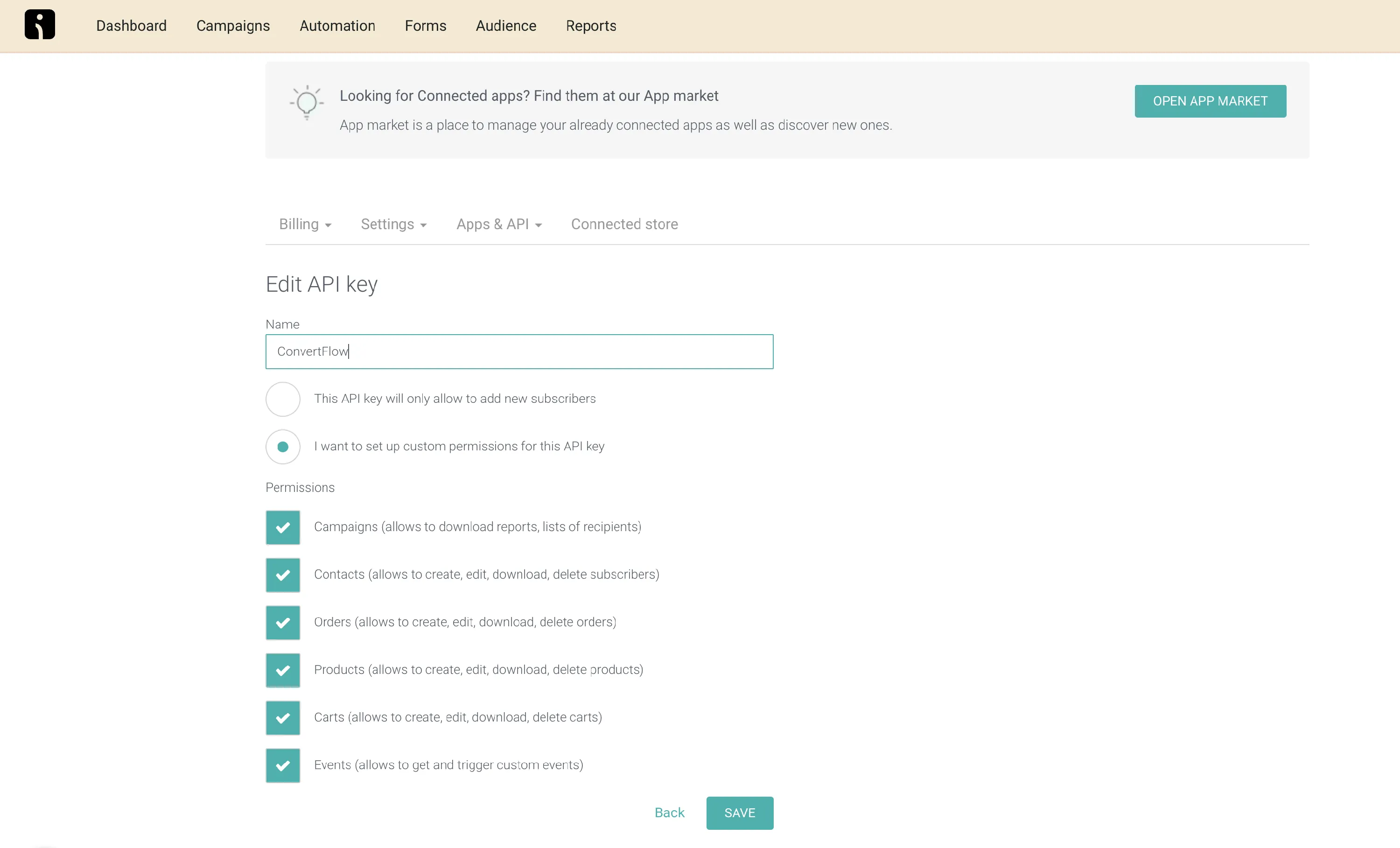
Paste it into ConvertFlow's Integrations area, and ConvertFlow pulls in your Omnisend campaigns and tags.
.avif)
.avif)
.avif)
Cart triggered is the one worth using on an ecommerce store — it fires the moment a product is added, and a shopper with something in their cart is a far better prospect than one who just landed.
Exit-intent, scroll point, timed delay and click triggers are also available. Set suppression on all of them.
.png)
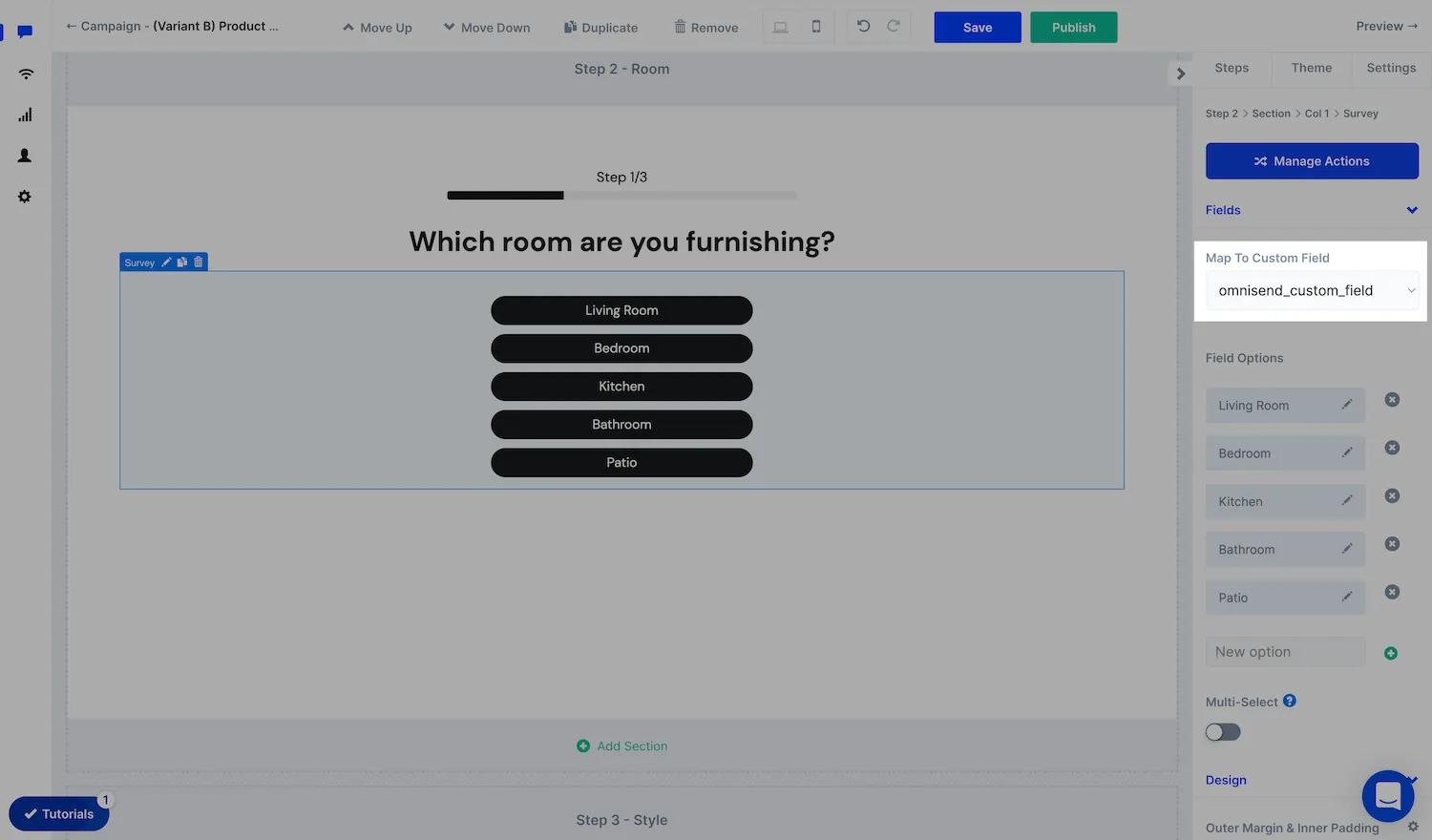
One question before the capture gives you something to segment on. Answers map to Omnisend custom properties.
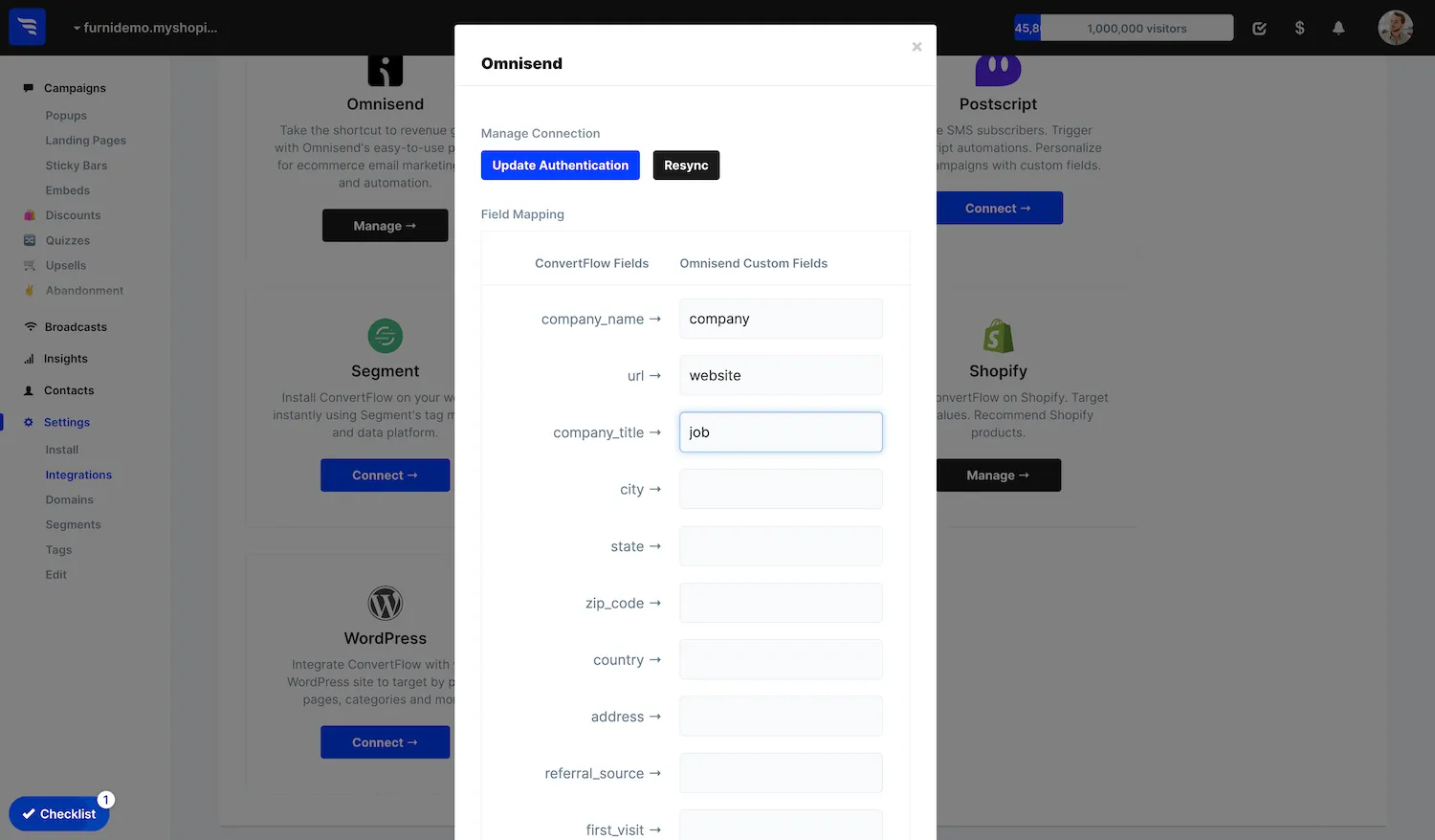
Preset contact fields are mapped from the Fields button on your Integrations page.
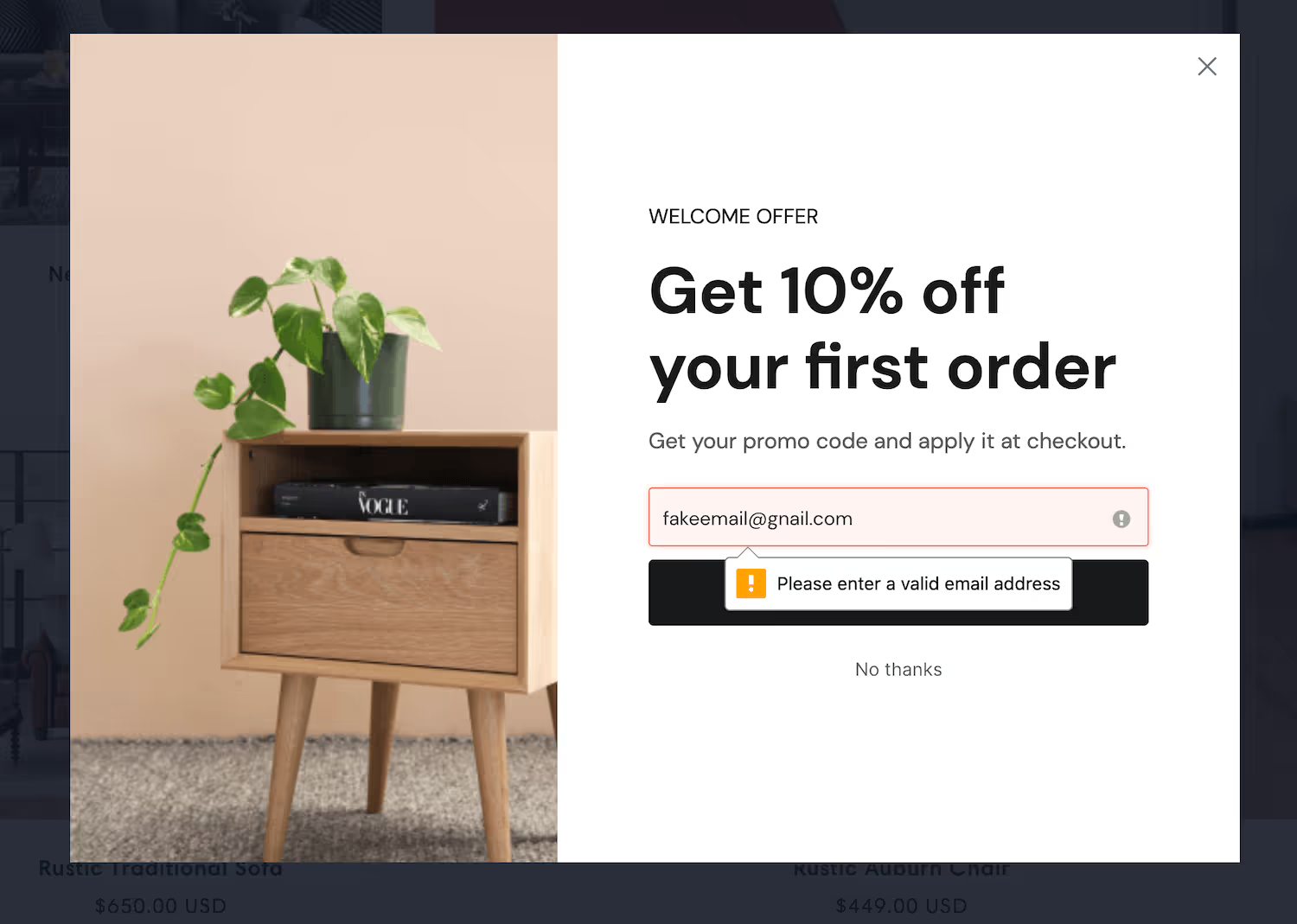
If you're collecting phone numbers for SMS, use the dedicated SMS consent checkbox and turn on phone verification so numbers arrive correctly formatted.
.avif)
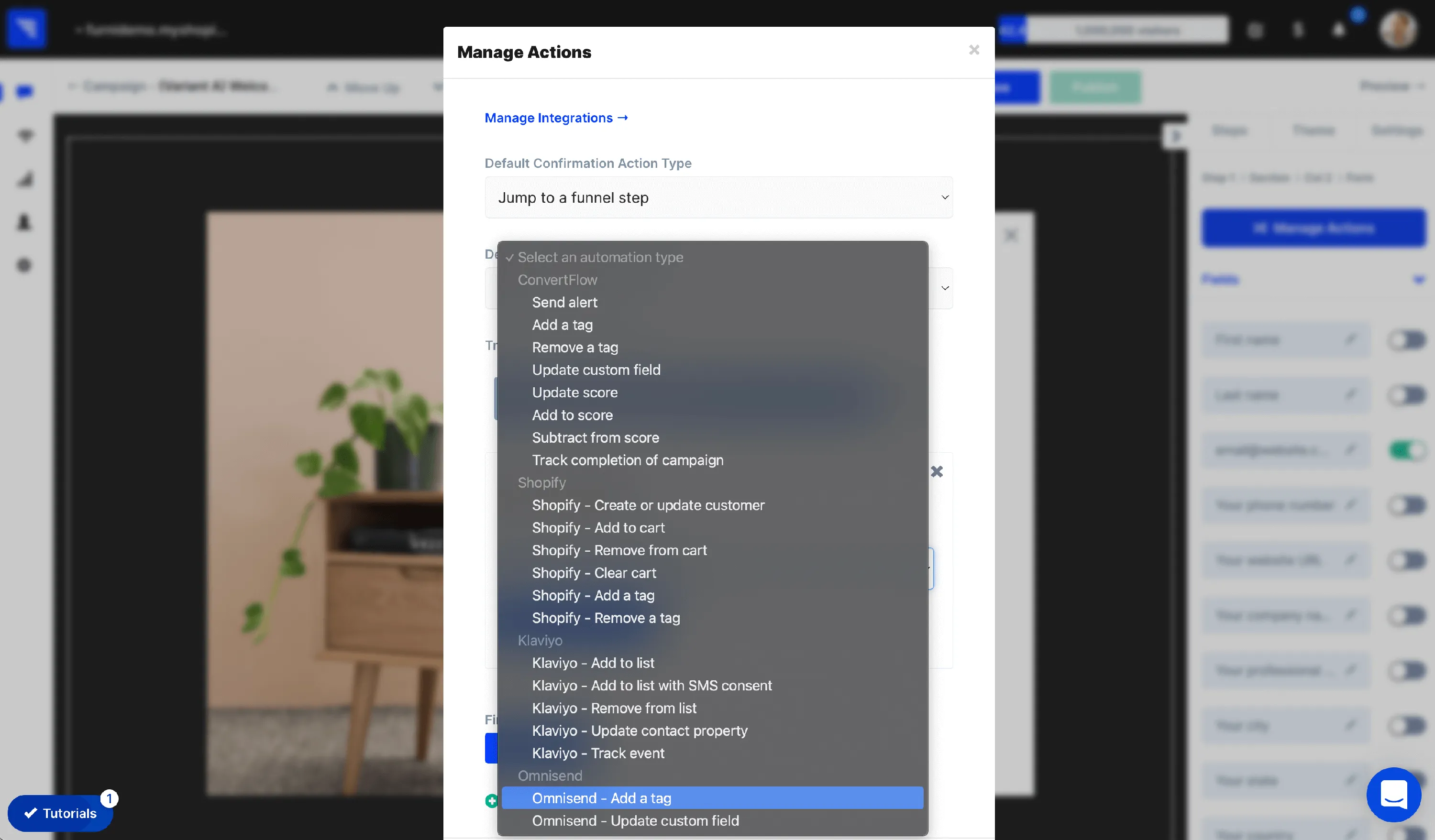
In the Actions tab, add the Omnisend automation that subscribes the shopper, and apply a tag. Conditional actions let a different answer carry a different tag — which is what your Omnisend automations then run on.
.avif)
.png)
Omnisend supports segment targeting, so exclude existing subscribers. You can also target on cart value and cart contents.
.avif)
Read revenue per variant rather than opt-in rate — a deeper discount always wins on opt-ins and doesn't always win on revenue.
To see templates and the full feature set, visit the Omnisend popup builder.
Create a free ConvertFlow account and integrate
Omnisend
in minutes.
Grow your list. Segment shoppers by quiz answer. Personalize for shoppers based on Omnisend data.
Connect For Free










.svg)