


Playbook summary
Qualify inbound leads before they reach your calendar. A visitor answers four questions about what they need, how soon, their budget, and the details, hands over their contact info, sees a “you’re pre-qualified” result, then books a consultation on your live calendar.
- Industry:Services
- Metrics affected:Qualified Leads; Booked Consultations; Lead Capture
- Campaign type:QuizzesLanding Pages
Tools you'll need
- Funnel builder: ConvertFlow
- Scheduling tool: Calendly, Acuity, HubSpot Meetings, Chili Piper, or equivalent (not in the template; connect it on the booking step)
- CRM or ESP: HubSpot, Salesforce, Klaviyo, ActiveCampaign, or equivalent (not in the template; connect it on the form step)
Quick setup
- Content: 4 questions (service, timeline, budget, project details) inside one quiz element
- Call-to-action: Save contact info, see a pre-qualified result, then book a consultation
- Targeting: Dedicated landing-page URL for ads, Google Business Profile, nav, and email
Use this template to qualify inbound leads before they reach your calendar. A visitor answers four questions about what they need, how soon, their budget, and the details, hands over name, email, and phone, sees a “you’re pre-qualified” result that recaps their answers, then books a consultation on your live calendar.
That path is the qualification funnel. A contact form that sends every inquiry to the same inbox, or a calendar link anyone can book regardless of fit, is not.
A qualification quiz does two jobs a contact form can’t. It tells the visitor quickly whether you’re the right fit, and it hands your team a lead that arrives already sorted by service, urgency, and budget.
Based on their answers, we decide whether the lead qualifies and show the right next step, with CRM fields saved on submit.
A contact gate sits before the result so you keep the lead even when the calendar step is abandoned.
Performance benchmark
A typical service website contact form converts 3–5% of visitors (based on Ruler Analytics' and First Page Sage's 2026 benchmarks). Generic website pages, rather than dedicated landing pages, run closer to 1.7–1.9% on form submissions.
Based on ConvertFlow's September 2026 Lead Generation Quiz Funnel Benchmark, sampled across 1,063 ConvertFlow lead generation quiz funnel campaigns, quiz funnels delivered as landing pages capture a lead from 11.28% of visitors on average. Across all landing page and embed formats, 23.84% of visitors engage with the quiz and 7.85% finish as a captured lead. The gap between those two numbers is the drop-off you manage with question count, gate placement, and the loading screen.
This template is a landing page, so measure it against the 11.28% figure. The benchmark measures lead capture, not qualification or bookings, so track your qualified rate and booked consultations on top of it.
Core principles
Qualify, don’t just collect: The quiz exists to separate leads worth a call from leads that aren’t, before anyone on your team spends time on them. Every question should change what happens next: which calendar, which rep, which follow-up, or whether a call happens at all. If an answer changes nothing, cut the question.
Decide your qualification rules before you launch: The template shows every visitor “Congrats! You’re pre-qualified.” That’s the happy path, not a qualification rule. Before going live, write down what makes a lead qualified for your business: a budget floor, a timeline, a service you actually offer. Leads that miss the rule need their own outcome, not the same “pre-qualified” screen.
Capture the lead before you reveal the result: The contact gate comes after the last question and before the result. A visitor who bails at the calendar is still a contact in your CRM with service, timeline, budget, and project details attached. If the gate is moved after the calendar, every abandoned booking is gone.
Sync the field data to your CRM: The answers that decide qualification must be written into your CRM as custom fields or contact properties, so your team sees the same signals the quiz used. Add the contact to a list and fire a quiz-completed event.
Eliminate dead ends: A lead that doesn’t fit today may fit next quarter or for a different offer. Route them to a useful next step (a resource, a lower-tier service, a waitlist, a nurture sequence) rather than a rejection screen.
Execution strategy
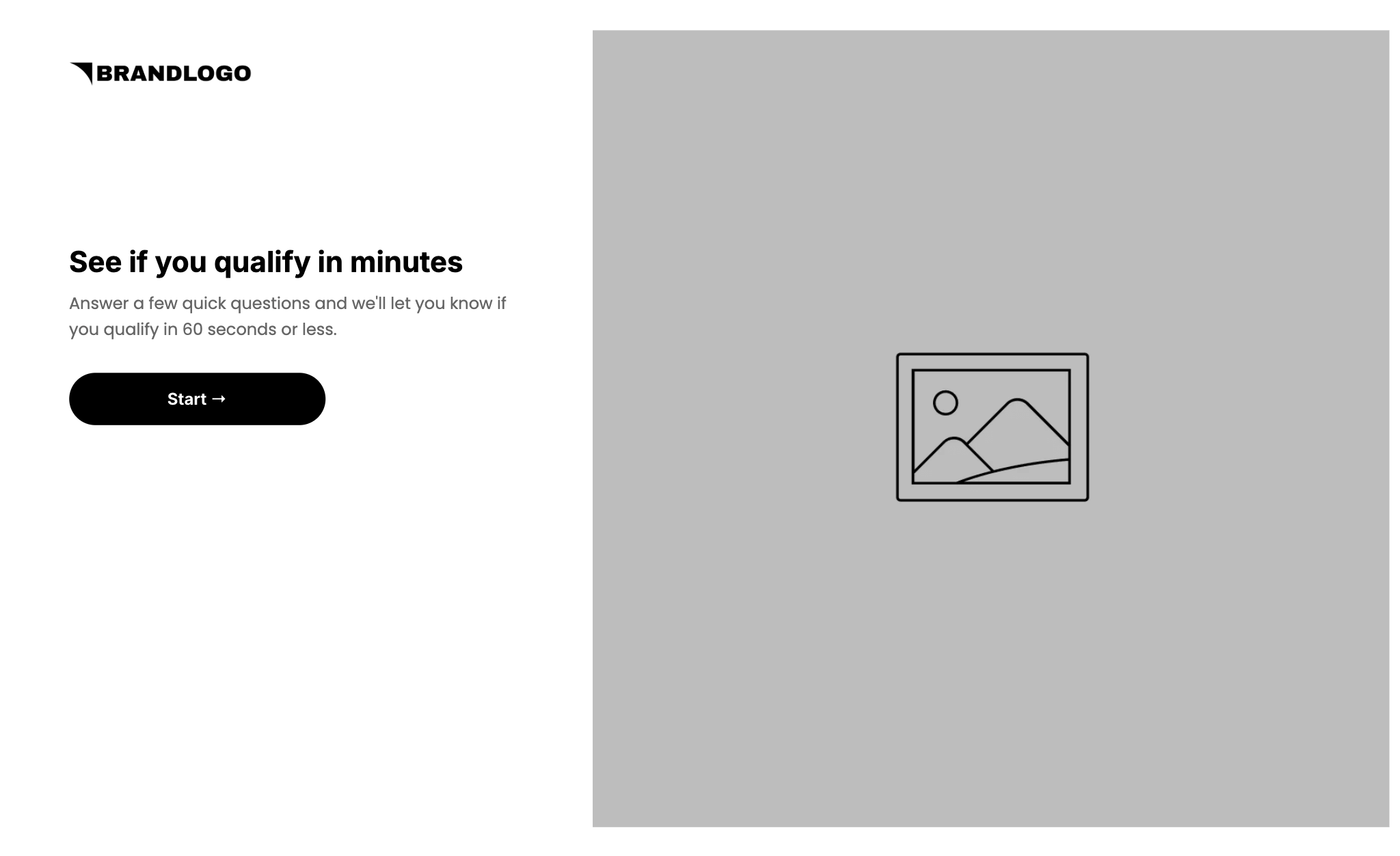
Lead with the promise of a fast answer: Step 1 is the intro: “See if you qualify in minutes. Answer a few quick questions and we’ll let you know if you qualify in 60 seconds or less.” Button: Start.
The promise is speed and a clear answer, which is why people start. Keep it.
The funnel is 5 campaign steps for the qualified path:
- Intro (one step): headline, subhead, Start button, brand image
- Quiz (one step, 4 questions inside one quiz element, plus the loading screen): service, timeline, budget, project details. After the details question, the quiz shows “Finding the right provider for you. This takes a few seconds.” then advances
- Contact gate: “How should we contact you?” First name, email, phone, consent. Button: Save My Contact Info
- Result (one step): “Congrats! You’re pre-qualified.” Personalized line, recap of service, timeline, and budget, button: Schedule
- Booking (one step): “Choose your time. Find a time on our calendar below.” Calendar embed using the scheduler element, trust ticks, 3 reviews, FAQs
For leads that don’t meet your rules, add one “not a fit yet” outcome step reached by conditional routing from the contact gate. That’s the only step to add.
Route by urgency, not just by fit: Timeline is the strongest signal in this quiz. A qualified “Today” or “Tomorrow” lead should see a same-day calendar and trigger an instant alert to your team. A “No Rush” lead can book further out and go into a nurture flow.
Map answers to the right calendar, not to a single calendar: Service decides which provider or event type. Budget or timeline can decide which rep. Use the ConvertFlow scheduler element to conditionally show the right calendar embed (one embed per service, rep, or urgency tier, shown when the matching answer is stored).
Consider falling back to a general calendar if conditions are not met.
Gate the contact, then reveal the result: Benefit copy on the button (“Save My Contact Info”), not “Submit.” Consent checkbox is recommended for data compliance. The result page then confirms service, timeline, and budget back to them and moves them to the calendar with one click.
Use quiz answers for follow-up: Quiz answers into your CRM so qualified leads who didn’t book get a reminder that references their service and timeline, and unqualified leads get a nurture sequence matched to what they asked for. If they chose Installation, this week, $4,000, the follow-up is that, not a generic newsletter.
Pro tips
Keep the CTAs benefit-driven. Template buttons are “Start”, “Continue”, “Save My Contact Info”, and “Schedule”. Keep that shape when you swap verticals. Do not change them to “Submit” or “Next”.
Rewrite the contact gate subhead. The template reads “we’ll send you reminders,” carried over from a booking funnel. For qualification, the value exchange is the result: “Let us know where to send your results” or “so we can confirm your fit.”
Set a real budget floor on the slider. The slider starts at $0, which lets a visitor submit with no budget at all. Set the minimum to the smallest project you’d take, and set the maximum and step size to ranges that match your pricing. Check that the axis labels render in full.
Replace the details placeholder. The text area reads “Write placeholder.” Swap in a real example of a good answer, such as “We need a new HVAC system installed in a 2,000 sq ft home.”
Treat “Not Sure / Other” as a consultation. Visitors who pick it are often high intent but unsure what to ask for. Route them to a consultation calendar, not a disqualification.
Write the FAQ answers. The booking step ships three questions: “How are you matched to the right service?”, “What if the recommended service isn’t right for me?”, and “What if my timeline or budget changes?” Answer each in one or two sentences; they handle the objections that stop a qualified lead from booking.
Rewrite the sample reviews. The three reviews on the booking step are marked (Sample) and were written for a product (“fast shipping, great packaging”). Swap in real client reviews about the service and the outcome, and replace the video placeholders or remove them.
Launch as a dedicated landing-page URL so ads, Google Business Profile, nav, and email can all point at one qualification quiz. Popups and embeds come after this URL works.
Your scheduling tool and CRM are not in the template. Connect both. Skipping either is why trials stall.
Quick setup
1. Start with the Lead Qualification Quiz Funnel template
Do not build from a blank canvas. Use our quiz funnel template for this.
Open the template, click Use This Template, keep the 5-step structure. Remix the logo, colors, brand image, and copy. The campaign is a landing page. It is not a popup and it is not one step per question.
What you should see in the builder: 5 steps. Step 2 holds one quiz element with 4 questions and a loading screen. If you see yourself adding steps for each question, stop.
2. Set up the qualifying questions
Step 1 stays an intro with one button, not an email form. Every question after it should feed your qualification rule or your routing.
The 4 questions in this template, in order. All live in one quiz element. Suggested custom fields: service_needed, service_timeline, budget, project_details.
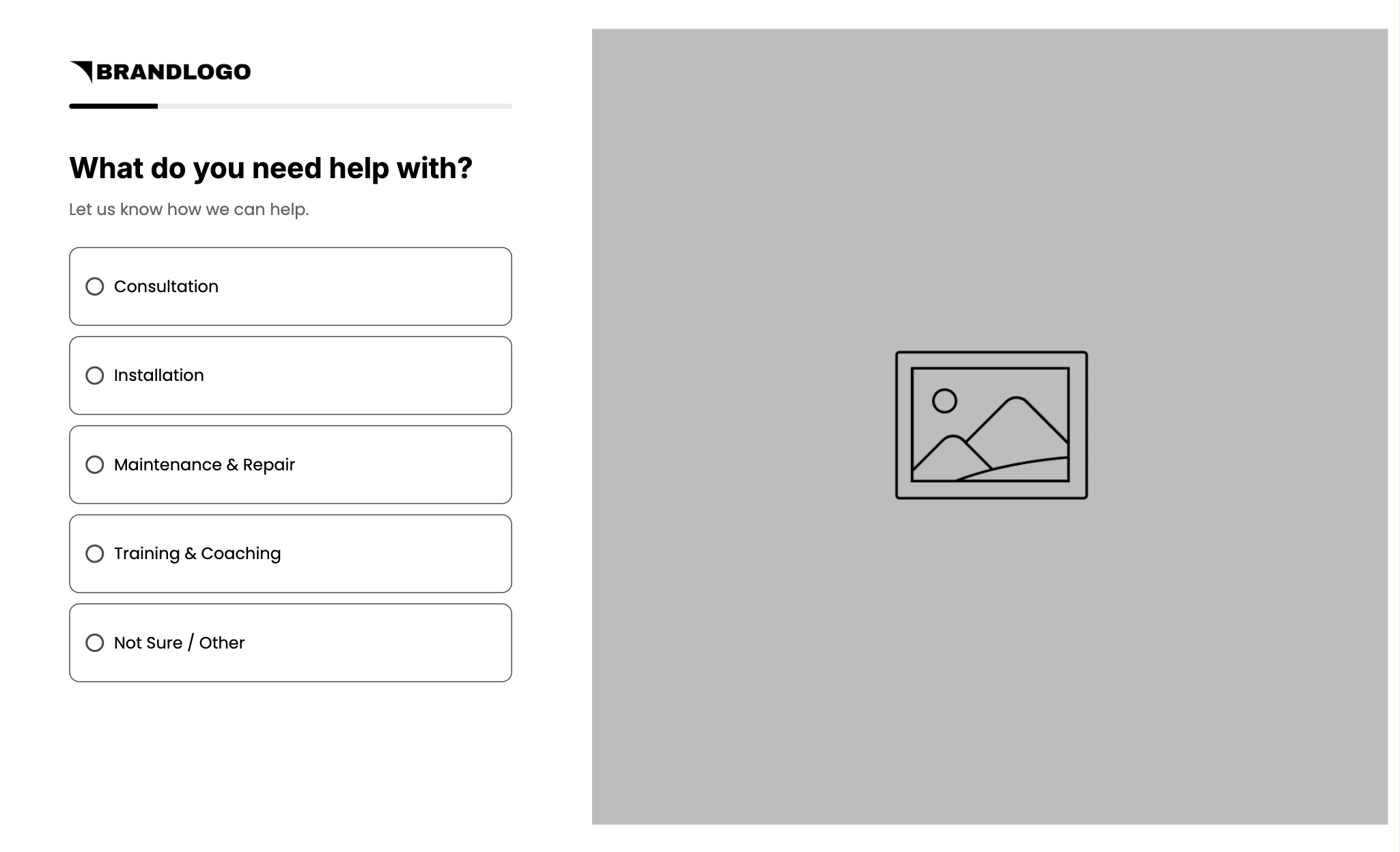
What do you need help with? Subhead: Let us know how we can help. Single-select: Consultation / Installation / Maintenance & Repair / Training & Coaching / Not Sure / Other
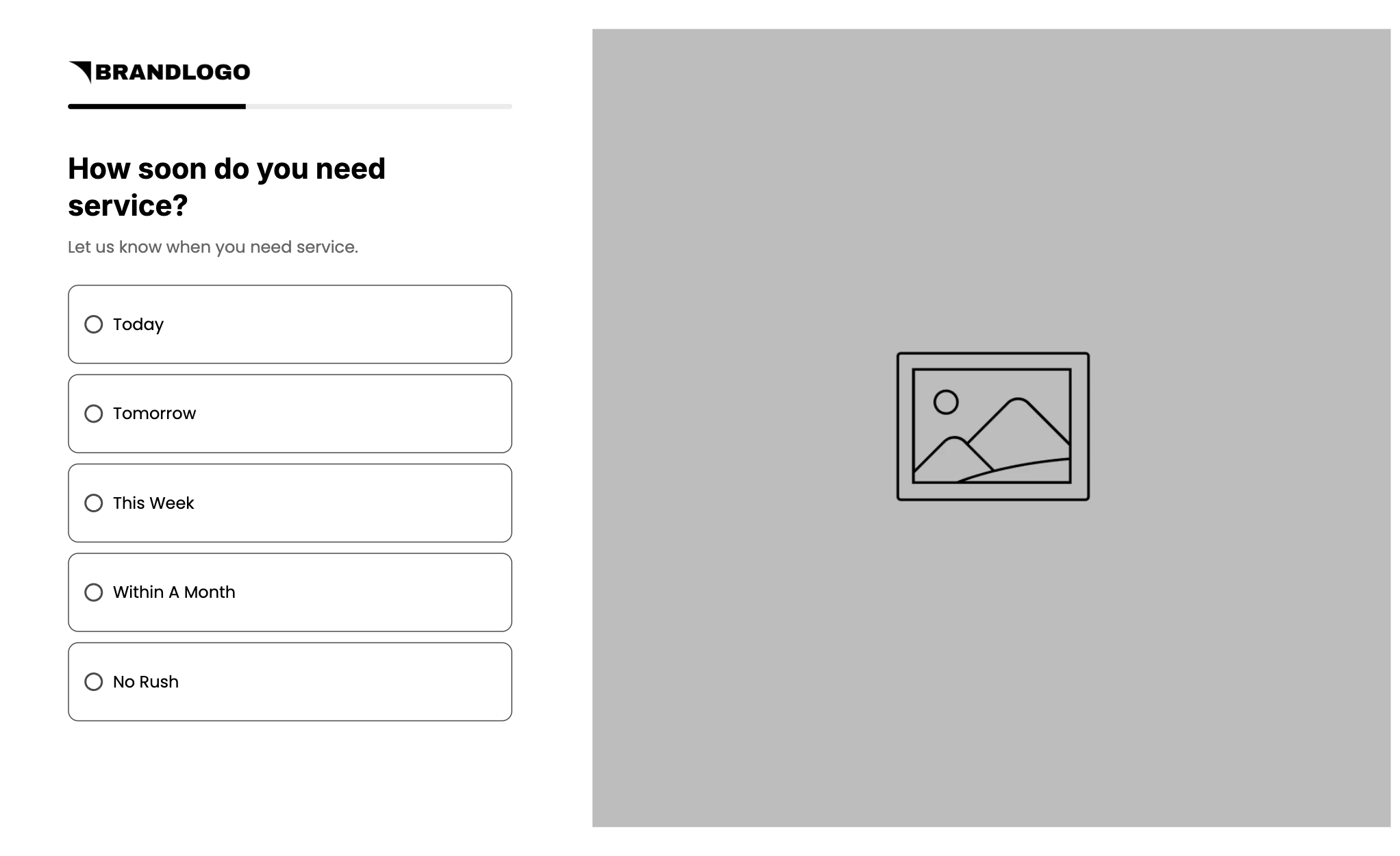
How soon do you need service? Subhead: Let us know when you need service. Single-select: Today / Tomorrow / This Week / Within A Month / No Rush
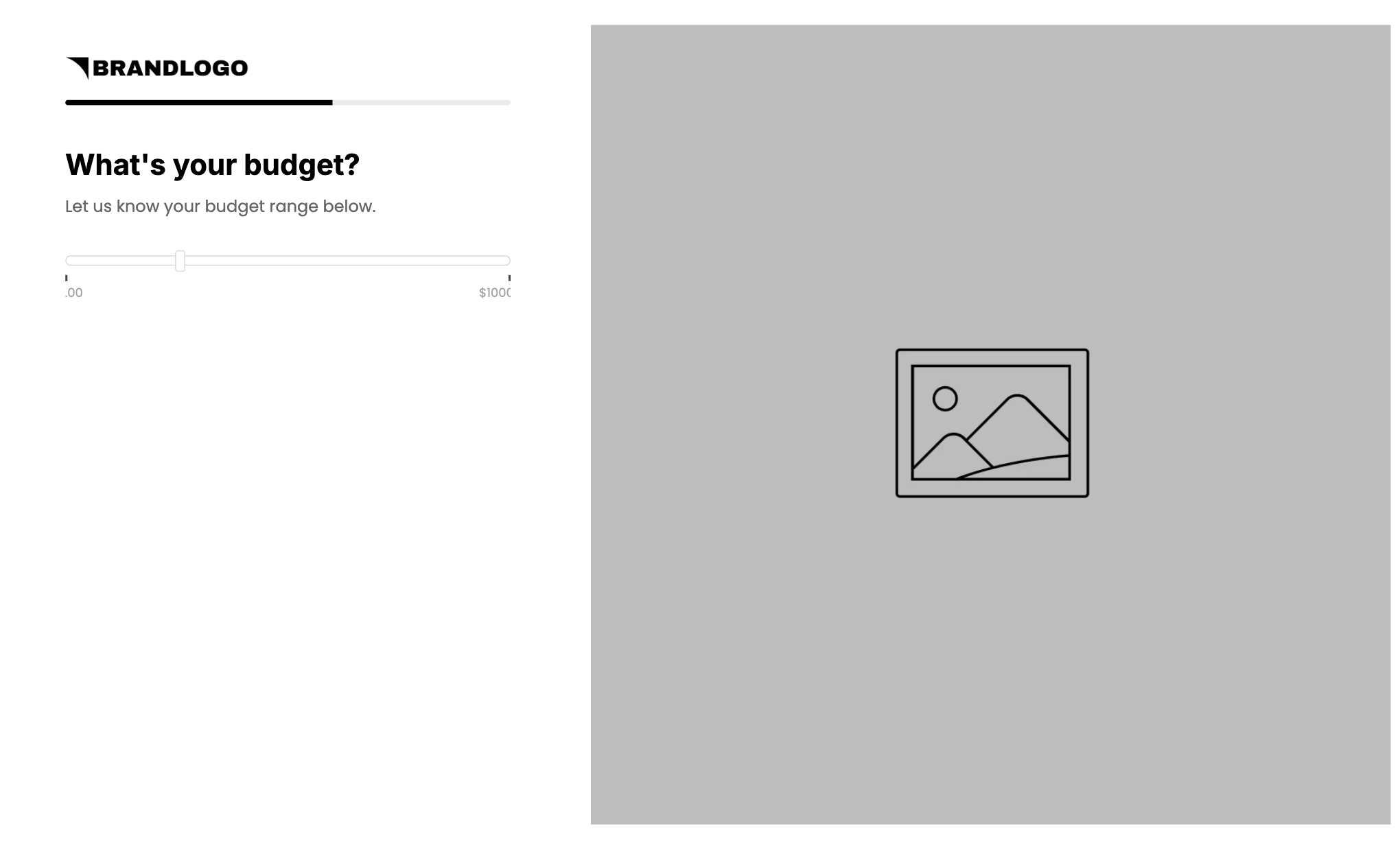
What’s your budget? Subhead: Let us know your budget range below. Range slider. Set the minimum, maximum, and step for your pricing.

Detail how we can help. Subhead: Let us know all the details. Text area. Button: Continue
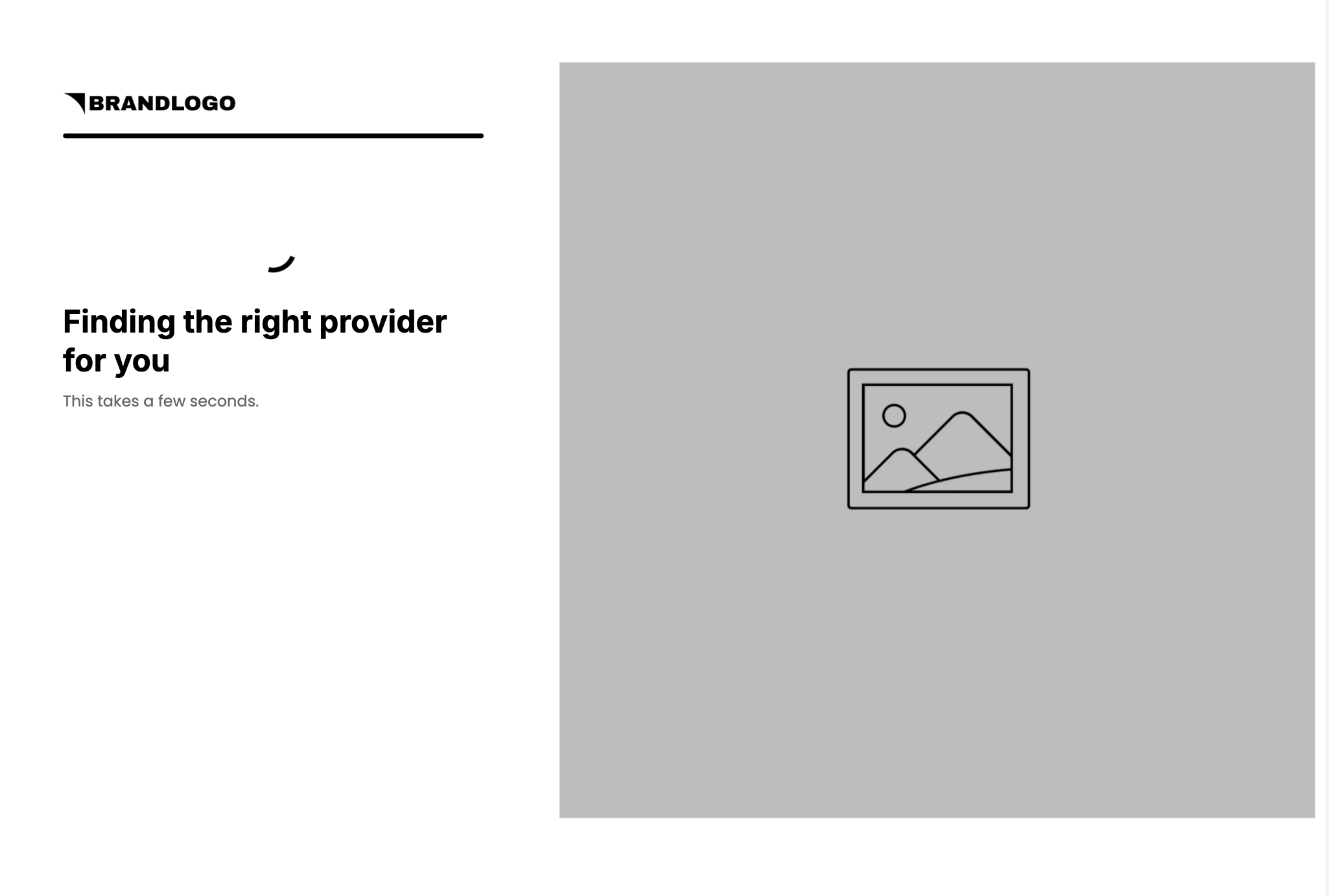
Loading screen after question 4: “Finding the right provider for you. This takes a few seconds.” Keep it. It makes the result feel earned.
Single-select questions auto-advance. The slider and text area show Continue. Swap service labels for what you actually offer. Map each question to its custom field so answers land in ConvertFlow and in your CRM.
3. Connect your CRM on the form step
Go to step 3 (the contact gate). Select the form. Actions: connect your CRM or ESP if it is not already. Then add automations:
- Add to list or audience (your leads or pipeline list)
- Write quiz answers to custom fields or contact properties
- Tag or set a lifecycle stage for qualified vs. not qualified
- Track a quiz-completed event
- If they opted into SMS, add to the SMS list or equivalent
- Optional: notify your team instantly for qualified “Today” or “Tomorrow” leads
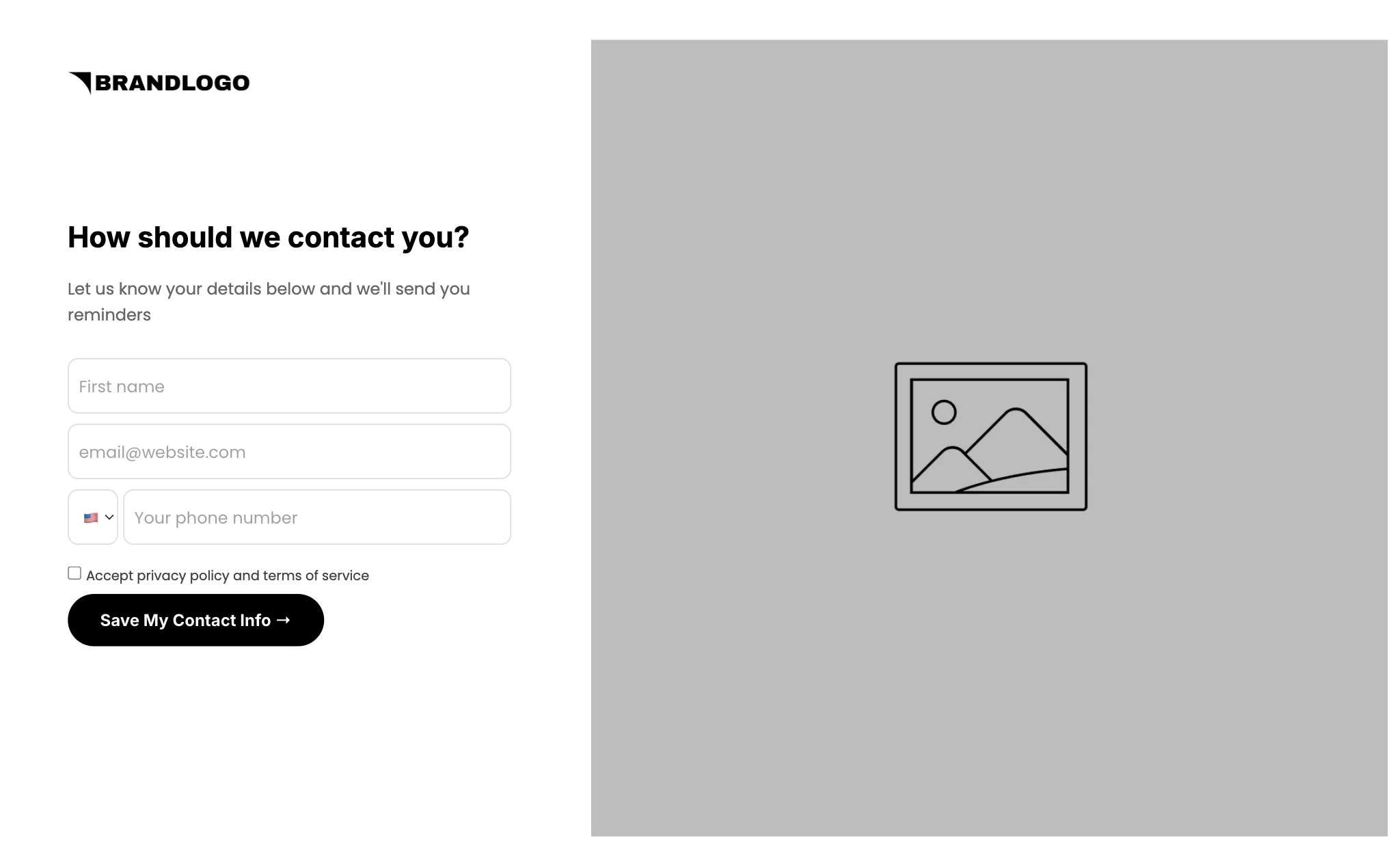
Form in the template: first name, email, international phone with country dial code, Accept privacy policy and terms of service. Button: Save My Contact Info. Add an SMS consent checkbox if you’ll text leads.
If this step is skipped, the trial is not activated. Activation is CRM connected plus at least one billable action (list, field, or event). Preview will not fire automations. That is expected. The connection still has to exist.
4. Set the qualification rule and the result step
After the form, route by your rule:
- Meets the rule: step 4, the pre-qualified result
- Misses the rule: a “not a fit yet” outcome with a useful next step
Step 4 in this template is one screen:
- Headline: Congrats! You’re pre-qualified
- Personalized line: “{first name}, based on your answers, we’ve confirmed you’re pre-qualified.” Set a fallback first name (for example “friend”)
- “Next step, schedule your consultation.”
- Recap: Service needed, Timeline, Budget
- Button: Schedule

Rewrite the copy for the brand. Only show “pre-qualified” to leads who actually are. Keep the recap. Keep the single button.
5. Embed your calendar on the booking step
Step 5 is the booking page. Use ConvertFlow’s scheduler element and drop your scheduling tool’s link. Then map it:
- Add one embed per service, rep, or urgency tier. Use conditional schedulers so only the embed matching service_needed or service_timeline shows, or
- ConvertFlow natively supports top booking platform links such as Calendly, pre-filling it with their name, email etc.
6. Leave booking as one step
Booking in this template is one scroll:
- Headline: Choose your time
- Subhead: Find a time on our calendar below.
- Calendar embed
- Trust ticks: Personalized to your needs / 5,000+ happy clients / Top-rated professionals (swap the number for a real one)
- 3 review cards with star rating, headline, body, name, and label (demo cards are marked (Sample) and describe a product; replace them)
- FAQs: How are you matched to the right service? / What if the recommended service isn’t right for me? / What if my timeline or budget changes? (write the answers)
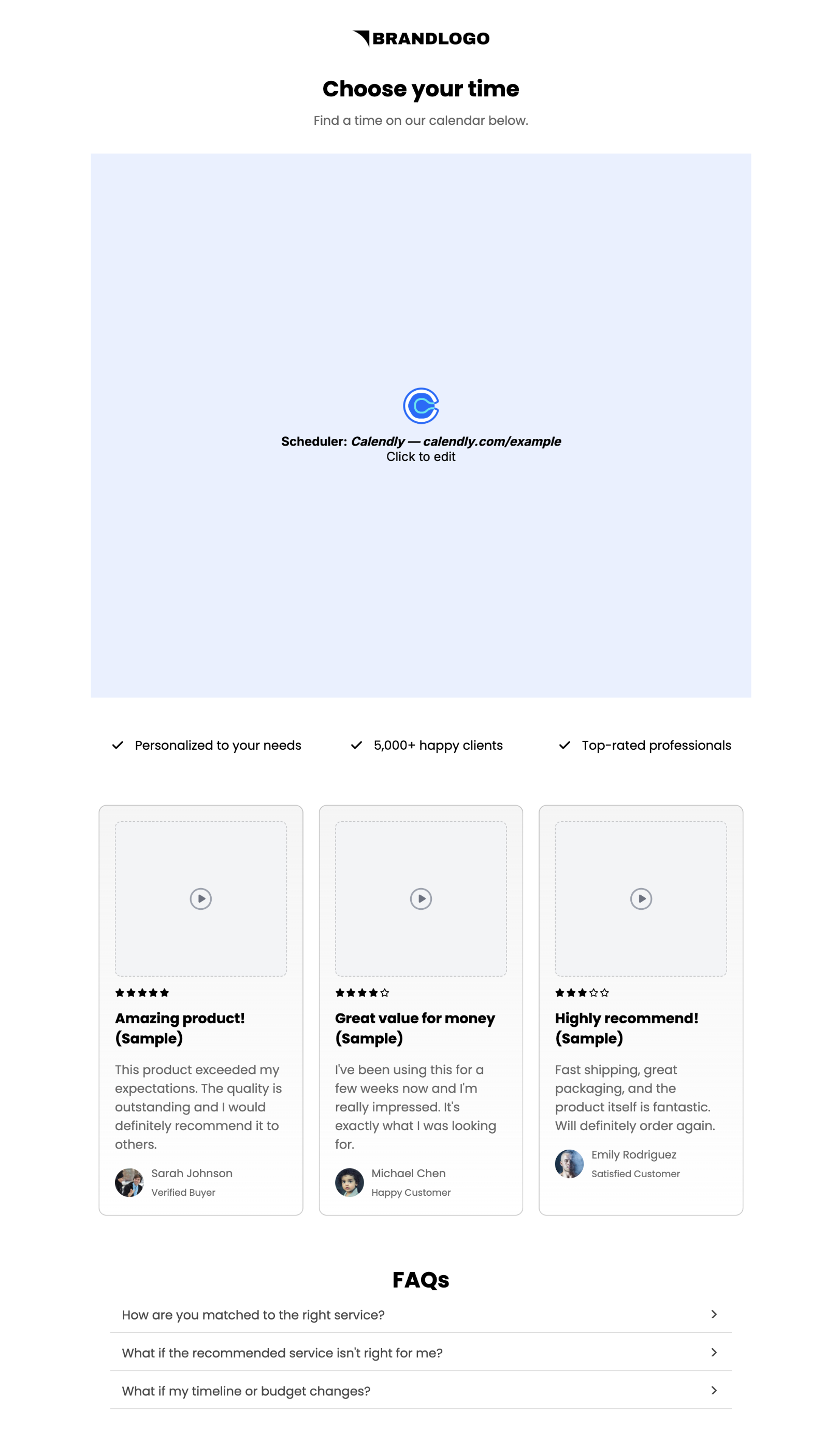
Rewrite copy for the brand. Your scheduling tool’s own confirmation handles the “you’re booked” moment and ConvertFlow’s scheduler element tracks the booking for funnel reporting.
7. Launch the URL, then preview both paths
Set the landing page domain and path. Save. Preview the funnel twice, once as a qualified lead and once as an unqualified one. Confirm:
- 5 campaign steps on the qualified path, plus your not-a-fit outcome
- Only qualified answers reach “You’re pre-qualified”
- Service, timeline, and budget show on the recap with the labels you want
- First name merges into the result line, with a fallback when empty
- Budget slider has a real minimum and readable labels
- Form submits (automations will not run in preview)
- The right calendar shows for each service or urgency tier
- Scheduler element prefills name and email in your calendar booking app
- Sample reviews replaced and FAQ answers written
- No dead end on either path
Then activate. In the dashboard, watch completion, contacts captured, the qualified-to-unqualified split, answer mix by timeline and budget, and booked consultations. Split-test the budget question’s position and your qualification threshold after you have bookings.




.svg)
