


Playbook summary
Book appointments for the right service, at the right location, with the right provider. A visitor answers a short quiz, hands over name, email, and phone in exchange for reminders, sees a recap of their answers with a “we have availability” match, then lands on one booking page with your live calendar, trust ticks, and reviews.
- Industry:Services
- Metrics affected:Booked Appointments; Lead Capture; Show Rate
- Campaign type:QuizzesLanding Pages
Tools you'll need
- Funnel builder: ConvertFlow
- Scheduling tool: Calendly, Acuity, Square Appointments, Mindbody, Vagaro, or equivalent (not in the template; embed it on the booking step)
- ESP or CRM: HubSpot, Klaviyo, ActiveCampaign, Mailchimp, or equivalent (not in the template; connect it on the form step)
Quick setup
- Content: 4 questions (service, frequency, location, preferred date) inside one quiz element
- Call-to-action: Save contact info, then choose a time on your live calendar
- Targeting: Dedicated landing-page URL for ads, Google Business Profile, nav, and email
Use this template to book appointments for the right service, at the right location, with the right provider. A visitor answers a short quiz, hands over name, email, and phone in exchange for reminders, sees a recap of what they told you with a “we have availability” match, then lands on one booking page with your live calendar, trust ticks, and reviews.
That path is the booking funnel. A contact form, a “we’ll call you” thank-you page, or a calendar link with no quiz in front of it is not.
Based on findings from high-performing booking funnels (telehealth intake quizzes, med spa consult funnels, multi-location fitness trials), the quiz should function as a booking funnel, not a services menu.
Based on their answers, we match a provider and show the right calendar, with CRM fields saved on submit.
A contact gate sits before the match so you keep the lead even when the calendar step is abandoned.
Performance benchmark
A typical service website contact form converts 3–5% of visitors (based on Ruler Analytics' and First Page Sage's 2026 benchmarks). Generic website pages, rather than dedicated landing pages, run closer to 1.7–1.9% on form submissions
Based on ConvertFlow's September 2026 Lead Generation Quiz Funnel Benchmark, sampled across 1,063 ConvertFlow lead generation quiz funnel campaigns, quiz funnels delivered as landing pages capture a lead from 11.28% of visitors on average. Across all landing page and embed formats, 23.84% of visitors engage with the quiz and 7.85% finish as a captured lead. Roughly 1 in 4 visitors will start the quiz, and about a third of those who start will hand over contact info. The gap between those two numbers is the drop-off you manage with question count, gate placement, and the loading screen.
This template is a landing page, so measure it against the 11.28% figure. It adds a preferred-date question and a calendar, so track booked appointments on top of lead capture; the benchmark does not measure bookings.
Core principles
Prioritize a booking, not a browse: The quiz exists to get a visitor from “I might need something” to a time on your calendar. This template ships 4 questions inside one quiz element, then one match, then one calendar. Do not add campaign steps to “make room” for questions. Do not add an intake questionnaire before the calendar. Ask intake at the appointment, not in the funnel.
Capture the lead before you reveal the match: In this template the contact gate comes after the last question and before “Good news! We have availability.” The value exchange is reminders, not the result. That order is deliberate: a visitor who bails at the calendar is still a contact in your ESP with service, frequency, location, and preferred date attached. If the gate is moved after the calendar, every abandoned booking is gone.
Sync the field data to your CRM: The same path that matches a provider must write answers into your ESP or CRM as custom fields or contact properties, add the contact to a list, and fire a quiz-completed event.
Eliminate dead ends: After the match, the visitor picks a time. The calendar is the offer. A “we’ll be in touch” page with no calendar is a dead end.
Execution strategy
Lead with the outcome: Step 1 is a landing intro: “Book your appointment. Answer a few quick questions and we’ll book an appointment for the right service - based on your goals.” Button: Start Booking.
The first question is “What service are you interested in?” with plain-language service names. Do not front-load pricing tiers, provider bios, or add-on packages.
The funnel is 5 campaign steps:
- Intro (one step): headline, subhead, Start Booking button, brand image
- Quiz (one step, 4 questions inside one quiz element, plus the loading screen): service, frequency, location, preferred date. After the date, the quiz shows “Searching for a location near you. This takes a few seconds.” then advances
- Contact gate: “How should we contact you? Let us know your details below and we’ll send you reminders.” First name, email, phone, consent. Button: Save My Contact Info
- Match (one step): “Good news! We have availability.” Personalized line, recap of all 4 answers, button: Choose Time
- Booking (one step): “Choose your time. Find a time on our calendar below.” Calendar embed using the scheduler element, trust ticks, 3 reviews
Map answers to the right calendar, not to a single calendar: Location decides which calendar shows. Service decides which provider or event type. Use the ConvertFlow scheduler element to conditionally show the right calendar embed (one embed per location or per service, shown when the matching answer is stored).
Considering falling back to a general calendar if conditions are not met.
Gate the contact, then reveal the match: Benefit copy on the button (“Save My Contact Info”), not “Submit.” Consent checkbox is recommended for data compliance. The match page then confirms the four answers back to them and moves them to the calendar with one click.
Use quiz answers for follow-up: Quiz answers into your CRM so the reminder and no-show flows lead with the thing they picked. If they chose Massage Therapy in Manhattan, the follow-up is that service at that location, not a generic newsletter.
Pro tips
Keep the CTAs benefit-driven. Template buttons are “Start Booking”, “Continue”, “Save My Contact Info”, and “Choose Time”. Keep that shape when you swap verticals. Do not change them to “Submit” or “Next”.
Prefill the calendar. Most scheduling tools accept name, email, and a preferred date or month as URL parameters. Merge first_name, email, and preferred_date from the quiz into the embed URL so the visitor is not retyping what they just gave you. Check your tool’s docs for the exact parameter names.
Recap labels can differ from option labels. The template shows the option “Manhattan, NY” recapped as “NYC”. Recap values are set on the quiz answers, so use the label your team and your calendar use, not necessarily the one the visitor clicked.
Rewrite the sample reviews. The three reviews on the booking step are marked (Sample) and were written for a product (“fast shipping, great packaging”). A service brand shipping those verbatim looks like a template. Swap in real client reviews about the service and the people delivering it, and replace the video placeholders or remove them.
Launch as a dedicated landing-page URL so ads, Google Business Profile, nav, welcome popups, and your ESP can all point at one booking quiz. Popups and embeds come after this URL works.
Your scheduling tool and ESP are not in the template. Connect both. Skipping either is why trials stall.
Do not invent extra steps. The loading screen is not a step you add by hand. The match is not a thank-you. Booking is one scroll: calendar, trust ticks, reviews. Not “calendar” plus “reviews” plus “confirmation” as separate steps.
Quick setup
1. Start with the Service Appointment Booking Quiz template
Do not build from a blank canvas. Use our quiz funnel template for this.
Open the template, click Use This Template, keep the 5-step structure. Remix the logo, colors, brand image, and copy. The campaign is a landing page. It is not a popup and it is not one step per question.

What you should see in the builder: 5 steps. Step 2 holds one quiz element with 4 questions and a loading screen. If you see yourself adding steps for each question, stop.
2. Implement interactive discovery
Step 1 stays an intro with one button, not an email form. Step 2’s first question stays a service question with plain-language options.
The 4 questions in this template, in order. All live in one quiz element. Custom fields: service_interest, booking_frequency, preferred_location, preferred_date.

What service are you interested in? Subhead: Let us know how we can help. Single-select: Haircut & Styling / Massage Therapy / Skincare Facial / Personal Training / General Consultation
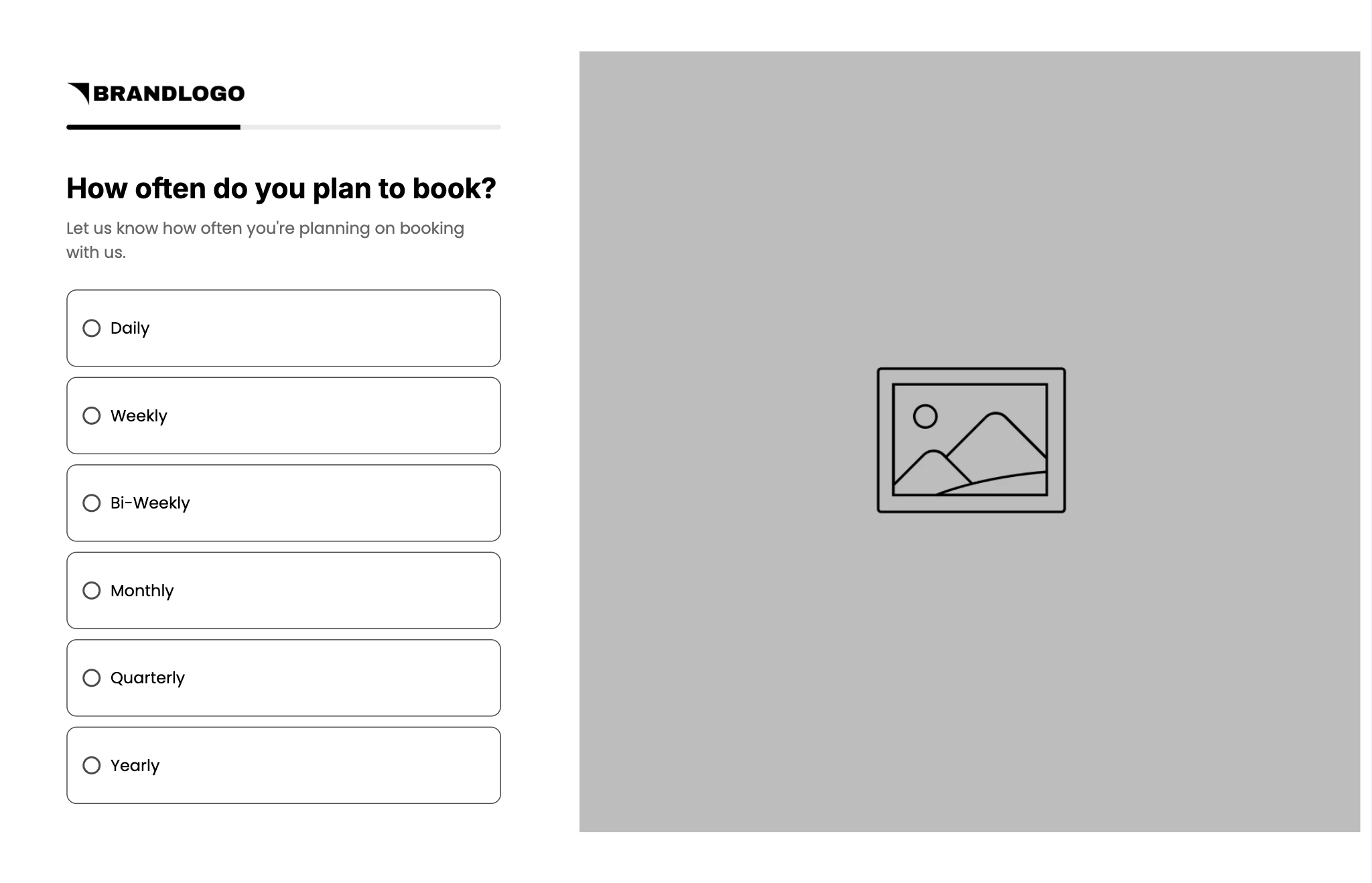
How often do you plan to book? Subhead: Let us know how often you’re planning on booking with us. Single-select: Daily / Weekly / Bi-Weekly / Monthly / Quarterly / Yearly

Choose the location that’s best for you. Subhead: Let’s get you booked at the right location. Single-select: Miami, FL / Manhattan, NY / Chicago, IL / Los Angeles, CA / San Francisco, CA

What day works best for you? Subhead: Let us know your preferred date below. Date input (mm/dd/yyyy). Button: Continue
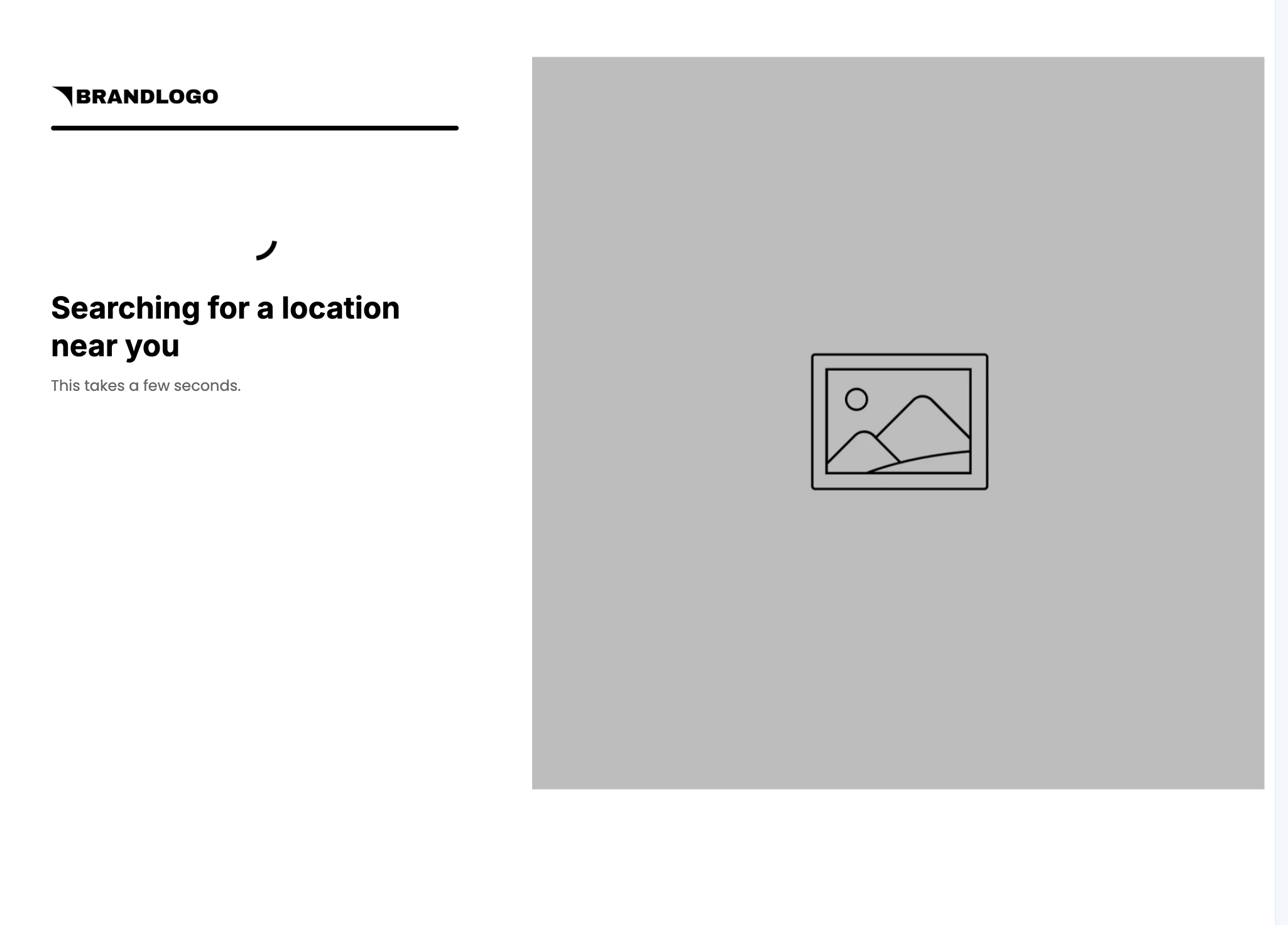
Loading screen after question 4: “Searching for a location near you. This takes a few seconds.” Keep it. It sells the match.
Single-select questions auto-advance. The date question shows Continue. Swap labels for your services and locations. If you have one location, keep the question and turn it into a provider or time-of-day question rather than deleting it; the recap and the match copy expect four answers. Map each question to its custom field so answers land in ConvertFlow and in your ESP.
3. Connect your ESP or CRM on the form step
Go to step 3 (the contact gate). Select the form. Actions: connect your ESP or CRM if it is not already. Then add automations:
- Add to list or audience (your bookings or main list)
- Write quiz answers to custom fields or contact properties
- Track a quiz-completed or booking-started event
- If they opted into SMS, add to the SMS list or equivalent
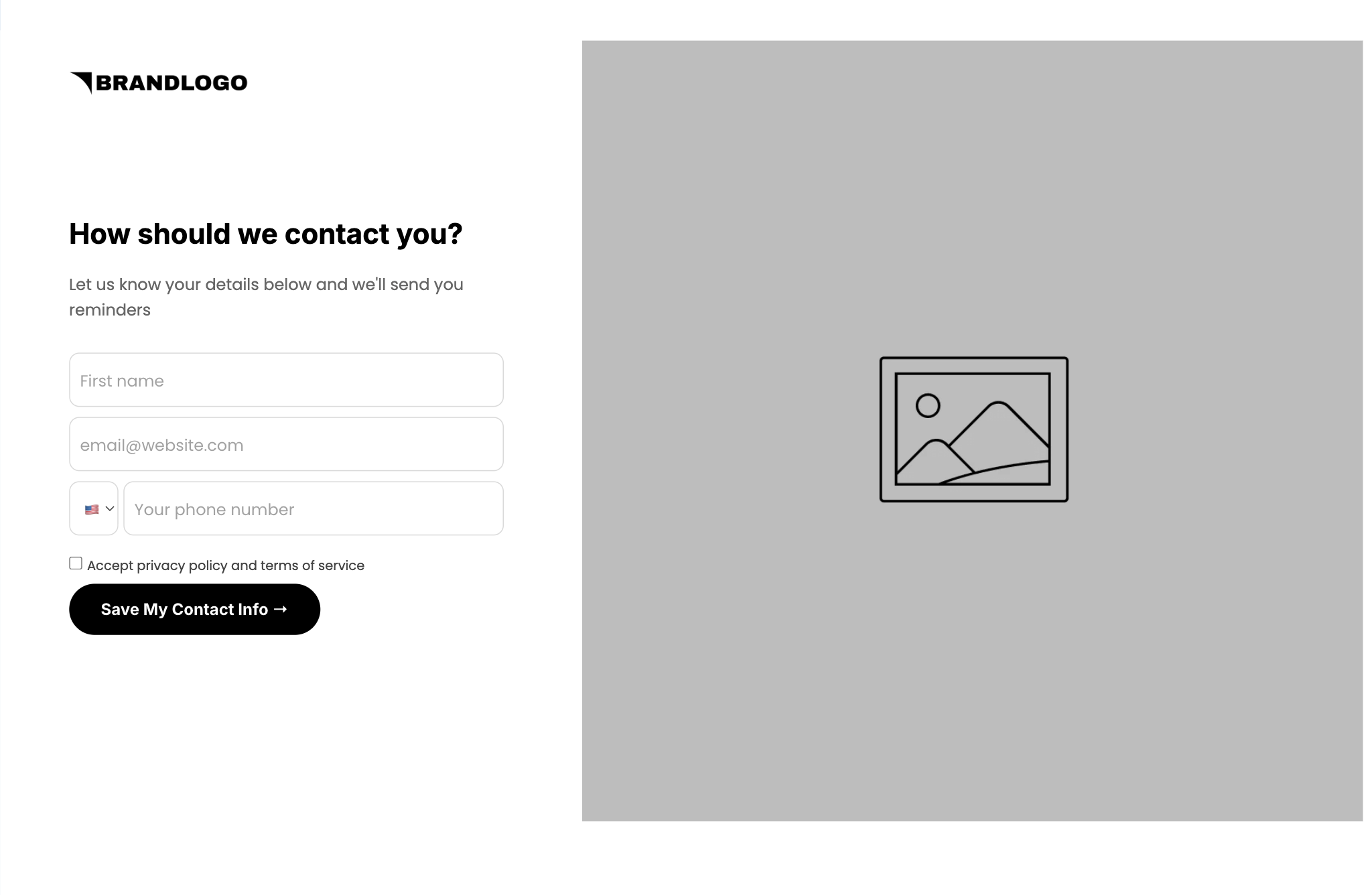
Form in the template: first name, email (required), international phone with country dial code, required Accept privacy policy and terms of service. Button: Save My Contact Info. Add an SMS consent checkbox if you collect phone for texts; reminders by text are the stated value exchange, so make the consent explicit.
If this step is skipped, the trial is not activated. Activation is ESP connected plus at least one billable action (list, field, or event). Preview will not fire automations. That is expected. The connection still has to exist.
4. Set the match step
Step 4 in this template is one screen:
- Headline: Good news! We have availability
- Personalized line: “{first name}, based on your answers, we’ve matched you with service provider with availability.” Set a fallback first name (for example “friend”)
- Recap of all 4 answers (e.g. Service interest, Booking frequency, Preferred location, Preferred date)
- Button: Choose Time
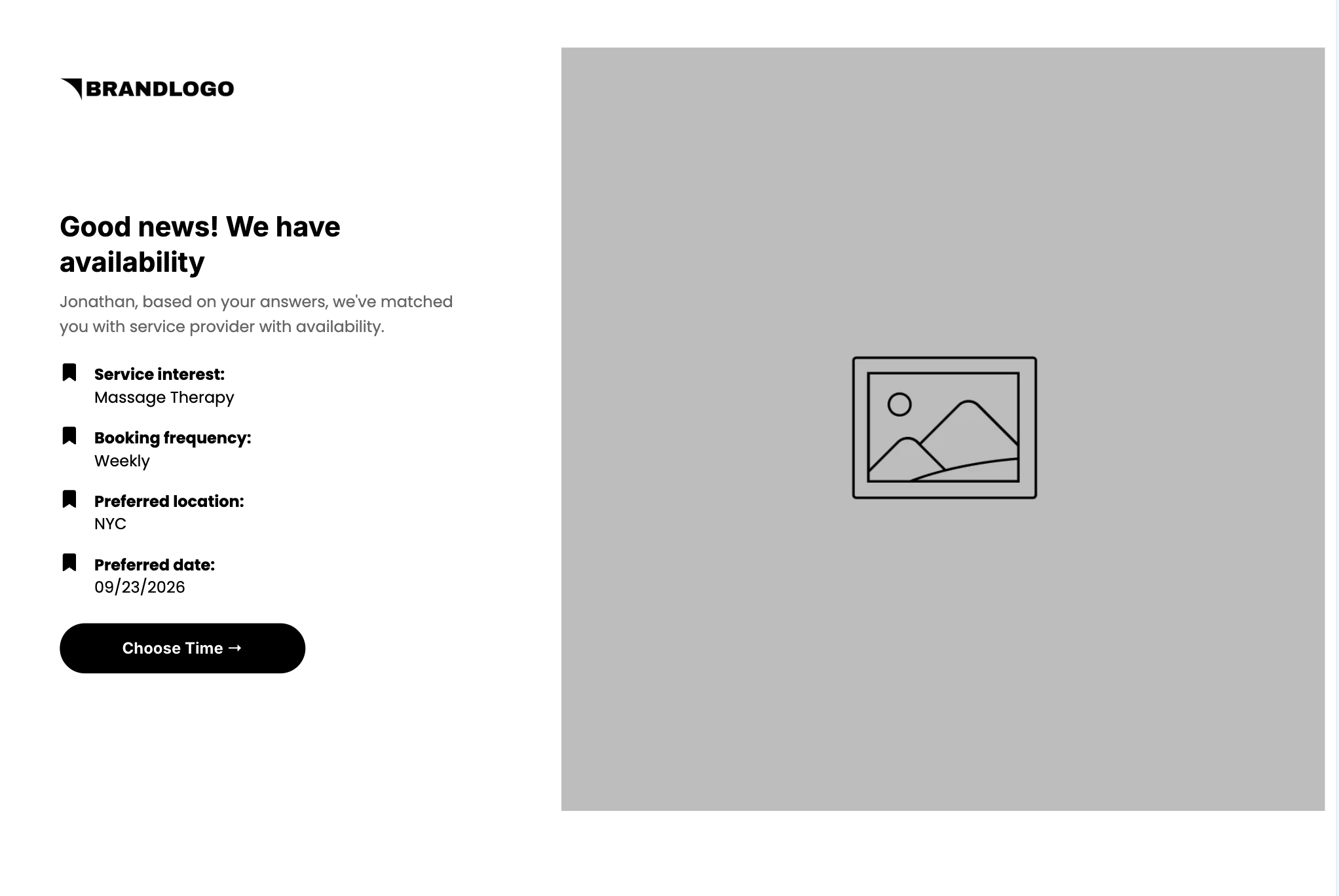
Rewrite the copy for the brand. If you can name the provider from the answers, do it here: “we’ve matched you with Dana at our Manhattan studio.” Keep the recap. Keep the single button.
5. Embed your calendar on the booking step
Step 5 is the booking page. Use ConvertFlow's scheduler element and drop your scheduling tool's link. Then map it:
- Add one embed per location (or per service). Use conditional schedulers so only the embed matching preferred_location or service_interest shows, or
- ConvertFlow natively supports top booking platform links such as Calendly, pre-filling it with their name, email etc.
6. Leave booking as one step
Booking in this template is one scroll:
- Headline: Choose your time
- Subhead: Find a time on our calendar below.
- Calendar embed
- Trust ticks: Personalized to your needs / 5,000+ happy clients / Top-rated professionals (swap the number for a real one)
- 3 review cards with star rating, headline, body, name, and label (demo cards are marked (Sample) and describe a product; replace them)
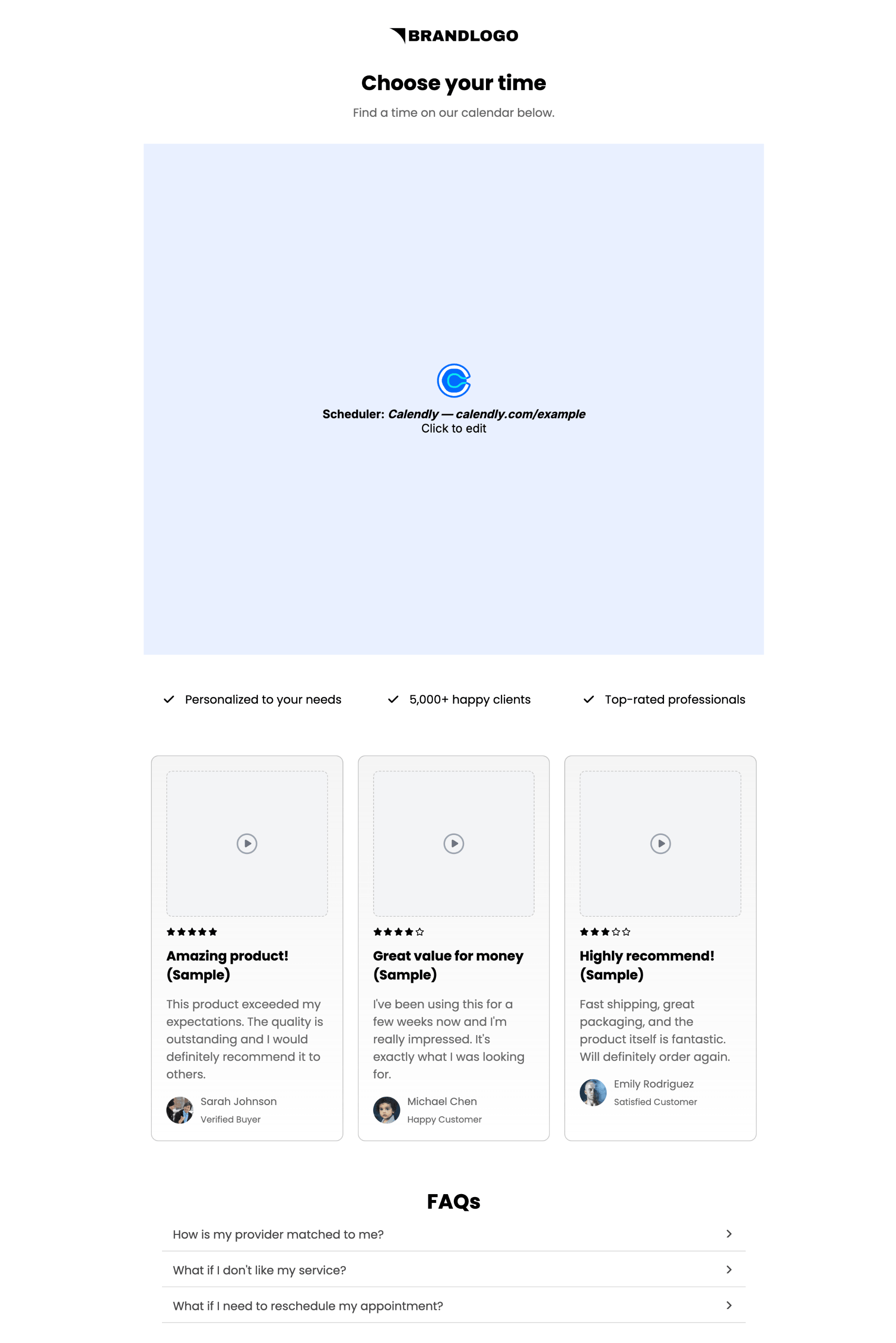
Rewrite copy for the brand. Your scheduling tool’s own confirmation handles the “you’re booked” moment and ConvertFlow’s scheduler element tracks the booking for funnel reporting.
7. Launch the URL, then preview the full path
Set the landing page domain and path. Save. Preview the whole funnel: intro, question 1 through 4, loading, contact gate, match, calendar. Confirm:
- 5 campaign steps
- All 4 answers show on the match step with the labels you want
- First name merges into the match line, with a fallback when empty
- Form submits (automations will not run in preview)
- The right calendar shows for each location and service, not one generic link
- Scheduler element prefills name, email, and date in your calendar booking app
- Sample reviews replaced
- No thank-you dead end
Then activate. In the dashboard, watch completion, answer mix, contacts captured, and bookings completed on the calendar. Add a no-show and abandoned-booking flow in your ESP off the quiz-completed event. Split-test question order and the gate position after you have bookings.




.svg)
