Install ConvertFlow on your Shopify store instantly. Target visitors by cart data and more.
Connect For FreeSearch the Shopify App Store for surveys and you'll get dozens of results that do quite different jobs. Picking well is mostly a matter of working out which job you actually have.
This guide covers the three categories, what each is for, and how to build an on-site survey once you've chosen.
These appear on the order confirmation page and ask one question — usually "how did you hear about us?" — to fill the gap left by attribution tracking. Apps like Fairing and Zigpoll are built around this.
If your question is "which channel is actually driving sales", this is the category you want, and a general survey tool won't do it as well. They're purpose-built for that one moment and report on it properly.
Apps like POWR offer survey and form widgets you drop onto a page. Broad, inexpensive, and fine when you need a standalone survey that collects responses to review later.
The limit is usually what happens next. Responses tend to live in the app rather than flowing into your email platform as segments.
These ask questions during the shopping journey — in a popup, on a landing page, embedded in a collection page — and use the answer to change what the shopper sees and which segment they land in.
This is the category ConvertFlow sits in, and it's the right one when the survey is meant to do something rather than produce a report.
Plenty of stores run two of these. They're not really competing.
Add the survey to a ConvertFlow landing page, popup or embed. Click to add an element and choose the survey type.
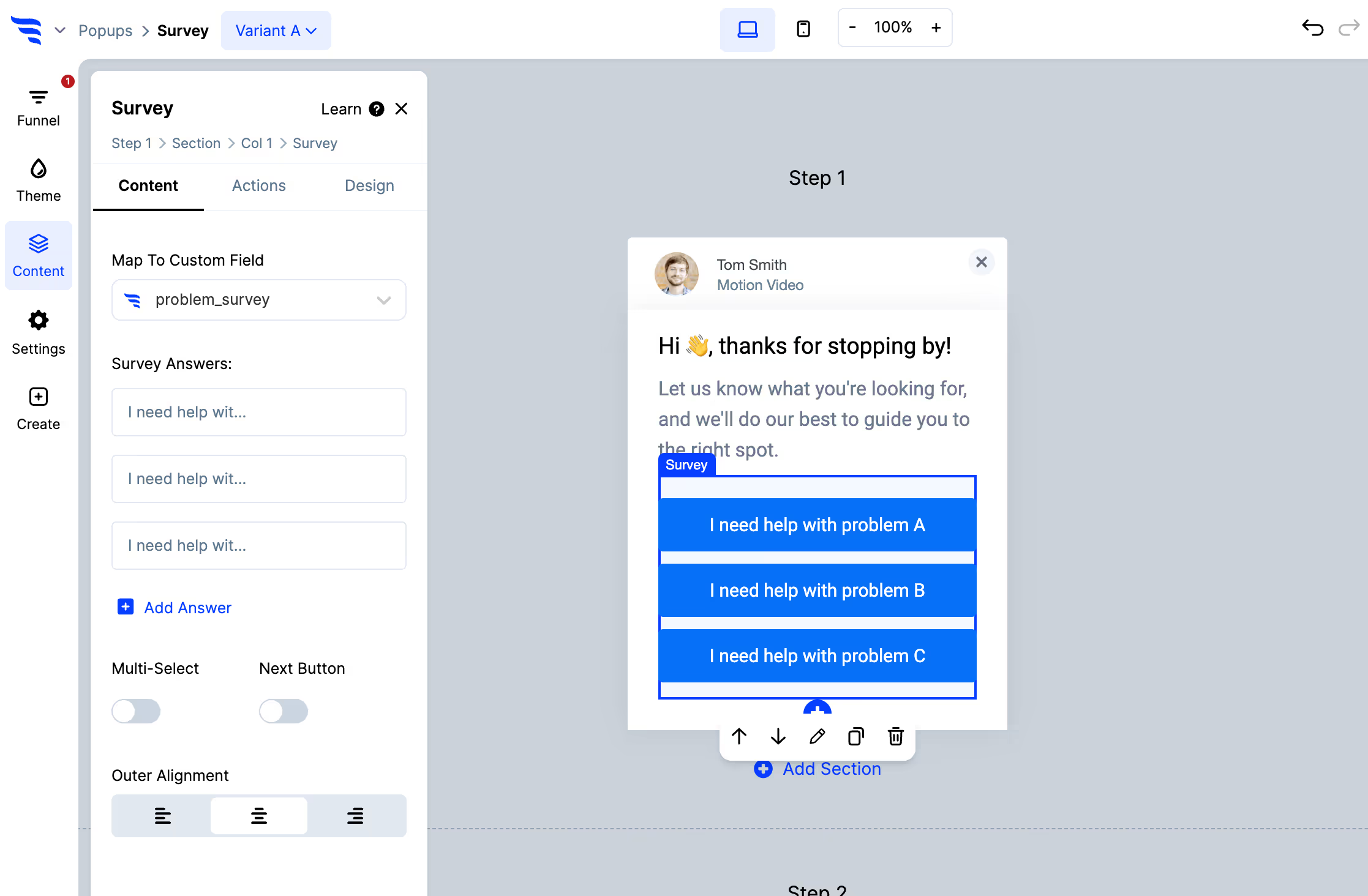
Add options, arrange them, and toggle multi-select if shoppers should be able to pick more than one.
Click an individual option to set its data value separately from its label, attach an image so the survey shows pictures rather than text, or give it a score.
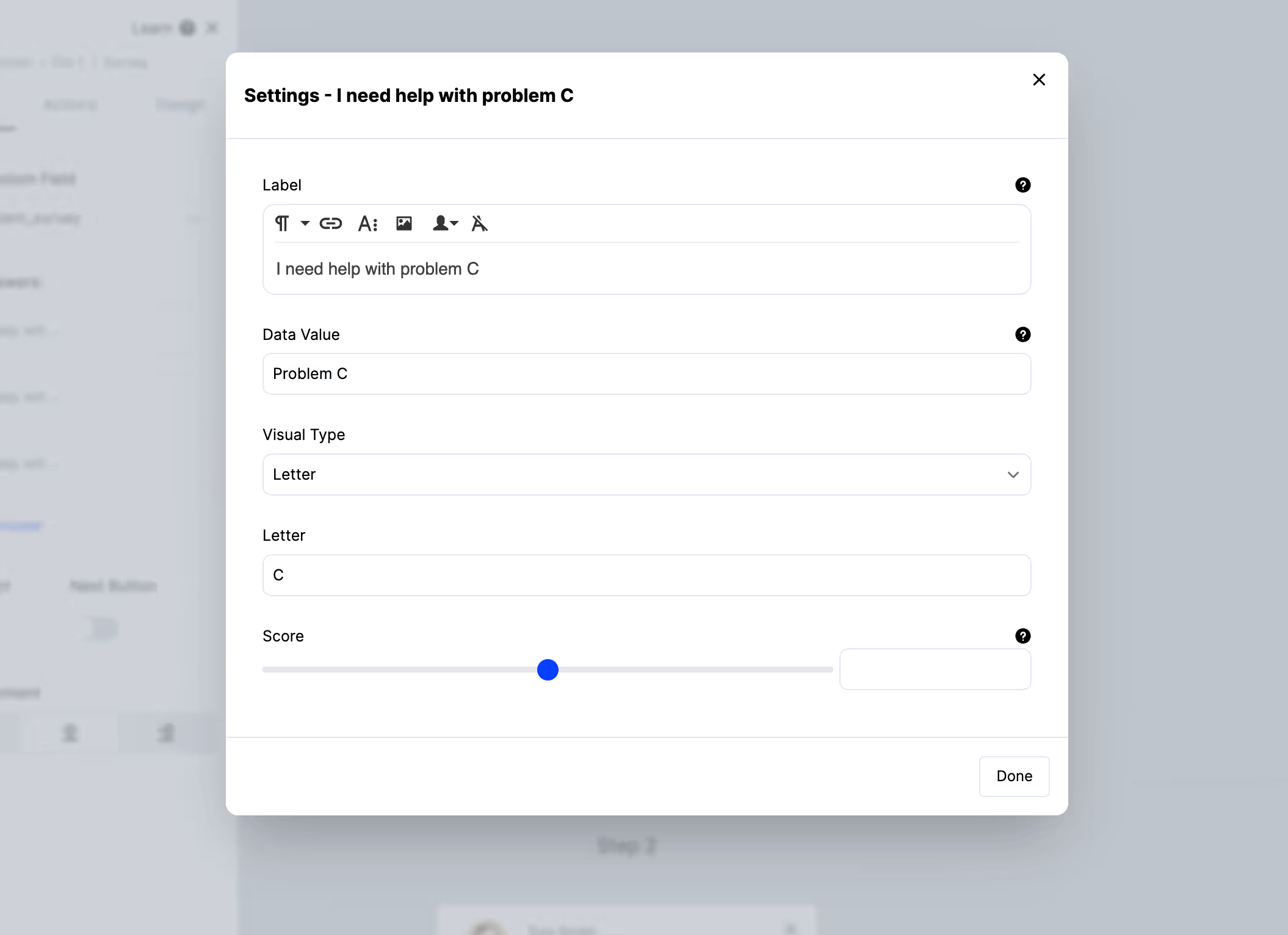
Image options matter more on a store than a content site — asking someone to pick a style or a room from photographs gets far better completion than a list of words.
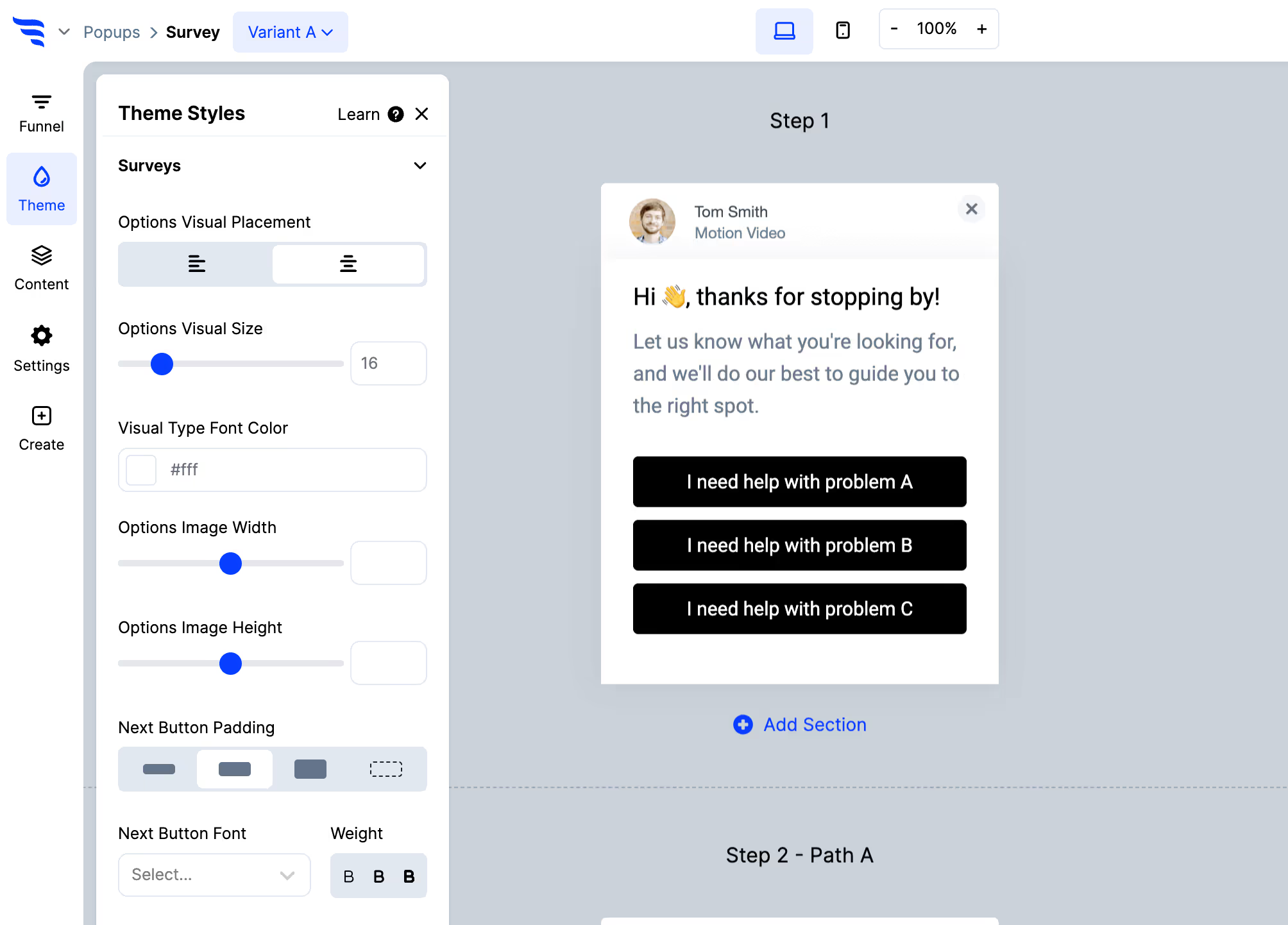
The Themes tab covers width, alignment, fonts, colours, sizing, stacked or responsive layout, and shadows.
Go to Settings → Integrations and connect Shopify — the script installs on your store automatically.

Then connect wherever answers should land — Klaviyo, Omnisend, Mailchimp, Attentive, Postscript and others. This is the step that separates a survey that reports from a survey that segments.
With the survey selected, open the Actions tab.
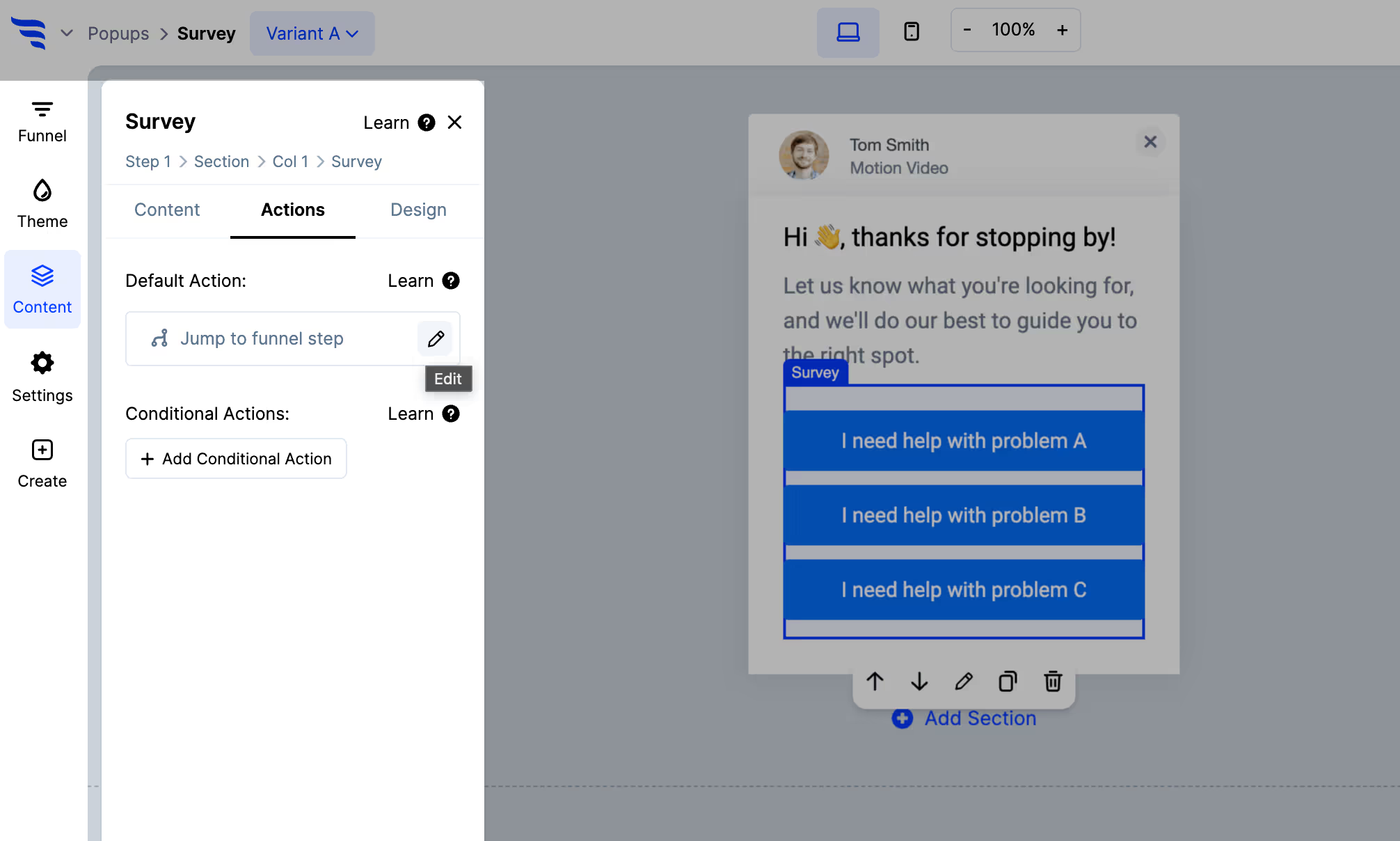
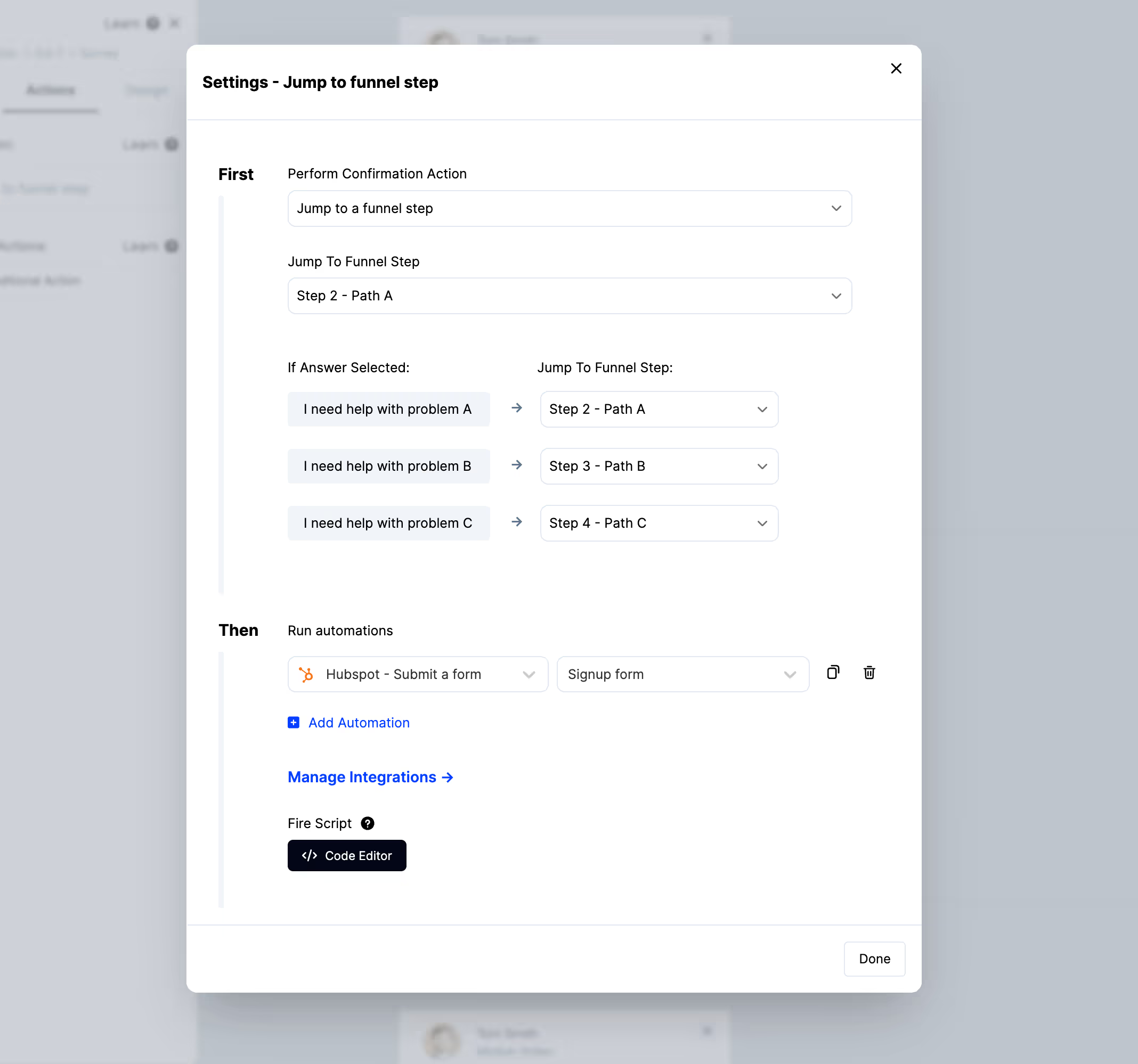
Alongside those, add the automation that writes the answer to a field or tag in your email platform.
Click + Add Conditional Action to act only on shoppers meeting your conditions.
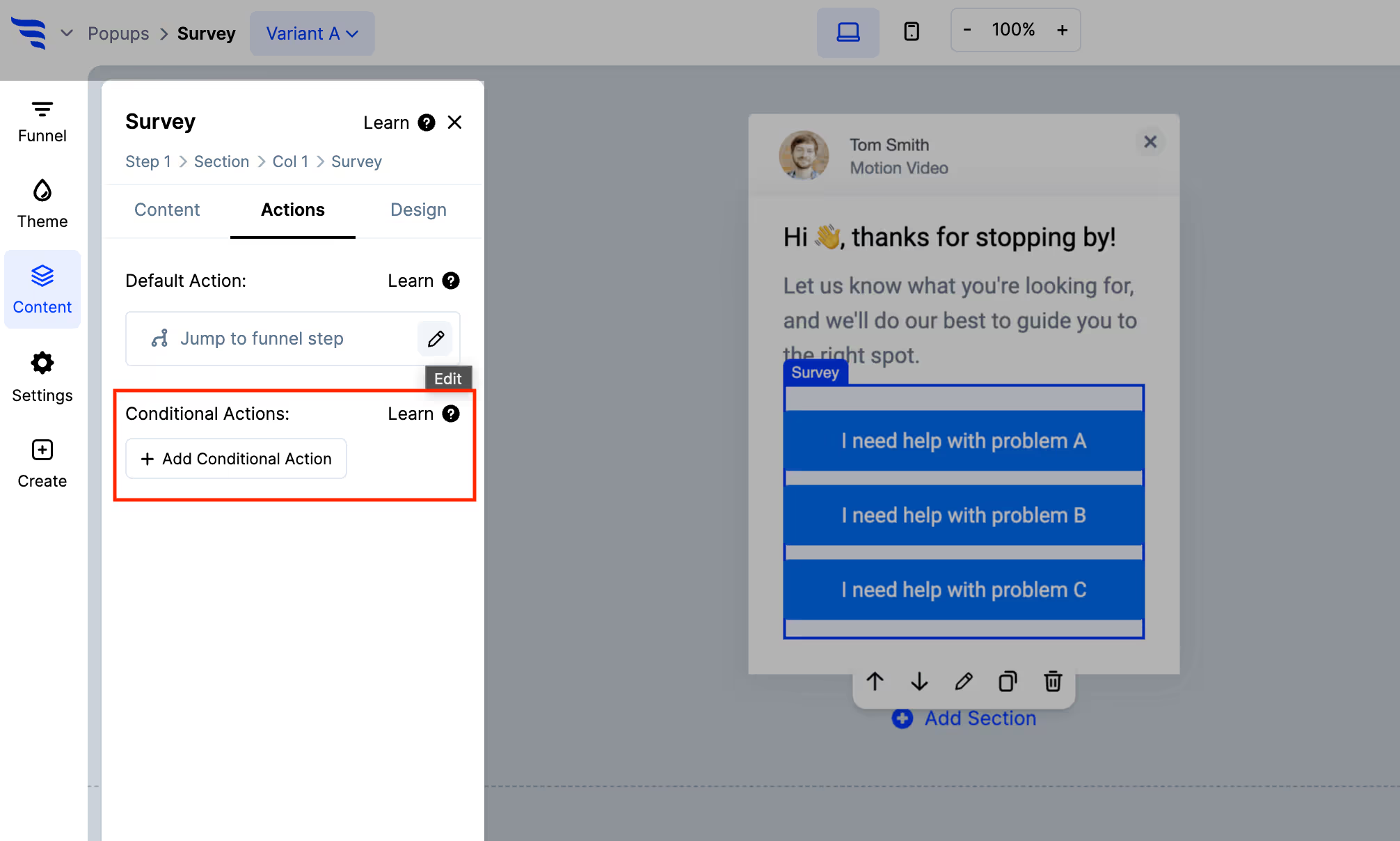
This is the whole point of the category. Someone who says they're shopping for a gift can be shown gift bundles and tagged into a gifting flow; someone shopping for themselves sees something else. The answer changes the store, not just a spreadsheet.
With your email platform connected, target the survey at specific segments rather than all traffic — so a post-purchase question reaches purchasers and a research question reaches the cohort it's about.
You can also target on Shopify data like cart value and cart contents.
The funnel report shows how many shoppers saw the survey, how many answered, and which options they chose — with revenue attributed.
.avif)
Watch the answer distribution. If 80% of shoppers pick one option, the question isn't dividing your audience and isn't earning the friction it adds.
If attribution is the actual question, install a post-purchase attribution app — it will do that job better than anything general-purpose, including this. The on-site funnel category is for when the answer needs to change what happens next.
To see templates and the full feature set, visit the Shopify survey tool.
Create a free ConvertFlow account and integrate
Shopify
in minutes.
Install ConvertFlow on your Shopify store instantly. Target visitors by cart data and more.
Connect For Free








.svg)