If your org runs Marketing Cloud Account Engagement, you already have landing pages. The reason teams look elsewhere is usually the same one: building and editing them means working inside a templating system, and every change is a ticket rather than an edit.
This guide covers building a Salesforce landing page in ConvertFlow — hosted on your own domain, edited visually, with submissions creating Leads, Contacts or Person Accounts directly.
From ConvertFlow's Integrations area, click to connect with Salesforce and authorize the connection.
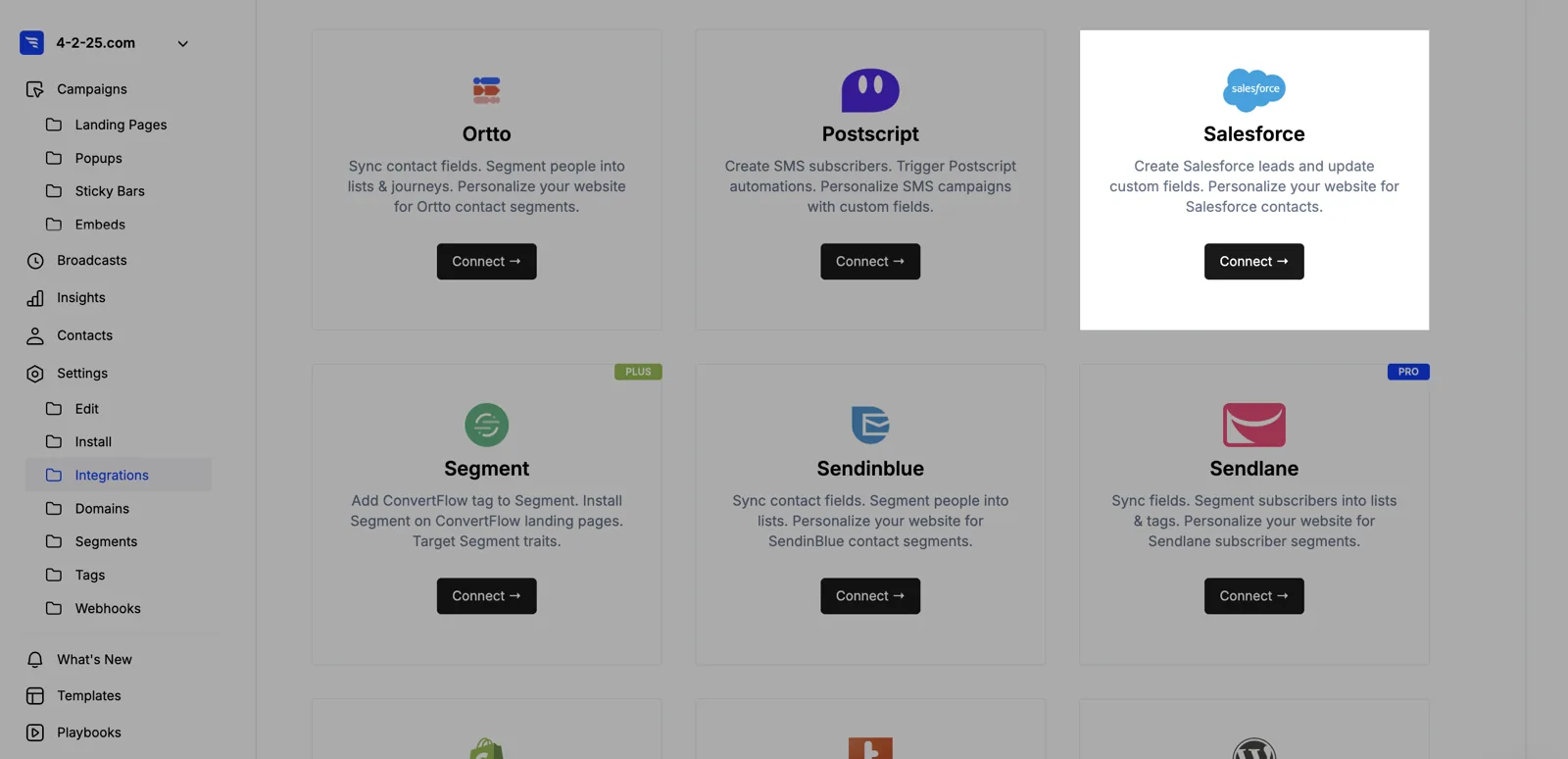
There's no API key or consumer secret to generate. Once approved, ConvertFlow pulls in your Salesforce fields.
Do this before building, because it determines where every lead goes.
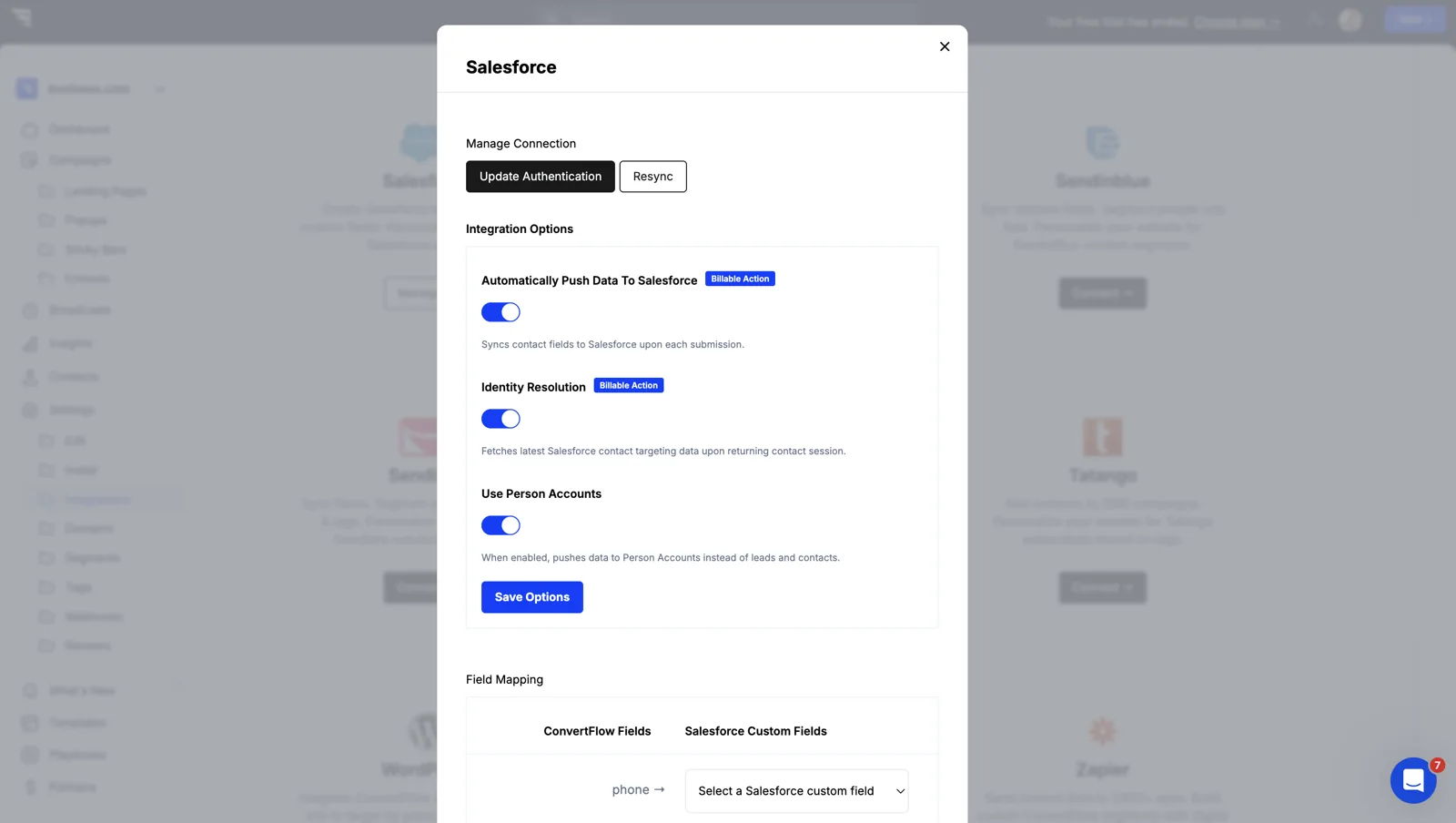
Most orgs write inbound web submissions to the Lead object. If yours runs on Person Accounts — common in healthcare, education, financial services and B2C — switch on the Person Accounts toggle, then resync so ConvertFlow fetches the right fields.
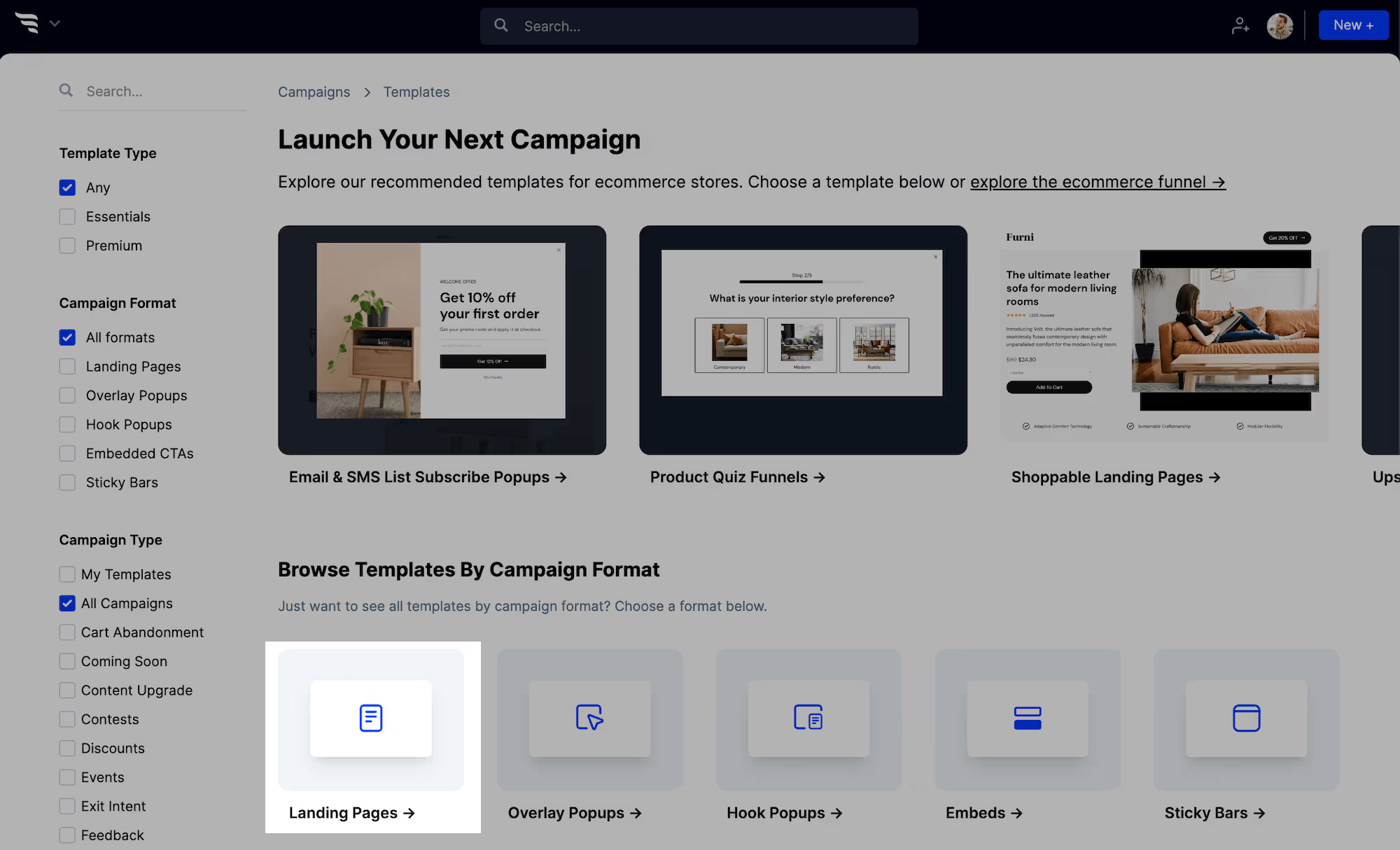
Create a new campaign and choose the "landing pages" format.
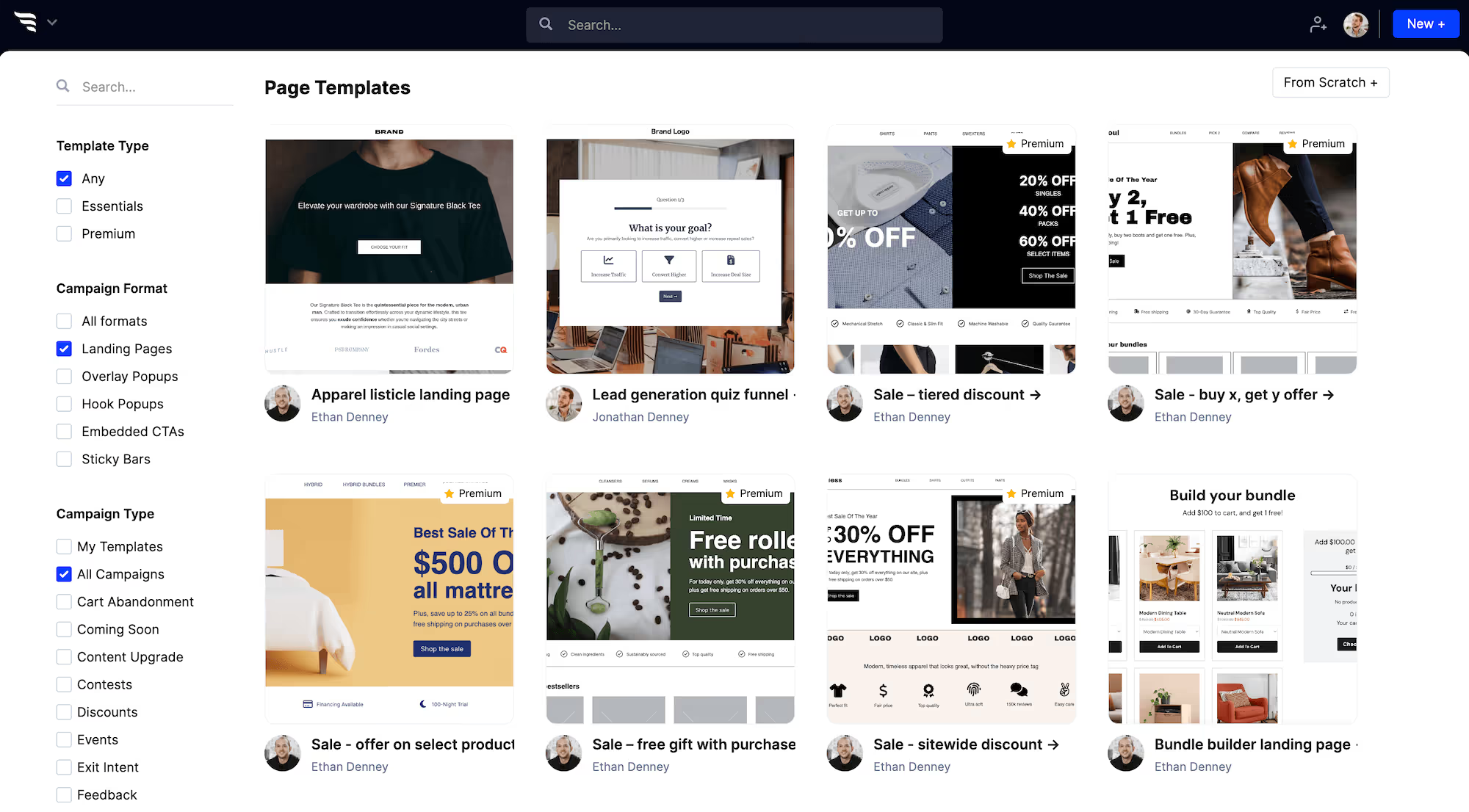
Then pick the template closest to your campaign, or build from scratch.
Set the theme first — headline, button and container styles — so every element inherits it.

Then edit content by clicking any element, or using the layer manager.
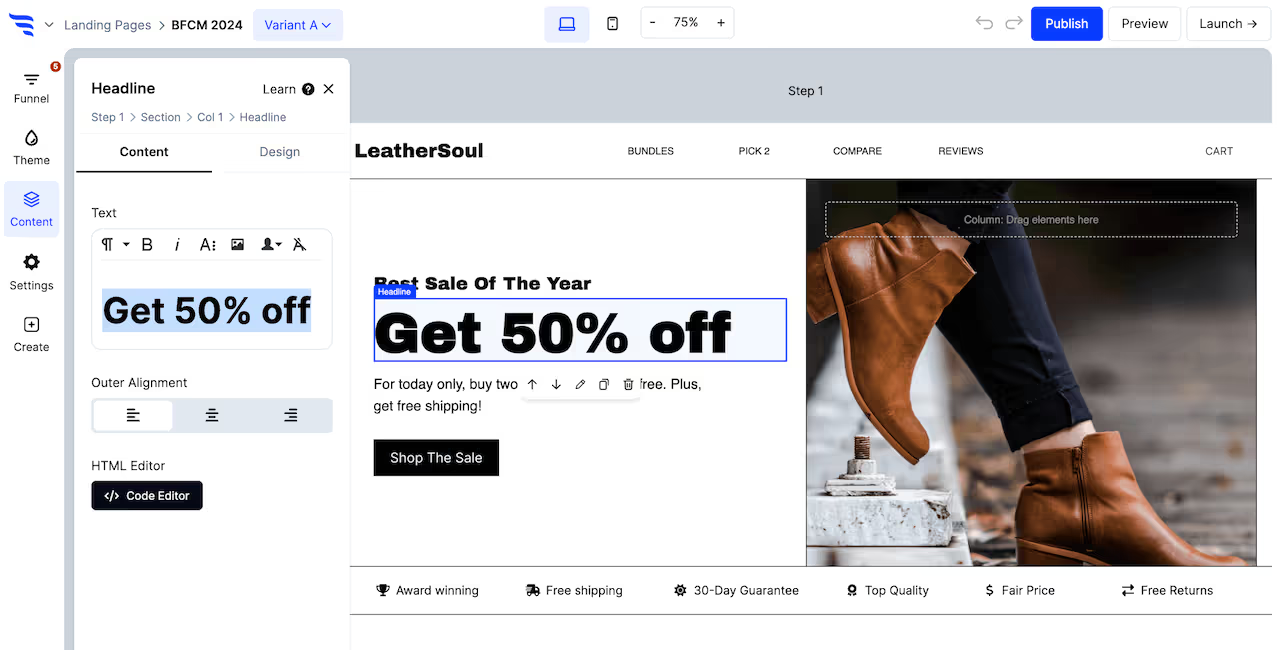
This is the practical difference. Marketing can change a headline the morning a campaign launches without a deploy or a request to ops.
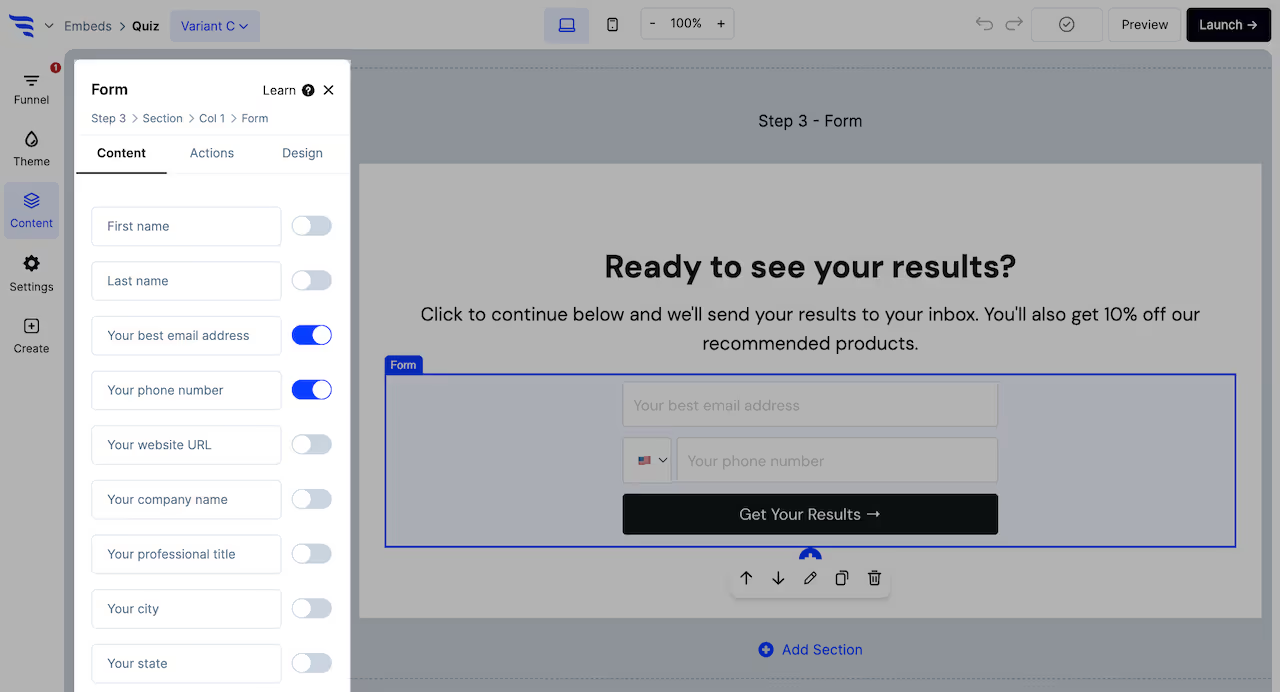
Add a form or quiz element and toggle on the fields you want.
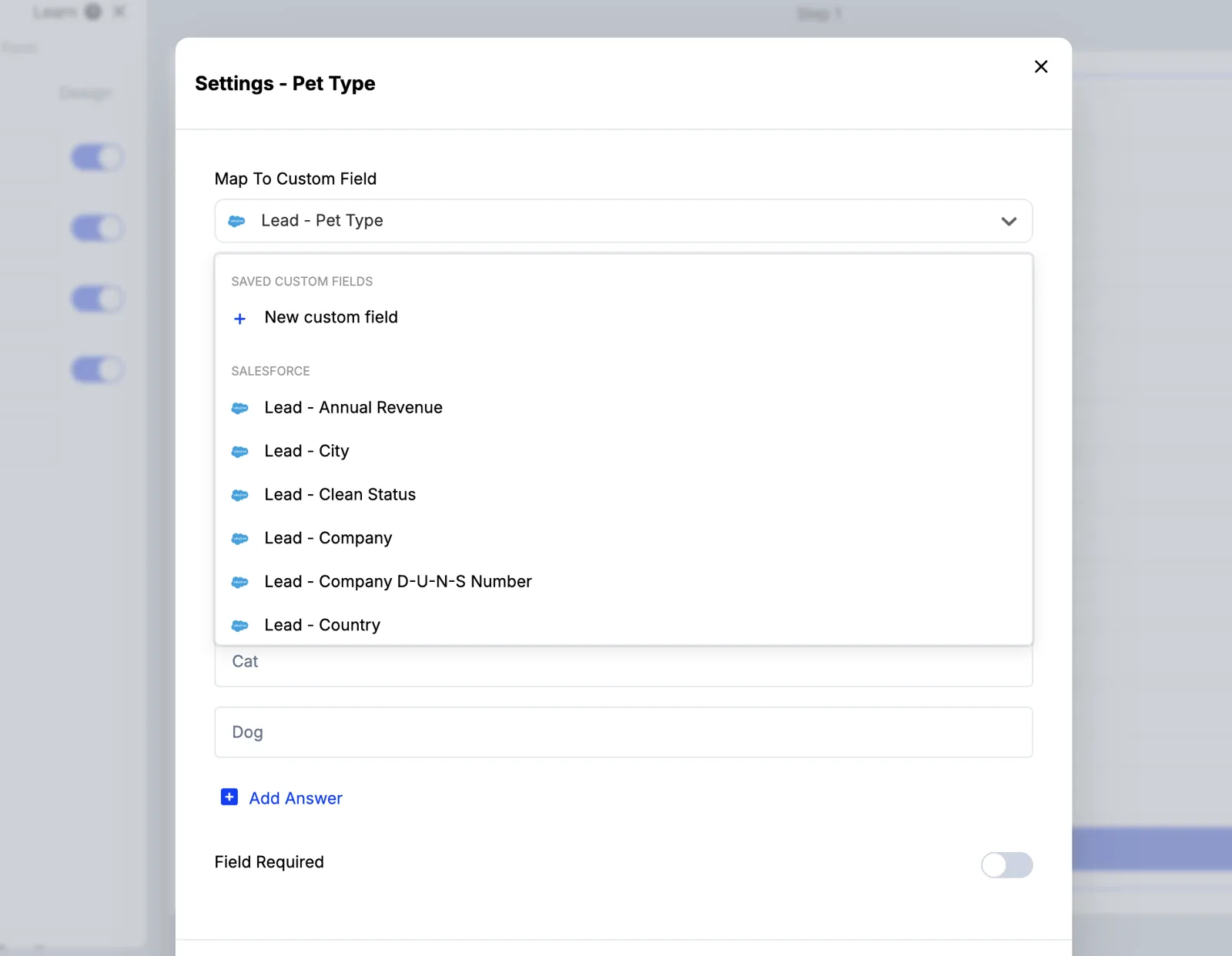
Custom fields map by selecting the Salesforce field from a dropdown — you're choosing from fields that already exist, so you can't create an orphan.
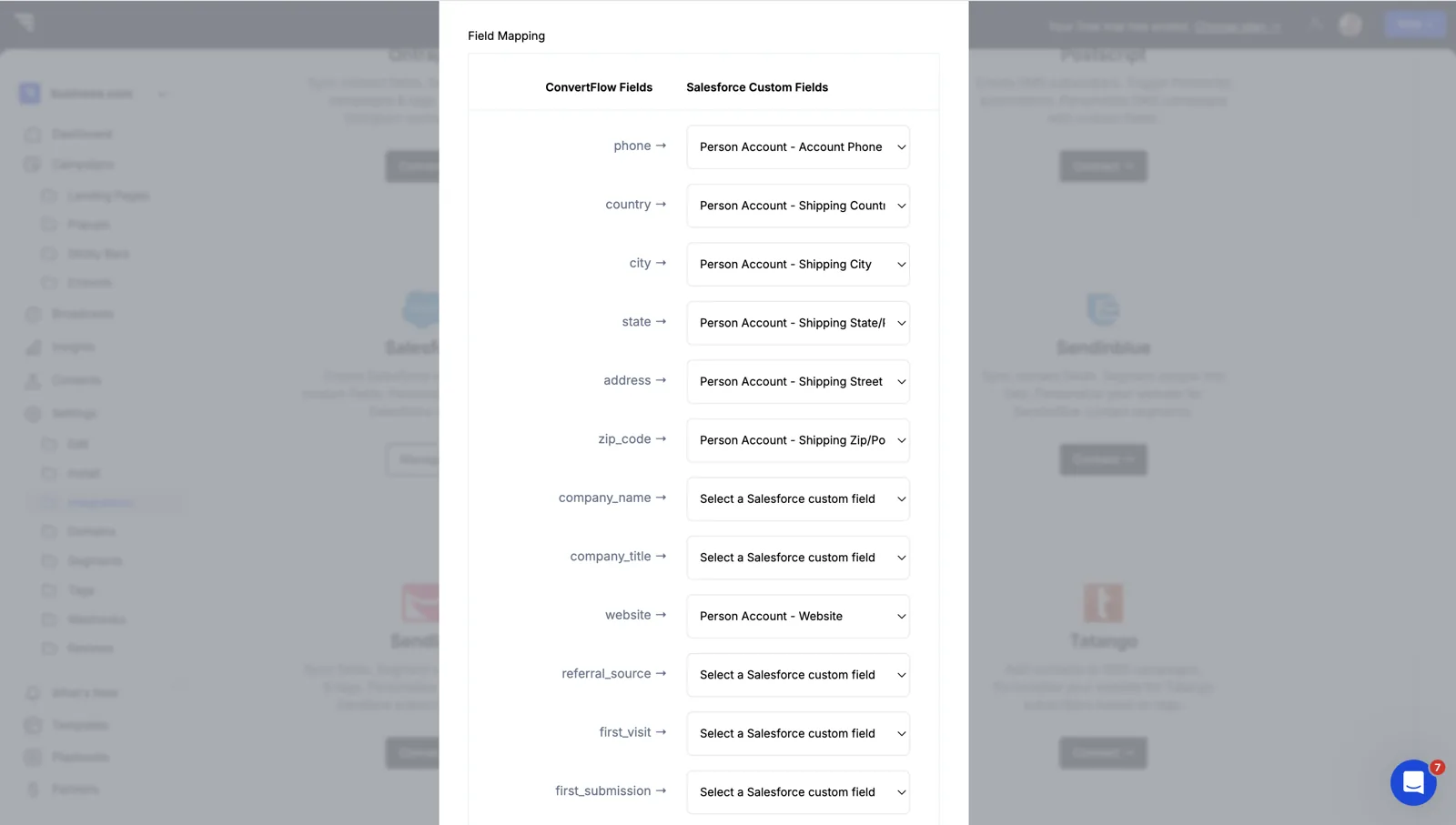
Preset contact fields are mapped from the Fields button on the Integrations page.
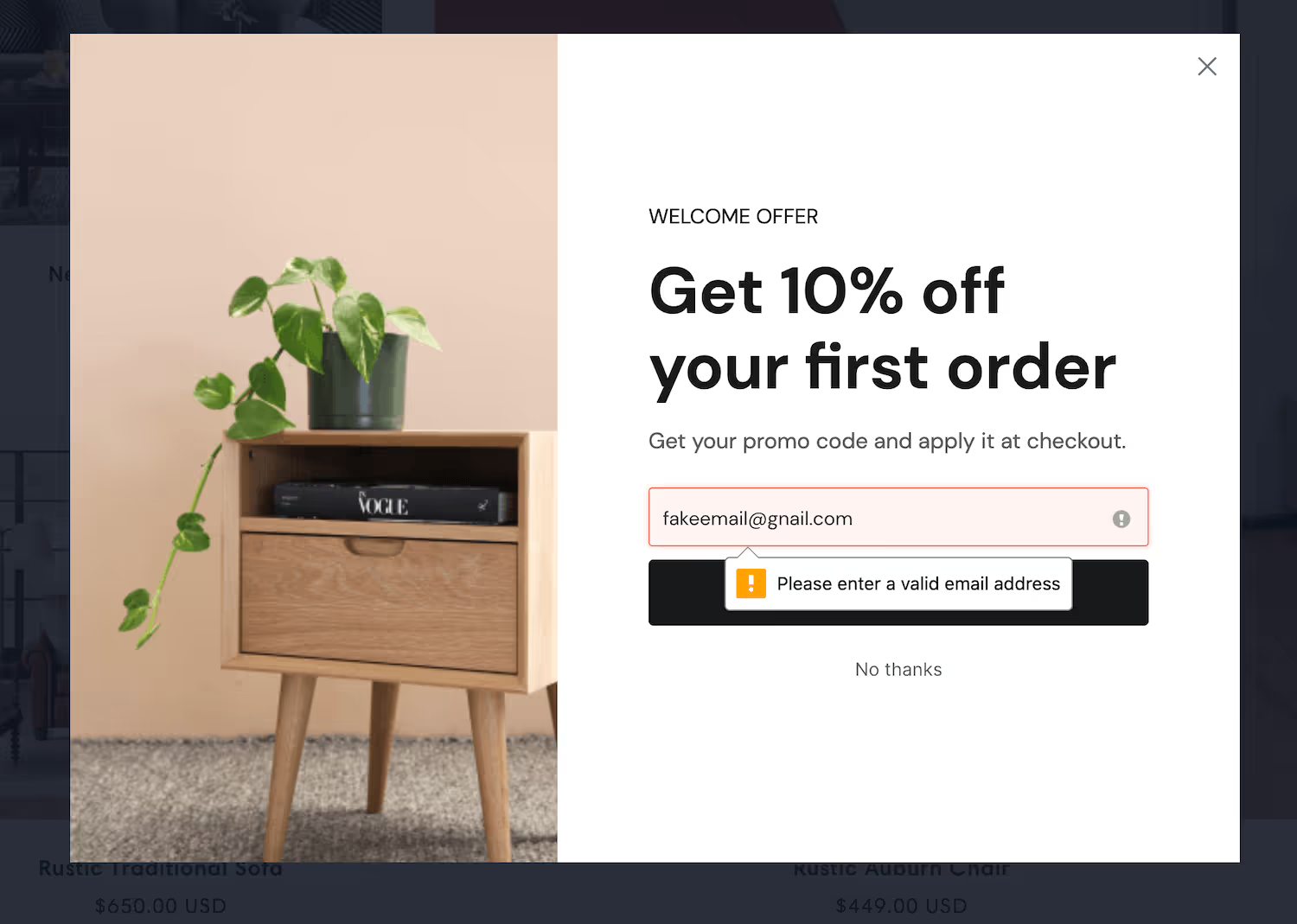
Turn on email verification. A junk Lead doesn't just sit there — it gets assigned, worked and counted in pipeline reporting until someone gives up on it.
Capture UTM parameters into hidden fields so the campaign source arrives on the record. For pipeline reporting this is usually the difference between attributing revenue and guessing at it.
A landing page has room to ask more than a contact form does. Ask what a rep would ask — company size, use case, timeline — across steps rather than in one block, and score the answers.
Then route on the score: above your threshold, redirect to a booking page; below it, a thank-you and nurture. The rep opens a record that's already qualified.
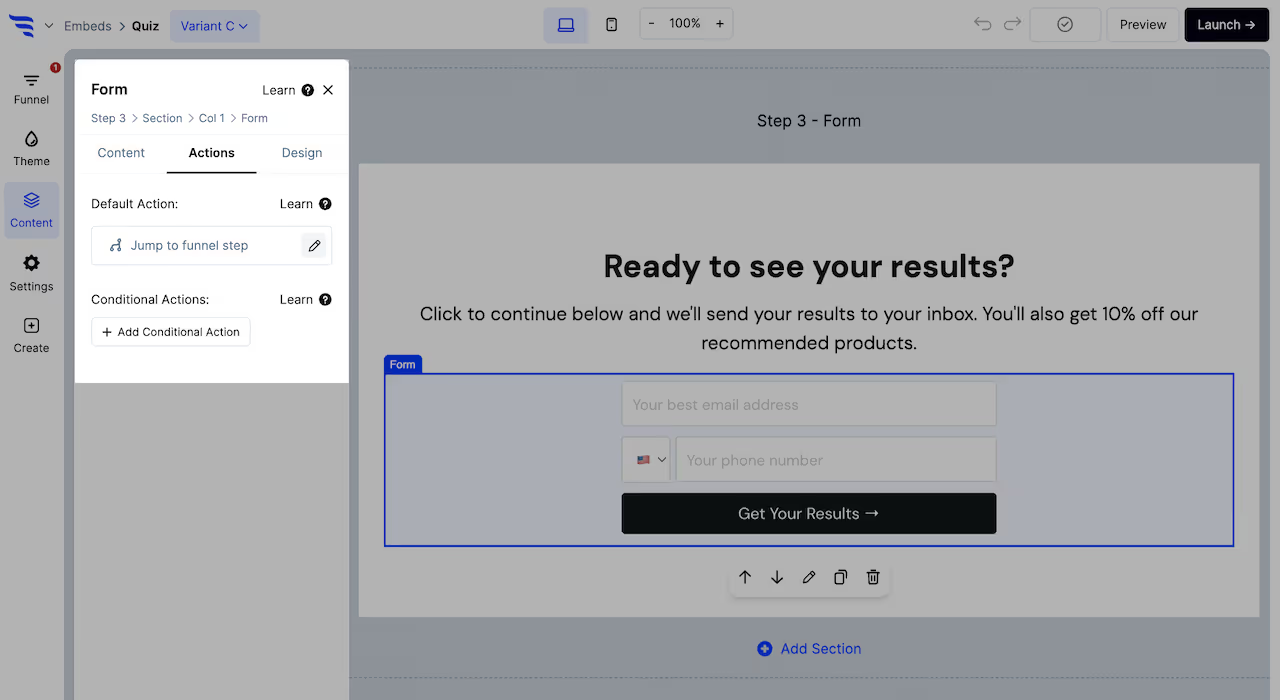
Preview and test first — test submissions don't create Salesforce records.
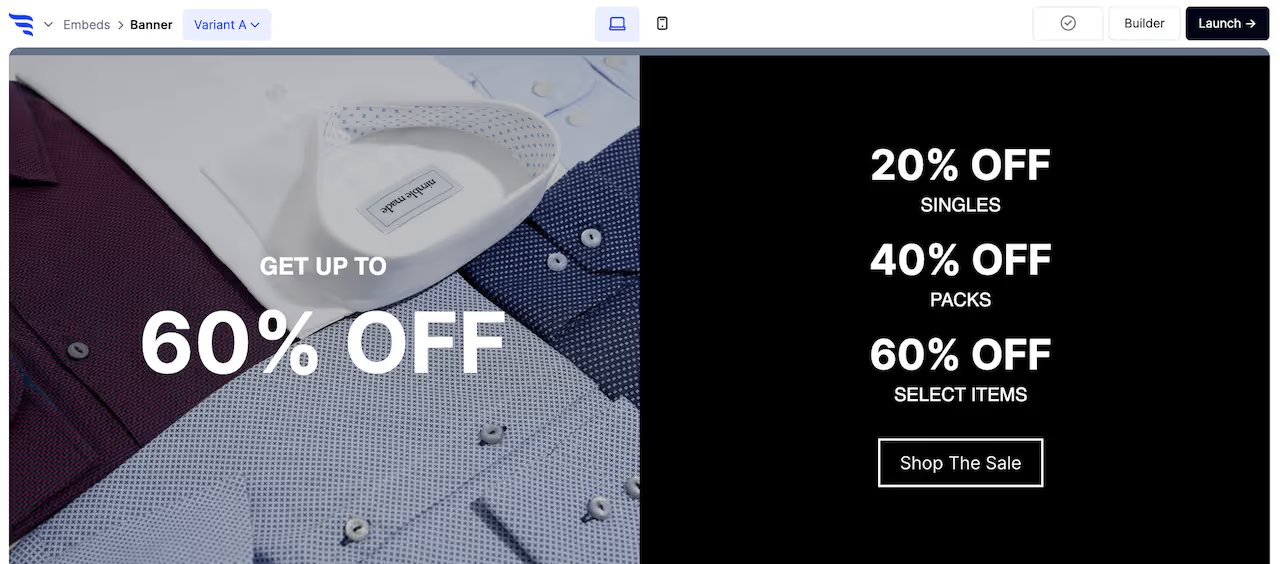
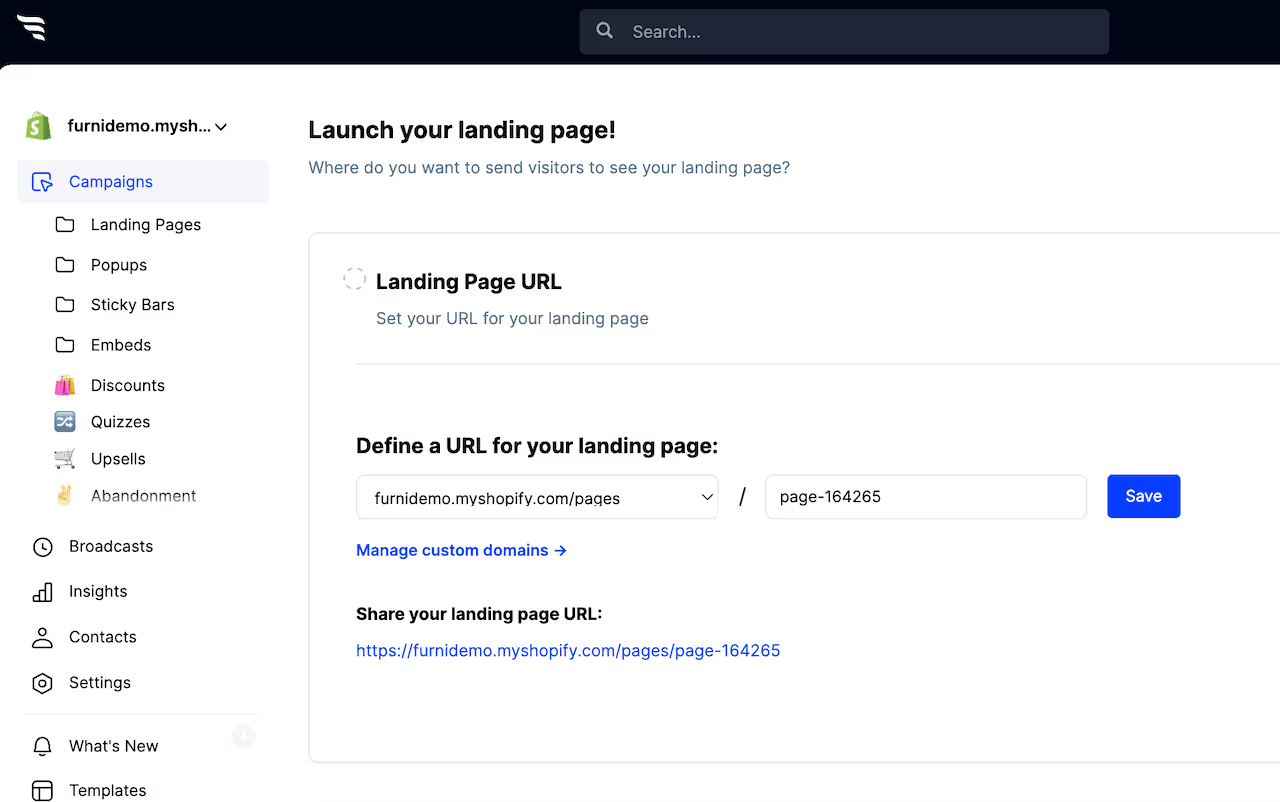
Then launch on your reserved subdomain or a custom domain you've added.
Run variants and read views, submissions and where visitors dropped off.
.avif)
In B2B, submission count is the wrong number to optimise alone. A variant producing fewer but better-qualified records usually wins — and because the qualifying answers are on each Salesforce record, you can tell the difference.
To see templates and the full feature set, visit the Salesforce landing page builder.
Create a free ConvertFlow account and integrate
Salesforce
in minutes.
Build & A/B test lead capture funnels for Salesforce.
Connect For Free









.svg)