Sync contact fields. Segment people using attributes & events. Personalize your website for Intercom segments.
Connect For FreeIntercom's own surveys run inside the Messenger. They're well-built for what they do — asking an existing user a question in-app, triggered by behaviour, with the answer landing on their Intercom profile.
The limit is the Messenger itself. If someone hasn't opened it, they haven't seen the survey — and anonymous visitors on your marketing site mostly never do.
This guide covers running surveys on your website that write answers into Intercom, alongside the in-app ones.
Best for logged-in users you already know. Behavioural triggers, answers on the profile, and no extra tool.
Constrained by Messenger visibility, and by the fact that respondents are almost always existing contacts.
Run anywhere on your site — a landing page, a popup, embedded in a pricing page — and visible whether or not someone opens the Messenger.
The practical difference is who answers. On-site surveys reach anonymous visitors and prospects, which is the group most product teams have least data on.
They're not really competing. In-app for product feedback from users; on-site for pre-signup research, qualification and objection-hunting on your marketing pages.
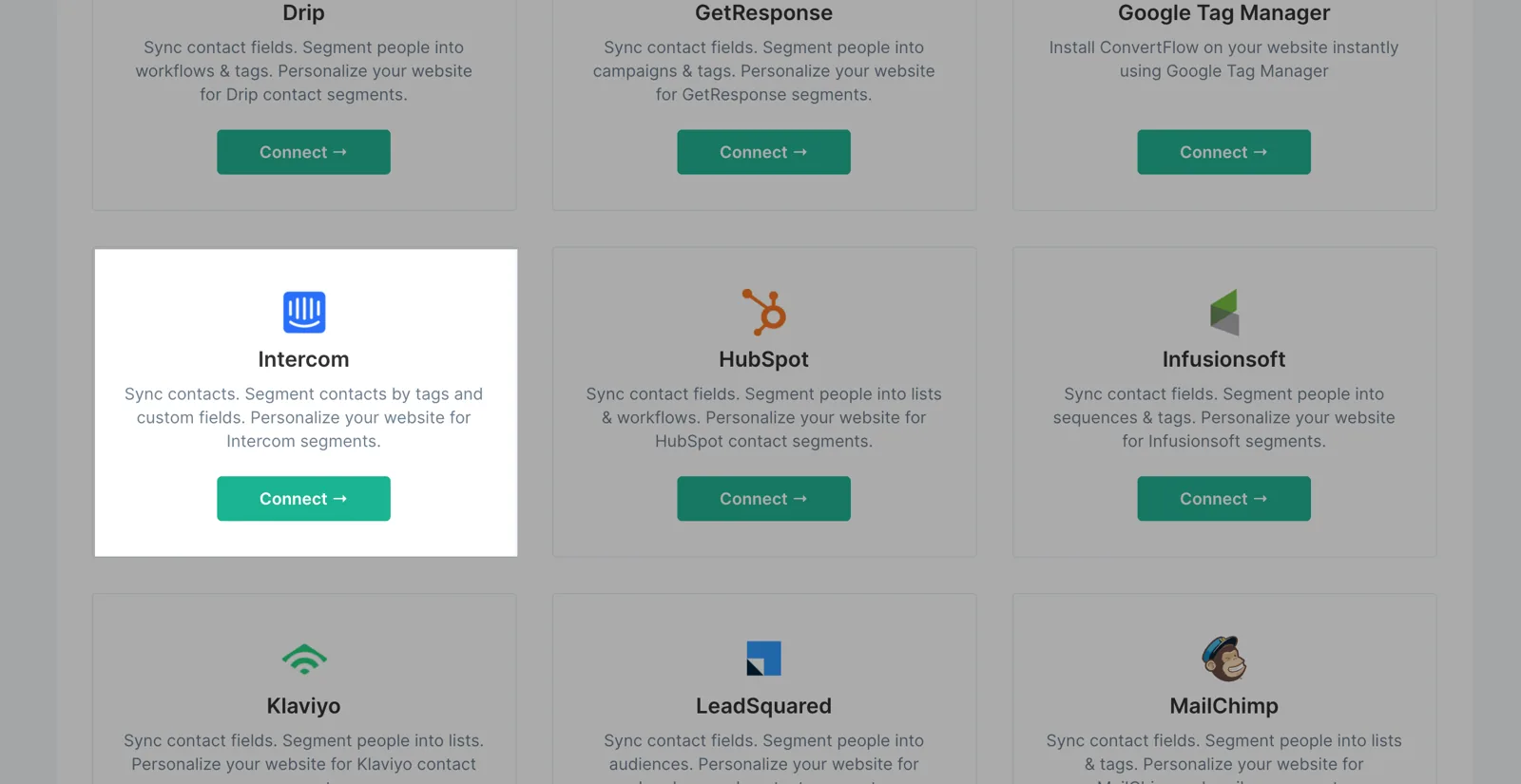
From ConvertFlow's Integrations area, click to connect with Intercom.
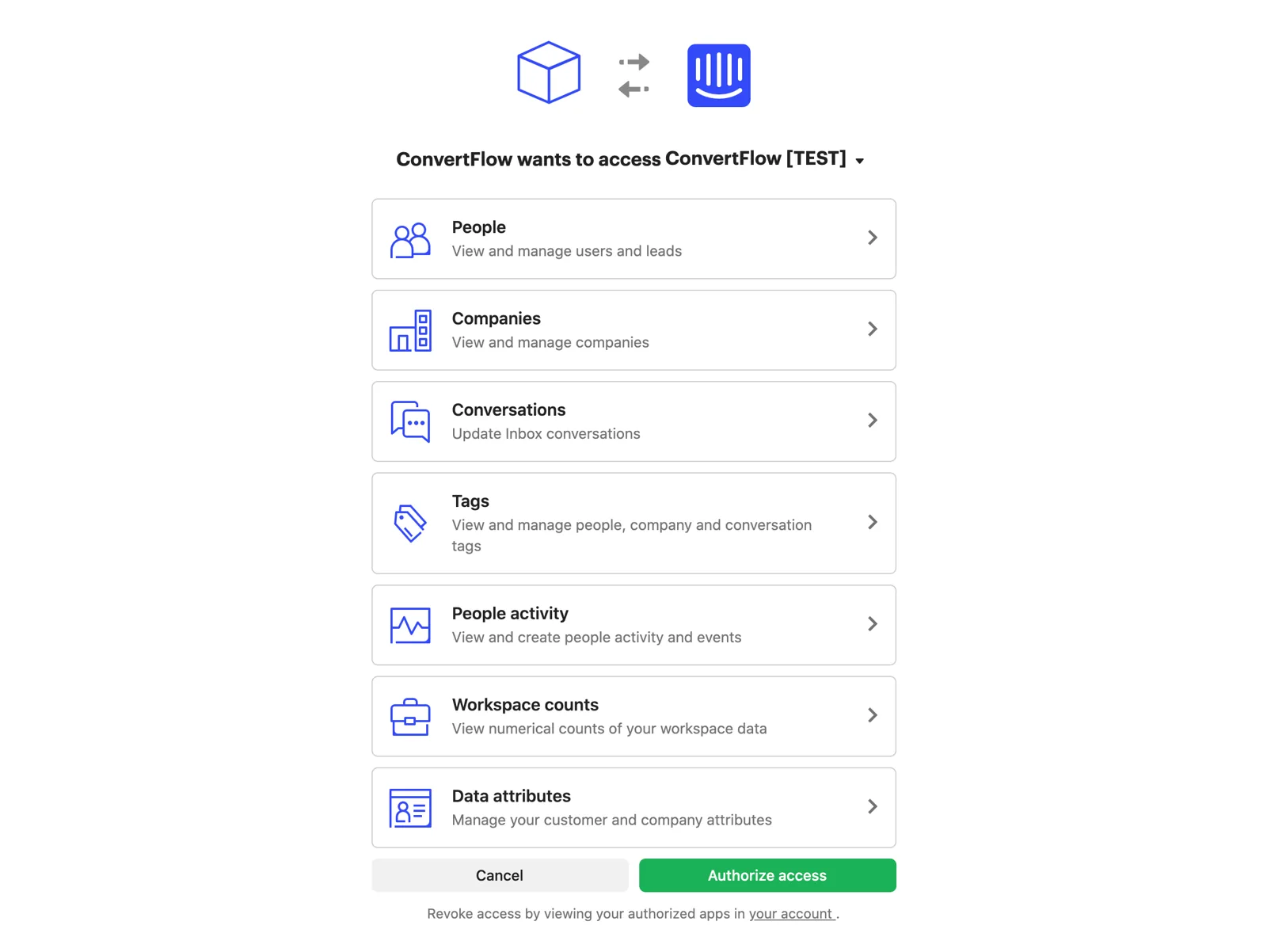
Authorize the ConvertFlow app to access your workspace.
ConvertFlow then pulls in your Intercom segments, tags and attributes.
Add the survey to a ConvertFlow landing page, popup or embed. Click to add an element and choose the survey type.
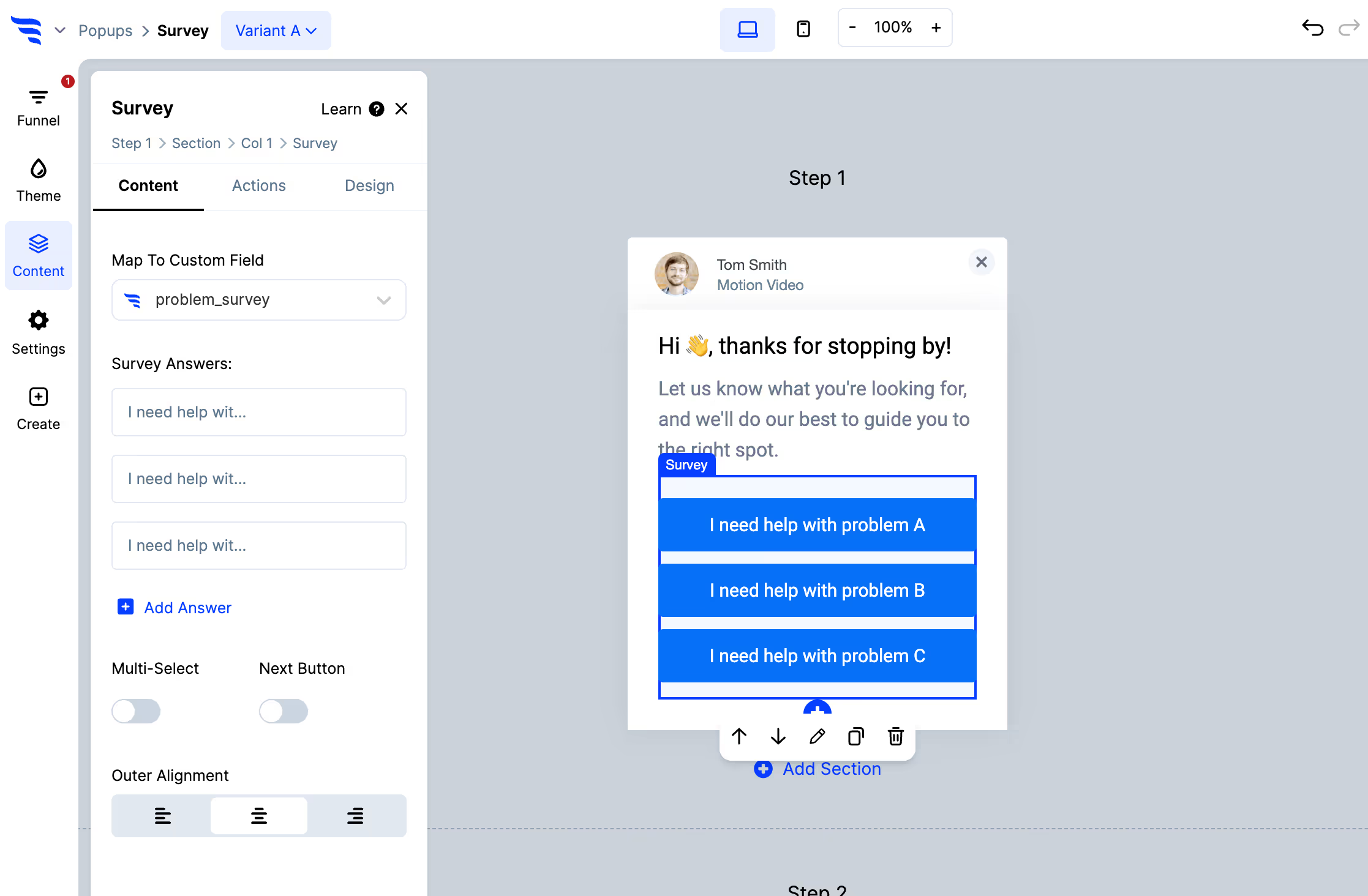
Add your options, arrange them, and toggle multi-select if visitors should be able to pick more than one.
Click an individual option to control its data value separately from its label, or set a score.
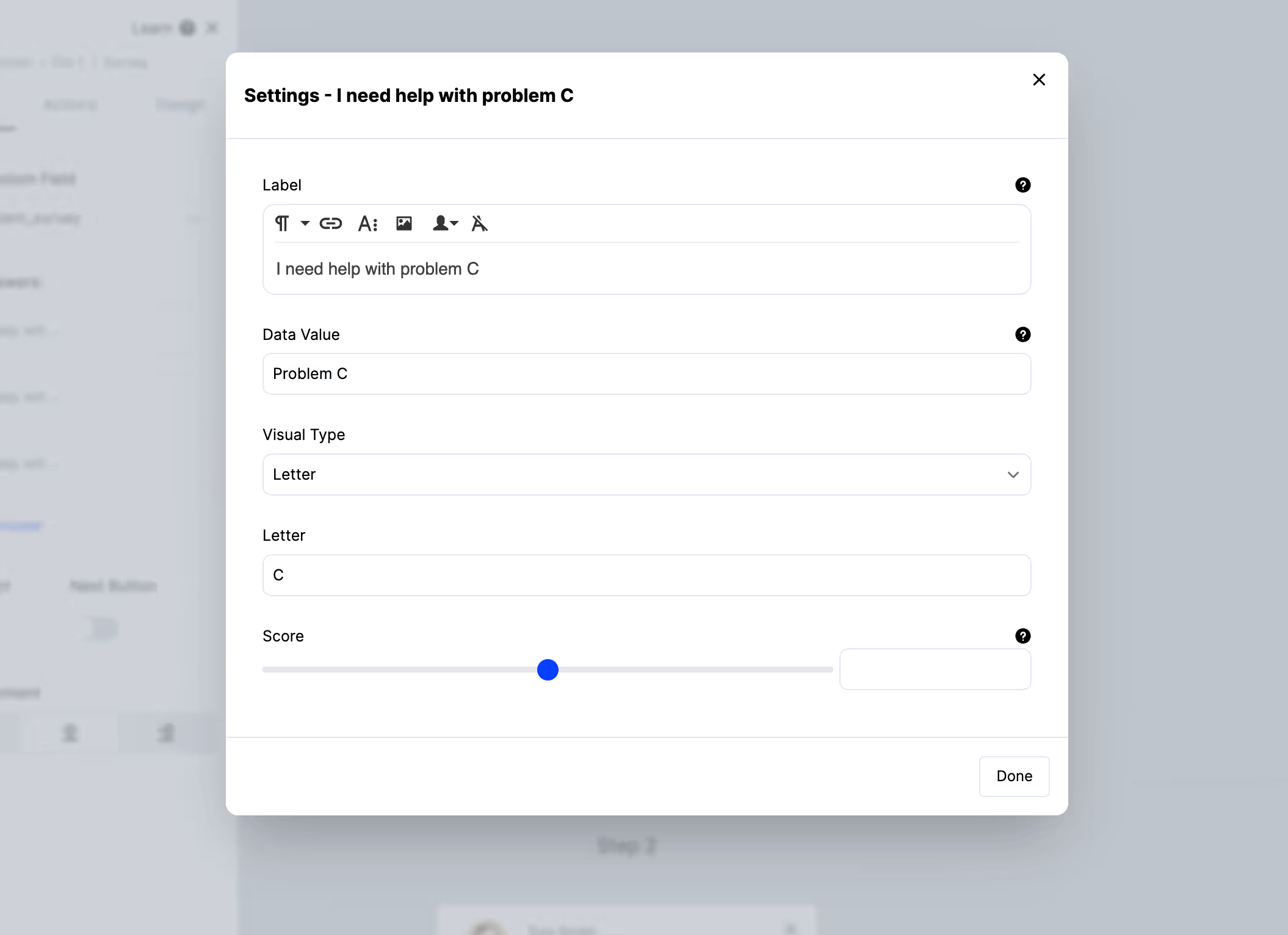
Use the Map to custom field setting to choose the Intercom attribute the answer writes to.
Keep values short and consistent — too-expensive rather than a sentence. These become segment conditions in Intercom, and a sentence-length value is far harder to build an audience from.
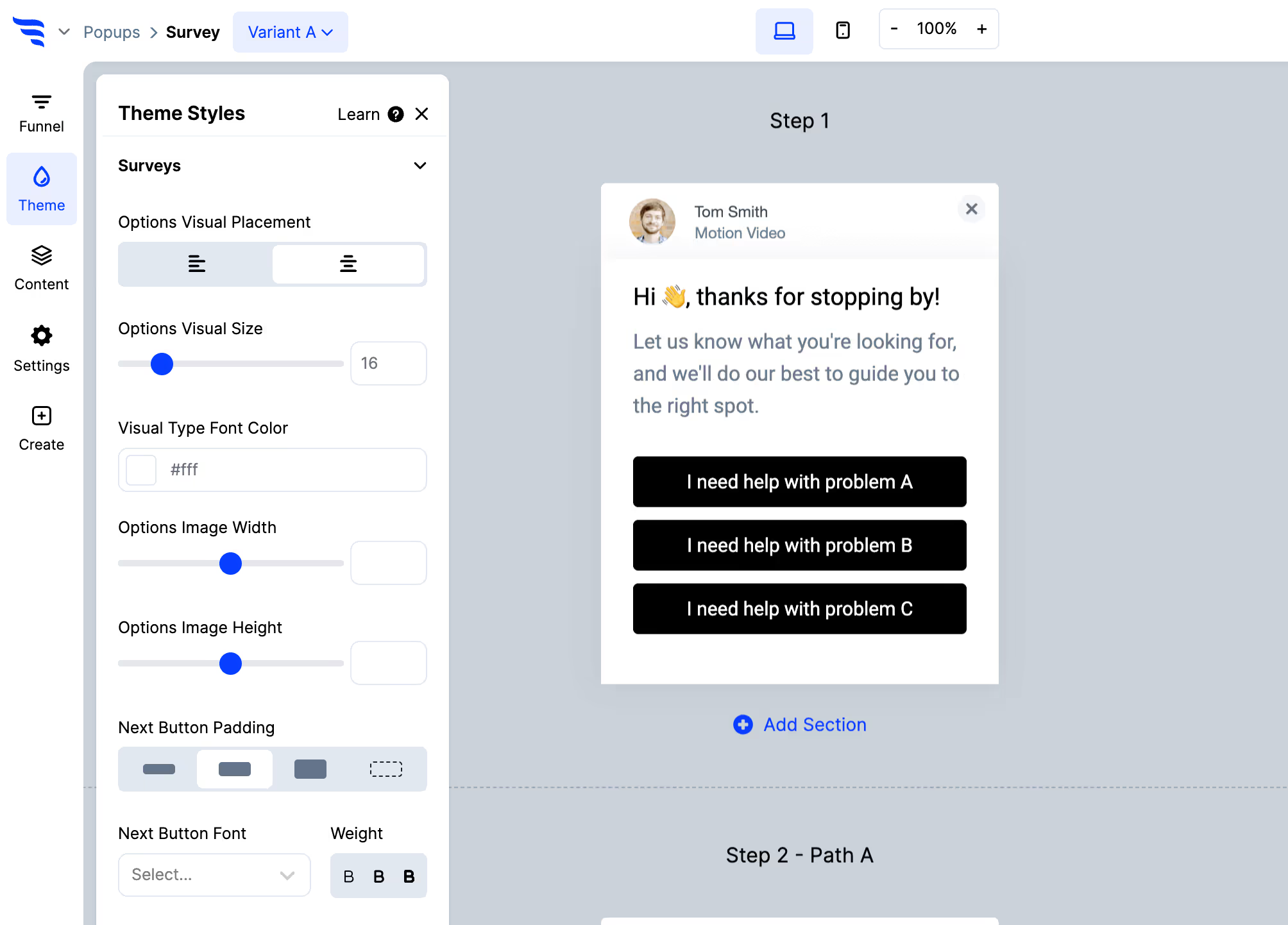
The Themes tab covers width, alignment, fonts, colours, sizing and layout.
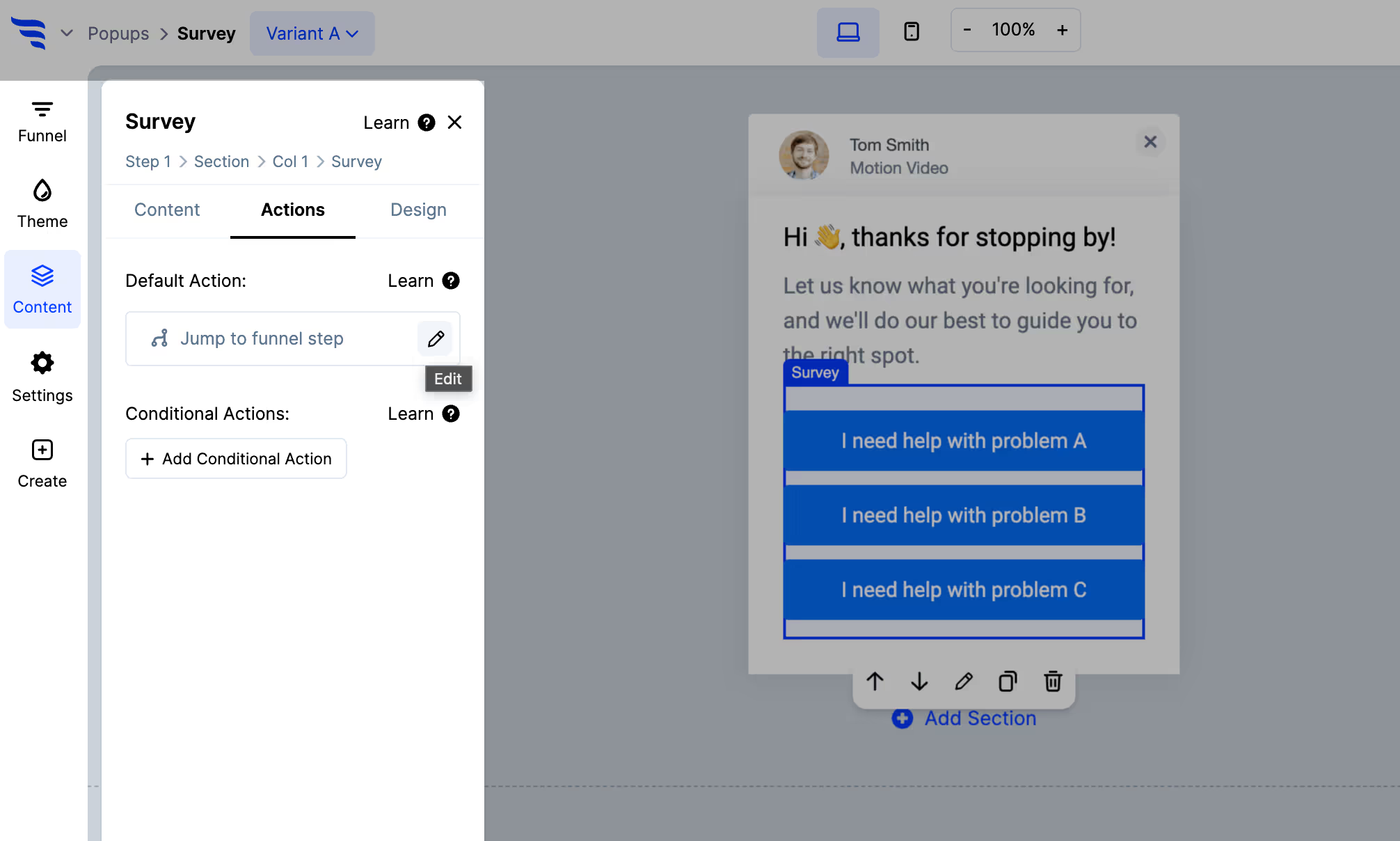
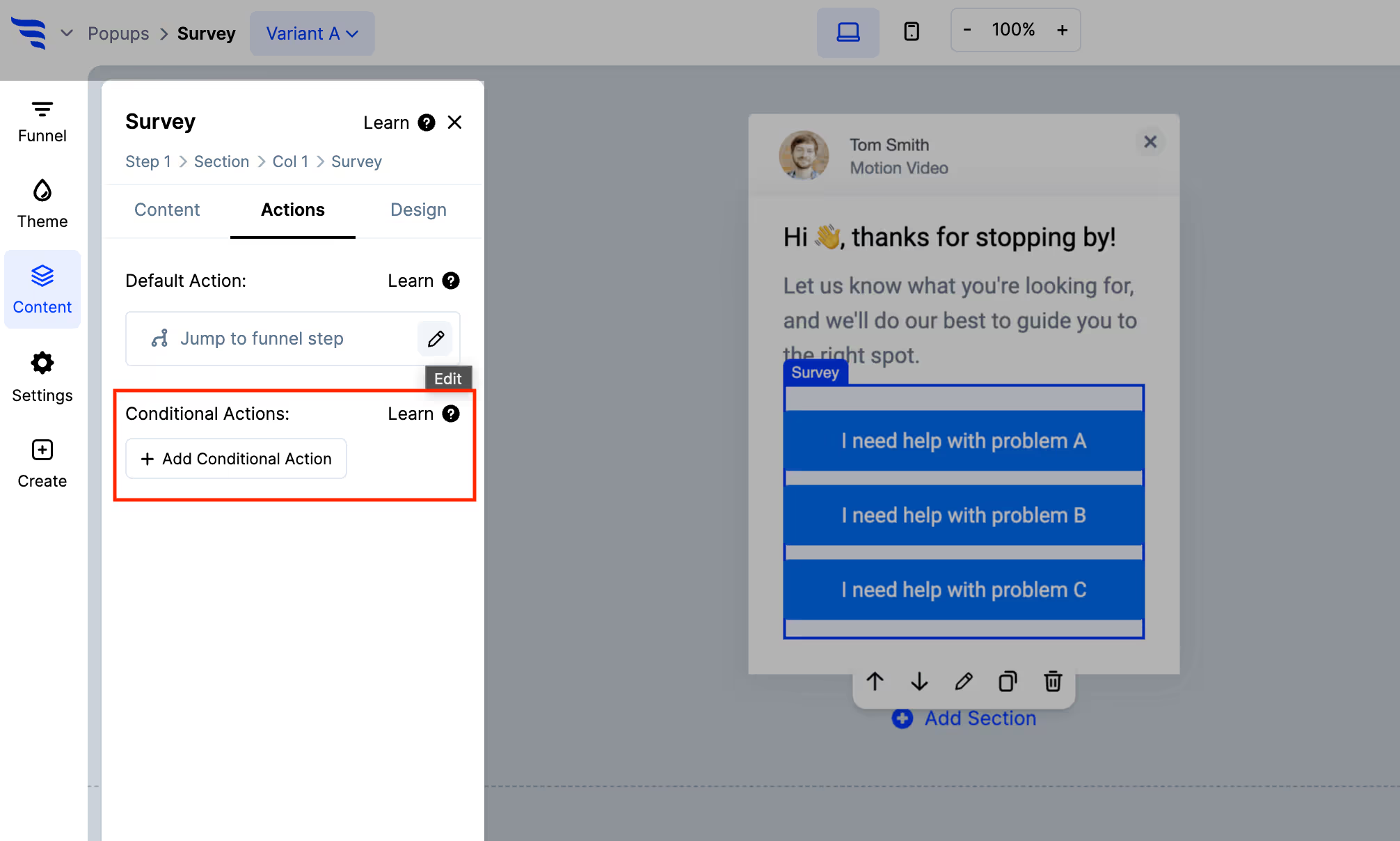
With the survey selected, open the Actions tab.
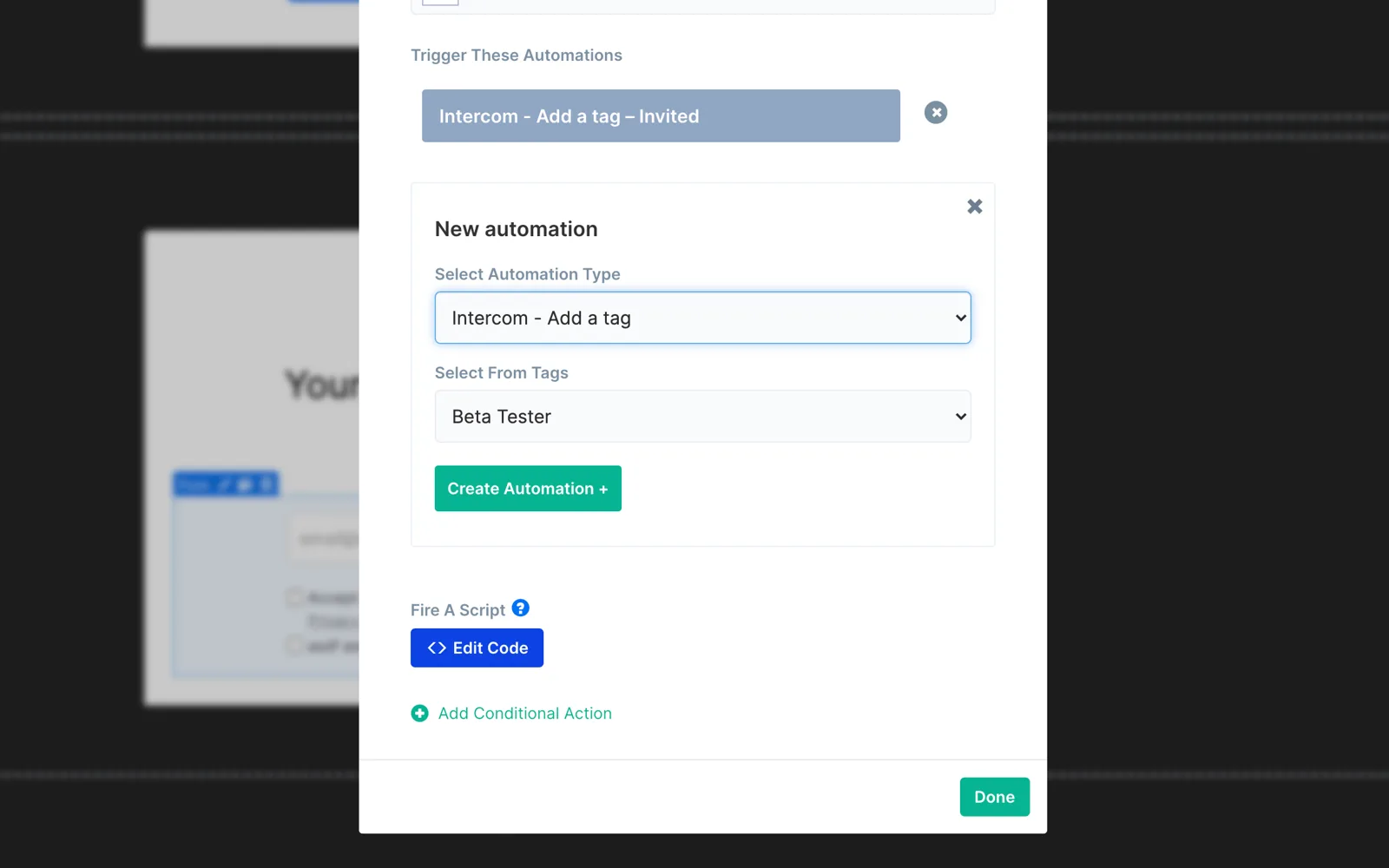
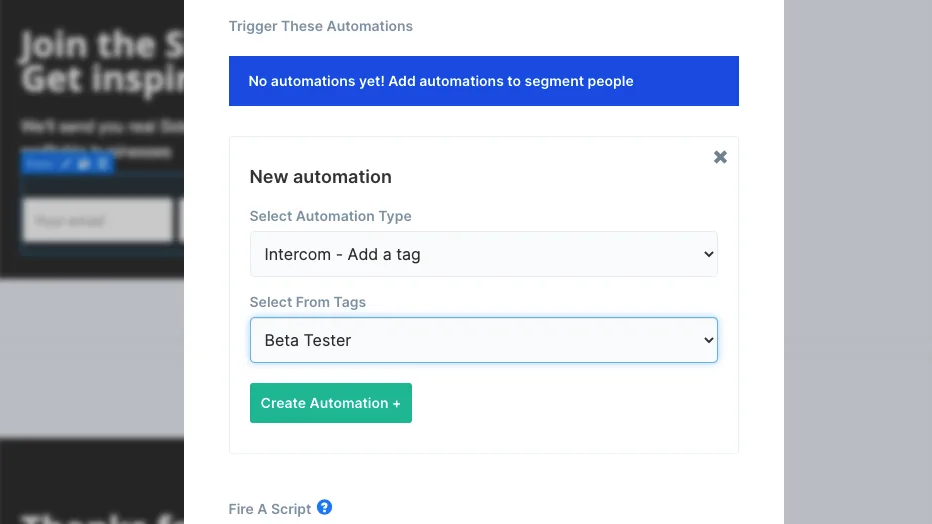
Then add Intercom automations.
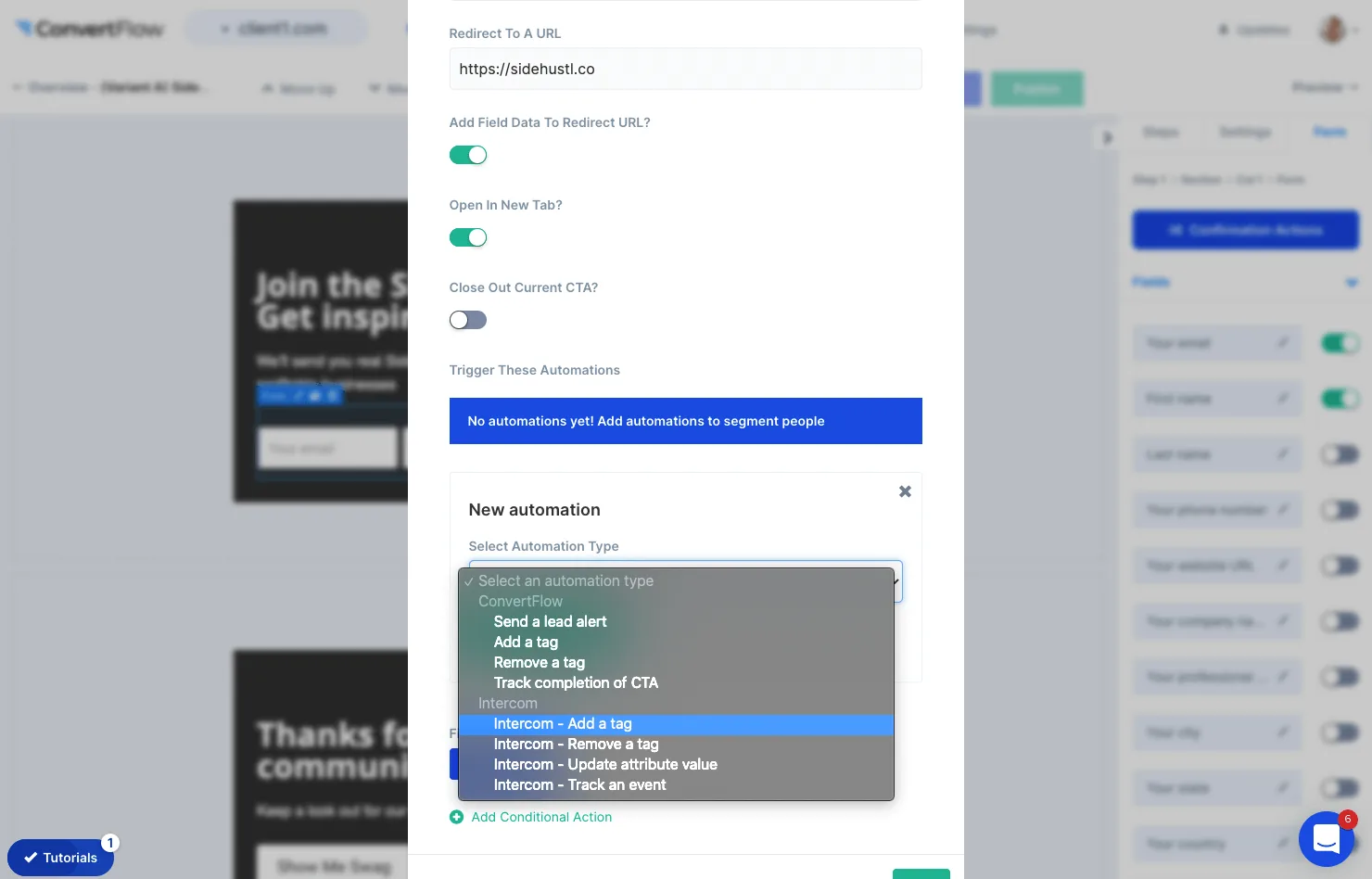
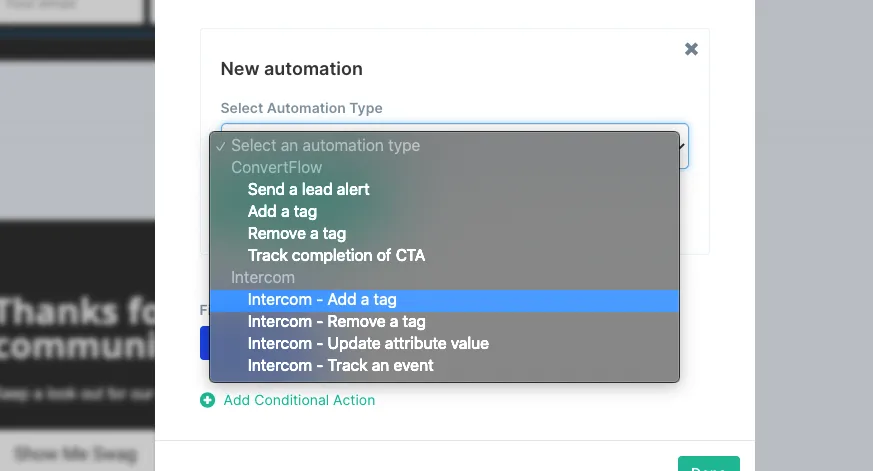
Applying a tag is the most useful for a survey — it records the answer without changing anything else about the contact.
Click + Add Conditional Action to act only on visitors meeting your conditions — a different tag per answer, or a different next step.
On the pricing page. Ask what's stopping them. The answers are the objections your sales team is already hearing, collected from people who never got as far as talking to sales.
On the signup confirmation. One question while they're most engaged, tagged onto the contact before they've even used the product.
On the churn or downgrade path. Ask why. Over time this separates price, missing features, and having got what they came for — three different problems.
With Intercom connected, target the survey at specific segments rather than all traffic — so the question reaches the cohort it's about, and lands on records you already have context for.
To see templates and the full feature set, visit the Intercom survey tool.
Create a free ConvertFlow account and integrate
Intercom
in minutes.
Sync contact fields. Segment people using attributes & events. Personalize your website for Intercom segments.
Connect For Free









.svg)